
This page finds a traffic or event plan that seems to have vanished.
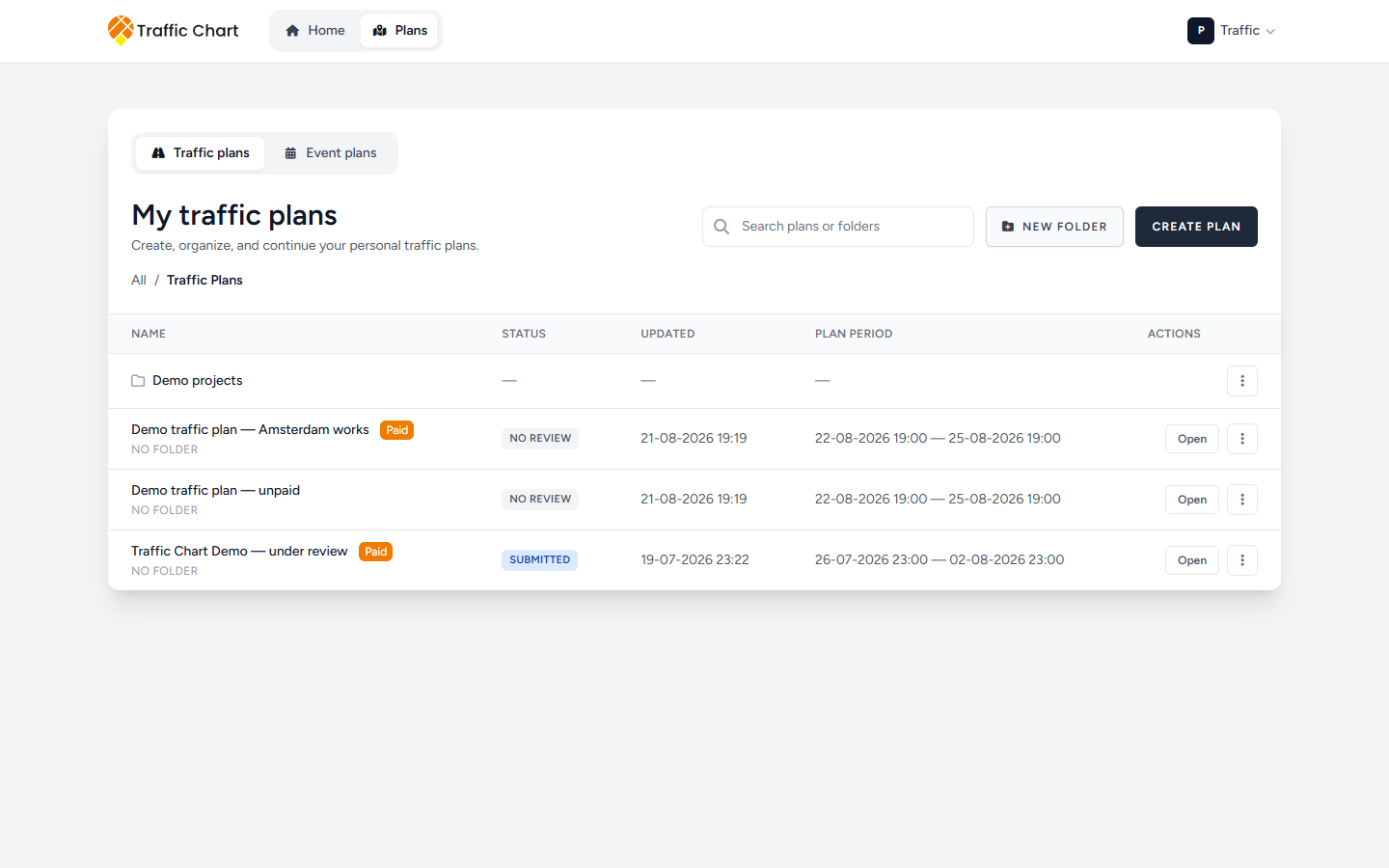
The usual cause is the wrong workspace. Home only shows recent items for the current workspace. A plan on Acme Events does not appear while you are on Personal, and the other way around.
Switch workspace first
- Click your initials and first name.
- Under Switch workspace, open Personal (badge P) and each organization.
- Then open Plans — not only Home. See all plans on Home also opens the library for the workspace you are in now.
The last workspace you opened is remembered. New plans from Home go there.
If a row is greyed out, read the reason: Your membership is suspended, Organization suspended, Workspace not enabled yet, Organization unavailable, This workspace is not currently available., or Suspended. You cannot list private plans in a workspace you cannot open. Workspace unavailable or not enabled.
Accept invitation does not switch workspace. After you join Acme Events, still open Switch workspace and pick it.
Traffic vs event
On Plans, tabs switch between Traffic plans and Event plans when Event plans are on for that workspace.
The title tells you the workspace: My traffic plans / My event plans (Personal) or Acme Events traffic plans / Acme Events event plans (organization name plus the plan type).
If the Event plans tab says Not enabled for Personal. (or Not enabled for Acme Events.), you cannot create or list event plans there. A traffic plan will never appear on the event tab.
Empty traffic library: No items found. Empty event folder: No event plans or folders here yet. First-time empty event copy can read No event plans yet. Create your first one! Event search with no hits: No event plans or folders match your search.
Home recents are not the library
Continue with a previous plan only shows recent rows for this workspace. Empty: No recent plans found. Filter chips include All. Badges: Traffic plan, Event, Paid, Free. If Demo traffic plan is older than the recents list, it still lives under Plans.
Also check
- Correct account? Log in with the email that created the plan. These credentials do not match our records. means you are on a different login.
- Folder? Open the parent folder, or search. Traffic search placeholder: Search plans or folders. Event search placeholder: Search event plans or folders. Search still finds plans across folders. Breadcrumb Go up one level if you are inside a folder.
- Deleted? Are you sure you want to delete this plan? (or Are you sure you want to delete this event plan?) is permanent after you confirm. Restore is not self-service.
- Different site? Production and test environments do not share data.
- Library failed to load? Traffic: Could not load traffic plans. Event: Loading event plans… then The event plan library could not be loaded. Refresh. If it still fails, write support with the workspace name.
You can see an organization plan and still be unable to edit it. The row may read Editor: Sam Rivera. Seeing is not editing. I can’t open or edit a plan. Folders and the ⋮ menu: Folders, search, and the plans library.
What good looks like
After Switch workspace, Plans lists the plan on the Traffic plans or Event plans tab. Home recents for that workspace can show it too.
If it still fails
Email customer@traffic-chart.com with the plan name, dates, account email, and any share link or UUID from the browser address bar. Contact support. Navigation: Find your way around.