
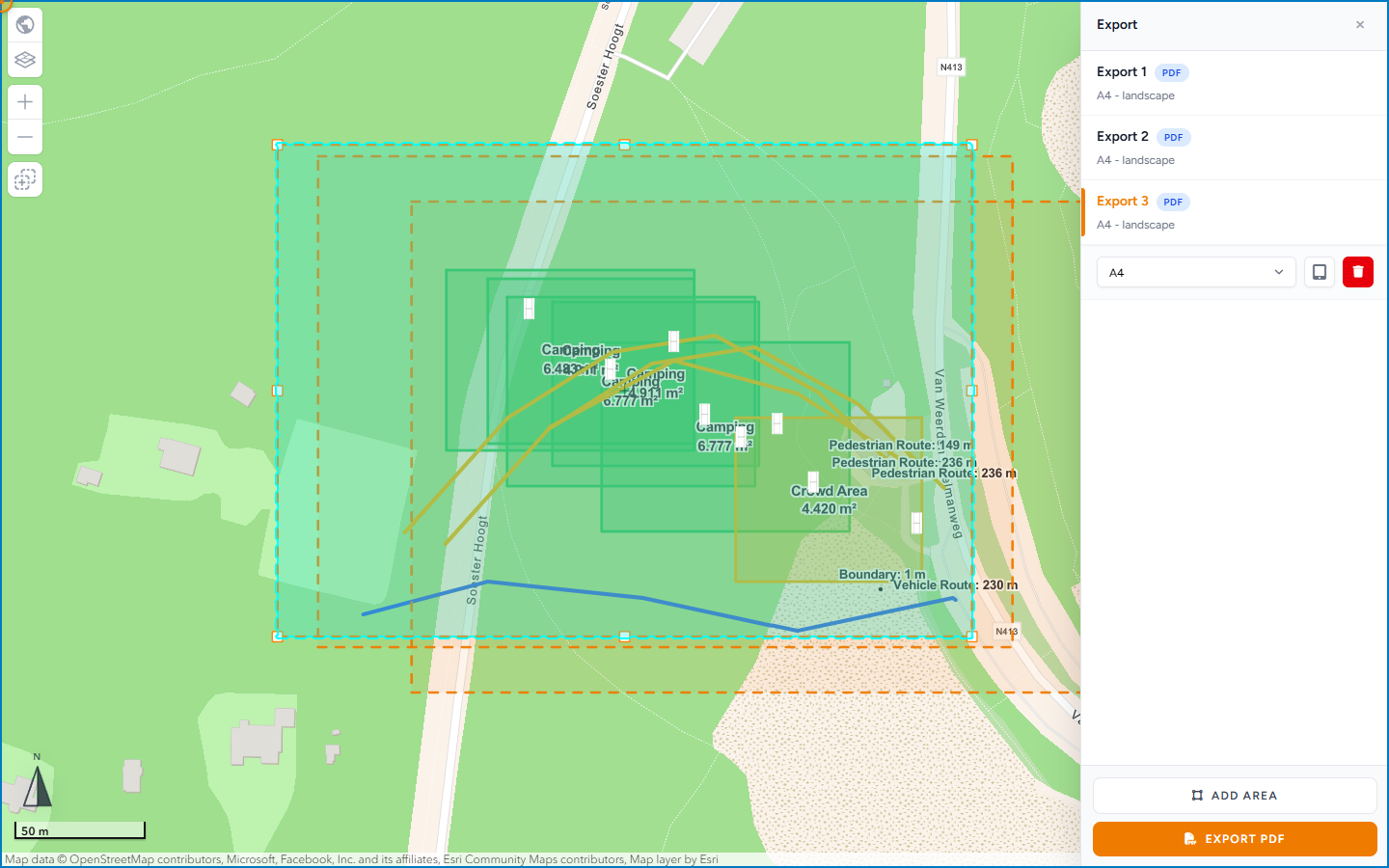
Download an event plan as a PDF. Event export is its own flow. It does not create traffic-plan export maps, materials lists, or post orders.
When you need this
Use Export when someone needs a file: a municipality inbox, a printer, or an attachment.
You do not need a PDF if a browser view is enough. From Plans → Event plans, use Copy link for a read-only URL.
Road-sign PDFs, XL maps, and materials lists come from a Traffic Plan. See Export and print traffic plans.
You must be logged in. Export is a header button. It is not a sidebar tab.
Open Event export sidebar
- Open the event plan.
- Wait until the map is ready.
- Click Export in the header. The panel that opens is Event export sidebar. The heading inside is Export.
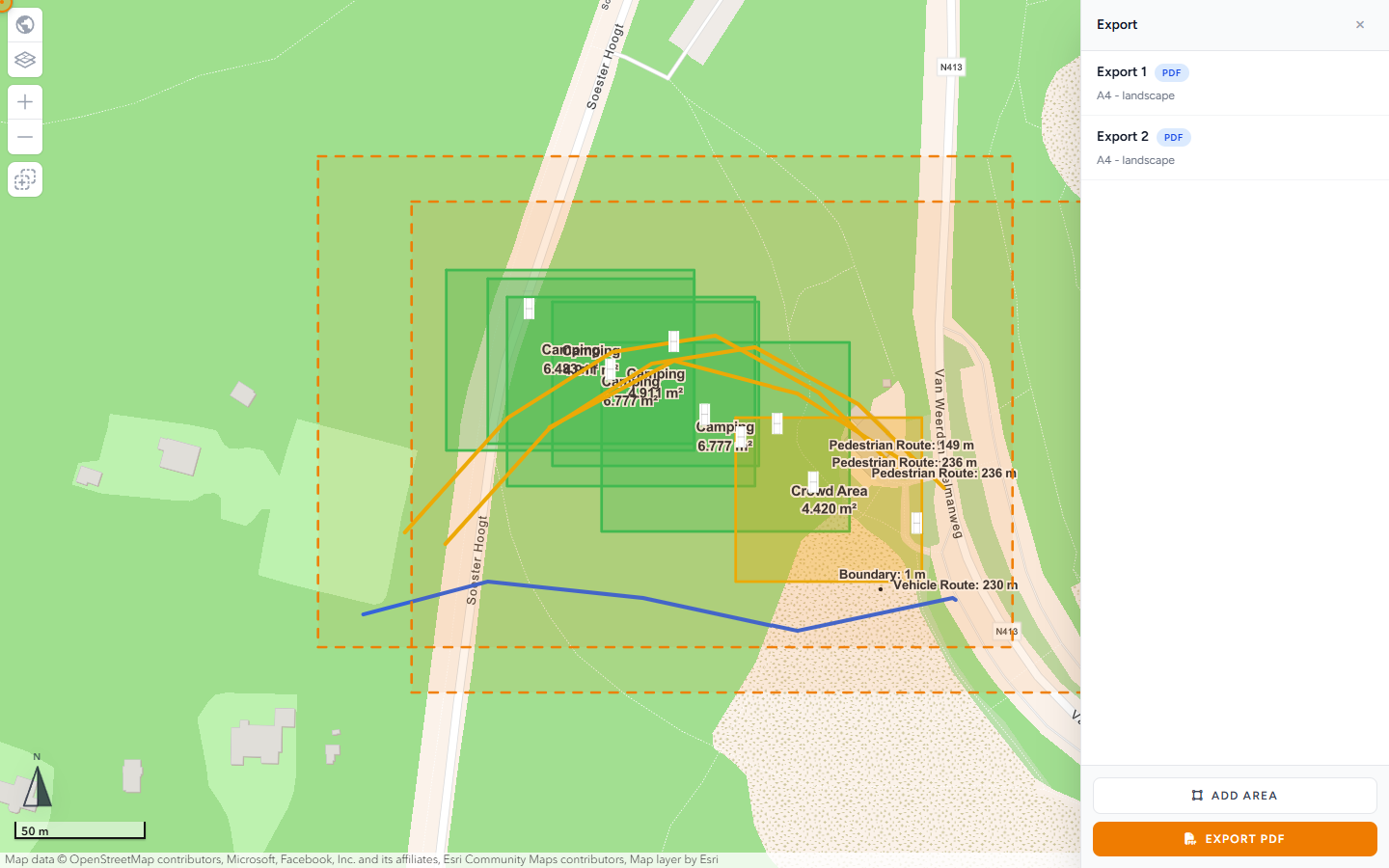
- Close it later with Close export sidebar (the X). That returns you to the editor.
While this sidebar is open, the editor header hides and Export on the header stays disabled. Work in the sidebar.
Every control in the sidebar
Until you draw a rectangle, the panel says Draw an export area, then choose the paper size for the PDF page. Export PDF stays disabled until at least one area has a paper size.
| Control | What it does |
|---|---|
| Export | Sidebar heading. Same word as the header button. |
| Close export sidebar | Leaves export mode. |
| Empty copy | Draw an export area, then choose the paper size for the PDF page. |
| Export 1, Export 2, … | One row per rectangle. A PDF badge sits next to the name. The line under the name is paper size and orientation, for example A4 - landscape. |
| Paper-size list | Choose the page size for the selected rectangle. |
| Change orientation | Switches portrait and landscape. |
| Remove export area | Deletes that rectangle. |
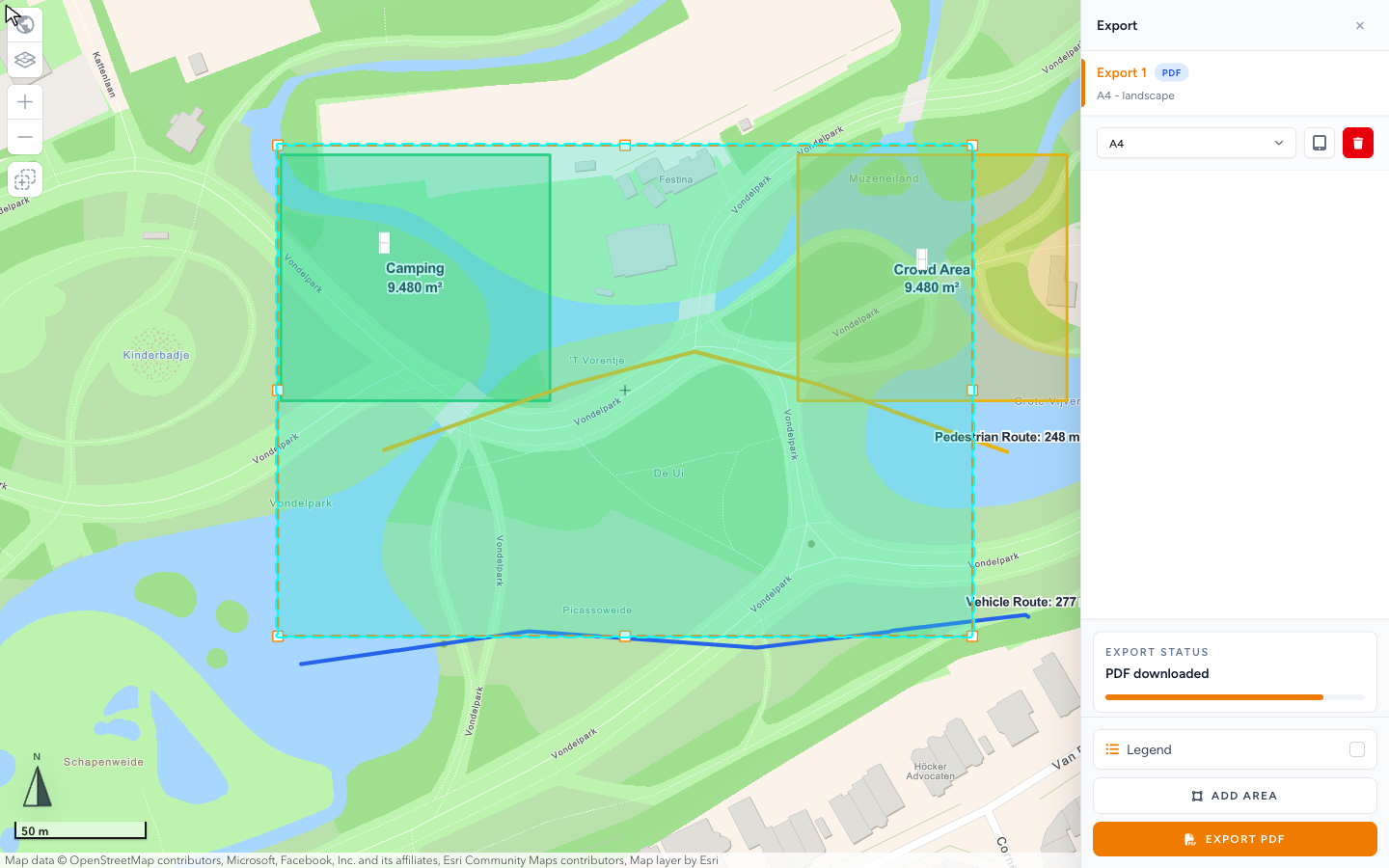
| Export status | Appears while a file is building. The line under the heading is the current stage. |
| Add area | Starts another rectangle on the map. |
| Export PDF | Builds and downloads the file. Disabled until an area has a paper size, and while a run is in progress. |
Export a PDF
- Click Add area, or draw the first rectangle on the map.
- Select the area in the list (Export 1, Export 2, and so on).
- Choose a paper size. Use Change orientation if the page should be the other way. Use Remove export area if that page is wrong.
- Frame the rectangle around the objects and routes that must appear on paper. Zoom so labels stay readable at that page size.
- Click Export PDF.
- Stay on the page. Export status walks through the stages below.
- Wait for the download. A success toast says PDF exported successfully. Export status ends on PDF downloaded.
If something fails, the toast is Export failed. See Export fails or is blank.
Export PDF can save the plan first when you are allowed to edit. Do not close the tab mid-run.
Export status stages
The status line uses these English labels, in the order the app usually shows them:
| Stage | When you see it |
|---|---|
| Preparing export | Export PDF has started. |
| Creating PDF page | The PDF document is opening (also the fallback if a stage has no other label). |
| Preparing PDF page | Capture of that page has started. |
| Creating export map | A hidden export map is created. |
| Copying selected basemap | The basemap you were viewing is copied. |
| Copying map layers | Other map layers are copied. |
| Opening export map | The export view is opening. |
| Positioning export map | The view jumps to the rectangle. |
| Loading selected map | Tiles and the basemap settle. |
| Drawing event plan | Event objects, areas, lines, and text are drawn. |
| Loading event plan layers | Those layers finish loading. |
| Finalizing map render | The view waits until drawing is idle. |
| Capturing map image | A screenshot of the rectangle is taken. |
| Map image captured | The screenshot is ready. |
| Drawing PDF header | The page header is written. |
| Adding map to PDF | The screenshot is placed on the page. |
| Drawing PDF footer | Footer lines are written. |
| Saving PDF | The file is written. |
| PDF downloaded | The browser has the file. |
You will not always notice every line. They can pass quickly on a small plan. On a slow network they linger. Keep the window open until PDF downloaded and the success toast.
Several pages
Each export area is one PDF page.
Click Add area for another page: a detail of the entrance, then a wider site overview. The list only shows Export 1, Export 2, plus paper size and orientation. Name them in your head by what you framed.
Remove a page you no longer need with Remove export area.
What the PDF contains
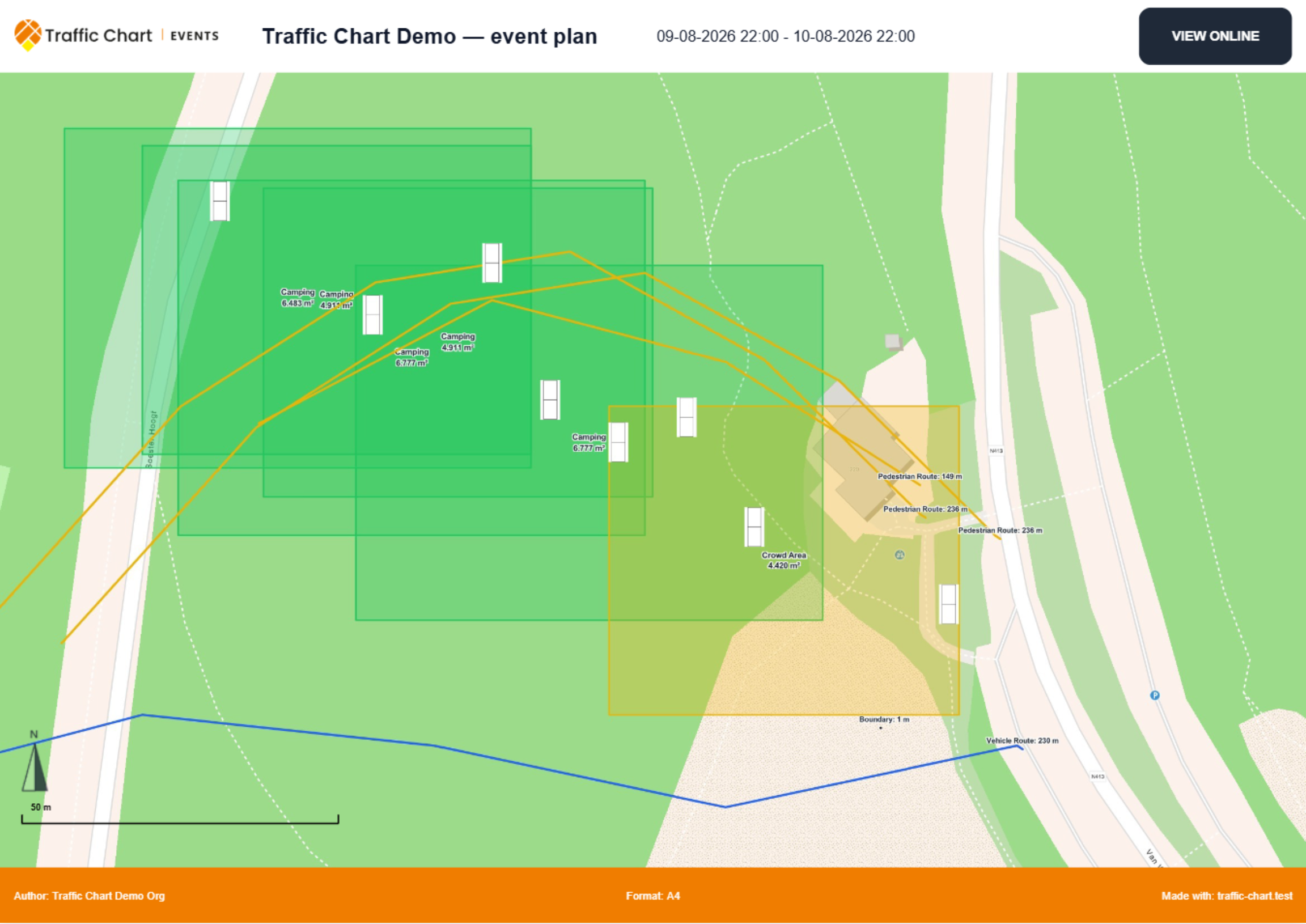
The file title is Event Plan Export.
Each page is a snapshot of the map inside that rectangle, at the paper size you chose.
The footer includes:
- Author: the plan owner’s name
- Format: the paper size, for example A4
- Made with: the Traffic Chart site
- VIEW ONLINE — opens the live plan in a browser
It does not add a materials list or post orders. Those exist only on traffic-plan export.
Open the PDF before you send it. Check that labels are not clipped and that emergency routes are still visible.
Share link vs PDF
| You need | Do this |
|---|---|
| Someone to view the live map | Copy link from Plans, or copy the plan URL |
| A file for email, print, or an upload form | Export → Export PDF |
| Official road signs on public roads | Export from a Traffic Plan |
A share link is read-only. It is not a municipal review session. If your municipality reviews inside Traffic Chart, see Review for organisers.
What good looks like
- Every page has a drawn export area and a paper size.
- The rectangle covers the content you care about, with a little margin.
- You stayed on the tab until PDF downloaded and PDF exported successfully.
- You opened the PDF and can read labels at the size you picked.
- VIEW ONLINE in the footer still opens the plan.
If something blocks you
| Situation | What to try |
|---|---|
| Empty sidebar, Export PDF greyed out | Draw an export area first. The empty line is Draw an export area, then choose the paper size for the PDF page. |
| Download never starts | Stay on the tab; allow downloads; retry |
| PDF is blank or clipped | Enlarge the export area; hide dense optional layers; export again |
| Browser warning or failed toast (Export failed) | Export fails or is blank |
| You wanted signs / materials | You are in an event plan — use Export and print traffic plans |
Prefer a current desktop Chrome, Edge, or Firefox. A phone is a poor export device.