

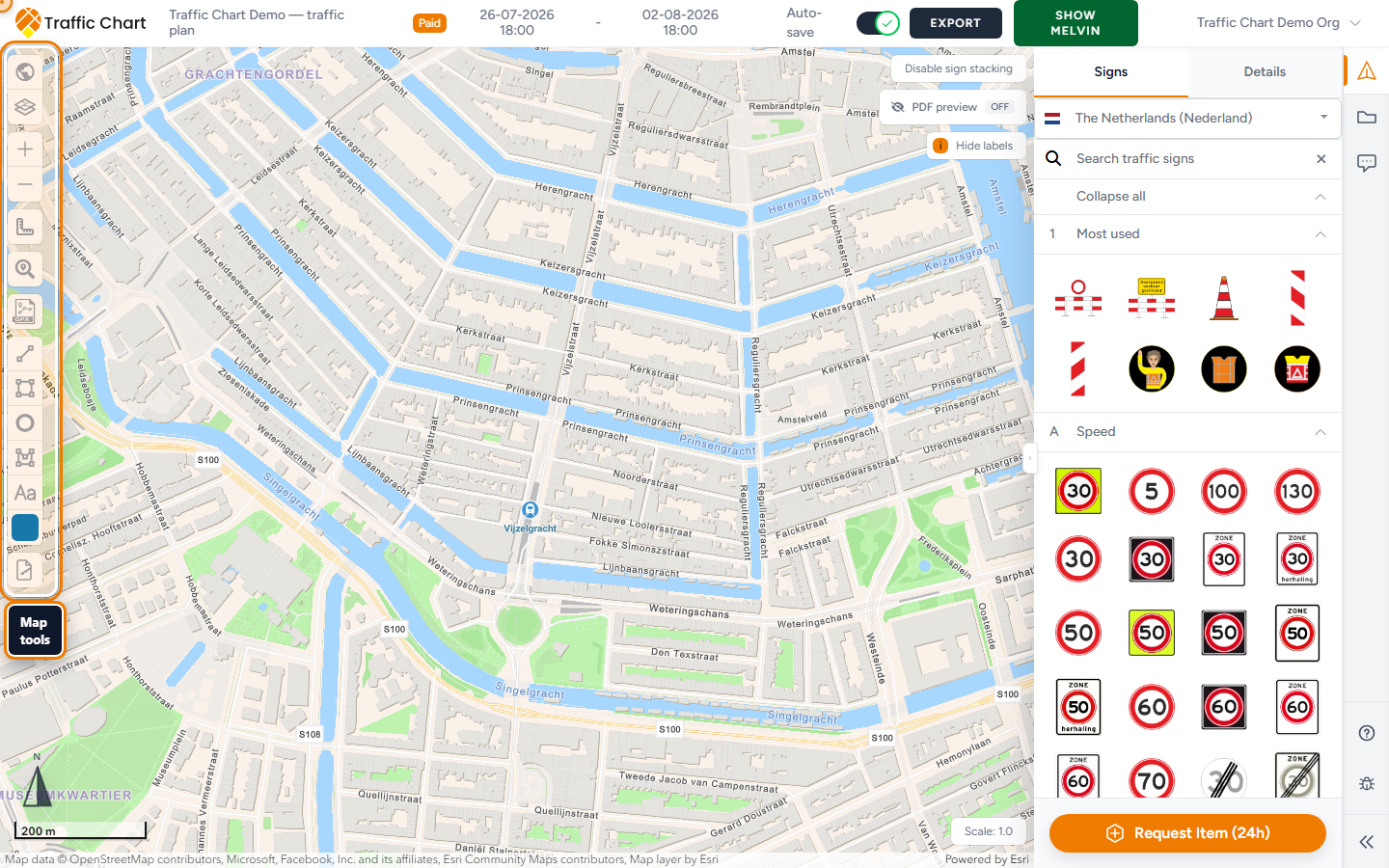
motion — zoom out → open search → type Amsterdam → Enter → map jumps
This page names the chrome around a traffic plan map so you can find the next control. It is not Home. Home is Welcome back; this is the editor that opens after Start planning or Open.
You need an editable plan: you own it in Personal, or you are the assigned editor in an organization, and review has not locked it.
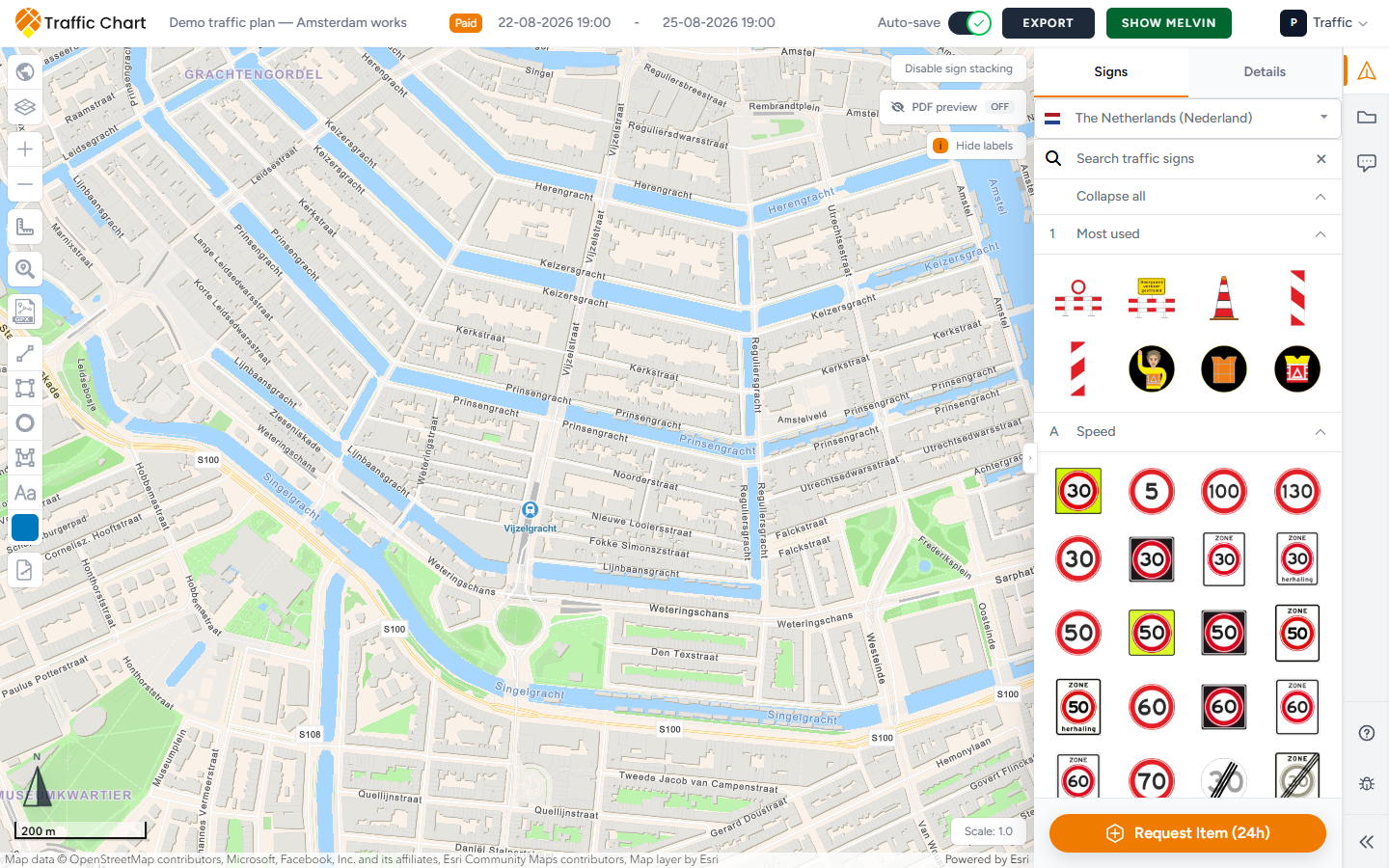
Header
Left to right you typically see:
| Control | What it does |
|---|---|
| Lock icon | Plan is locked while under review, or This plan is locked because it has been approved plus Plan approved |
| Plan title | Pencil is Edit project title |
| Paid | Unlimited signs on this plan |
| Start date / End date | Works period |
| Auto-save | Account preference; hover for Auto-save is disabled, Auto-save: saving, Auto-save: unsaved changes, or Auto-save: saved. Toasts: Auto-save enabled / Auto-save disabled. If the preference cannot be stored: Could not update auto-save preference |
| Save | Manual save (Saving... while it works). Disabled when auto-save is enabled. Lock: Plan is locked while under review. Toasts: Saved traffic plan, Could not save traffic plan |
| Export | Opens How would you like to export your map? |
| Show Melvin / Hide Melvin | Netherlands roadworks overlay. Disabled until dates are set: Fill in a date to use this option |
Title, dates, and save: Auto-save, title, and dates. Help → Watch tutorial video is the in-editor how-to. Help inside the app.
The Traffic Chart logo leaves the editor and opens Plans for this plan’s workspace.
The map
Wait until the map is ready (not Opening Map Environment... or Loading geographical data & traffic signs).
- Pan: drag the background.
- Zoom: Zoom in / Zoom out, mouse wheel, or trackpad.
- Click to place the current sign, or to finish a drawing.
- Selected signs show a small toolbar: Move sign, Displace sign stack, Rotate sign, Duplicate sign, Edit sign, Remove signs. Remove sign appears when a single plate is selected.
Keep the works near the centre before you draw export maps so PDF pages frame well. Zoom, scale, and search: Search address, zoom, and scale.
Left map tools
From the top of the left stack:
| Tool | Purpose |
|---|---|
| Select map | Basemap and optional data layers |
| Layers & Objects | Your signs, sketches, bulk lines, and GPX |
| Zoom in / Zoom out | Map scale |
| Measurement tool | Measure line, Measure area, Clear measurement |
| Search address | Type in Type to search address, Enter |
| Import GPX, Add line, Add rectangle, Add circle, Add shape, Add text, Select color | Drawings and notes |
| Bulk signs | Organization accounts; otherwise Pro feature / You need an organization account to use bulk sign placement. |
| Review tools | Pin, Arrow, Rectangle — when a review session is active. Draft: What needs to change here?, then Save comment. Comments and review status |
Deep dives: Map layers and Melvin, Drawing and measuring, Advanced sign placement.
Right map chrome
| Control | Purpose |
|---|---|
| Enable sign stacking / Disable sign stacking | Whether a new sign can join an existing pole location |
| PDF preview Off / On | Paper-scale preview (Pro) |
| Show labels / Hide labels | Crew labels on stacks |
| Sign counts | Running tally of placed types; Expand legend / Collapse legend |
| Scale: | How large signs and drawings appear (default 1.0). Disabled while PDF preview is on: Scale cannot be changed while PDF preview is on. |
There is no map toggle named “Move sign stacks”. Offset a crowded stack with Displace sign stack on the selected sign — Advanced sign placement.
Sidebar
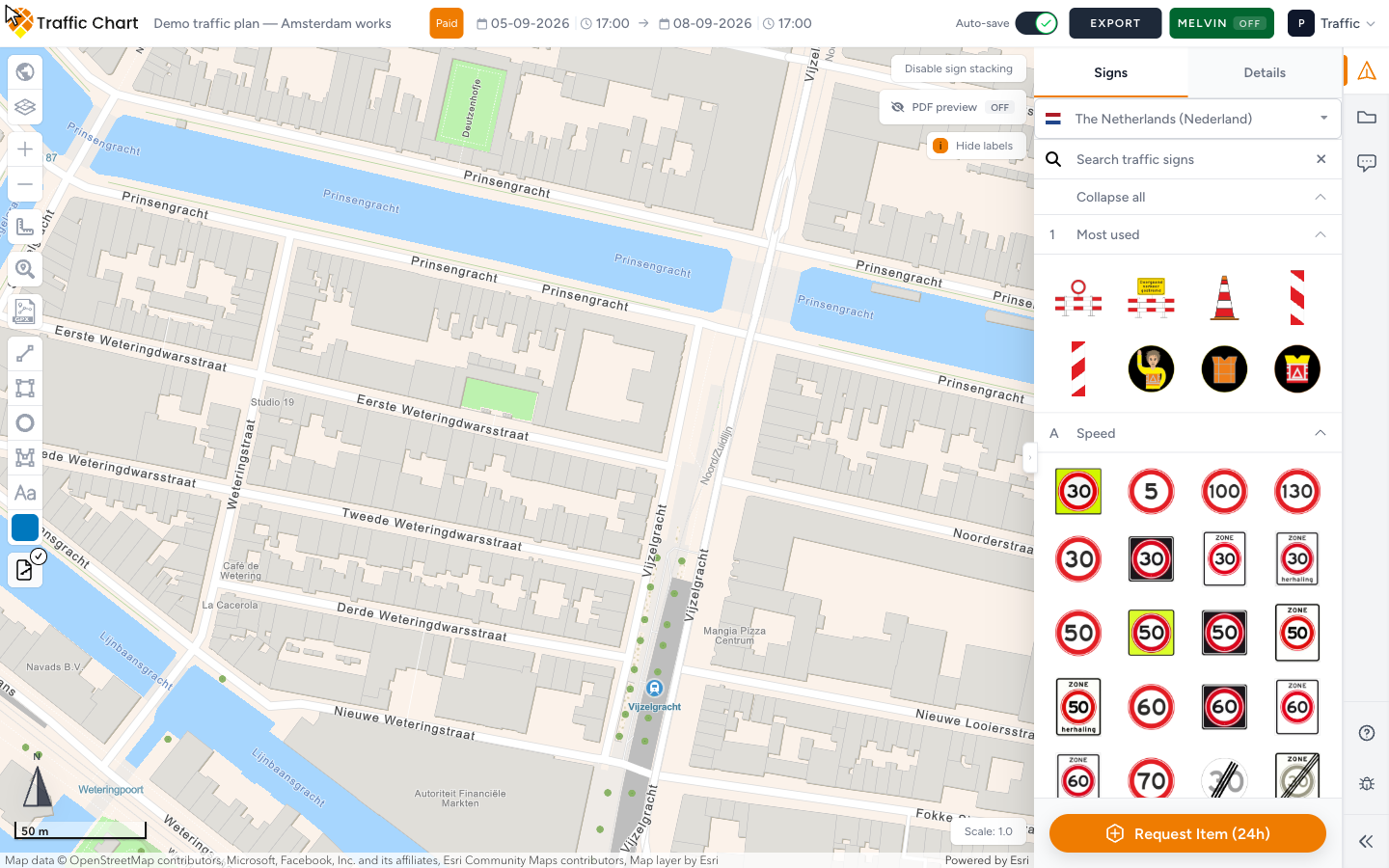
The right strip is Traffic Objects, then Posts (when the catalogue has post signs), Comments, Help, and Report bug. Collapse folds the strip. Show Comments opens Comments when that row is not already active.
Traffic Objects opens Signs and Details.
- Signs — country list, Search traffic signs, categories, Collapse all / Expand all, and Request Item (24h) at the bottom. Request a missing item.
- Details — properties of the selected stack. Empty state: No sign selected.
Posts is Post orders: Post items, Posts, Post name (label), Orders. From a post sign in Details you may see Manage post orders? Open post orders.
Comments is municipal Review status, not a sticky-note pad. Until a session exists it may show coming soon, or We are finalizing the new sidebar experience. Comments will unlock after the next release. Comments and review status.
Help opens Email support (customer@traffic-chart.com), Browse the FAQ, and Watch tutorial video. Close with Close help.
If Traffic Objects is greyed out, the tooltip is one of Plan is approved and locked, Plan is under review, Plan is locked, or Plan is read-only.
Address search
- Click Search address.
- Type a street, place, or address in Type to search address.
- Press Enter.
- The map jumps to that result.
Try a fuller address if nothing useful appears. Confirm the plan Country matches the area. Full search, zoom, and Scale:: Search address, zoom, and scale.
Read-only
You can pan and zoom but not change the plan when:
- You opened a Sharable link / Copy link URL and you are not the editor.
- You are an organization member who is not the assigned editor.
- The header shows review lock or Plan approved.
PDF preview and sketch tools hide in read-only. Owners and administrators still use Assign editor on Plans if the wrong person has the pen.
Practical rhythm
- Set title and dates.
- Search address, then zoom in.
- Place signs and sketches.
- Wait for Auto-save: saved (or Save).
- Export → Sharable link, or Export files if a PDF is required.
What good looks like
You recognise the header, left tools, and Signs panel without hunting. The workspace and assigned editor match who should draw. The map is centred on the works.
If something blocks you
| Situation | Where to go |
|---|---|
| Expected to edit, cannot | I can’t open or edit a plan |
| Wrong library | Create, organise, and share traffic plans |
| Sign catalogue | Working with signs |
| Missing sign or object | Request a missing item |
| Comments / Review status | Comments and review status |
| Layers empty | Melvin or map layers not showing |