
*motion — zoom out → open search → type Amsterdam → Enter → map jumps*
This page names the chrome around a traffic plan map so you can find the next control. It is not **Home**. **Home** is **Welcome back**; this is the editor that opens after **Start planning** or **Open**.
You need an editable plan: you own it in **Personal**, or you are the **assigned editor** in an organization, and review has not locked it.
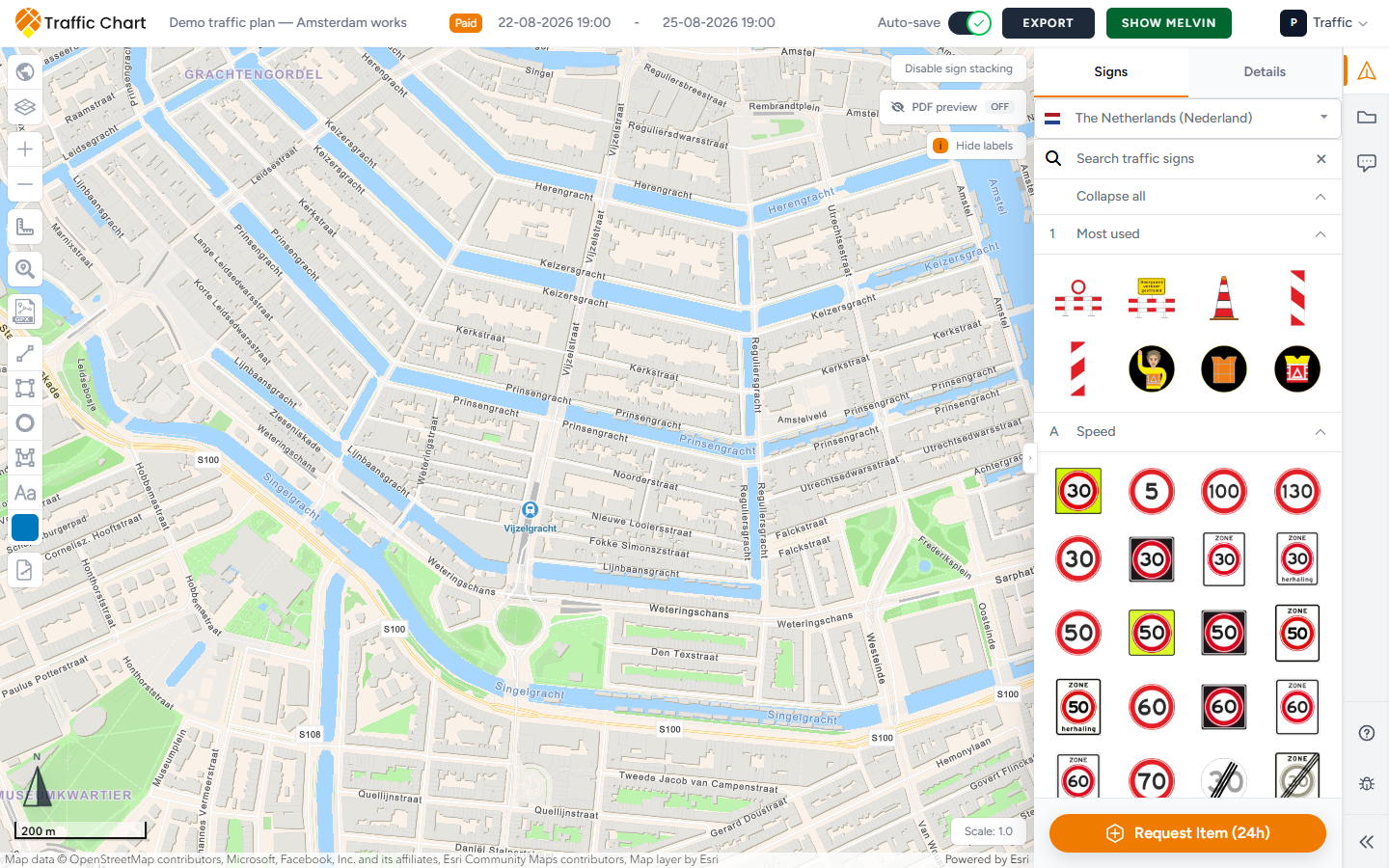
## Header
Left to right you typically see:
| Control | What it does |
|---------|----------------|
| Lock icon | **Plan is locked while under review**, or **This plan is locked because it has been approved** plus **Plan approved** |
| Plan title | Pencil is **Edit project title** |
| **Paid** | Unlimited signs on *this* plan |
| **Start date** / **End date** | Works period |
| **Auto-save** | Account preference; hover for **Auto-save is disabled**, **Auto-save: saving**, **Auto-save: unsaved changes**, or **Auto-save: saved**. Toasts: **Auto-save enabled** / **Auto-save disabled**. If the preference cannot be stored: **Could not update auto-save preference** |
| **Save** | Manual save (**Saving...** while it works). Disabled when **auto-save is enabled**. Lock: **Plan is locked while under review**. Toasts: **Saved traffic plan**, **Could not save traffic plan** |
| **Export** | Opens **How would you like to export your map?** |
| **Show Melvin** / **Hide Melvin** | Netherlands roadworks overlay. Disabled until dates are set: **Fill in a date to use this option** |
Title, dates, and save: [Auto-save, title, and dates](/hc/test/articles/auto-save-title-and-dates). **Help** → **Watch tutorial video** is the in-editor how-to. [Help inside the app](/hc/test/articles/in-app-help).
The Traffic Chart logo leaves the editor and opens **Plans** for this plan’s workspace.
## The map
Wait until the map is ready (not **Opening Map Environment...** or **Loading geographical data & traffic signs**).
- Pan: drag the background.
- Zoom: **Zoom in** / **Zoom out**, mouse wheel, or trackpad.
- Click to place the current sign, or to finish a drawing.
- Selected signs show a small toolbar: **Move sign**, **Displace sign stack**, **Rotate sign**, **Duplicate sign**, **Edit sign**, **Remove signs**. **Remove sign** appears when a single plate is selected.
Keep the works near the centre before you draw export maps so PDF pages frame well. Zoom, scale, and search: [Search address, zoom, and scale](/hc/test/articles/search-address-zoom-and-scale).
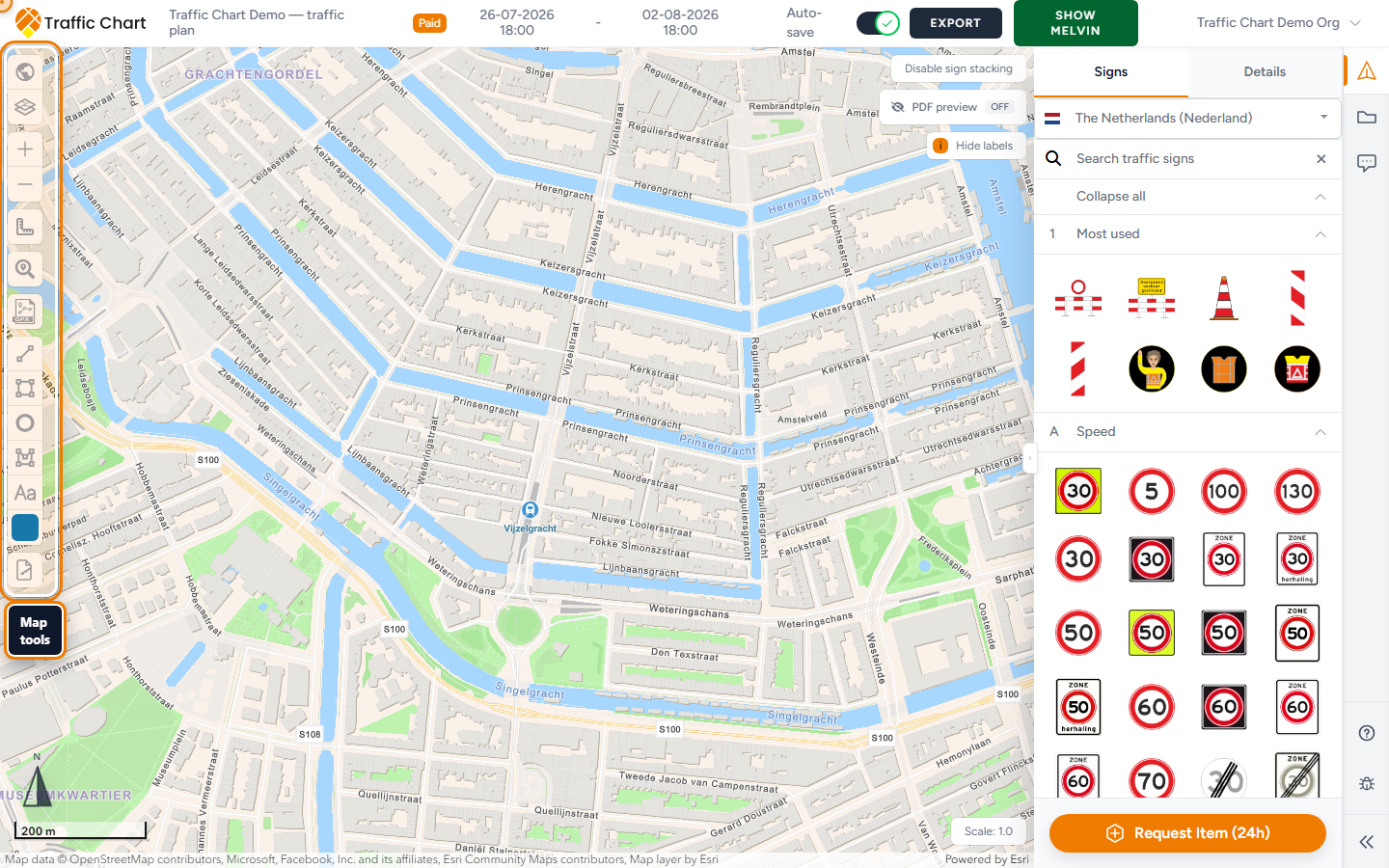
## Left map tools
From the top of the left stack:
| Tool | Purpose |
|------|---------|
| **Select map** | Basemap and optional data layers |
| **Layers & Objects** | Your signs, sketches, bulk lines, and GPX |
| **Zoom in** / **Zoom out** | Map scale |
| **Measurement tool** | **Measure line**, **Measure area**, **Clear measurement** |
| **Search address** | Type in **Type to search address**, Enter |
| **Import GPX**, **Add line**, **Add rectangle**, **Add circle**, **Add shape**, **Add text**, **Select color** | Drawings and notes |
| **Bulk signs** | Organization accounts; otherwise **Pro feature** / **You need an organization account to use bulk sign placement.** |
| **Review tools** | **Pin**, **Arrow**, **Rectangle** — when a review session is active. Draft: **What needs to change here?**, then **Save comment**. [Comments and review status](/hc/test/articles/comments-and-review-status) |
Deep dives: [Map layers and Melvin](/hc/test/articles/map-layers-and-melvin), [Drawing and measuring](/hc/test/articles/drawing-and-measuring), [Advanced sign placement](/hc/test/articles/advanced-sign-placement).
## Right map chrome
| Control | Purpose |
|---------|---------|
| **Enable sign stacking** / **Disable sign stacking** | Whether a new sign can join an existing pole location |
| **PDF preview** **Off** / **On** | Paper-scale preview (Pro) |
| **Show labels** / **Hide labels** | Crew labels on stacks |
| Sign counts | Running tally of placed types; **Expand legend** / **Collapse legend** |
| **Scale:** | How large signs and drawings appear (default **1.0**). Disabled while PDF preview is on: **Scale cannot be changed while PDF preview is on.** |
There is no map toggle named “Move sign stacks”. Offset a crowded stack with **Displace sign stack** on the selected sign — [Advanced sign placement](/hc/test/articles/advanced-sign-placement).
## Sidebar
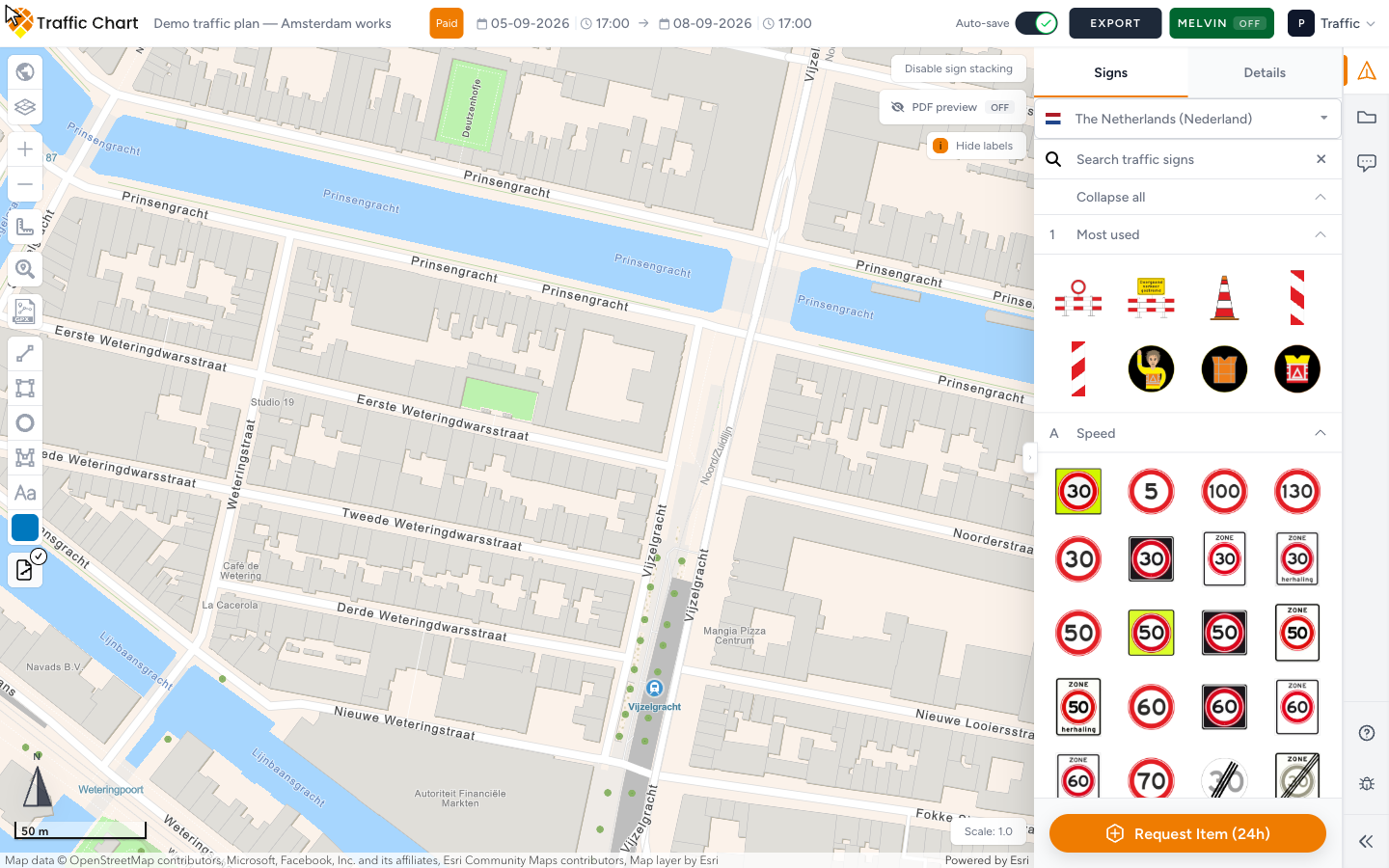
The right strip is **Traffic Objects**, then **Posts** (when the catalogue has post signs), **Comments**, **Help**, and **Report bug**. **Collapse** folds the strip. **Show Comments** opens **Comments** when that row is not already active.
**Traffic Objects** opens **Signs** and **Details**.
- **Signs** — country list, **Search traffic signs**, categories, **Collapse all** / **Expand all**, and **Request Item (24h)** at the bottom. [Request a missing item](/hc/test/articles/request-a-missing-item).
- **Details** — properties of the selected stack. Empty state: **No sign selected**.
**Posts** is **Post orders**: **Post items**, **Posts**, **Post name (label)**, **Orders**. From a post sign in **Details** you may see **Manage post orders?** **Open post orders**.
**Comments** is municipal **Review status**, not a sticky-note pad. Until a session exists it may show **coming soon**, or **We are finalizing the new sidebar experience. Comments will unlock after the next release.** [Comments and review status](/hc/test/articles/comments-and-review-status).
**Help** opens **Email support** ([customer@traffic-chart.com](mailto:customer@traffic-chart.com)), **Browse the FAQ**, and **Watch tutorial video**. Close with **Close help**.
If **Traffic Objects** is greyed out, the tooltip is one of **Plan is approved and locked**, **Plan is under review**, **Plan is locked**, or **Plan is read-only**.
## Address search
1. Click **Search address**.
2. Type a street, place, or address in **Type to search address**.
3. Press Enter.
4. The map jumps to that result.
Try a fuller address if nothing useful appears. Confirm the plan **Country** matches the area. Full search, zoom, and **Scale:**: [Search address, zoom, and scale](/hc/test/articles/search-address-zoom-and-scale).
## Read-only
You can pan and zoom but not change the plan when:
- You opened a **Sharable link** / **Copy link** URL and you are not the editor.
- You are an organization member who is not the **assigned editor**.
- The header shows review lock or **Plan approved**.
**PDF preview** and sketch tools hide in read-only. Owners and administrators still use **Assign editor** on **Plans** if the wrong person has the pen.
## Practical rhythm
1. Set title and dates.
2. **Search address**, then zoom in.
3. Place signs and sketches.
4. Wait for **Auto-save: saved** (or **Save**).
5. **Export** → **Sharable link**, or **Export files** if a PDF is required.
## What good looks like
You recognise the header, left tools, and **Signs** panel without hunting. The workspace and assigned editor match who should draw. The map is centred on the works.
## If something blocks you
| Situation | Where to go |
|-----------|-------------|
| Expected to edit, cannot | [I can’t open or edit a plan](/hc/test/articles/cannot-edit-plan) |
| Wrong library | [Create, organise, and share traffic plans](/hc/test/articles/create-organise-and-share) |
| Sign catalogue | [Working with signs](/hc/test/articles/working-with-signs) |
| Missing sign or object | [Request a missing item](/hc/test/articles/request-a-missing-item) |
| **Comments** / **Review status** | [Comments and review status](/hc/test/articles/comments-and-review-status) |
| Layers empty | [Melvin or map layers not showing](/hc/test/articles/melvin-layers-not-showing) |
## Related articles
- [Create, organise, and share traffic plans](/hc/test/articles/create-organise-and-share)
- [Auto-save, title, and dates](/hc/test/articles/auto-save-title-and-dates)
- [Search address, zoom, and scale](/hc/test/articles/search-address-zoom-and-scale)
- [Comments and review status](/hc/test/articles/comments-and-review-status)
- [Request a missing item](/hc/test/articles/request-a-missing-item)
- [Working with signs](/hc/test/articles/working-with-signs)
- [Drawing and measuring](/hc/test/articles/drawing-and-measuring)
- [Map layers and Melvin](/hc/test/articles/map-layers-and-melvin)
- [Export and print traffic plans](/hc/test/articles/export-and-print)