
This page is the dialog behind Move to organization and Assign editor. It also covers moving a whole folder such as Utrecht 2026 into a team workspace.
Use it when Demo traffic plan still lives in Personal and Acme Events should own it, or when the wrong person has the pen. Skip it to share a read-only URL — that is Copy link, not Copy. Skip it to file a plan inside the same workspace — that is Move to folder.
You cannot create an organization yourself. Join first: Join an organization. Roles after you are in: Organizations and members.
When you need this
- Demo traffic plan is on My traffic plans, and colleagues on Acme Events cannot see it in Acme Events traffic plans.
- You joined Acme Events, accepted the invite, and the library still looks personal.
- Review locked the personal plan, and you need a separate organization version.
- Sam Rivera should edit; Alex de Vries should only view.
You do not need this to let a municipality look. Send Copy link. Viewers do not become members and do not become the assigned editor.
Move to organization (Personal only)
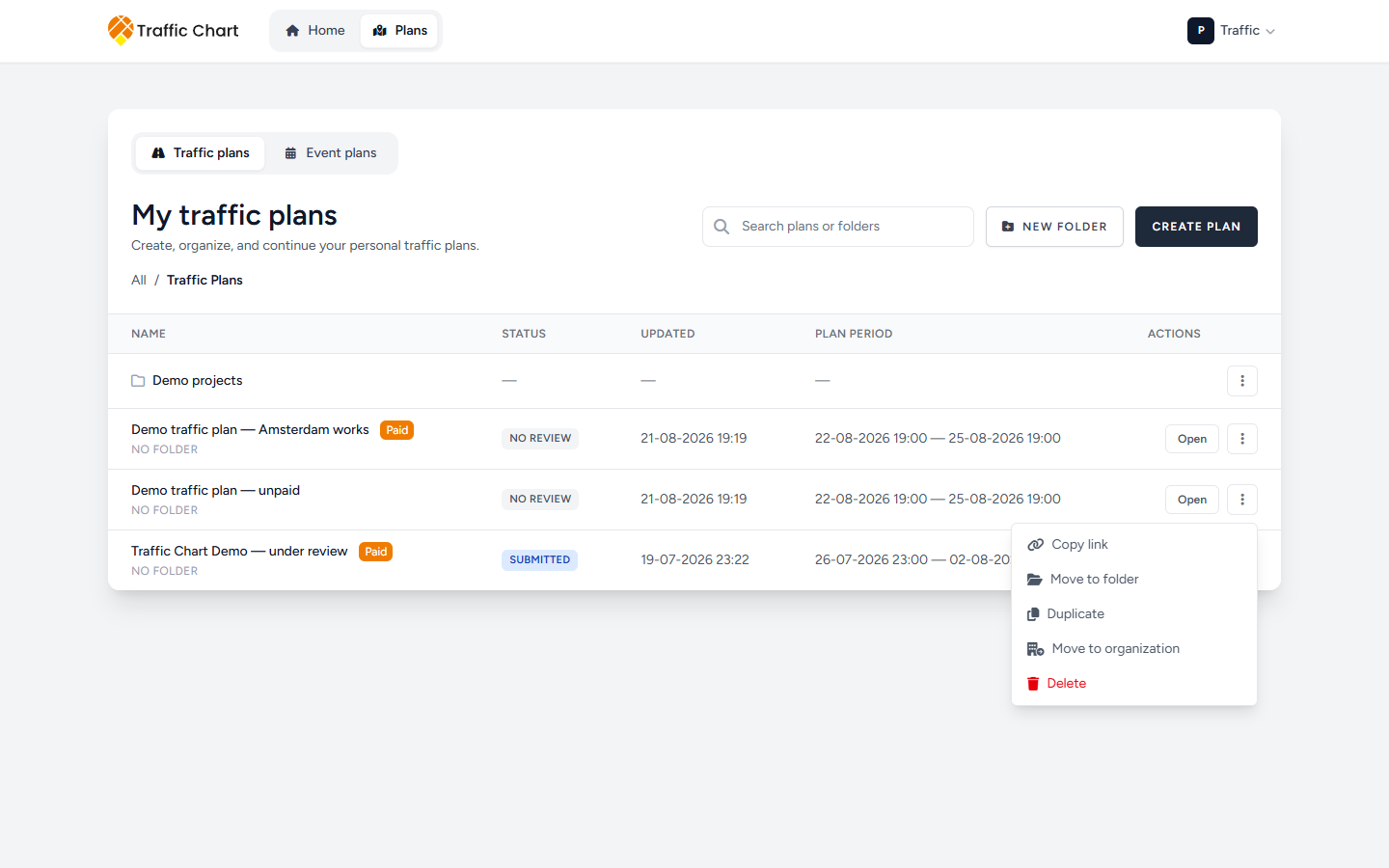
Move to organization appears on the plan ⋮ menu only while you are in Personal, and only if Switch workspace lists at least one organization.
You cannot run it from Acme Events traffic plans. You cannot send a plan back to Personal. You cannot send it from Acme Events to another organization.
- Switch workspace → Personal.
- Open Plans.
- ⋮ on Demo traffic plan → Move to organization.
Before you pick a destination
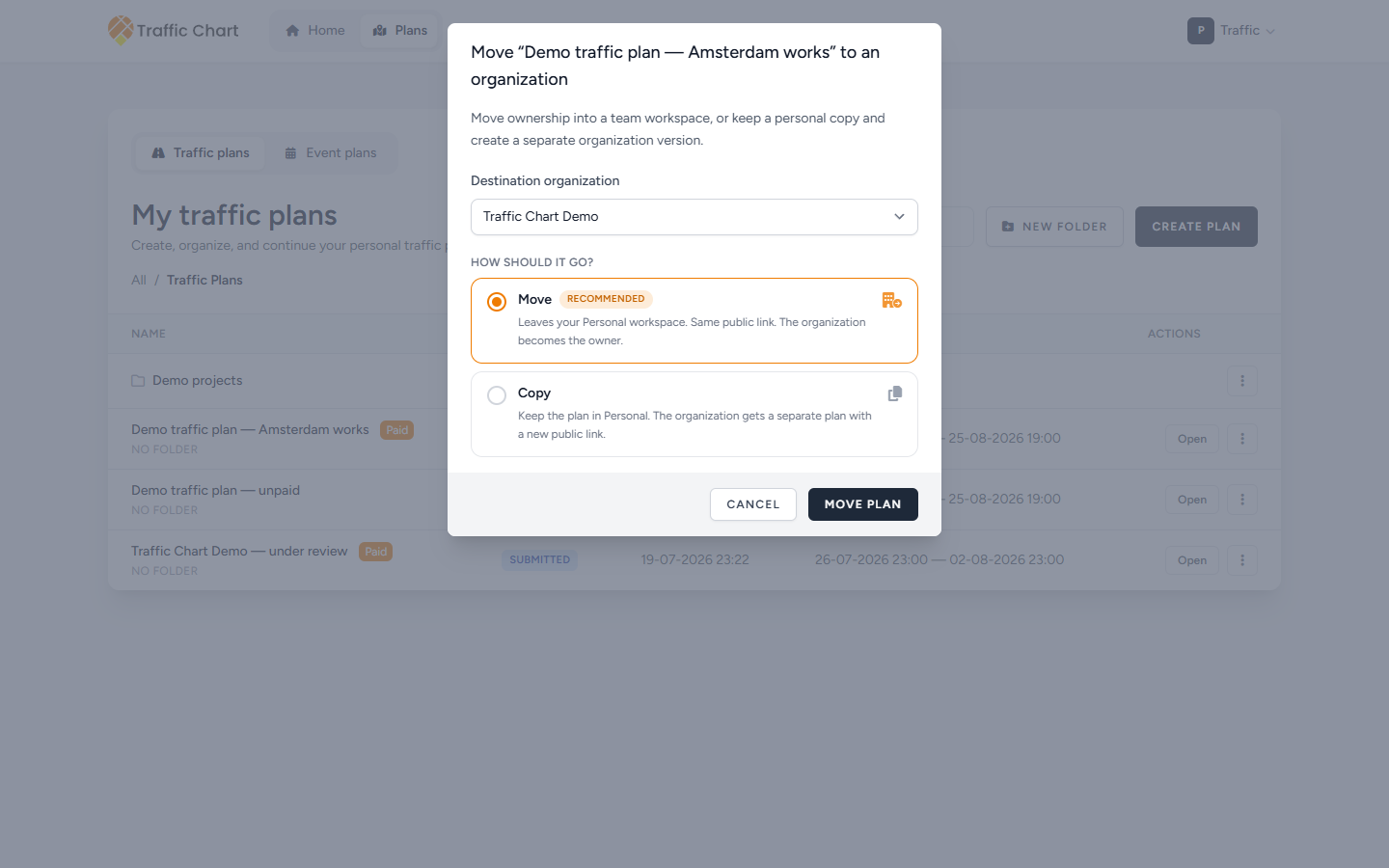
The dialog title is Move “Demo traffic plan” to an organization (the quotes use the real plan name).
Until you choose an organization, the only field is Destination organization, starting at Choose an organization. The help line is First choose which organization this should go to.
Cancel closes without changes.
If you belong to one organization, the app may fill Acme Events for you and skip that empty first step.
How should it go?
After a destination is selected, the description is: Move ownership into a team workspace, or keep a personal copy and create a separate organization version.
Label: How should it go?
Two cards:
Move — badge Recommended. Leaves your Personal workspace. Same public link. The organization becomes the owner.
Copy — Keep the plan in Personal. The organization gets a separate plan with a new public link.
| Move | Copy | |
|---|---|---|
| Personal library | Plan leaves | Plan stays |
| Public URL | Same Copy link / Sharable link | New URL for the organization plan |
| Who owns it | Acme Events | Personal keeps the original; Acme Events has a separate plan |
| Paid on the original | Travels with the moved plan | The copy is not Paid. Unlock the organization plan separately if you need unlimited signs there |
| Button | Move plan | Copy plan |
| While it runs | Moving… | Copying… |
| Success | Plan moved to Acme Events | Plan copied to Acme Events |
| Failure | The plan could not be moved to that organization. | The plan could not be copied to that organization. |
Choose Move when the team should become the source of truth and you do not need a private leftover.
Choose Copy when you still want to draw in Personal, or when move is blocked (review).
After Move, open Switch workspace → Acme Events. Plans retitles to Acme Events traffic plans. Creating you as the mover makes you the assigned editor on that organization plan.
Under review — move unavailable
If municipality review has locked the personal plan, Move is disabled.
Amber panel title: Under review — move unavailable.
Body: Plans with an active municipality review stay in Personal. You can still copy this plan into an organization if you need a separate version.
If you still try to move (API or a race), the error is A plan under review cannot be moved. Copy it instead, or wait until the review is finished.
Copy stays available. The organization version is a separate drawing with a new public link. It does not take the review dossier with it. Do not copy to dodge comments the municipality already left — My plan is locked for review.
Approved in the app is not a legal permit. It does mean this drawing is accepted in Traffic Chart and stays locked. You still cannot Move a locked plan.
Assign an editor
In Acme Events, everyone with access can Open the plan. Only the assigned editor can change, duplicate, or delete it. Other members get Plan is read-only.
Creating a plan in the organization makes you the assigned editor.
Only Owner and Administrator see Assign editor on the plan ⋮ menu. Member does not.
- Switch workspace → Acme Events.
- Plans → ⋮ on Demo traffic plan → Assign editor.
Dialog title: Assign an editor to “Demo traffic plan”.
Choose the one active member who can edit this plan. Owners and administrators can change the assignment later.
Field Assigned editor, starting at Choose an editor. Pick Sam Rivera.
If the current editor is no longer an active member, that option is listed disabled as Sam Rivera (membership inactive). You cannot leave the plan on an inactive membership. Choose someone Active, then save.
- Save assignment
- While it runs: Saving…
- Cancel
- Toast Editor assignment updated
- Failure The editor assignment could not be updated.
The library row then shows Editor: Sam Rivera.
If Sam’s membership is later suspended, nobody can edit until an owner or admin assigns someone else. Leaving Acme Events does not delete organization plans.
Checkout and spending a credit also need edit access. An owner who is not the editor cannot pay on a colleague’s plan. Reassign, then pay.
Seeing the map is not editing. If the header says Plan is read-only and you expected the pen: I can’t open or edit a plan.
Move a folder into an organization
On Personal, folder ⋮ → Move to organization. There is no Copy card for folders. The structure is recreated in the destination. Plans that cannot move stay behind.
Title: Move folder “Utrecht 2026”.
Until you pick Destination organization, the help is still First choose which organization this should go to.
After you pick Acme Events: Move this folder and its plans into an organization workspace. Folder structure is recreated there.
Three counts:
| Label | Meaning |
|---|---|
| Will move | Plans in this folder (and subfolders) that can leave Personal |
| Subfolders | Nested folders that will be recreated |
| Stay personal | Plans under review that cannot move |
Buttons: Move folder / Moving folder… / Cancel.
Folder outcomes
Empty folder (no plans at all): This folder has no plans. The folder structure will still be moved to the organization. Success toast Folder moved to Acme Events.
Mix of movable and locked, for example four free to move and one under review: amber title Plans under review stay personal. Body: 1 plan(s) under review will stay in your Personal workspace and cannot be moved. Copy those individually if you need organization versions.
Success in that mix: Moved 4 plans to Acme Events. 1 stayed in Personal (under review).
If every plan is under review: Every plan in this folder is under review, so nothing can be moved. Copy individual plans if you need organization versions. Move folder stays off.
All movable, nothing skipped: Moved 4 plans to Acme Events.
Failure: The folder could not be moved to that organization.
Copy the locked plans one by one with Copy on each plan if the team needs a version they can still draw on. Wait until review finishes if they must keep the same public link.
After you accept an invite
Accept invitation does not switch workspace.
You can still be looking at My traffic plans with none of Acme Events’ folders.
Do this immediately:
- Click your initials and first name.
- Under Switch workspace, choose Acme Events.
- Plans retitles to Acme Events traffic plans.
Then Move to organization from Personal if Demo traffic plan was drawn before you joined.
New plans from Home go to whichever workspace you last opened. If you skip the switch, the next Demo traffic plan is created in Personal again and colleagues will not see it.
Worked example
Alex de Vries invites Sam Rivera to Acme Events as Member. Sam accepts, then Switch workspace → Acme Events. The team library is empty.
Sam switches back to Personal, opens Demo traffic plan, Move to organization, destination Acme Events, Move (Recommended), Move plan. Toast Plan moved to Acme Events. The public link Sam already emailed the contractor is unchanged.
On Acme Events traffic plans, the row shows Editor: Sam Rivera. Alex can Open the plan and cannot place signs.
Later the owner uses Assign editor and picks Alex. Toast Editor assignment updated. Sam now gets Plan is read-only.
What good looks like
The plan you care about sits under Acme Events traffic plans (or you knowingly kept a Personal original after Copy). Editor: names the one person who may draw. Review-locked plans remained in Personal. You did not paste a Copy link URL and call that membership.
If something blocks you
| Situation | What to try |
|---|---|
| No Move to organization | You are not on Personal, or Switch workspace has no organization |
| Under review — move unavailable | Copy, or wait for review |
| Colleagues still cannot see the plan | They must Switch workspace to Acme Events |
| You can open but not draw | You are not the assigned editor — I can’t open or edit a plan |
| Invite accepted, still My traffic plans | Switch workspace |
| The editor assignment could not be updated. | Confirm the person is Active, retry |