
The Materials list is the packing list for a traffic plan: which plates, how many, and how they sit on a post. Post orders are the instructions for traffic controllers at those posts. You write both in the editor. You include them when you export files.
Use this when a contractor, municipality, or crew asked for a list, an Excel, or a sheet of controller orders. Skip it while you are still placing the first signs. Skip it if the municipality will work from a Sharable link only.
A share-link viewer can see posts on the map. They cannot type Orders. Organization members who are not the assigned editor are also read-only.
This page is the lists. Drawing export rectangles and running Export now is in Export and print traffic plans. Combination-board names are set in Combination signs.
A typical Acme Events pack for Utrecht is: one Detail PDF per junction, one XL overview if you have Pro, a Materials list PDF the contractor can pick from, optional Excel for the spreadsheet workflow, and Post orders if traffic controllers sit on the plan.
Turn the lists on at export
Click Export. The screen is How would you like to export your map?
Sharable link is RECOMMENDED. It does not attach a materials PDF. The live map is the document.
Export files is the file path. Warning: Only recommended when a municipality or 3rd party explicitly asks for this.
Toggles in that column:
| Toggle | Label | What you get |
|---|---|---|
| Map | Include map | PDF pages for each export rectangle |
| Materials | Include materials list | Then PDF and/or Excel |
| Posts | Include post orders | Extra PDF pages for controller orders |
Include post orders only appears when this country’s catalogue has post signs. If your catalogue has none, the toggle is absent.
The main button is Export map if you included a map (Excel also needs a rectangle). Otherwise it is Export files. You need at least one of map, materials PDF, Excel, or post orders enabled.
In Export maps the same choices appear with slightly different labels:
| Sidebar label | Same as |
|---|---|
| Map pages | Include map |
| Materials list | Include materials list |
| Post instructions | Include post orders |
When Materials list is on in the sidebar, two format buttons appear: Materials PDF (the button text is PDF) and Materials Excel (the button text is Excel).
You can export materials or post orders without map pages. You still usually want a rectangle so Excel can fill the Drawing column.
Export progress names the extra work: Adding materials list, Creating Excel, Adding post instructions. Row labels include Materials list, Materials list Excel, and Post instructions, with Building the materials list, Creating the Excel file, and Building the post instructions. Keep the tab open.
If the job is slow: This is taking longer than usual. A slow network connection can delay map tiles and layers. Please keep this window open while the export finishes. If layers lagged: Some map layers took longer than expected to load. The export may be incomplete; please check the PDF before using it. Failure: Something went wrong while creating your export. / Export failed. Export fails or is blank.
Materials PDF
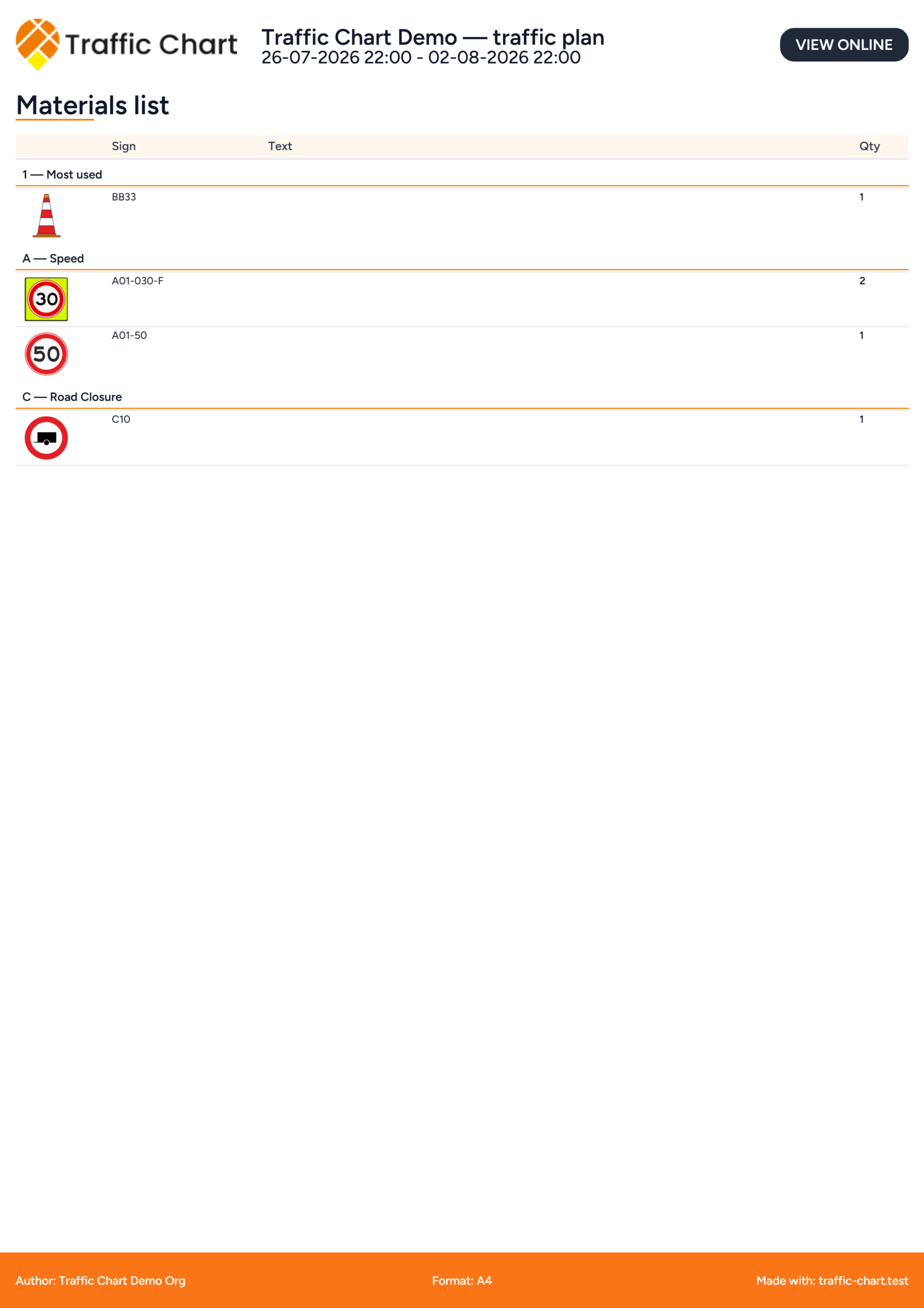
The PDF title is Materials list. Empty document: No materials found.
The main table columns:
| Column | Contains |
|---|---|
| (preview) | Sign image |
| Sign | Catalogue code, or the combination-board Name |
| Text | Inscription and Label: plus the crew tag when a stack has a Label |
| Qty | How many of that plate |
Rows are grouped by catalogue category, for example W — Roadwork or EV — Events. Ungrouped items fall under Other. Labels can appear as its own group for tag plates. A missing code falls back to Sign. A crew tag in Text is prefixed **Label: **. If a label row has no artwork, the preview box shows LBL.
The materials PDF is always A4 portrait, even if your map pages are A3 landscape. It has the same plan header as the map pages (title, dates, logo). Check the last pages of the download; do not stop at the drawings.
Combination boards use the Name you set in Edit sign (This is how it appears on the material list.). Default name is Combination sign. Size such as 130 x 90 is part of that board’s identity on the list. Combination signs.
Bulk lines do not appear as one plate per cone. Excel records them as Bulk placement, quantity: 24 (the number is that line’s count) in Remark.
Post-instruction signs are omitted from the materials totals. They belong on Post orders.
Stacked signs
After the totals, a second block can appear: Stacked signs.
Note under the heading: This is a mounting overview per post. The quantities for the individual signs are already included in the materials totals above.
Do not order those plates twice. Qty in Stacked signs is how many times that mounting combination occurs, not extra stock.
Stacked table columns:
| Column | Contains |
|---|---|
| (preview) | Plates in order on the post |
| Stack | Numbered codes on that post |
| Text | Inscriptions on those plates |
| Qty | How many identical stacks |
A Demo traffic plan with three identical C12 + under-plate stacks in Utrecht shows Qty 3 in Stacked signs, and the same plates already counted in the category totals above.
Single-plate locations do not need the stacked block. Enable Enable sign stacking while drawing if two plates share a pole; otherwise the list treats them as two posts. Working with signs.
Materials Excel (Pro)
Excel is a Pro format. Description: Download the materials list as an Excel file with a total tab and one tab per drawing.
Unsaved changes are saved before the Excel is generated.
The workbook title is Materials list - Demo traffic plan (the plan name).
Row 2 includes Online plan, a hyperlink to the public traffic-plan URL, next to the plan title.
Tabs
| Tab | Contents |
|---|---|
| Total | Every row in the plan |
| 1, 2, 3, … | Rows whose coordinates fall inside that export map (Map 1, Map 2, …) |
You need at least one export map for a useful Drawing column. Without one: Create an export map first.
Empty sheet: No materials found.
Columns
| Column | Contains |
|---|---|
| Drawing | Export map numbers, comma-separated if a sign sits in more than one rectangle |
| Street | Street from the location address |
| Traffic sign | Catalogue code, or combination Name |
| Inscription | Sign text / combination header and body lines |
| Event | The plan title (for example Demo traffic plan) |
| Remark | Crew Label, combination size, or Bulk placement, quantity: 24 |
Pro and login messages
Excel shows a Pro badge when you cannot use it.
| Message | When |
|---|---|
| This is a pro feature. | Your account cannot export materials Excel. Tooltip on the sidebar button also repeats Pro feature |
| Log in and save the plan before exporting Excel. | Guest, unsaved plan, or no plan id yet |
| Create an export map first. | Excel needs a rectangle |
| Excel export is not available for this plan. | This plan cannot build the file |
| Could not export Excel. Please try again. | Toast after a failed download |
| Preparing Excel... | Status while the file is built |
| Creating Excel / Creating the Excel file | Export progress rows |
Paying for unlimited signs (Paid) does not unlock Excel. Organization / Pro permission does. Feature not available for my account.
If Excel fails after Export now, try again, then Export fails or is blank. You can still send Materials PDF.
Excel is a spreadsheet of rows, not a picture of the board. Combination previews live on the PDF Materials list. Use both if the contractor picks from photos and the municipality wants a sheet.
A sign that sits in two export rectangles appears on both numbered tabs and once on Total. Drawing then lists both numbers, for example 1,2. That is not a double order; it tells you which pages show the plate.
Post orders in the editor
Open Posts on the right strip (the Traffic Objects rail). The panel title is Post orders. Subtitle: Manage traffic controllers and their orders per post.
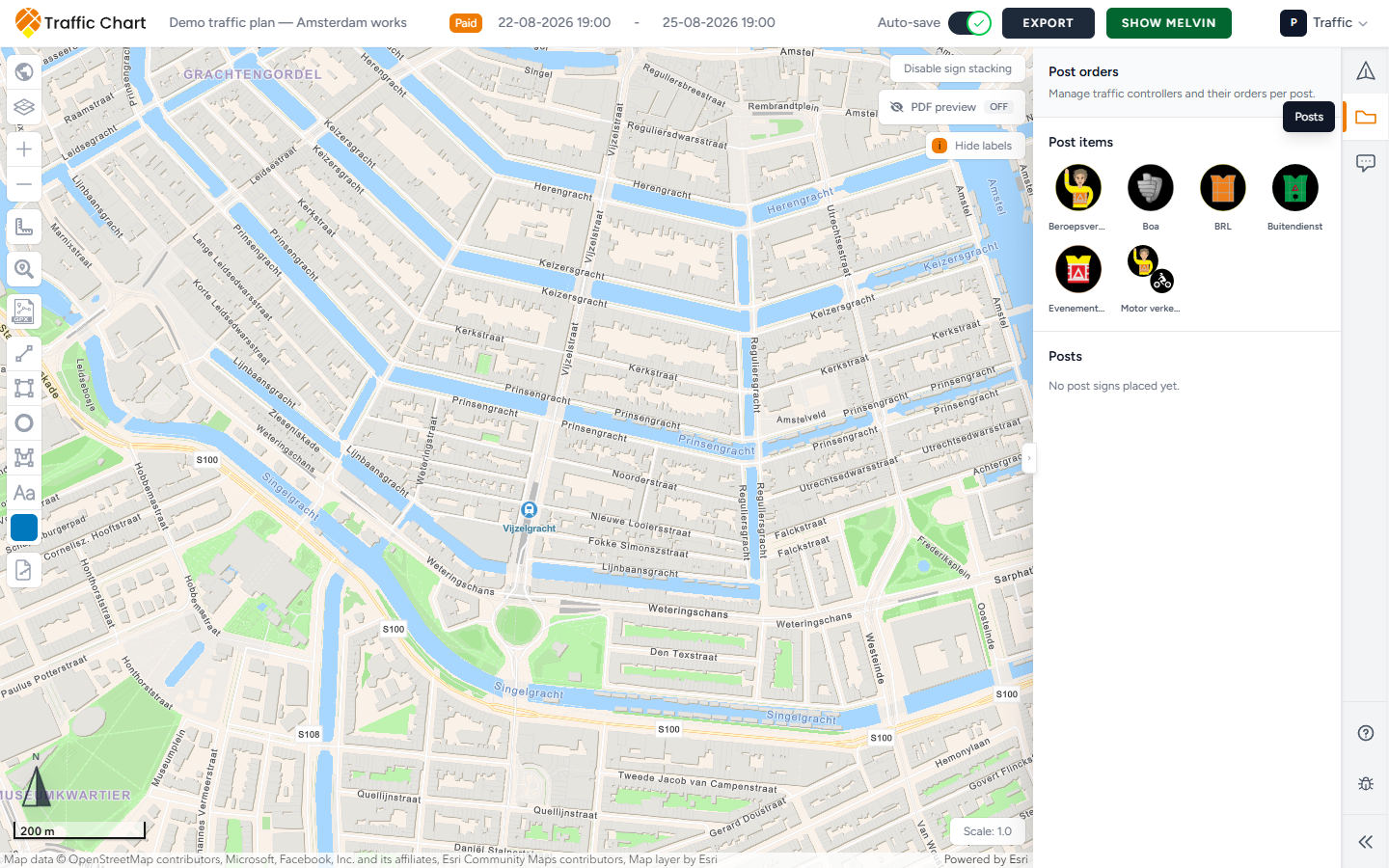
If this country has no post catalogue items, Posts may be hidden. The export toggle Include post orders is also hidden.
The panel has two blocks.
Post items
Post items is the catalogue of post signs for this country. Click one, then click the map, the same way you place any other sign.
Empty: No post signs available for this country. Change Country if you opened a Belgian catalogue on a Dutch works, or the other way around.
Posts
Posts lists every placed post, in the order the crew should visit them.
Empty: No post signs placed yet. Place a post item first.
Each card:
| Control | Does |
|---|---|
| Code and description | Which post sign this is |
| Address and coordinates | Street, number, postcode, city, then latitude, longitude |
| Go to post | Pans the map to that location and flashes a marker |
| Orange number plus Post | Visit order (1, 2, 3, …) |
| Move post up | Swap with the previous post |
| Move post down | Swap with the next post |
| Post name (label) | Crew tag on that stack. Placeholder Add a post name... |
| Orders | Free-text instructions. Placeholder Add post orders for this location... |
Move post up / Move post down are disabled at the ends of the list. They are also disabled when you cannot edit.
Post name (label) is the same Label as on Details (maximum 20 characters). Too long: Only 20 characters are allowed. Empty removes the label.
Orders is the controller text, for example “Close Neude from 06:00. Radio channel 2. Meet the Acme Events steward at the loading bay.”
From a selected post sign on Details you may also see Manage post orders? Open post orders. That jumps to this panel and highlights the card.
Toasts if the panel cannot load or save: Could not load post instructions, Could not save post instructions. Try Save again, then reload the plan.
Write Orders in the language the crew reads. The PDF does not translate them. Empty Orders still export the row; the Orders column shows a dash. Empty Post name also shows a dash.
A traffic-controller post is a catalogue sign flagged as a post item. It is not a combination board and not a bulk line. Do not stack two post signs on one pole unless the crew truly stands there as one unit; visit order is per placed post, not per plate in a mixed stack.
Post orders PDF and the Google Maps link
On the export choice screen, enable Include post orders. In Export maps, enable Post instructions. Then Export now.
The PDF title is Post orders. Empty page: No post orders found. Fill Orders before the crew PDF goes out if you enabled the extra pages.
PDF columns:
| Column | Contains |
|---|---|
| Post | Visit number, sign code, address, coordinates |
| Post name | The Post name (label) |
| Orders | The instruction text |
| Map | Open in Maps when coordinates exist, otherwise a dash |
Open in Maps is a Google Maps link for that latitude and longitude. Crews open it from the PDF on a phone. The in-app name for that link type is Google Maps; the PDF button text is Open in Maps. There is no separate Google Maps control on the editor card; Go to post recentres your map, and the PDF Map column is what you send to someone else.
If coordinates are missing, Map is a dash and there is nothing to tap. Place the post on the map first, wait for Auto-save: saved, then export again.
Export progress: Adding post instructions / Building the post instructions.
Include checkboxes, recap
You can attach the lists without printing every map page, but most file packs want all three.
- Save, or wait for Auto-save: saved.
- Export → Export files.
- Include map if you need drawings.
- Include materials list, then PDF and (if Pro) Excel.
- Include post orders if you placed post signs and wrote Orders.
- Export map or Export files.
- In Export maps, confirm Map pages, Materials list, Post instructions, Materials PDF, Materials Excel.
- Draw at least one Detail or XL map if Excel or map pages are on (No export maps yet. Use Draw new map below to add a Detail or XL map.).
- Export now.
Read-only export mode cannot draw new rectangles. Empty description: No export maps have been added to this plan.
What good looks like
The PDF Materials list Qty matches what you see on the map. Stacked signs is a mounting overview only. Excel Total plus tab 1 cover the Utrecht overview map. Combination boards show the Name you typed, not five generic Combination sign rows. Post orders visit order 1…n matches the route, each card has Orders, and Open in Maps works from the PDF.
You opened the files before you emailed them.
Walk through one pack before the first event of the season. Place two ordinary plates, one combination board with a unique Name, one bulk line if you have it, and two post signs with Orders. Export with Include map, Include materials list (PDF and Excel if Pro), and Include post orders. Confirm Qty, the Stacked signs note, Excel Total plus tab 1, and Open in Maps.
If something blocks you
| Situation | Where to go |
|---|---|
| Excel locked, Pro badge | Feature not available for my account |
| Log in and save the plan before exporting Excel. | Log in, Save, retry |
| Create an export map first. | Draw a Detail or XL rectangle |
| Could not export Excel. Please try again. | Retry, then Export fails or is blank |
| No post signs available for this country. | Check Country |
| No post signs placed yet. | Place a post item, then write Orders |
| No post orders found / No materials found | Enable the include toggles only after you have content |
| Cannot type Orders | I can’t open or edit a plan |