
This page gets you a PDF that downloads and shows your drawing.
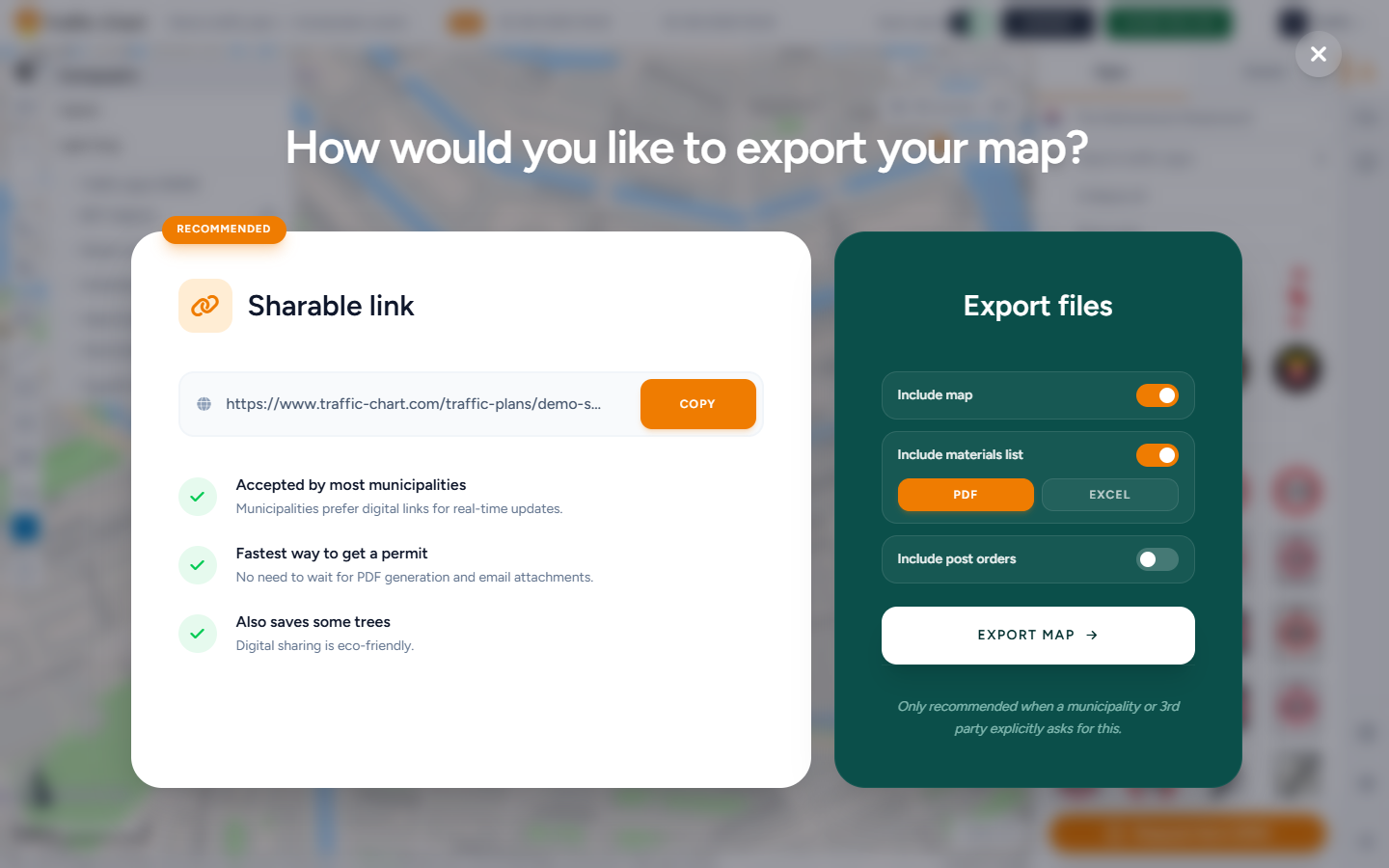
Use it when Export now or Export PDF fails, the file is empty, or pages miss signs. If you have not drawn an export rectangle yet, that is the first fix — not a bug.
Checklist
- Log in. Some export paths need a session. Export Feedback may say Export failed. and Please make sure you're logged in. Then Click here to log in.
- Draw at least one export rectangle:
- Traffic plan: Export → How would you like to export your map? → Export files. Draw new map → Detail (or XL if your account allows it). Empty: No export maps yet. Disabled export: Add at least one export map to enable export.
- Event plan: Export, then Add area. Empty state: Draw an export area, then choose the paper size for the PDF page.
- Set Paper size and Change orientation for that map.
- Tick the extras you need: Map pages, Materials list / Include materials list, Post instructions / Include post orders.
- Click Export now (traffic) or Export PDF (event). Stay on the page until Download started or the file appears. Do not close the tab.
- Use a current desktop Chrome, Edge, or Firefox. Allow downloads for this site.
- Turn off ad blockers, or try a private window.
XL maps and Download Excel / Materials Excel need Pro or organization permission. You may see XL maps require a PRO account. or This is a pro feature. Excel also needs login (Log in and save the plan before exporting Excel.) and a rectangle (Create an export map first.). Paying for unlimited signs on one plan does not unlock them. Feature not available for my account.
Watch the export stages
The overlay title is Export traffic plan. Headers move through:
| Stage | Meaning |
|---|---|
| Creating export | Work has started |
| Capturing the page image | Map page is being snapped |
| Adding materials list | Extra Materials list pages |
| Adding post instructions | Extra Post orders pages |
| Creating Excel | Materials Excel |
| Finishing export | File is assembling |
| Starting download / Download ready | Browser should prompt |
| Download started | Your export is ready and the PDF download has started. / Your download has started. |
Row statuses include Queued, Finished, Failed. Detail lines include Preparing your document, Preparing this page, Sizing the page, Positioning the map, Scaling signs and drawings, Waiting for map layers, Preparing bulk signs, Placing the page image, Adding the page header, Adding the scale and labels, Saving this page, Finalizing this export.
Slow network: This is taking longer than usual. A slow network connection can delay map tiles and layers. Please keep this window open while the export finishes.
Degraded: Some map layers took longer than expected to load. The export may be incomplete; please check the PDF before using it. Open every page anyway.
Hard fail header: Export failed. Message: Something went wrong while creating your export.
Event stages can read Preparing export through PDF exported successfully. Keep that tab open the same way.
Export Feedback
After a run, the app may ask How did the export go? The form title is Export Feedback.
- Not logged in: Export failed. Please make sure you're logged in.
- Logged in: Logged in, but still experiencing issues or have other feedback? Body: Please fill in the form below and we will make sure you get your export emailed to you within 24 hours. Placeholder: Please enter your feedback here... Send feedback. Success: Feedback sent successfully. Thank you! / Feedback sent. Fail: Failed to send feedback. Please try again. Log in to send export feedback. if the session dropped.
Blank or incomplete PDF
- Frame the rectangle over the signs or objects you care about. Detail maps have a size limit so signs stay readable. Hint: This detail map has reached its maximum size. Switch it to XL map if you want to export a larger map.
- Temporarily turn off heavy layers such as Show Melvin or Traffic signs (NDW) and export again.
- Sketches print only inside the rectangle. Drawing and measuring.
- Include Materials list and post orders only if you need those extra pages. Empty materials: No materials found. Empty posts: No post orders found.
- For event plans, enlarge the export area so objects are not clipped.
- Do not start a PDF while Opening Map Environment... is still on screen.
What good looks like
The browser downloads a PDF. Map pages show the basemap and your drawings inside the rectangle. Open every page before you send it. Prefer Sharable link (RECOMMENDED) when a live link is enough.
If it still fails
Use Export Feedback when the form appears after a failure. Email customer@traffic-chart.com with the plan link, browser, and time.
Full paths: Export and print traffic plans and Export an event plan. Contact support.