
This page gets the basemap on screen when the editor stays on a loader or a white rectangle.
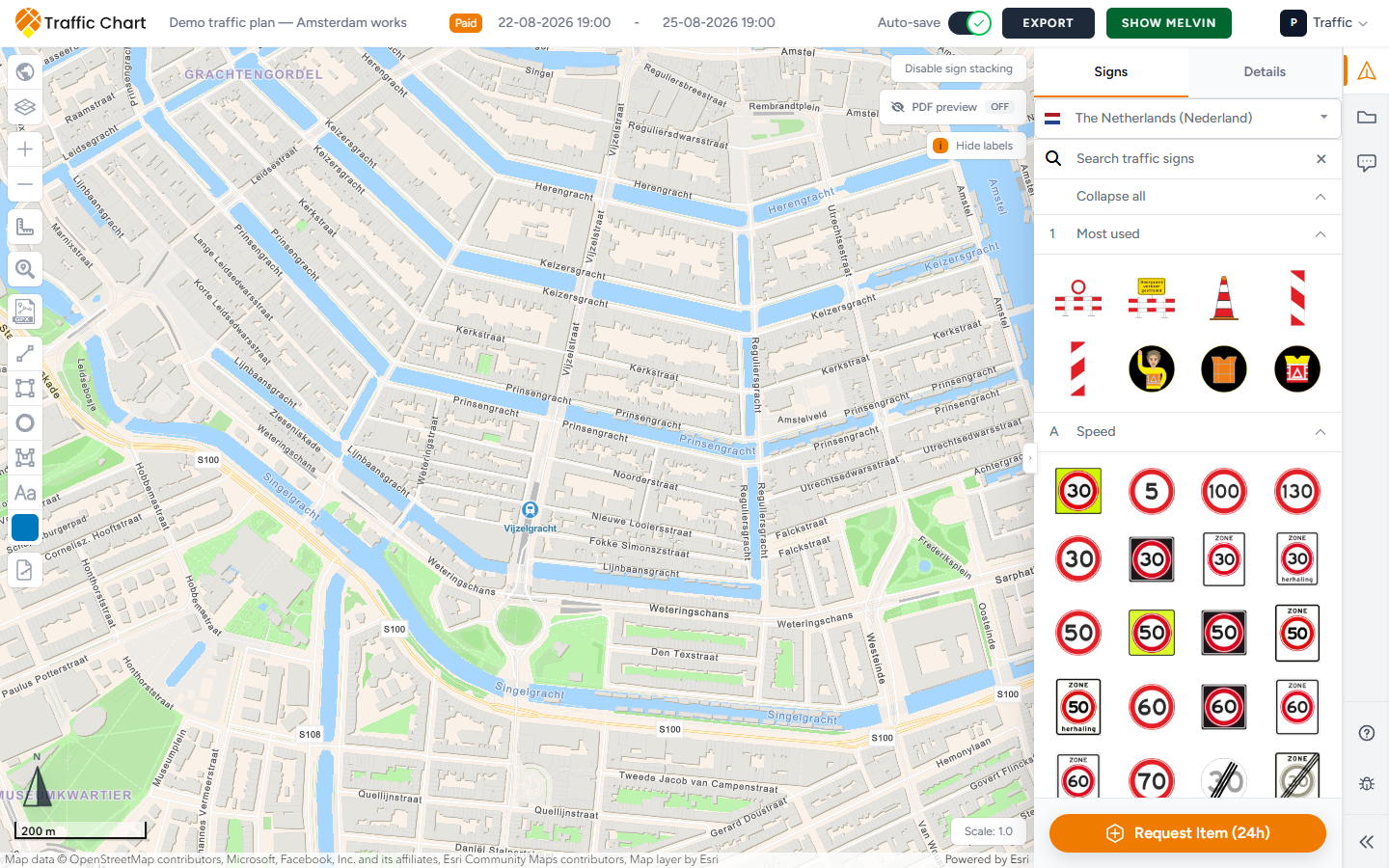
Use it when Opening Map Environment... never finishes, the map is white after the loader, or an event plan says Map is not ready yet. Missing Melvin or BGT objects is a different problem: Melvin or map layers not showing. A PDF that downloads empty after the map did load is Export fails or is blank.
Wait for the first load
The editor opens full-screen. A branded overlay shows Opening Map Environment... and Loading geographical data & traffic signs.
That is normal. Wait until the overlay is gone and street tiles are visible. Do not click to place signs on a white map. Do not draw an export rectangle yet. Do not click Export now.
A slow network can leave tiles grey for a while after the overlay. Pan slightly, or Zoom in once, and wait. Retry with a refresh if nothing paints after a minute. Keep the tab in the foreground.
Event plans may show Map is not ready yet if you click too early. Wait, then place the object again.
White map, ad blockers, old browser
The overlay can hide before tiles arrive. Treat a white or empty canvas as “not ready”.
- Use a current desktop Chrome, Edge, or Firefox. Phones and very old browsers fail this step more often.
- Turn off ad blockers, privacy shields, and strict tracking protection for this site — they often block map tile hosts.
- Try a private window (extensions off).
- Hard-refresh the tab, or close it and open the plan again from Plans.
- Confirm you are not stuck on a captive Wi‑Fi login page. Map tiles come from the internet.
If every plan is white, the machine or network is the suspect. If only one plan is white, include that URL when you write support.
Toasts in this family: Could not load traffic signs, Could not load global data, Could not load traffic plan. Refresh once. If Signs is empty after the map appears, continue with Wrong country or missing traffic signs.
Do not draw export maps or start a PDF while the basemap is missing. You will export emptiness.
GPU and hardware acceleration
The map uses the graphics chip (WebGL). If tiles stay white, flicker, or the view never paints:
- In the browser, turn Use hardware acceleration when available on (Chrome: Settings → System), then restart the browser.
- Update the graphics driver, or try another machine.
- Close other heavy tabs. Low-memory laptops fail here more often than a desktop.
A GPU block is a machine problem, not a missing plan. The same plan should open on another computer.
Search and zoom still work?
If tiles are visible but you cannot find Utrecht, that is not a blank map. Click Search address, type in Type to search address, press Enter. Search address, zoom, and Scale.
Select map can switch Cartographic, Hybrid, Light Gray, or the fallback Map. A black or empty style is often a blocked tile host, not a broken plan.
What good looks like
Opening Map Environment... disappears. Roads or aerials are visible. Search address can pan you to the works. Clicks place a sign or object instead of doing nothing.
If it still fails
Check Status for an incident.
Email customer@traffic-chart.com with the workspace name (Personal or Acme Events), the plan URL, a screenshot of the white map or loader, and the browser. Contact support.