
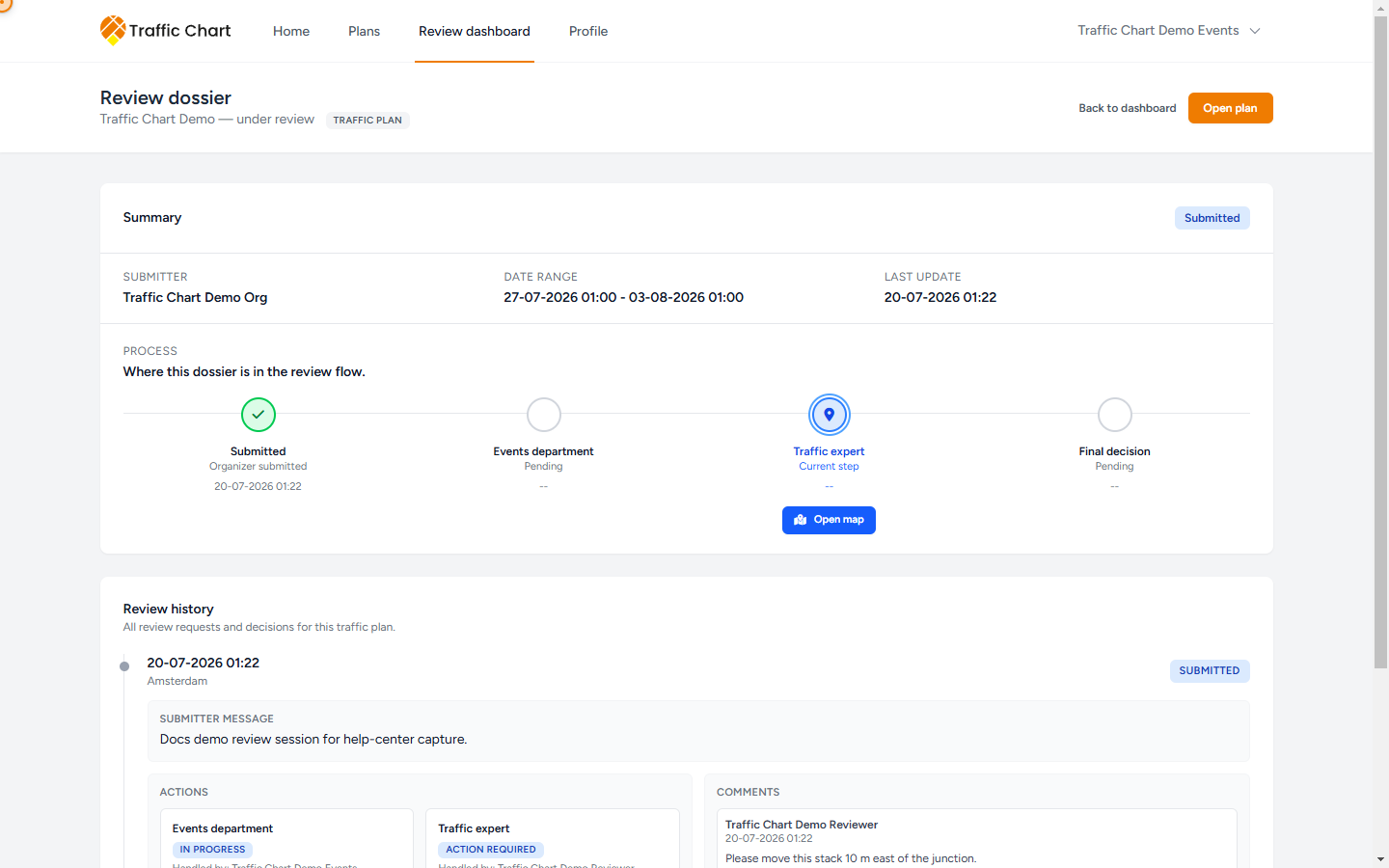
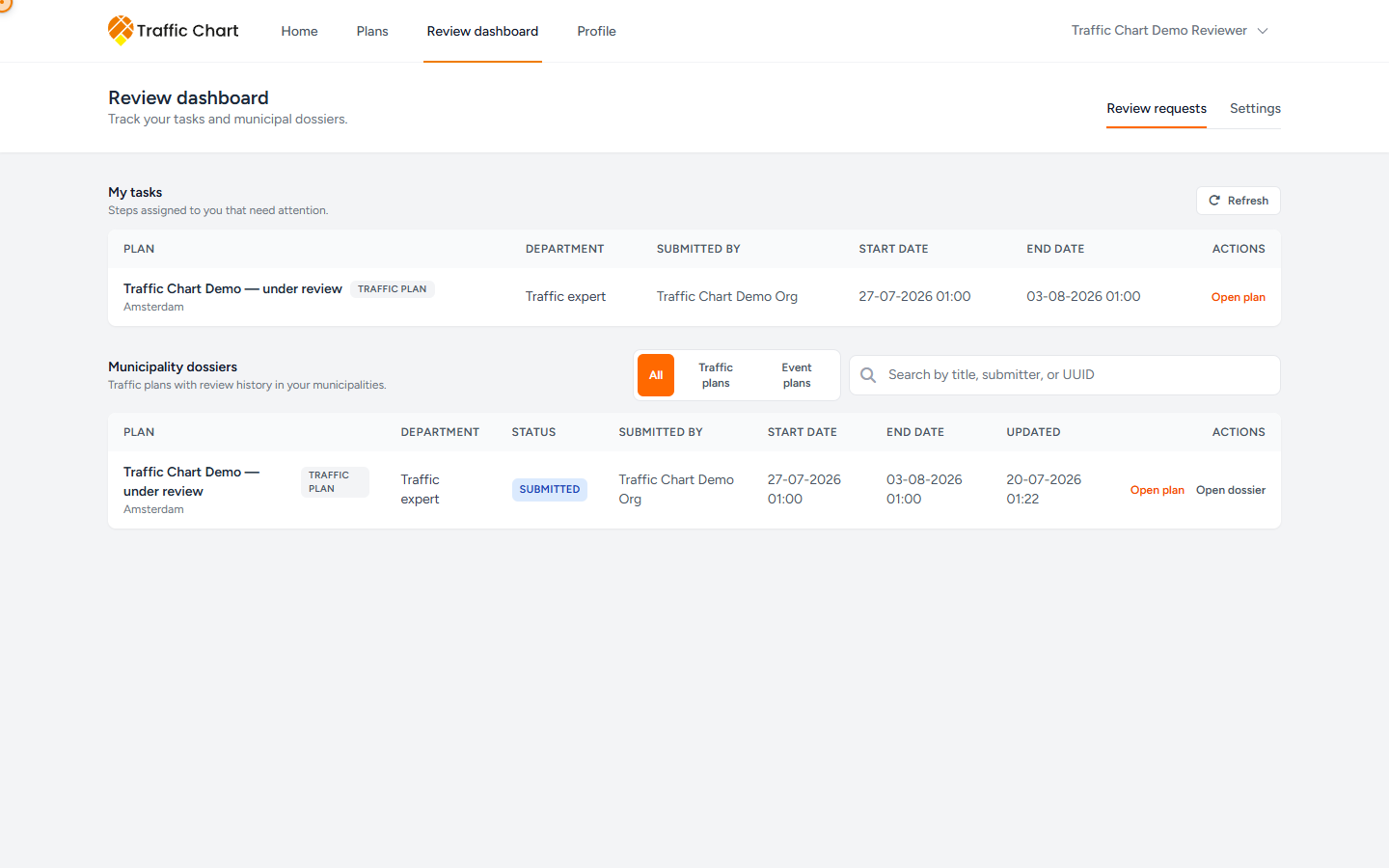
This page is for municipal staff with review access: Events department and Traffic expert. Organisers do not start the first session. You do.
Map comments (Pin, Arrow, Rectangle) exist only for the assigned Traffic expert on an open Submitted step. Events can still decide an event plan without those tools.
When you need this
Use it when your municipality reviews traffic plans or event plans inside Traffic Chart.
Skip it if you only view a share link. That is read-only. It does not create a dossier.
If your account is Events department or a traffic expert, Reviews appears in the top bar.
The written file, suggestion copies, and Reviewed plans copies are Review dossier and copies. Routing switches are Municipality review settings.
Open the inbox
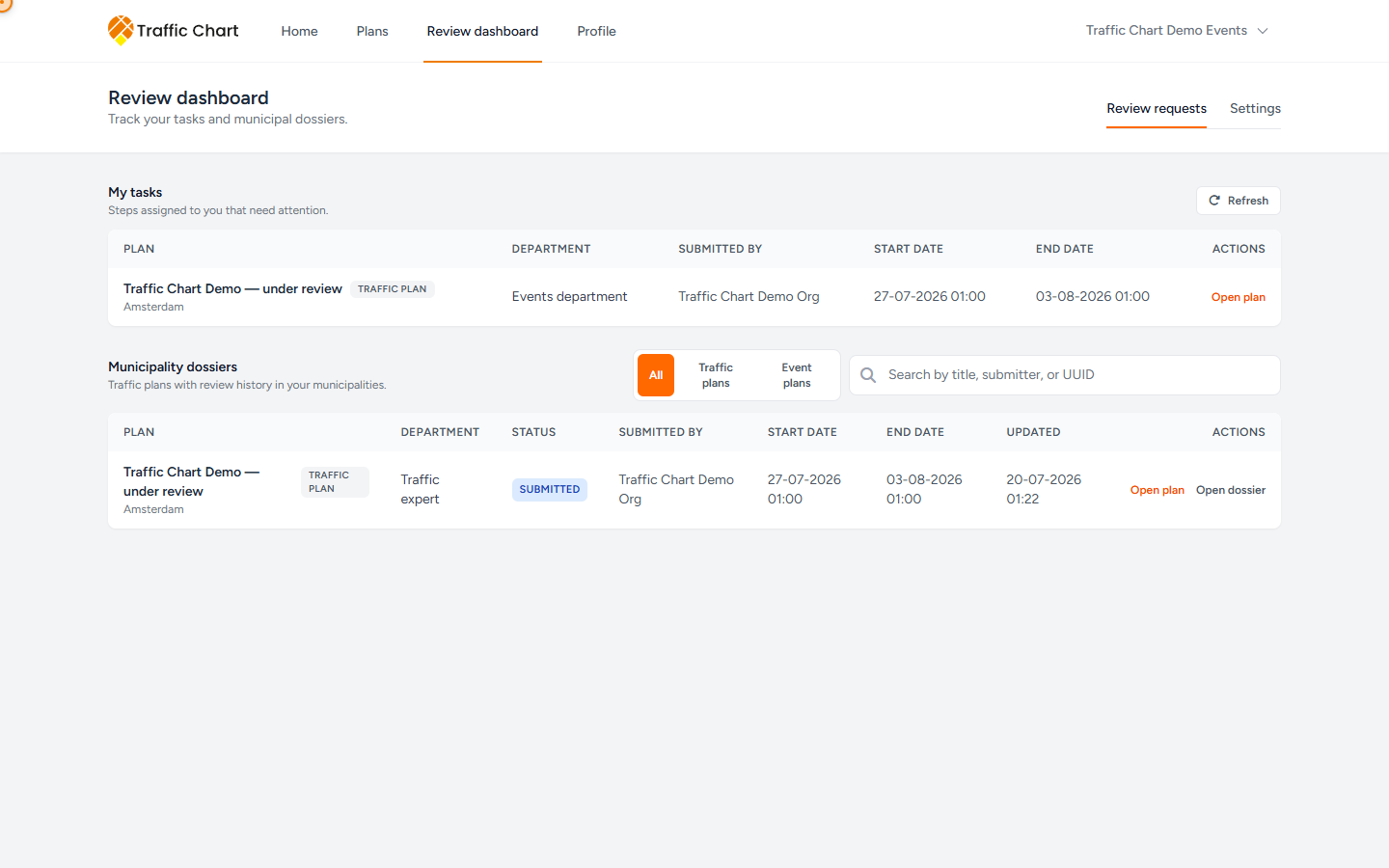
- Click Reviews. That opens Review dashboard. Subtitle: Track your tasks and municipal dossiers.
- Tabs next to the heading: Review requests (this page) and Settings.
- Work My tasks first. Description: Steps assigned to you that need attention. Empty: No active tasks assigned.
- Use Municipality dossiers for history. Description: Traffic plans with review history in your municipalities. Empty: No dossiers found.
Filter with All, Traffic plans, or Event plans. Search placeholder: Search by title, submitter, or UUID.
On a row, Open plan is the map. Open dossier is the written file. Refresh / Refreshing reloads the lists.
Table labels include Plan, Department, Status, Submitted by, Start date, End date, Updated, Actions. A plan with no session yet shows No dossier yet. A start-from-municipality row can show Started by municipality.
A Forward feedback badge means Events still needs to send traffic-expert comments to the organiser (when Direct communication is off).
Start a review session
The organiser cannot send the first request. You start it from the plan.
- Find the plan in Municipality dossiers, or paste the UUID in search.
- Click Open plan.
- Open Comments if it is not already open. Heading: Review status.
- When you are assigned to that municipality, you see No active review session and Starting a review session will lock the plan for the owner until you update the status.
- Click Start review session (or Starting...). Note under the button: You can only start a session if the plan contains at least one traffic object in a municipality you are assigned to. (Event plans need event objects.)
The plan locks. The owner sees In review by municipality. You see Plan awaiting your review. Toast: Review session started.
If Start review session is grey, read the tooltip:
| Tooltip | Meaning |
|---|---|
| Start a new review session and lock the plan for the owner. | You can click it. |
| Save the plan before starting a review session. | The plan is not saved yet. |
| There is already an active review request for this plan. | Do not start a second session. |
| Wait until the plan has finished saving or refreshing. | Wait, then retry. |
| The plan has no reviewable objects in a municipality yet. | Event plans need placed event objects (areas, lines, and text do not count). Traffic plans need traffic objects. |
| The events department must forward this plan to the traffic expert first. | A traffic expert cannot start the first session when Events is configured. |
| You are not assigned to the municipality for this plan. | Wrong account for this area. |
If nobody assigned to you can start anything, Comments can show No review requests yet for this plan.
The Review status card (every string)
Open Comments. The heading is Review status.
The card changes by status and by who you are. Reviewer here means: you are assigned to the current step, or you were the person who just decided. Anyone else with the plan open is a viewer.
Submitted
| Who | Title | Body |
|---|---|---|
| Organiser | In review by municipality | Your plan is locked while the reviewer looks at it. We will notify you when they respond. |
| You (assigned now) | Plan awaiting your review | The plan owner cannot edit while you review. Add comments or update the status when you are ready. |
| Viewer | In review | This plan is being reviewed by the municipality. |
Extra lines on Submitted:
- Currently with Events department or Currently with Traffic expert
- Submitted plus the date and time, for example Submitted 12 Aug 2026, 09:14
- Reviewer message when a note already exists
Changes requested
Title for everyone: Changes requested.
| Who | Body |
|---|---|
| Organiser, feedback already forwarded (or Direct communication on) | Update the plan based on the reviewer comments, then submit again. |
| Organiser, Direct communication off, Events has not forwarded | The traffic expert left feedback. The events department will forward it to you. |
| You | You requested changes. Waiting for the owner to update and resubmit. |
| Viewer | Changes were requested; the owner needs to update the plan before resubmitting. |
Time line: Updated plus the date.
Rejected (title is Review closed)
- Title: Review closed
- Body: The review was closed. The owner can make adjustments before sending a new request.
Same title and body for organiser, reviewer, and viewer.
Approved
- Title: Plan approved
- Body: This plan has been approved. Further edits are disabled.
- Time line: Approved plus the date
Same title and body for everyone.
In-app Approved is the drawing accepted in Traffic Chart. It is not, by itself, a legal permit.
Review progress
Review progress always lists Submitted, Events department, Traffic expert, then the outcome (Completed, or Approved / Rejected / Changes requested when the round has finished).
On event plans the traffic-expert step is often skipped. Events can be the last decision.
Events department
Events opens Events department actions when the current step is yours and the request is still Submitted.
Traffic plans
The description is Forward to the traffic expert or send a decision back to the submitter.
Usual action: Forward to traffic expert. That is the technical review.
You can also Request changes or Reject. Those go back toward the organiser. Add a Message (placeholder Let the submitter know what needs to be updated) when you request changes or reject, then Send update. Saving... while it works.
You do not get map Review tools. You cannot place Pin, Arrow, or Rectangle. Write the decision in the form. Read existing map comments in Messages from municipality.
Event plans — Events can finish the review
On an event plan you are often the decision-maker. The Traffic expert step can stay skipped (Not applicable on the dossier). The form says Make a decision on this event plan.
Forward to traffic expert is hidden on that form.
Choose Approve, Request changes, or Reject. Confirm Approve with Approve, or confirm the others with Send update.
Approve finishes the review. Request changes and Reject unlock the organiser to edit and use Send for review.
You still do not get Review tools. If a traffic expert must mark the map, that happens after they own the step — which means you forwarded, or the municipality has no Events person and the traffic expert started the session.
When Direct communication is off and a traffic expert already decided, you may need Forward feedback to submitter before the organiser can resend. My tasks / dossiers show Forward feedback until that is done.
Traffic experts
You review when the current step is Traffic expert and the request is assigned to you. The form heading is Update status, with a Reviewer hint.
Decide
Under Update status, choose Approve, Request changes, or Reject. Add a Message (placeholder Let the plan owner know what you decided). The submit button repeats the chosen action: Approve, Request changes, or Reject (or Saving...).
Approve locks the plan. Request changes asks the owner to edit and resend. Reject closes this request; the owner can still send a new one after edits.
If Events is configured, you do not start the first session. You take the plan after Forward to traffic expert, or when no Events person is linked to that municipality.
Map comments — traffic expert only
When the step is yours, Review tools appear on the map: Pin, Arrow, Rectangle.
They appear only when all of this is true:
- There is an active request with status Submitted
- The current stage is Traffic expert
- You are the assigned user on that step
Events department accounts never see these tools, even on event plans they decide themselves.
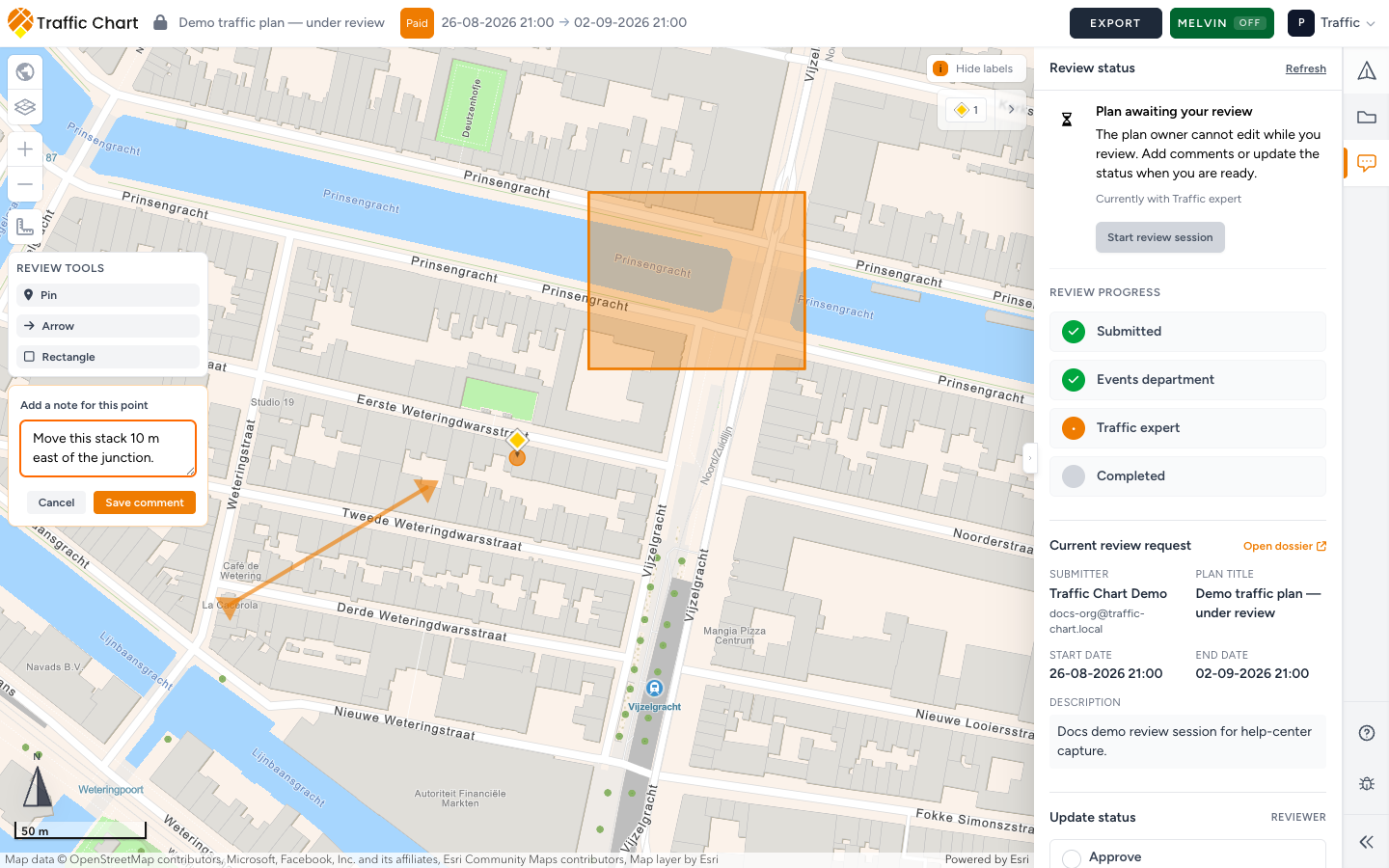
- Pick a tool.
- Click or draw on the map.
- The note heading is Add a note for this plus point, arrow, or area.
- Type in What needs to change here?
- Click Save comment (or Cancel).
Comment list, Show on map, and Review status strings: Comments and review status.
Use Show on map from Messages from municipality to jump back. More actions lets you Edit or Delete your own open comments. Placeholder when editing: Update this comment... Delete asks Delete this comment? This cannot be undone. The organiser can Close a comment after they handle it (Closed on the card). Empty list: No comments for this request.
Write a place and an action (“move the stack 10 m east”), not only “fix”. Place comments before you set Changes requested.
Current request and history
Current review request shows Submitter, Plan title, Start date, End date, optional Description, Events department note, and Traffic expert note. Open dossier opens the written file when you have access.
Older rounds sit under History & comments (Hide / Show). Empty: No previous review requests yet. Rows can show Submitted by a name and date, Message from submitter, Events department, Traffic expert, Last updated, or Unknown area.
What good looks like
- My tasks is empty because you started or forwarded everything assigned to you.
- Event plans you start have event objects in your municipality.
- Traffic plans leave Events via Forward to traffic expert unless you truly mean to bounce them.
- Event plans you decide yourself use Make a decision on this event plan. and never wait on a traffic expert who was not in the flow.
- Map comments sit on the problem, with a sentence the organiser can execute — and only the traffic expert placed them.
If something blocks you
| Situation | What to try |
|---|---|
| No Reviews in the top bar | Your account is not Events department or a traffic expert. Email customer@traffic-chart.com. |
| Start review session disabled | Read the tooltip. Place objects, or wait for Events to forward. |
| No Review tools | You are not the assigned Traffic expert on an open Submitted step. Events never gets these tools. |
| Organiser stuck after your comments | Direct communication is off. Events must Forward feedback to submitter. |
| No municipalities assigned on Settings | Municipality review settings |