
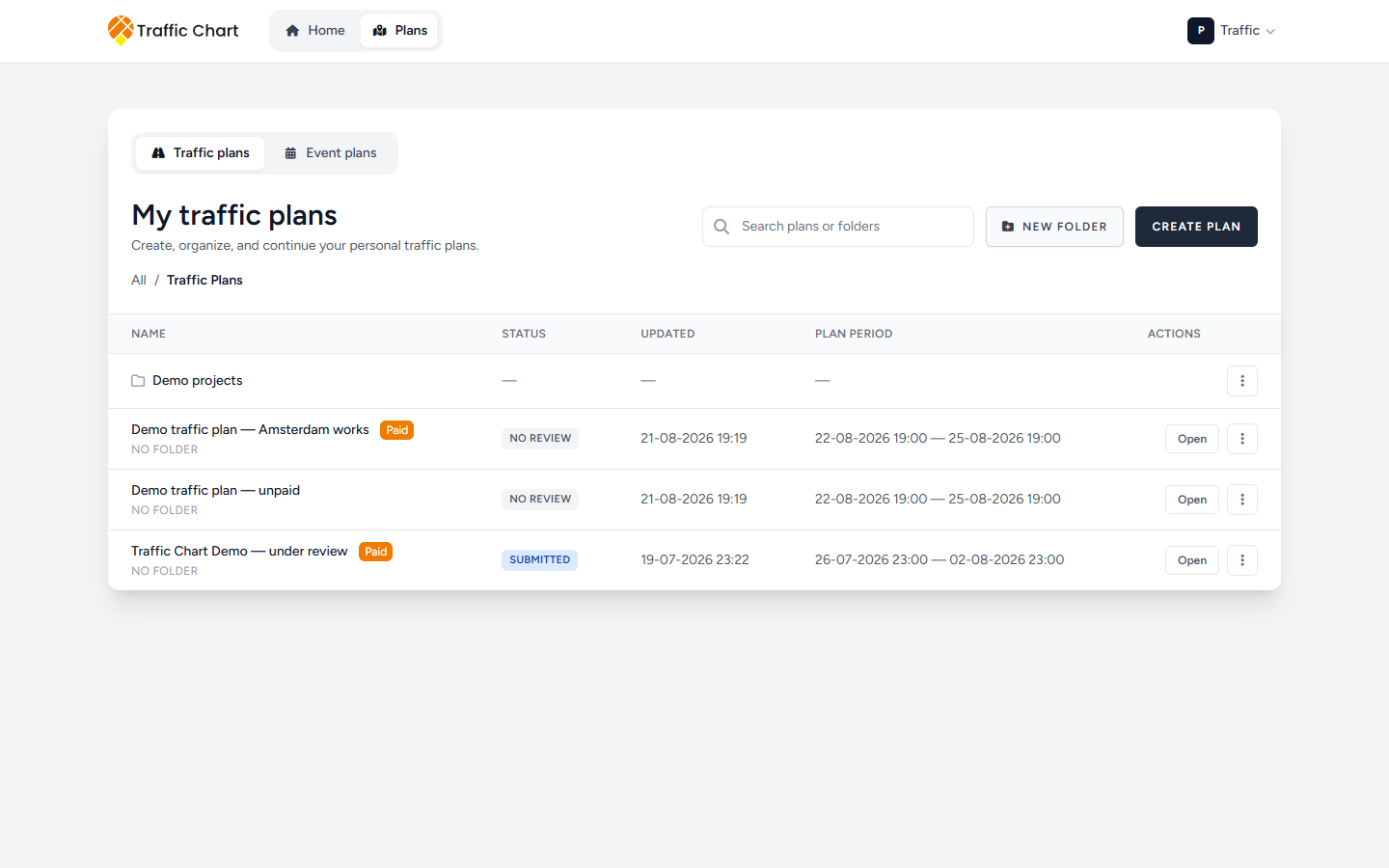
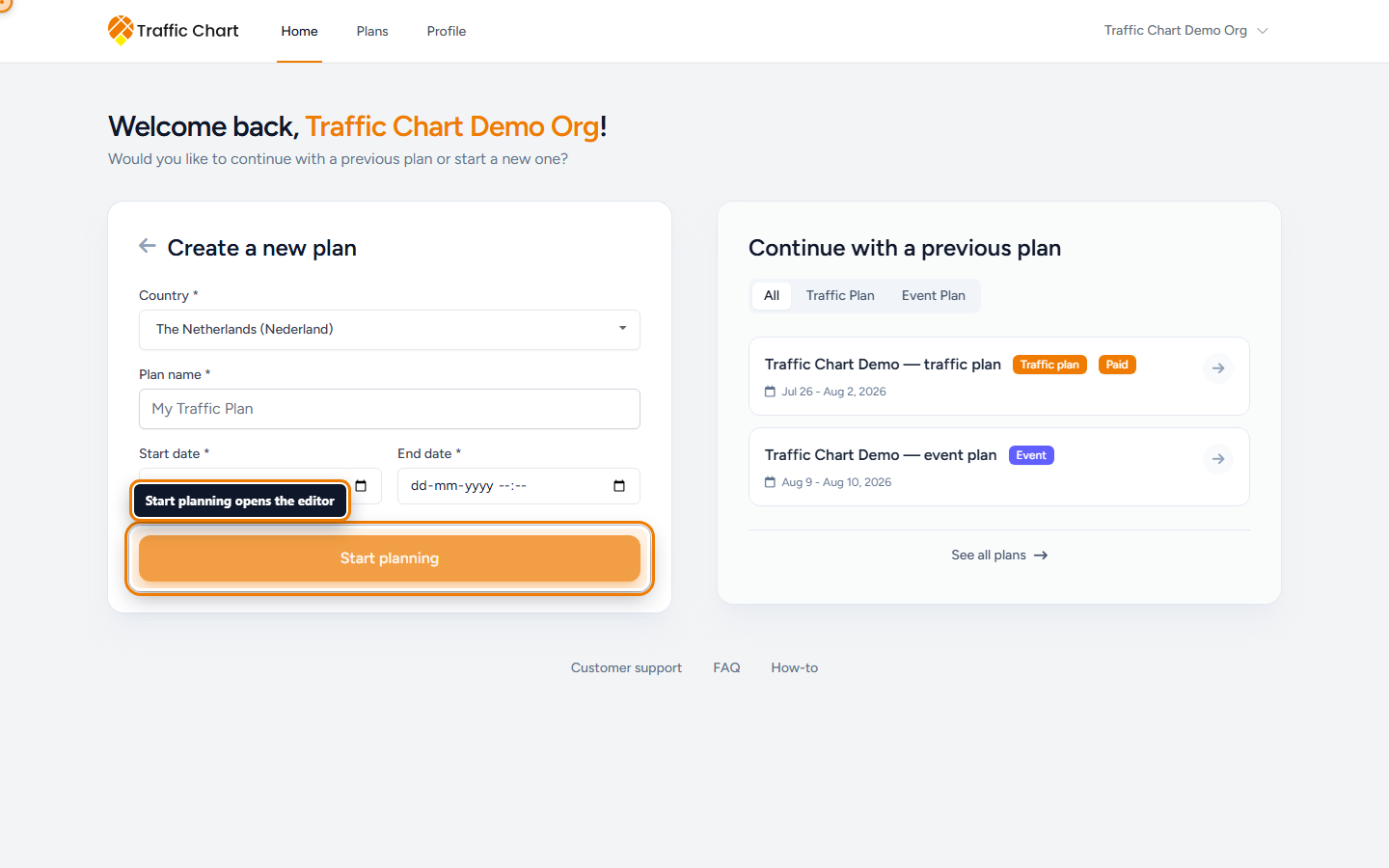
motion — home → view all plans → library controls
This page is the traffic plan as a document: create it in the right workspace, keep it findable, save it, and share a live link. Drawing and PDF files have their own articles.
Use this when you need a new plan, a folder, a share URL, or a team owner. Skip it if you already have the map open and only need signs, layers, or export.
Home, Plans, and the editor
Home is / after login (Welcome back, your name). It is not the map. Choose Traffic Plan or Event Plan, or Continue with a previous plan. See all plans opens the library.
Plans is the library for the current workspace. The editor is the full-screen map after Start planning or Open. The logo from the editor returns to Plans, not Home.
Event plans have their own tab. A “missing” traffic plan is often the wrong tab or the wrong workspace — My plan does not appear in the list.
Personal or organization
You always have Personal. An organization is a separate team workspace. Check Switch workspace (account menu) before you create anything. New plans from Home go to the workspace you last opened.
| Personal | Organization | |
|---|---|---|
| Library title | My traffic plans | Acme Events traffic plans (organization name + traffic plans) |
| Who can open | You | Everyone with access to that workspace |
| Who can change the plan | You | Only the assigned editor |
Creating a plan in an organization makes you the assigned editor. Other members open it read-only until an Owner or Administrator uses Assign editor. Team rules: Organizations and members. If Switch workspace greys out a row, read This workspace is not currently available. (or Workspace not enabled yet, Organization unavailable). Workspace unavailable.
Create a traffic plan
- Confirm Switch workspace shows Personal or the organization you meant.
- On Home, choose Traffic Plan. From Plans, Create plan starts the same form.
- Set Country (required — this loads the sign catalogue).
- Enter Plan name (placeholder My Traffic Plan).
- Set Start date and End date. Complete both the date and the time. Start must be before end.
- Click Start planning.
The editor opens on the map. Rename later with the pencil next to the title (Edit project title). Dates stay in the header as Start date and End date.
Country loads the sign catalogue. Dates appear on exports, and Show Melvin stays disabled until they are filled (Fill in a date to use this option). Older plans may show Continue your traffic plan and ask you to finish Country, Plan name, and Duration first (Continue planning). Validation: Select a country., Enter a plan name., Select a start date and time., Start date must be before end date, Complete the start date with a time. If create fails: Failed to create project. Please try again. / Could not create project. Success: Project created!
Find and organise on Plans
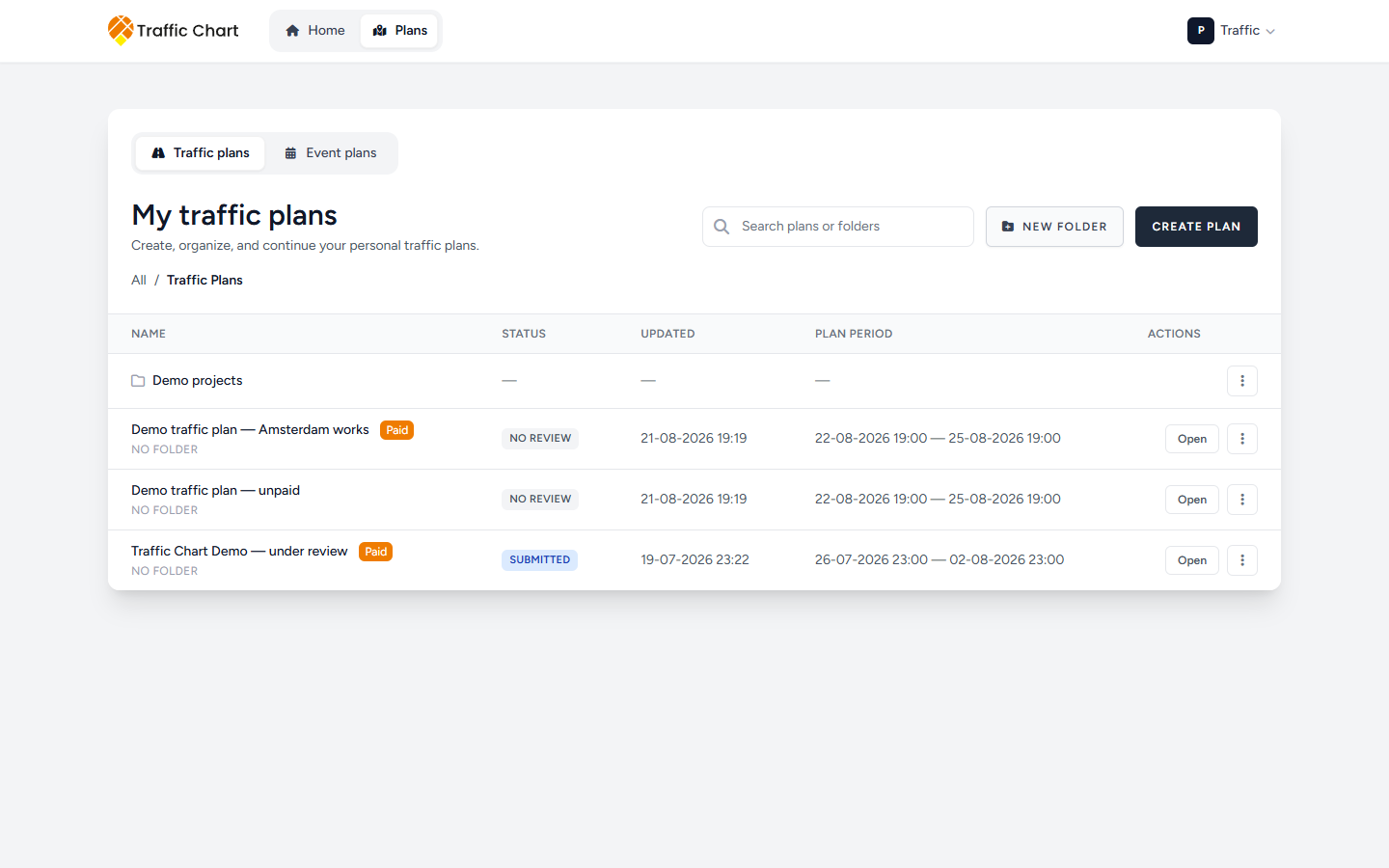
Plans lists Name, Status, Updated, Plan period, and Actions. Search with Search plans or folders. Open a plan, or click its name row. Paid on a row means this plan is unlocked for unlimited signs. In an organization, Editor: Sam Rivera (the assigned editor’s name) shows who can change that plan.
The ⋮ menu on a plan includes Open, Copy link, Move to folder, Duplicate, Delete, Move to organization (from Personal), and Assign editor (organization Owners and Administrators). Rename on the ⋮ menu is for folders, not plans. Rename a plan from the editor title.
Empty list: No items found. Folders, search, breadcrumbs, and every library action: Folders and the library.
Folders
New folder opens Create folder. Enter Folder name, pick Location, then Save. Toast: Folder created. On a plan, Move to folder and pick a Destination (or No folder). On a folder you can Rename, Move folder, or Delete — delete only works when the folder is empty (Delete this folder? Make sure it is empty first. / Cannot delete folder while it still contains items.). Personal libraries use Folders; organization libraries use Shared folders. Go up one level returns to the parent.
How the library works in full: Folders and the library.
Move or copy into an organization
From Personal, the plan menu Move to organization asks How should it go? Move (Recommended) leaves Personal; the public link stays the same. Copy keeps the plan in Personal and gives the organization a separate plan with a new public link. You cannot move a plan that is in municipality review (Under review — move unavailable); Copy is still allowed. You cannot move an organization plan back to Personal, or from one organization to another.
The dialog, folder-move summary, and every toast: Move, copy, and assign editor.
Assign an editor
On an organization plan, Owners and Administrators open Assign editor. Choose Assigned editor (Choose an editor), then Save assignment. Everyone with workspace access can Open the plan. Only that assigned editor can change, duplicate, or delete it. Other members get Plan is read-only. If the assigned editor is suspended, nobody can edit until someone reassigns the plan.
Full dialog and membership-inactive cases: Move, copy, and assign editor.
Save
In the editor: Auto-save and Save. The auto-save preference is stored on your account. Hover the switch for Auto-save: saving, Auto-save: unsaved changes, or Auto-save: saved. With auto-save on, Save is disabled (auto-save is enabled).
Save is blocked for Plan is locked while under review, This plan is locked because it has been approved, or Plan is read-only. Wait for saved before you send a link or start a PDF. Title, dates, and every save toast: Auto-save, title, and dates.
Share a live link
Each traffic plan has a public address such as https://traffic-chart.com/traffic-plans/ plus the plan’s id. Anyone with that URL can view the map read-only. They do not need an account.
- On Plans, Copy link.
- Or in the editor click Export, then copy Sharable link (RECOMMENDED).
- Send it to a colleague, municipality, or contractor.
Sharable link stays up to date after you save. Many municipalities prefer that over a file. Use Export files only when someone asks for PDF or Excel — Export and print traffic plans.
Treat the URL like a document you would email. Do not post it on public social media. If a link spread too widely, email customer@traffic-chart.com. Viewers can pan and zoom. They cannot place signs or save. What a public viewer sees: Share a plan and read-only view.
What good looks like
You are in the intended workspace. The title and dates match the works. Auto-save: saved (or you pressed Save). The people who must see the drawing have the share link, not a stale attachment.
If something blocks you
| Situation | Where to go |
|---|---|
| Plan not in Home or Plans | My plan does not appear in the list |
| Map will not let you edit | I can’t open or edit a plan |
| Sign limit or Paid questions | Billing, free use, and credits |
| Need the map chrome | Tour of the traffic plan editor |