
This page explains why a tool is blocked even after you paid for signs on a plan.
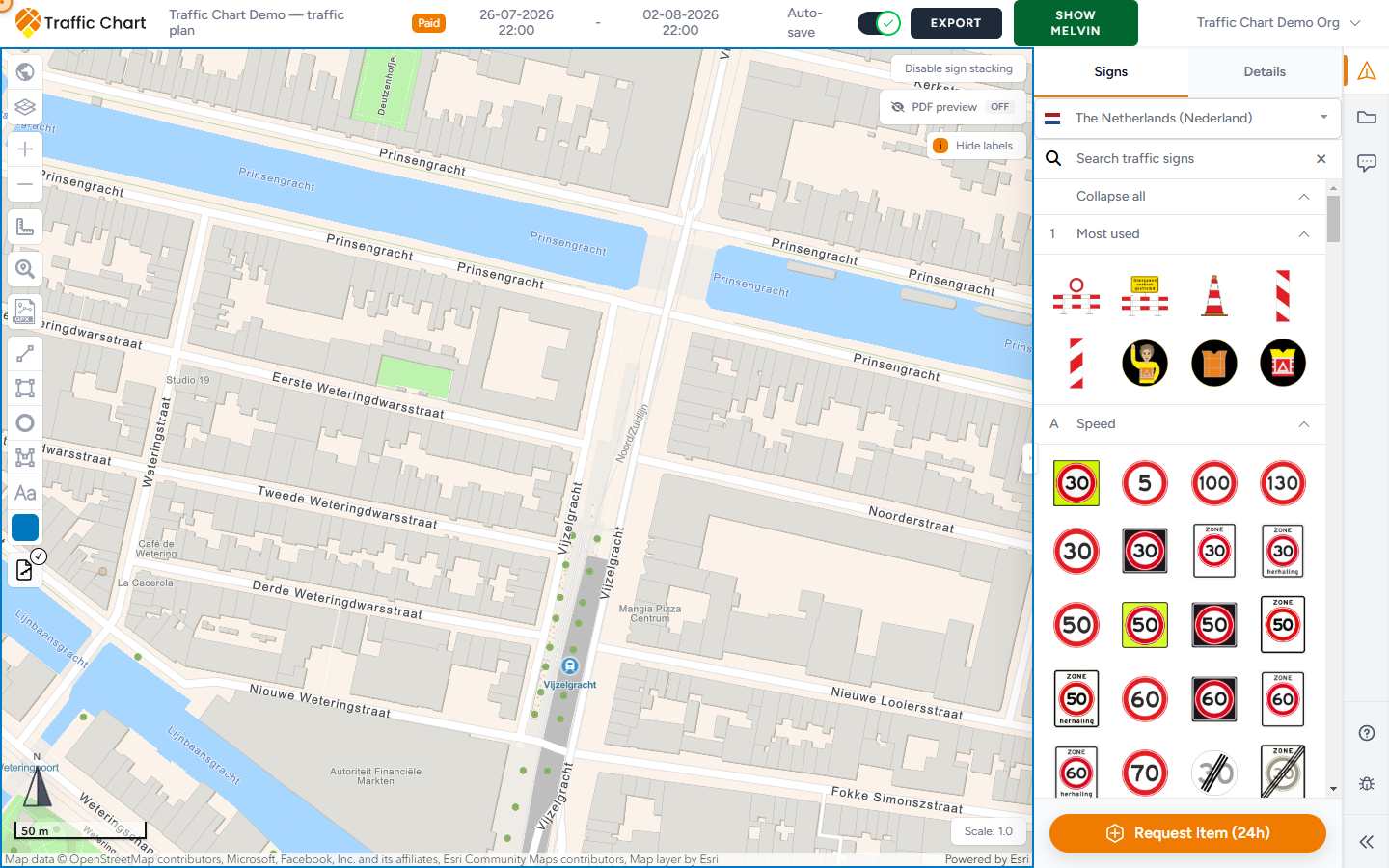
Use it when the app says Pro feature, asks for an organization or PRO account, greys out Bulk signs, XL, Excel, Displace sign stack, or PDF preview, or when a tab reads Not enabled for Personal. The free sign cap is a different gate — I can’t place more signs.
Paying (or spending a credit) for unlimited signs on one plan does not grant these tools. A Paid badge is not a Pro license.
What is gated
| Feature | Typical message | Who can use it |
|---|---|---|
| Bulk signs | Pro feature / You need an organization account to use bulk sign placement. | Organization accounts |
| XL export maps | XL maps require a PRO account. | PRO / organization permission |
| Download Excel / Materials Excel | This is a pro feature. | PRO / organization permission |
| Displace sign stack (family Move sign stacks) | Pro feature / You need a PRO account to displace traffic signs. | PRO permission |
| PDF preview | Needs an XL map; XL shows XL maps require a PRO account. | PRO permission |
| Event plans tab | Not enabled for Personal. or Not enabled for Acme Events. | Workspace with Event plans turned on |
Everyday tools still work: place signs one by one, Detail export maps, PDF Materials list when offered.
Event plans — Not enabled for Personal.
On Plans, if Event plans are off for this workspace, the Event plans tab is grey. The line under the tabs is Not enabled for Personal. (or Not enabled for Acme Events.). You cannot click New Event Plan there.
That is a workspace setting, not a Pro badge. Ask an Owner or Administrator, or email customer@traffic-chart.com. Grey Switch workspace rows (Workspace not enabled yet, Organization unavailable, Organization suspended) are the same family: Workspace unavailable or not enabled. Handbook: Event plans handbook.
XL and PDF preview
In Export maps, Draw new map offers Detail and XL. XL stays disabled with a Pro badge and XL maps require a PRO account.
PDF preview (Off / On) only appears when your account can manage XL maps. Without that permission the chip is missing in edit mode. Preview is not a download. PDF preview.
Scale cannot be changed while PDF preview is on. Turn the chip Off before you move Scale:.
Excel
Download Excel / Materials Excel shows a Pro badge and This is a pro feature.
You also need a saved, logged-in plan: Log in and save the plan before exporting Excel. And an export map: Create an export map first. Fail: Could not export Excel. Please try again. Unavailable: Excel export is not available for this plan.
The Materials list PDF still works when offered (Include materials list). Paying for unlimited signs on Demo traffic plan does not unlock Excel.
Bulk and displace
Bulk signs on Personal: Pro feature / You need an organization account to use bulk sign placement. Switch to Acme Events (or another organization) if that workspace has the tool. Advanced sign placement.
Displace sign stack without Pro: Pro feature / You need a PRO account to displace traffic signs. Related copy: Move sign stacks / Move sign stacks away from their exact coordinate.
Confirm the account
- Open Switch workspace. Pro and organization tools live on the organization workspace, not always on Personal.
- Ask an Owner or Administrator whether those tools are enabled for your team.
- You still need to edit the plan. In an organization, only the assigned editor can change it. Everyone else sees Plan is read-only.
Buying credits is also gated: members cannot purchase organization credits (Only an organization owner, administrator, or billing account holder can purchase credits. Ask them to add credits to this workspace.). Owners who are not the assigned editor cannot check out on a colleague’s plan. That is billing access, not a Pro toggle. Billing, free use, and credits.
What good looks like
On an account that has the tool, Bulk signs draws a line, XL appears under Draw new map, PDF preview toggles on an XL map, and Excel downloads after you have an export map. The Event plans tab is clickable, not Not enabled for Personal.
If you need the tool
Use the everyday tools above in the meantime. Email customer@traffic-chart.com with the feature name and account email.
When the tools are on: Advanced sign placement and Export and print traffic plans.