
motion — signs → Export → Detail → paper → Export now → complete
When the drawing is ready, you either share a live link or produce files. This page is the traffic plan path. Event plans use a different exporter — Export an event plan.
Use this when a municipality wants a URL, or when someone asked for PDF or Excel. Skip it while you are still placing signs.
Sharable link (recommended) vs Export files
Click Export in the editor header. The screen is How would you like to export your map?
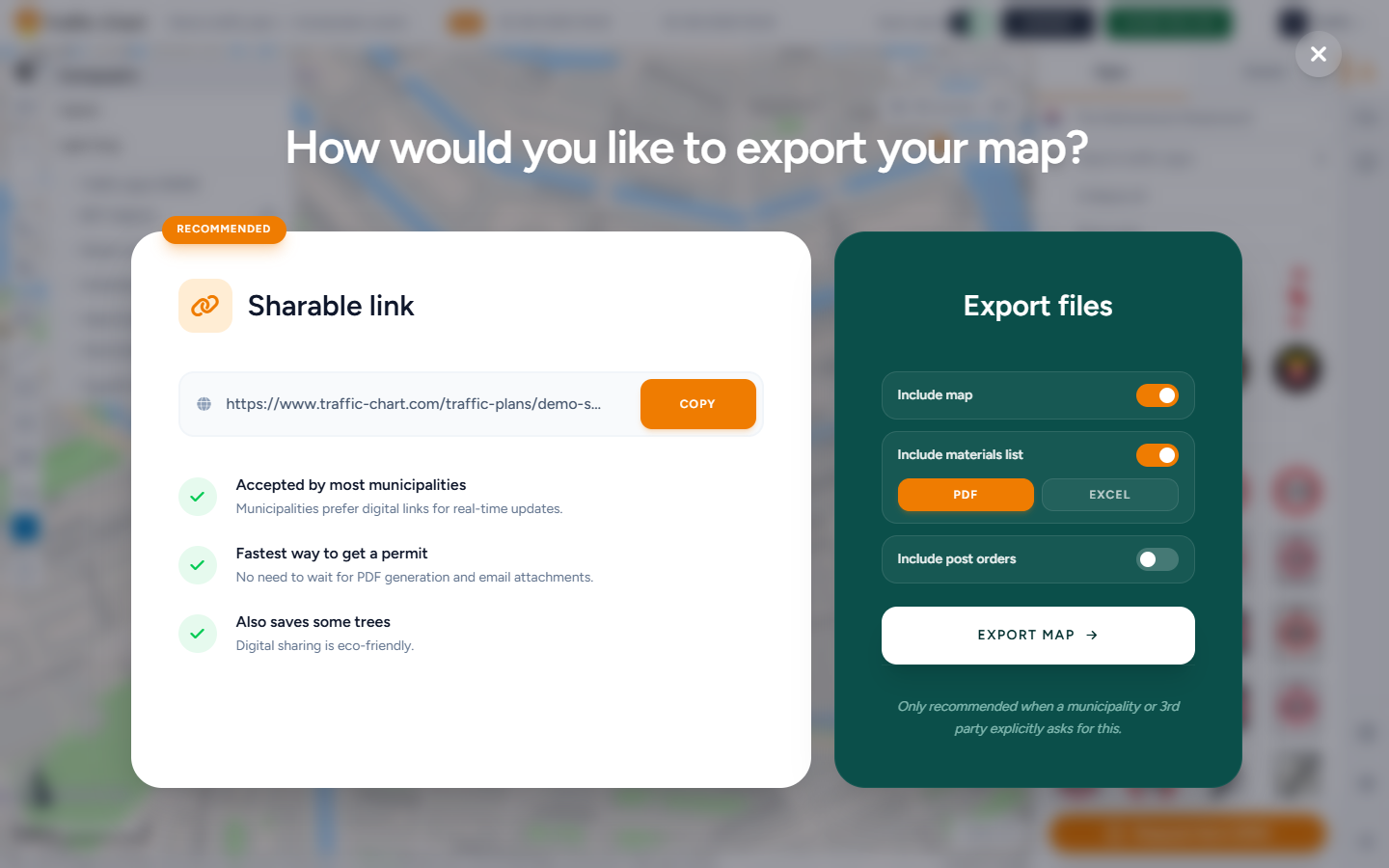
Sharable link is marked RECOMMENDED. Copy it with Copy (Link copied to clipboard). Benefits in that panel: Accepted by most municipalities, Fastest way to get a permit, Also saves some trees.
The link is the same public URL as Copy link on Plans. It stays current after you save. How it behaves: Share a plan and read-only view.
Export files is the file path. On-screen warning: Only recommended when a municipality or 3rd party explicitly asks for this.
In that column you can toggle:
- Include map
- Include materials list — then PDF and/or Excel
- Include post orders (when the catalogue has post signs)
The main button is Export map if you included a map (or Excel, which needs an export rectangle). Otherwise it is Export files.
Excel shows a Pro badge when you cannot use it (This is a pro feature.). You also need to be logged in with a saved plan (Log in and save the plan before exporting Excel.).
Draw export maps
An export map is a rectangle on the basemap. Each one becomes a PDF page. The sidebar accessible name is Traffic plan export maps. The heading is Export maps.
| Type | Role |
|---|---|
| Detail | Standard page. Size is limited so signs stay readable |
| XL | Larger coverage. XL maps require a PRO account. |
Steps
- Save, or wait for Auto-save: saved.
- Export → set Include map (and materials / post orders if you need them) → Export map.
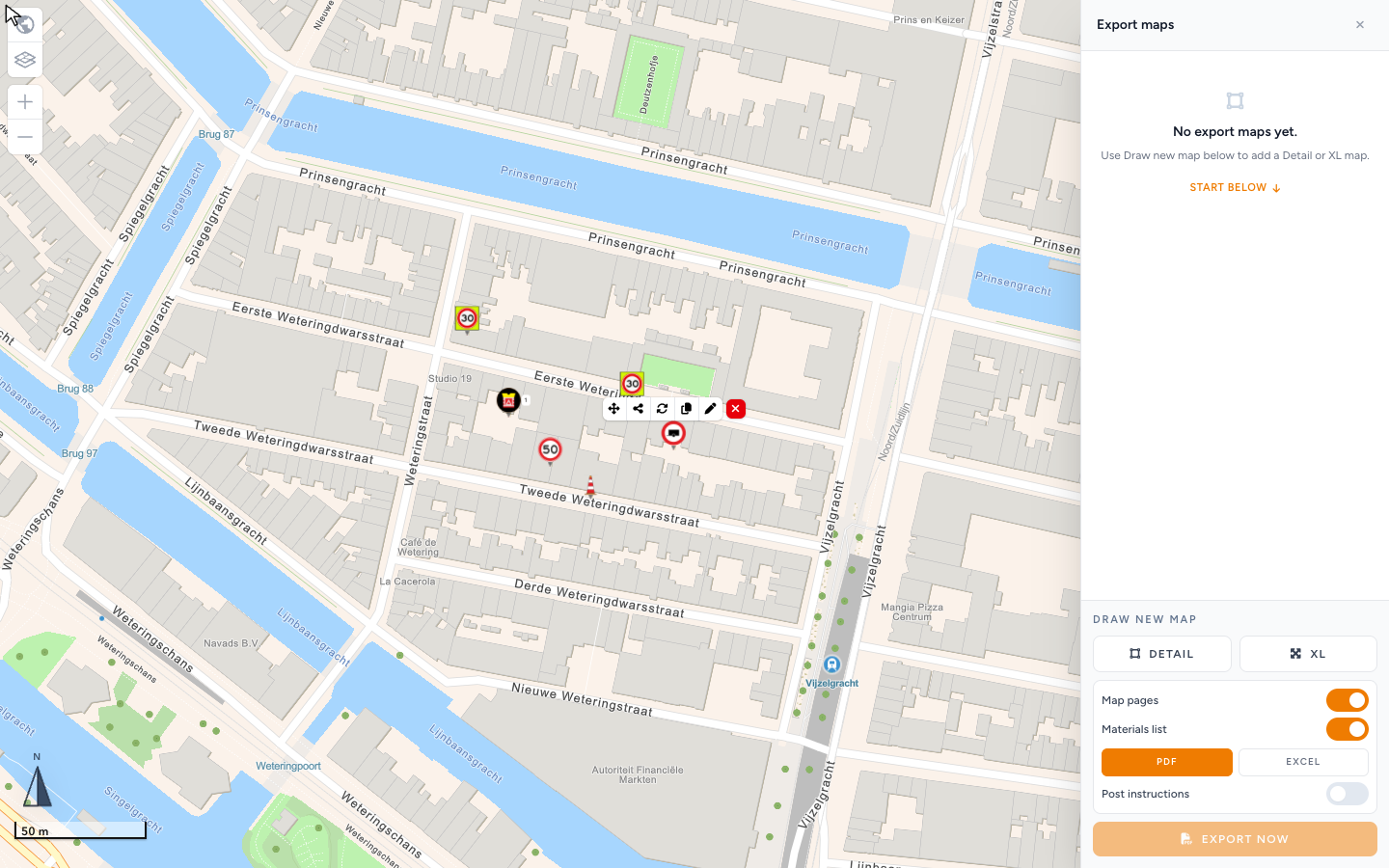
- The Export maps sidebar opens (Traffic plan export maps). Empty state: No export maps yet. Use Draw new map below to add a Detail or XL map. Start below points at Draw new map. In read-only export: No export maps have been added to this plan.
- Under Draw new map, click Detail or XL.
- Drag a rectangle over the area you need on paper.
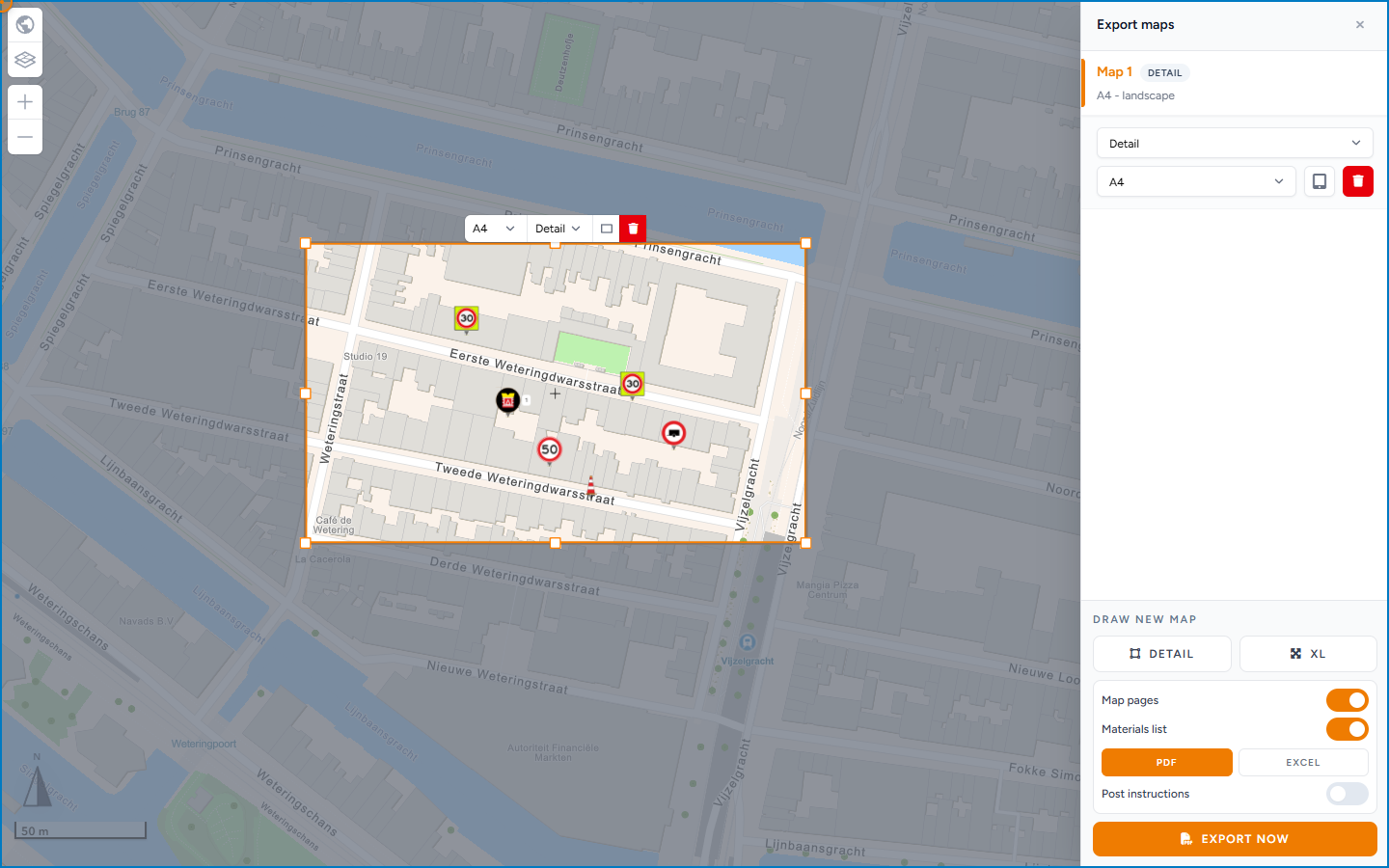
- Select Map 1 (and later maps). Set Paper size and Change orientation. Until paper is chosen the row shows No paper size.
- Confirm Map pages, Materials list, and Post instructions.
- If Materials list is on, choose Materials PDF and/or Materials Excel.
- Click Export now (while it runs: Exporting...). Keep the tab open. Open the download and check every page.
You need at least one export map before PDF export is enabled (Add at least one export map to enable export.).
If a Detail rectangle hits its limit: This detail map has reached its maximum size. Switch it to XL map if you want to export a larger map. Changing Scale: can reset Detail maps — confirm Confirm scale change only if you accept redrawing them.
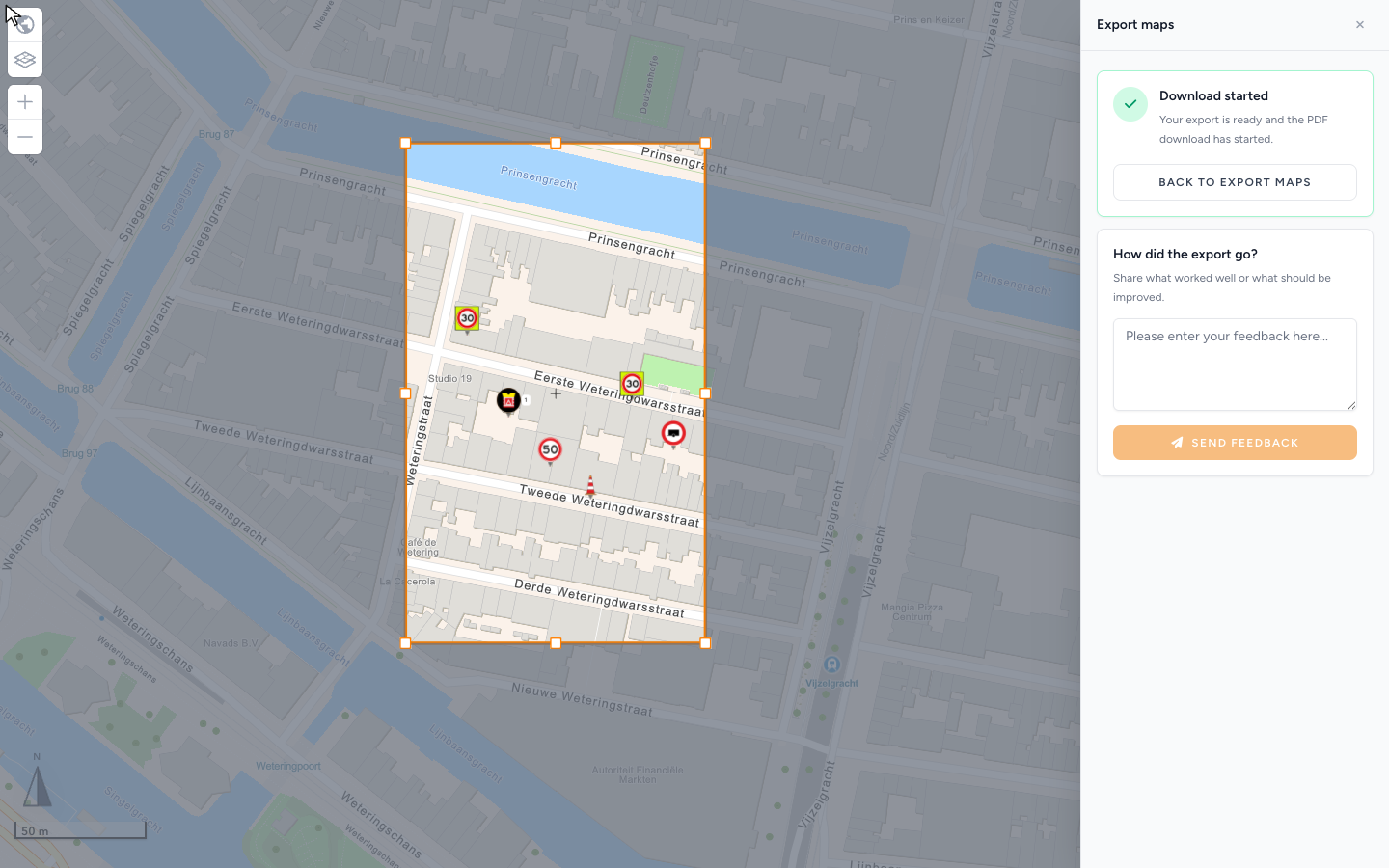
Close export mode returns you to the editor. While the file is handed to the browser: Starting download / The PDF is ready. Your browser is starting the download now. After a successful file: Download started / Your export is ready and the PDF download has started. / Your download has started. Back to export maps if you need another run.
Paper size and orientation
Each export map has its own Paper size (A4, A3, and other series in the list) and orientation.
Match what your municipality or printer expects (for example A3 landscape). XL still needs a paper size — content scales to that page. It is not infinite paper.
Remove export map deletes that rectangle.
XL maps (Pro)
Use Detail for junctions that must stay sharp. Use XL for a larger overview. Without Pro, XL stays disabled with a Pro badge and XL maps require a PRO account. Paying for unlimited signs on the plan does not by itself unlock XL.
PDF preview
PDF preview (right side of the map) shows paper-relative sizing while you edit, with Off / On. It appears when your account can use XL maps.
- Turn PDF preview On.
- If you have no XL map yet, Draw preview map, pick Paper size, then Draw XL map.
- Choose an existing map from Select XL map, or Detail mode to leave the selector empty.
- Lock preview map before selecting some objects (Lock the preview map to select this object.). Unlock preview map when you need to move the rectangle.
- Adjust placements for readability at paper scale.
- Turn preview Off, then run a real Export now.
Scale cannot be changed while PDF preview is on. Preview is not a substitute for checking the downloaded PDF.
Toast after creating a map: XL map created. Unlock the preview map to move or resize it.
The chip, Select XL map, Draw XL map, and Lock preview map: PDF preview.
Materials list
Materials list is the packing list: types and Qty, plus Stacked signs as a mounting overview (those plates are already in the totals).
- Enable Include materials list on the export choice, or Materials list in the export sidebar.
- Choose PDF / Materials PDF and, if you have access, Excel / Materials Excel.
- Export and check the extra PDF pages (and the spreadsheet).
Excel description: Download the materials list as an Excel file with a total tab and one tab per drawing. Unsaved changes are saved first. Excel needs at least one export map (Create an export map first.).
Combination signs appear under the Name you set on the board. Bulk lines show as bulk quantities. Packing-list columns, Excel, and post-order cards: Materials list and post orders.
Post orders
Post orders are instructions for traffic controllers.
- Open Posts (Manage traffic controllers and their orders per post.).
- Place a post item from Post items if the country has them (No post signs available for this country. otherwise).
- Select a post: Post name (label), Orders. Move post up / Move post down, Go to post, Google Maps.
- Save.
- On export, enable Include post orders (choice screen) or Post instructions (sidebar).
Fill instructions before the crew PDF goes out.
Export maps sidebar — every label
These are the English strings on Export maps (plus Export now, which sits with the area tools).
| Label | When you see it |
|---|---|
| Traffic plan export maps | Accessible name of the sidebar |
| Export maps | Sidebar heading |
| Close export mode | Leaves export mode |
| No export maps yet. | Empty list (title and short empty line) |
| Use Draw new map below to add a Detail or XL map. | Empty list when you can edit |
| No export maps have been added to this plan. | Empty list in read-only |
| Start below | Arrow hint under the empty state |
| Add at least one export map to enable export. | Export now is disabled |
| Map 1, Map 2, … | One row per rectangle |
| Detail | Standard export map, and the Draw new map button for that type |
| XL | Large export map, and the Draw new map button for that type |
| No paper size | The row has no Paper size yet |
| Change orientation | Portrait / landscape |
| Remove export map | Deletes that rectangle |
| Draw new map | Add Detail or XL |
| XL maps require a PRO account. | XL is locked |
| Map pages | Include the map PDF pages |
| Materials list | Include the packing list |
| Post instructions | Include traffic-controller pages |
| Export now | Builds the file (Exporting... while it runs) |
| Download started | Success heading |
| Your export is ready and the PDF download has started. | Success body |
| Starting download | Browser is taking the file |
| The PDF is ready. Your browser is starting the download now. | Starting-download body |
| Back to export maps | Dismiss the complete state |
| How did the export go? | Feedback heading |
| Share what worked well or what should be improved. | Feedback body |
| Feedback sent | After you send |
| Thanks for the feedback. We use this to keep improving PDF exports. | Thanks body |
| Log in to send export feedback. | Guest cannot send |
| This detail map has reached its maximum size. Switch it to XL map if you want to export a larger map. | Detail rectangle is at its limit |
Export status — every label
The progress panel title is Export traffic plan.
Headings:
| Heading | When |
|---|---|
| Creating export | The run has started |
| Finishing export | Pages are done; the file is wrapping up |
| Starting download | The browser is taking the file |
| Download ready | The file is ready |
| Export failed | The run stopped |
| Adding materials list | Materials PDF pages |
| Creating Excel | Materials spreadsheet |
| Adding post instructions | Post-order pages |
Messages:
- Your download has started.
- Something went wrong while creating your export.
Warnings (full text):
- This is taking longer than usual. A slow network connection can delay map tiles and layers. Please keep this window open while the export finishes.
- Some map layers took longer than expected to load. The export may be incomplete; please check the PDF before using it.
Row labels (a page is Page 1, Page 2, …):
| Row | Meaning |
|---|---|
| Export maps | Map pages in the job |
| Materials list | Materials PDF |
| Materials list Excel | Spreadsheet |
| Post instructions | Controller pages |
| Queued | Not started yet |
| Finished | That row is done |
| Failed | That row failed |
| Preparing your document | Opening the PDF |
| Preparing this page | That page has started |
| Sizing the page | Paper size |
| Positioning the map | Rectangle on the map |
| Scaling signs and drawings | Signs at paper size |
| Waiting for map layers | Tiles and overlays |
| Preparing bulk signs | Bulk lines |
| Capturing the page image | Screenshot |
| Placing the page image | Image onto the PDF |
| Adding the page header | Header |
| Adding the scale and labels | Scale bar |
| Saving this page | Footer / page write |
| Finalizing this export | Closing the file |
| Building the materials list | Materials PDF work |
| Creating the Excel file | Spreadsheet work |
| Building the post instructions | Post-order work |
When PDF fails
Leave the tab open if you see This is taking longer than usual. A slow network connection can delay map tiles and layers. Please keep this window open while the export finishes. Check the file if Some map layers took longer than expected to load. The export may be incomplete; please check the PDF before using it.
After a failure, Export Feedback may appear. Stay logged in if asked (Log in to send export feedback.), describe blank pages or stuck progress, and Send feedback. You can also use How did the export go? after a successful run. After send: Feedback sent / Thanks for the feedback. We use this to keep improving PDF exports.
What good looks like
Municipalities who can work from a URL have Sharable link. File packs have a Detail page per junction, optional XL overview, materials pages that match the map, and post orders the crew can follow. You opened the PDF before you sent it.
If something blocks you
| Situation | Where to go |
|---|---|
| Blank or stuck PDF | Export fails or is blank |
| XL or Excel locked | Feature not available for my account |
| Cannot draw rectangles | Read-only or review lock — I can’t open or edit a plan |