
This page walks you from Log in or Create account to the first Home screen, with the labels on every card you meet.
Use it the first time you open Traffic Chart, after an invite, or when a marketing “start free” form dropped you on Welcome. Skip it if you already land on Home and only need the top bar — that is Find your way around. Profile, passkeys, and turning 2FA on live in Manage your account.
The login page
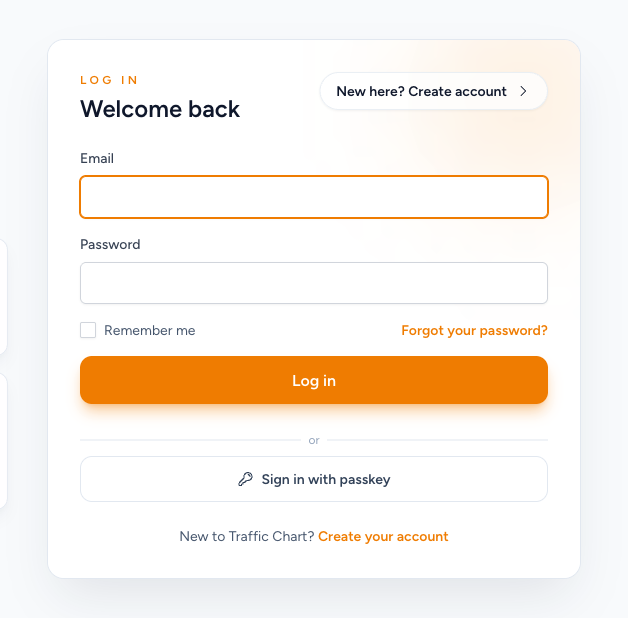
Browser title: Log in.
The card on the right has an orange eyebrow Log in and the heading Welcome back.
The left column is marketing, not the form. Heading: Create traffic and event plans in minutes. Description: Draw clear plans on the map, share them with stakeholders, and export them directly for use or review. Event plans are completely free; your first traffic plan is free.
Four feature tiles:
| Title | What it says |
|---|---|
| Traffic and events | Create free event plans or start with your first free traffic plan. |
| All in your browser | Start drawing right away without separate software or installation. |
| Share quickly | Collaborate with colleagues, organizers, municipalities, and traffic experts. |
| Ready to use | Export clear plans with objects, symbols, dates, and project details. |
Top right of the page is a language dropdown. The logo is Traffic Chart. Neither of those signs you in.
Sign in with email
On the Welcome back card:
- Enter Email.
- Enter Password.
- Optionally tick Remember me so this browser stays signed in.
- Click Log in.
Forgot your password? sits on the same row as Remember me.
Top right of the card: New here? Create account. Bottom of the card: New to Traffic Chart? then Create your account. Both open register.
Passkey
If this browser supports passkeys, a divider or appears under Log in, then Sign in with passkey.
Set a passkey later under Settings. Do not expect the button if you have never added one.
If the browser prompt fails: Could not sign in with passkey. Please try again or use your password. Use Email and Password instead.
When login fails
Wrong email or password: These credentials do not match our records. Check Caps Lock. Try Forgot your password? rather than creating a second account.
Too many tries: Too many login attempts. Please try again in 60 seconds. The number is the wait the app calculated (it might be 60 seconds, or another count). Wait, then try once.
Stuck after that: Email verification and login problems.
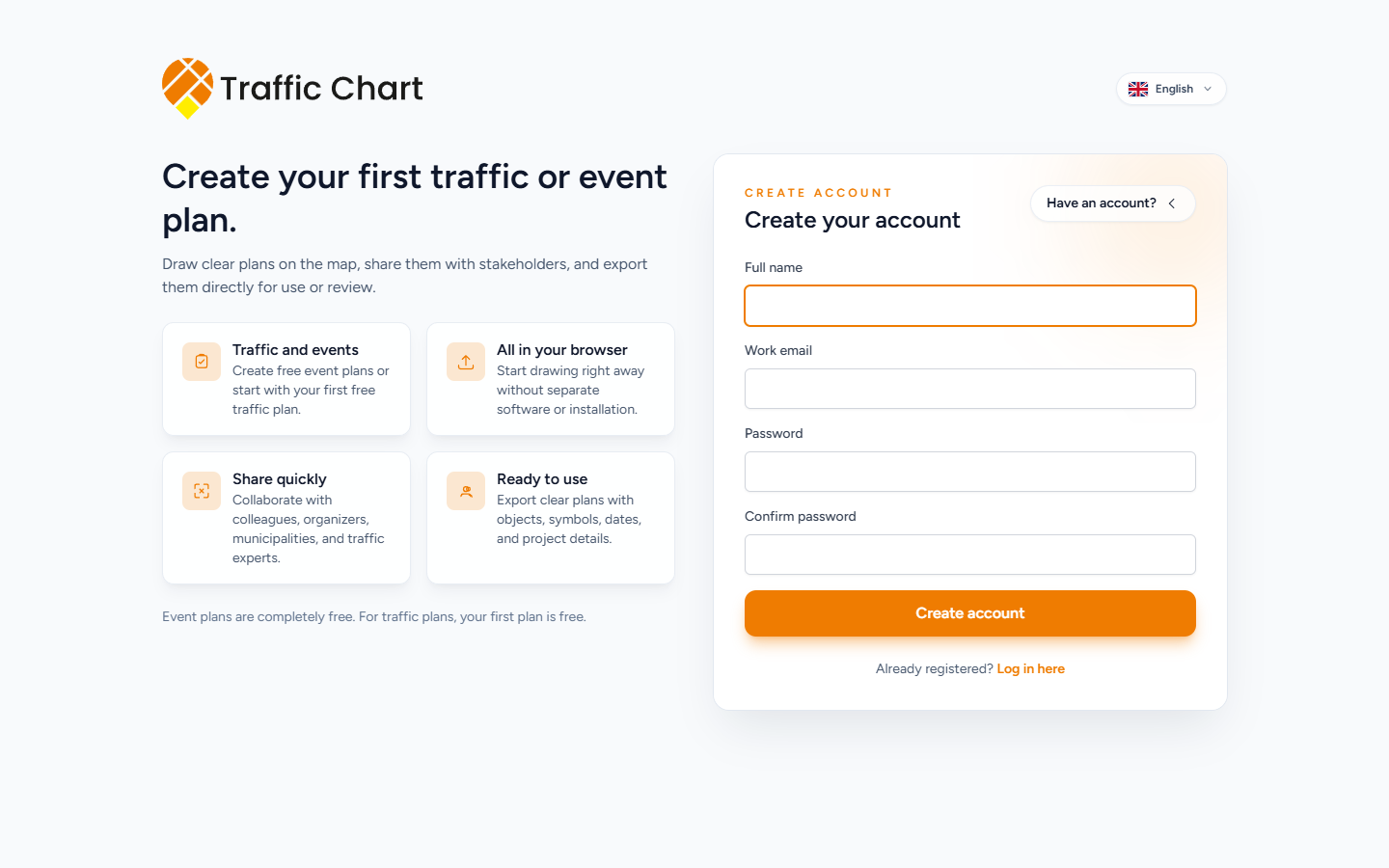
Create an account
From Log in, choose New here? Create account or Create your account.
Browser title: Create account. Orange eyebrow: Create account. Heading: Create your account.
The left column heading is Create your first traffic or event plan. Description: Draw clear plans on the map, share them with stakeholders, and export them directly for use or review. The note under the tiles is Event plans are completely free. For traffic plans, your first plan is free. The four tiles match login: Traffic and events, All in your browser, Share quickly, Ready to use.
On the form:
- Full name — for example Sam Rivera.
- Work email.
- Password.
- Confirm password.
- Tick I agree to the Terms of Service and Privacy Policy. The two titles open in a new tab.
- Click Create account.
Top right of the card: Have an account? Bottom: Already registered? then Log in here.
Use one email per person. If the address is already taken, do not invent a second inbox. Go to Log in or Forgot your password?
Sign limits and when a traffic plan becomes Paid are in Billing, free use, and credits. Do not treat the marketing line as a quote of today’s price.
Forgot password, reset, and first password
Forgot your password? opens Forgot Password. Eyebrow Reset password. Heading Forgot your password? Copy: No problem. Enter your email address and we'll send you a password reset link.
- Enter Email.
- Click Email Password Reset Link.
- Success on that page: We have emailed your password reset link.
- Remember your password? then Log in returns to the login card.
The reset page title is Reset Password. Fields: Email, Password, Confirm Password. Submit Reset Password. Success: Your password has been reset.
If you wait too long: Please wait before retrying. A stale link: This password reset token is invalid. Unknown inbox: We can't find a user with that email address. Request a fresh mail.
Some accounts are created for you (invite or the welcome flow). That mail asks you to finish a password. Page title Create your password. Eyebrow Final step. Heading Create your password. Copy: Your email address is verified. Choose a password to finish setting up your account. Submit Save password. Then sign in.
Until that password exists, Log in with a password you never set will fail. Open the email first.
Welcome onboarding (marketing “start free”)
A marketing form can send you to Welcome with your name and email already in the address bar. You do not fill Create account first.
The greeting is Welcome plus your name plus !, for example Welcome Sam Rivera!
Status lines you may see while this runs:
- Creating your account...
- Preparing your workspace...
- Logging you in...
Under Preparing your workspace... three steps tick through:
- Create workspace
- Load symbols & exports
- Prepare your first plan
Wait. Do not open a second tab and register again with the same email.
Check your inbox
When the account exists but you still need to confirm the address, the heading is Check your inbox.
Your account is ready. We have sent a verification email so you can confirm your address and create your password.
If you do not see it right away, check your spam folder or wait a moment for delivery.
Go to login opens Log in with that email filled in. You still need the mail (and often Create your password) before Log in will succeed.
An account already exists
Heading: An account already exists.
This email address already has an account. Sign in to continue or reset your password if needed.
- Go to login
- Reset password (opens forgot-password with the email filled in)
Do not create a second account.
Still working on it
If creation takes too long, heading Still working on it.
Account creation is taking longer than expected. You can retry, sign in if the account already exists, or register manually.
- Try again — restarts the wait
- Go to login
- Create account — the manual register form, with name and email filled when they were in the link
If Try again loops, use Go to login or Create account once, then stop. Duplicate signups for the same person cause more support mail, not a faster workspace.
Verify your email
After Create account, or after the welcome mail, you may land on Verify your email address.
We sent you an email. Open your inbox and click the verification link to continue.
- Send verification email again
- After a resend: We have sent a new verification email.
- Change email address
- Sign out
The mail itself is also titled Verify your email address. The button in the mail is Verify email address.
Expired links open Verification link expired. Eyebrow Verification link. Heading This link has expired. Copy: Verification links are valid for seven days. Enter your email address and we will send you a new link if your account still needs verification or password setup. Field Email. Send a new verification email. After send: If this email address still needs verification or password setup, we have sent a new email. Back to login returns to the login card. Full recovery: Email verification and login problems.
Two-factor challenge
If 2FA is on, Log in is not finished until this page. Browser title: Two-factor Confirmation.
Please confirm access to your account by entering the authentication code provided by your authenticator application.
- Field Code — the current authenticator code, not a screenshot of an old one.
- Click Log in.
Use a recovery code switches the copy to Please confirm access to your account by entering one of your emergency recovery codes. Field Recovery Code. Use an authentication code switches back.
Check the phone clock if codes are rejected. Turning 2FA on, recovery codes, and passkeys: Manage your account.
You arrived from an organization invite
The invite landing is Join Acme Events (the organization name), not Home.
Sign in with the invited email. Then Accept invitation. Creating an account on a different inbox looks signed in and then blocks you.
Accepting does not switch workspace. Open Switch workspace and pick the organization, or you will still see My traffic plans.
Full branches (wrong account, unverified, expired, decline): Join an organization.
First Home
After a successful Log in, you land on Home. Heading Welcome back, your name, for example Welcome back, Sam Rivera. If the app has no name yet it can say User.
Subtitle: Would you like to continue with a previous plan or start a new one?
Left: What would you like to create? — Traffic Plan (Design road and traffic layouts.) and, when the workspace allows it, Event Plan (Organize venues and event layouts.).
Right: Continue with a previous plan. Empty: No recent plans found. Badges you may see: Traffic plan, Event, Paid, Free. Continue opens that plan. See all plans opens the Plans library for the workspace you are in now.
Footer: Customer support, FAQ, How-to, Status.
The top bar is Home, Plans, and your initials. That picture: Find your way around.
What good looks like
You can open Log in, reach Home, and read Welcome back, your name. Email in Settings is verified. You did not create a second account for the same person. If you were invited to Acme Events, Switch workspace lists it.
If something blocks you
| What you see | What to do |
|---|---|
| These credentials do not match our records. | Password, then Forgot your password? |
| Could not sign in with passkey. Please try again or use your password. | Use Password |
| Too many login attempts. Please try again in 60 seconds. | Wait, then one try |
| Check your inbox and no mail | Spam, wait, then Send verification email again |
| An account already exists | Go to login or Reset password |
| Still working on it | Try again once, then Go to login |
| Invite page instead of Home | Invited email, then Accept invitation |
| 2FA page | Current Code, or Use a recovery code |