
This page covers a Stripe payment or credit spend that did not unlock the traffic plan.
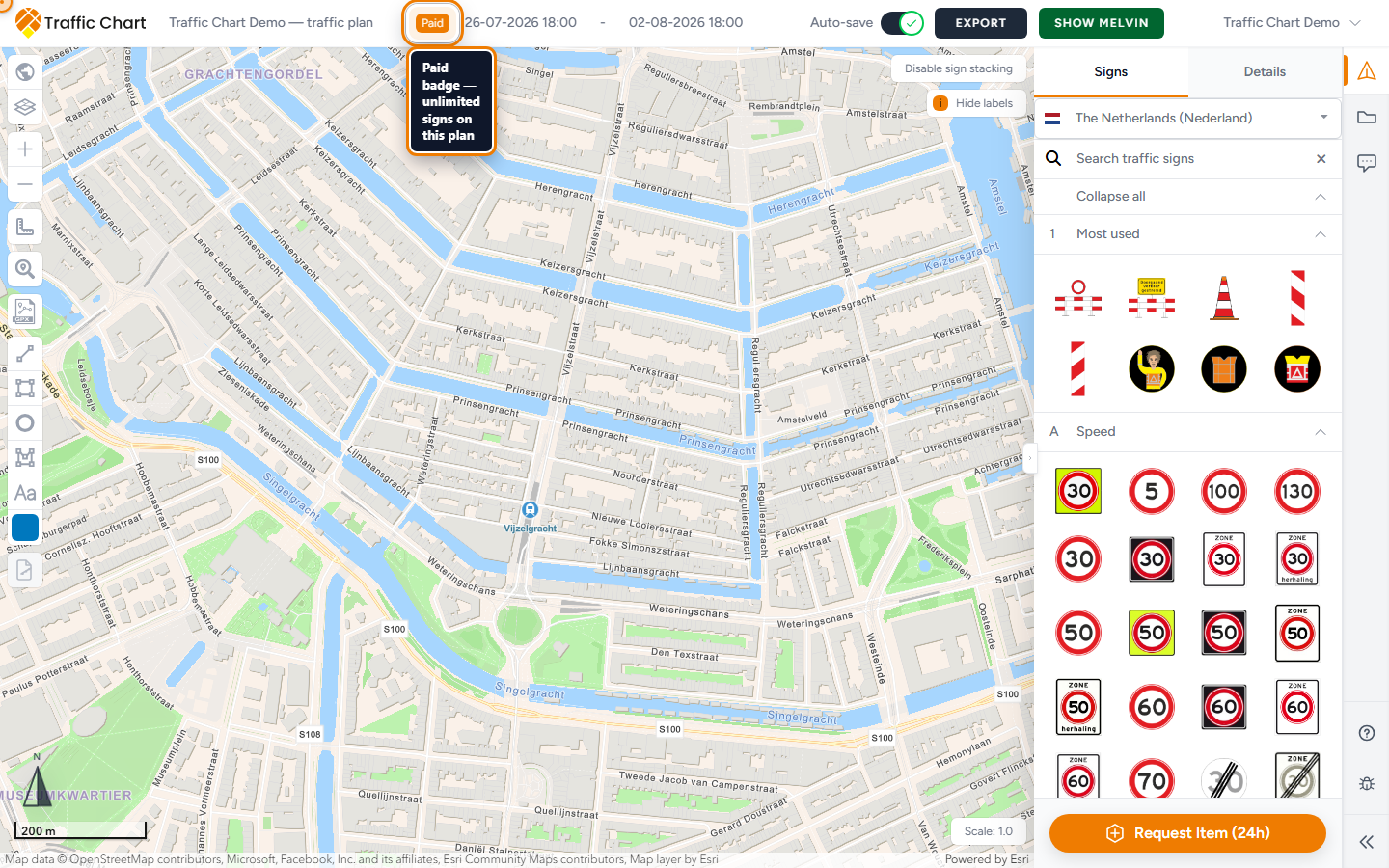
Use it when checkout finished but placement is still limited, or you expected a Paid badge and do not see one. Do not use it to start a second payment.
The return screen itself is Payment status after checkout. Stay on that tab until it settles.
Do this first
- Do not pay again. A double charge is harder to unwind than a slow unlock.
- Stay on Payment status if it is still open. Confirming your payment means the charge succeeded and unlock is applying — keep the tab open. Body: Your payment succeeded. We are now adding the credit and unlocking your traffic plan.
- Hard-refresh the plan, or close the tab and reopen it from Plans.
- Log in as the same account that paid.
- Open Switch workspace. Unlock lands on the plan you paid for, in that workspace — not on every plan, and not on Home recents from a different workspace.
Read the status page
| Screen | Meaning | What to do |
|---|---|---|
| Confirming your payment | Charge OK; unlock applying | Wait; keep the tab open |
| Payment successful | Plan ready. Your payment was confirmed and your traffic plan is ready. | Open traffic plan |
| Payment received, confirmation pending | Your payment is safe. Confirmation may take a moment; you do not need to pay again. | Wait; do not pay again |
| Payment failed | The payment was not completed and no credit was used. Return to your traffic plan to try again. | Return and try again |
| Payment needs attention | The charge needs a follow-up | Read the body; Check again or contact support |
| Plan unavailable | This traffic plan is no longer available. Any purchased credit remains on your account. | Check Settings → Credits or org Billing; contact support |
| Credit not applied | The payment was confirmed, but the credit could not be applied automatically. Please contact support before paying again. | Contact support before paying again |
| Support fallback | We could not complete this payment automatically. Please contact support before trying to pay again. | Write support |
Actions on that page: Open traffic plan, Open dashboard, Return and try again, Check again.
Native organization billing does not always show the old Paid badge. The plan can still be funded. Try placing a sign.
Could not verify payment is a toast if the return check fails. Click Check again once. Do not open a second Stripe tab.
Credit spent means a credit (not a card) already unlocked the plan. Could not spend credit is the opposite — refresh, confirm the balance, retry once.
Checkout you cannot complete
That is a different problem from a succeeded payment.
- Members cannot buy organization credits. The app says Only an organization owner, administrator, or billing account holder can purchase credits. Ask them to add credits to this workspace.
- Billing missing: Billing is not configured for this organization. Ask an organization administrator or Traffic Chart support to configure it.
- Stale billing account: The organization billing account changed. No credit was spent. Reload the plan and try again.
- An owner who is not the assigned editor cannot start checkout on a colleague’s plan. Use Assign editor, or check out from a plan you can edit.
- Init failed: Payment could not be initialized. Please try again.
See I can’t place more signs and I can’t open or edit a plan.
What good looks like
Payment successful, then Open traffic plan. You can place signs past the free cap on that plan. Other unpaid plans keep their own limits.
If it still fails
Email customer@traffic-chart.com with account email, plan link or UUID, payment time (timezone), and Stripe receipt or last four digits. Contact support.
Rules: Billing, free use, and credits.