
This page is where help lives inside Traffic Chart: the editor Help menu, the How to? video, and the Home footer. Use it when you need the next click, not a full chapter.
If you already know the button you want, go to Frequently asked questions or Contact support.
Help in the editor
Open a traffic plan or event plan. The right strip ends with two support rows under Traffic Objects, Posts, and Comments:
- Help
- Report bug
Click Help. The dialog title is Help. The text is Need a hand with Traffic Chart? Watch our instruction video and check the FAQ. Still have questions? Contact support.
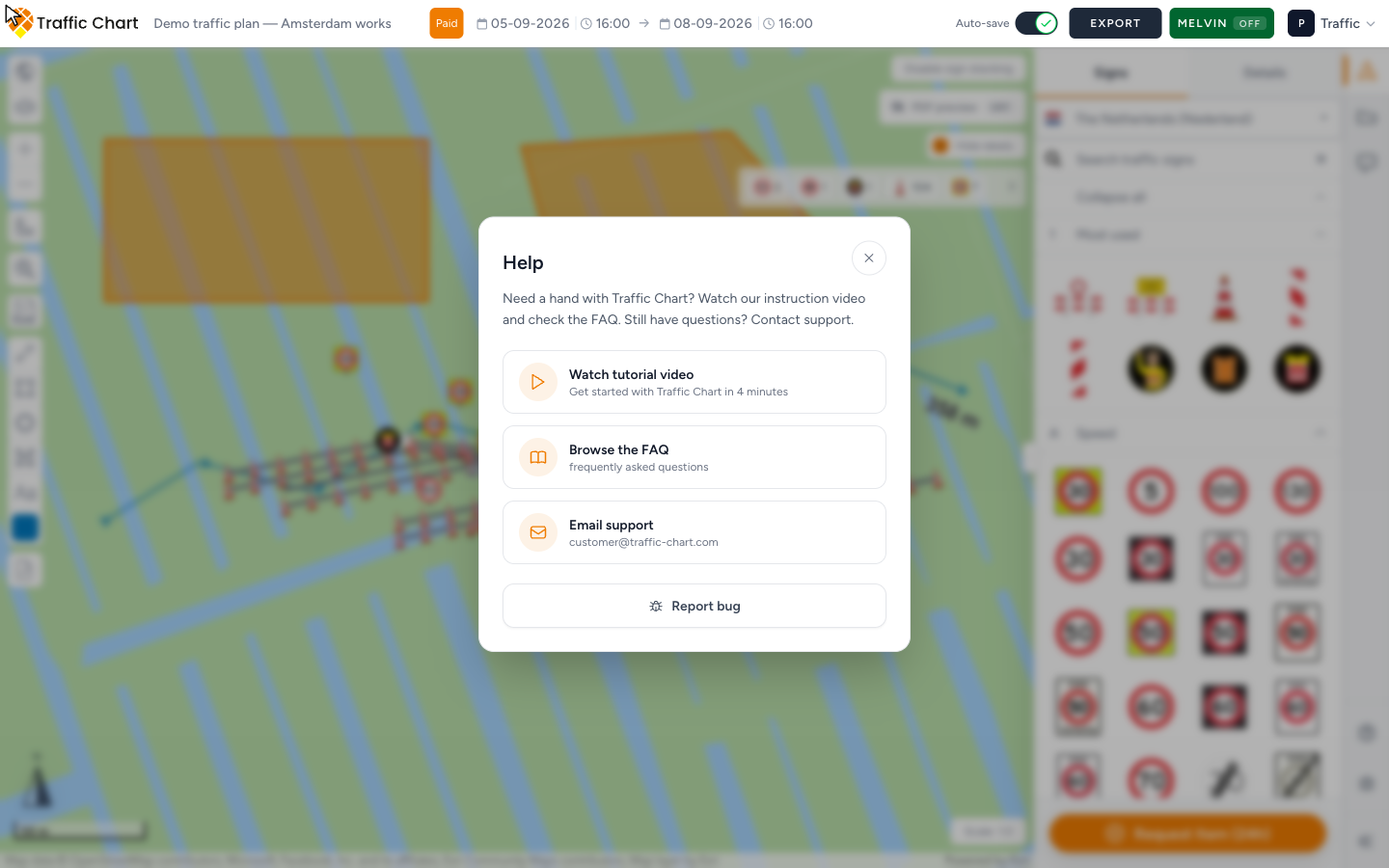
Four actions follow:
| Control | Subtitle | What it does |
|---|---|---|
| Watch tutorial video | Get started with Traffic Chart in 4 minutes | Opens the same how-to video as How to? |
| Browse the FAQ | frequently asked questions | Opens FAQ in a new tab (same destination as FAQ on Home) |
| Email support | customer@traffic-chart.com | Starts an email to support |
| Report bug | — | Opens a short in-app form so you can describe what broke |
Close with the X. The name is Close help.
Report bug is also the second row in the strip, so you can skip the Help dialog when you already know it is a defect.
A municipality opening your Sharable link does not get the same Help / How to? chrome you have while editing.
How to? — the tutorial video
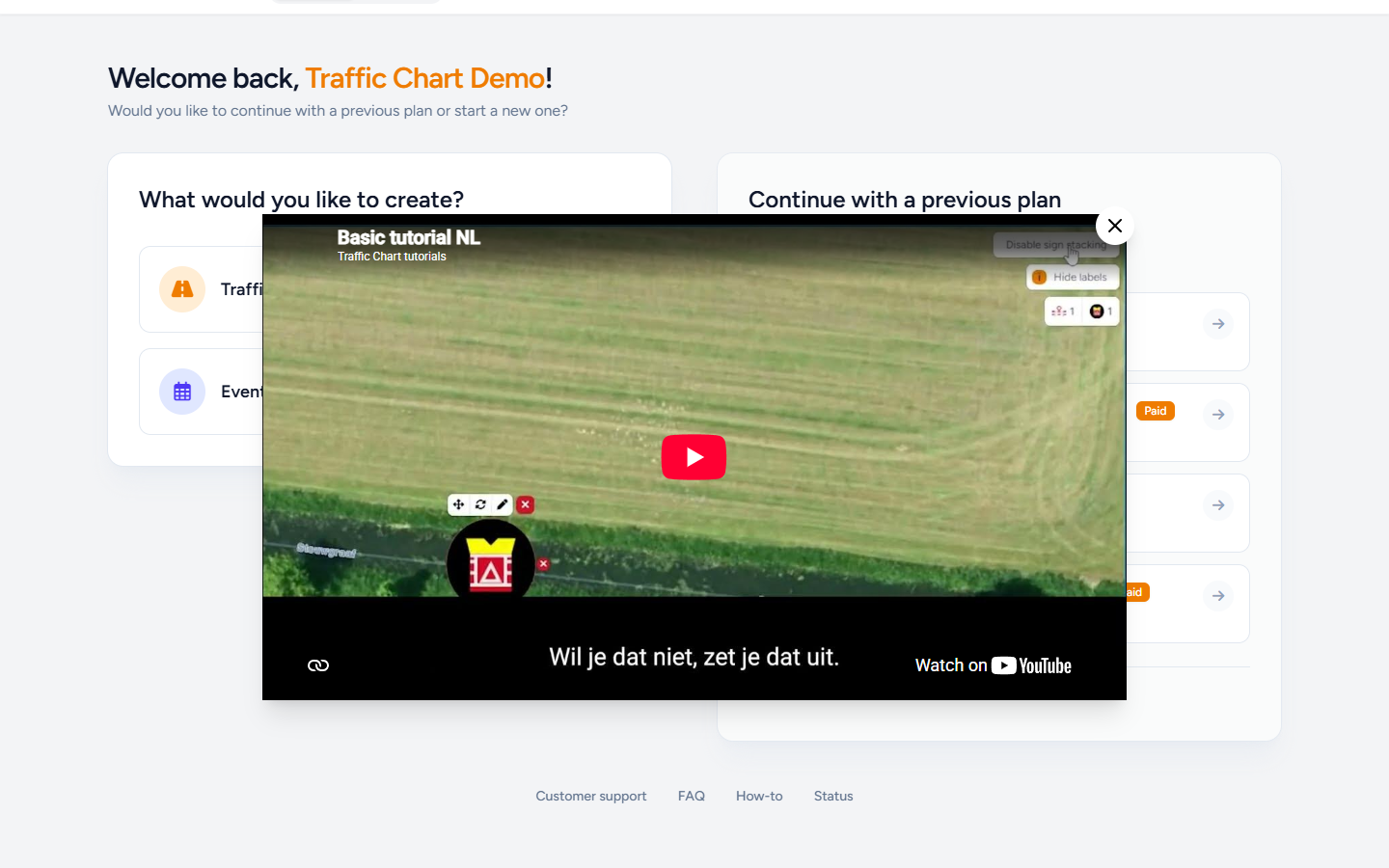
How to? opens a YouTube video in the app (How to use Traffic Chart video / How to video tutorial). Close with Close how-to video. It is the four-minute walkthrough: Get started with Traffic Chart in 4 minutes.
The control is hidden on a share link and any other read-only view. Guests and colleagues who only have Plan is read-only do not see How to? and cannot auto-open the clip. The share view is for looking, not onboarding.
On Home, the footer label is How-to and it plays the same video. In the editor, Help → Watch tutorial video does too.
The first time you work in an editable plan, the video can open by itself. After you close it, the browser remembers that choice (for about two months) so it does not keep auto-opening. You can still open it whenever you want from How to?, How-to, or Watch tutorial video.
The player is a YouTube embed. If the frame is blank, an ad blocker or a cookie banner may be blocking YouTube. Allow the player for this site, then try Watch tutorial video again.
Home footer
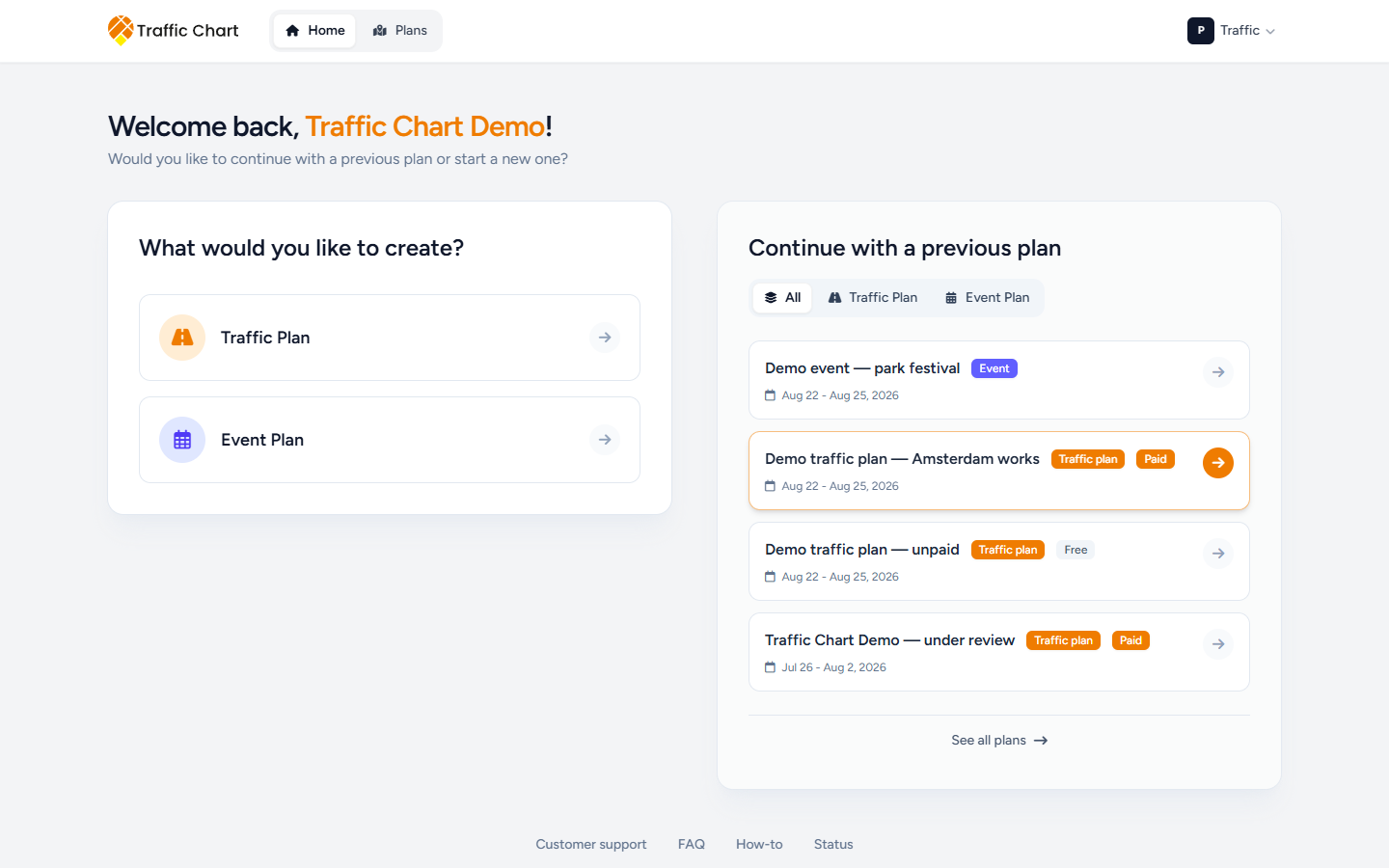
After login, Home (Welcome back, your name) has four footer links:
| Label | Where it goes |
|---|---|
| Customer support | The public contact page (you can also mail customer@traffic-chart.com) |
| FAQ | Frequently asked questions |
| How-to | The tutorial video above |
| Status | status.traffic-chart.com — incidents and uptime |
The same four labels appear on the Continue your traffic plan dates screen if an older plan still needs Country, Plan name, or dates before the editor opens.
Status is for outages. If the map is only blank on your machine, start with Map will not load or stays blank.
What to put in an email
Email support is enough when FAQ and the video do not cover it. Write from the account address, and include:
- Workspace name — Personal, or the organization you were in, for example Acme Events (from Switch workspace)
- Plan URL from the browser address bar
- A screenshot of the dialog, lock, or error
- Browser and device (for example Chrome on Windows)
- What you clicked, and what you expected
Do not pay a second time while you wait on a payment issue. Full checklist: Contact support.
What good looks like
You can find Help without leaving the map. The tutorial plays when you ask for it, and it stays out of the way after you close it. A share-link viewer never gets the onboarding video.
The first time you create an account, onboarding is a separate path (Creating your account..., Check your inbox). That is First login and onboarding, not this Help dialog.
Comments on the right strip is municipal review, not this support menu. Comments and review status. Missing catalogue types use Request Item (24h) / Request item (24h) in the drawing sidebar, not Report bug. Request a missing item.