
A Combination sign is a board you compose yourself: a header, body text, and icons on a yellow or white plate. You pick a template from the catalogue, place it like any other sign, then open Edit sign to finish the layout. The saved board is what prints, what the materials list names, and what a public viewer sees.
Use this when the works need a custom information board — a kiss-and-ride plate, an event parking board, a temporary direction board with a bicycle or tent icon. Skip it for standard catalogue plates; those stay in Working with signs.
You must be able to edit the plan. A share-link viewer never gets this editor. Organization members who are not the assigned editor also cannot open it.
Find a template in the catalogue
- Open Traffic Objects, then Signs.
- Confirm the country list at the top of Signs. Combination templates follow that country, the same way ordinary plates do. A toast such as Showing signs for The Netherlands (Nederland) based on traffic plan follows a country change.
- Type in Search traffic signs. Search looks at the template name and description, not only at official codes. Try words such as parking, event, or the Dutch name you already know.
- Or open a category. Templates sit in the same groups as other plates for that country (Most used, Events, Custom, and the rest of that catalogue).
- Use Collapse all / Expand all when the list is long.
- If no category contains a match: No signs found. Change the search or the country. Wrong catalogue: Wrong country or missing traffic signs.
The catalogue tile is a preview of the template’s default board, not a finished custom layout. Click it, then click the map to place it.
Placement still counts toward the free sign limit and participating-municipality rules. If the app blocks you, follow the dialog. Full rules: Billing, free use, and credits and I can’t place more signs.
You can stack a combination board with ordinary plates when Enable sign stacking is on. With stacking off, a nearby click starts a new location.
If the catalogue has no match, Request Item (24h) at the bottom of Signs. Describe the board, country, and a photo if you have one. Continue with the closest available template if the works cannot wait. You can also email customer@traffic-chart.com. Request a missing item.
Place the board, then open Edit sign
- Click the map at the real location (for example a Utrecht side street that needs an event parking board).
- Click the placed stack. The sign toolbar includes Move sign, Displace sign stack (Pro), Rotate sign, Duplicate sign, Edit sign, and Remove signs.
- Edit sign on that toolbar opens Details. You can also open Traffic Objects → Details after selecting the stack.
- Details empty state is No sign selected until a stack is selected.
On Details, a combination plate does not look like a standard code card. You see:
- The orange heading Combination sign.
- The current template name under that heading.
- The current Size under the name.
- A small live preview of the board on the right.
- A full-width orange button Edit sign.
Address and Coordinates (Latitude, Longitude) still describe the location under the stack. Combination boards do not use the ordinary Sign text field on Details; text lives on the board itself.
Click Edit sign to open the board editor. That is the only place to change header copy, icons, Size, Colour preset, and Name.
If Edit sign is missing, you are read-only (share link, not the assigned editor, or the plan is locked). I can’t open or edit a plan.
The Combination sign editor
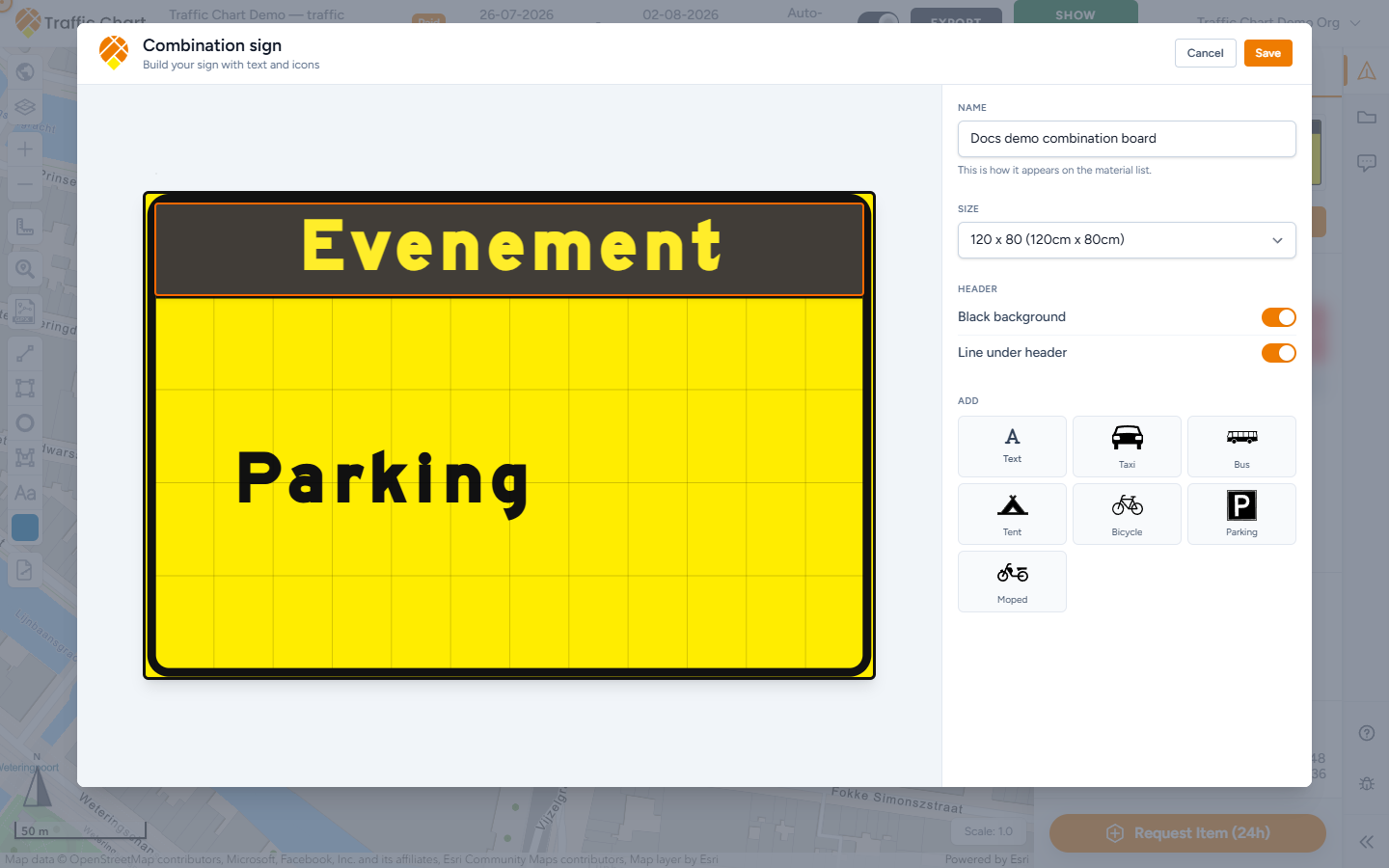
The editor is a large dialog. The title is Combination sign. The subtitle is Build your sign with text and icons.
Top right:
| Control | Does |
|---|---|
| Cancel | Closes the editor. Unsaved work asks before it discards |
| Save | Writes the board onto the placed sign and closes. Disabled while Check the sign still has errors |
Hover Save while it is disabled. The tooltip is Not saveable yet: plus the first error, for example Not saveable yet: Elements may not overlap. More than one error becomes Not saveable yet: Elements may not overlap. (and 2 more issues). One extra issue uses the singular issue. If the editor cannot name the problem, you get The sign is not valid yet.
The left half is the board. The right half is the inspector: Name, Size, Colour preset, Header, and Add.
Click empty board space to deselect. Click an element to select it. Selected items show an orange border. Invalid items show a red border.
The board grid
The board uses a 5×12 cell grid in the body. Header text sits in the header band above that grid. While you drag, the cells flash green where the piece can land and red where it cannot.
That grid is not decoration. Validation requires it: The sign must use a 5x12 grid. You never set the grid yourself. If something falls off the plate you will see An element falls outside the sign.
Drag an icon from Add onto the board, or click it to insert. Drop is rejected when the candidate overlaps another piece.
With an unlocked element selected, a small handle bar appears:
| Handle | Label | Does |
|---|---|---|
| Move | Move | Drag the piece to another cell |
| Rotate | Rotate | Icons only. Turns 0°, 90°, 180°, or 270° |
| Remove | Remove | Deletes that piece |
| Resize | Resize | Orange knob at the bottom-right corner. Stretch the piece across cells |
Locked pieces (typically the header while it is required) cannot Move or Remove. Click the header text itself to type.
Body Text boxes have a maximum of 80 characters. If the sentence no longer fits, the editor first tries to widen the box, then tries to continue on the next row. If there is no room, a red Check the sign notice appears: This text no longer fits in the available space. Free up space, enlarge the text box, or shorten the text a little. The extra characters are not kept.
Text blocks must be at least two columns wide: Text blocks must be at least 2 columns wide. Icons must occupy at least one cell: Icons must be at least 1 cell in size.
Rotation that is not a right angle is rejected: Icon rotation must be 0, 90, 180 or 270 degrees.
Name (materials list)
On the right, Name is a text field. Placeholder: Combination sign. Maximum 60 characters.
Under the field: This is how it appears on the material list.
Give every custom board a crew-facing name, for example Kiss and ride Utrecht or Acme Events P+R. Leave it as Combination sign and every yellow board of that template looks the same on paper.
Excel puts that Name in the Traffic sign column. The size goes to Remark. Header and body lines go to Inscription. If a board has no custom name, some totals fall back to Composite sign. Details: Materials list and post orders.
Size: 120 x 80 and 130 x 90
Size is a dropdown of the sizes the template allows. The usual sizes are 120 x 80 (120 cm × 80 cm) and 130 x 90 (130 cm × 90 cm). A template may offer only one of those.
Changing Size rescales the board. Recheck that text still fits and that icons have not been pushed off the plate. Save stays blocked until Check the sign is clear.
The size you pick is the physical plate you intend to order. It is also the size the map uses for that stack. A 130 x 90 board on a dense Utrecht junction will cover more of a Detail PDF page than 120 x 80.
Colour preset: Geel and Wit
Colour preset appears when the template offers more than one approved colour.
The usual presets are named Geel (yellow board, dark border) and Wit (white board, dark border). Those Dutch names are the labels on the buttons, including in the English app. They are not translated to Yellow / White.
Click a swatch to apply it. The selected preset shows an orange ring.
You cannot pick an arbitrary hex colour. Unapproved colours fail with Sign colour must be an approved preset. A broken colour value fails with Sign colour must be a valid colour. If the snapshot has no catalogue presets, the inspector may show a single Current colour swatch instead of Geel / Wit. A generic Colour label can appear when a preset has no name.
Match the physical plate the contractor will print. Do not mix Geel and Wit on two boards that the crew thinks are the same design.
Header
Header has two toggles:
| Toggle | Does |
|---|---|
| Black background | Header band is black with light text, or transparent so the board colour shows through |
| Line under header | Draws a divider between the header and the body |
When the header band is visible, a header text block is required: A header text block is required. Type the title on the board, for example KISS & RIDE or P+R ACME EVENTS. An invalid header background fails with Header background is invalid.
Turn Black background off if you want the header to sit on Geel or Wit like the rest of the plate. The header text colour follows that choice.
Keep header text short. Long headers fail the same fit check as body text.
Add text and icons
The Add section is a grid of insert buttons.
The first tile is always Text. It inserts a body text box. Click the box on the board and type. Alignment follows the box (left, centre, or right).
The remaining tiles are the icons this template allows. Typical assets include Taxi, Bus, Tent, Bicycle, Parking, Moped, Pedestrians, Arrow, and Train station. A template can allow a subset. Click a tile or drag it onto the board.
If the template forbids icons: No icons allowed for this template.
An icon without an asset fails Icon is missing an asset. An icon that is not on this template fails This icon is not allowed for this template. Missing export artwork fails Icon is missing a snapshot for export.
Selected element: text in an icon
Select an icon that supports inscription. The inspector grows a Selected element block.
You see the icon name and the line Text in icon.
Text is the inscription field. When the asset has a character limit, the helper is Max. 6 characters (the number is the limit for that icon). Hitting the limit flashes Maximum length reached. Validation can also say Text may contain at most 6 character(s).
Some icons need a road-type rule first. Text rule is a select. Placeholder option: Choose road type. Until you pick one, the app can show Choose a text rule first.
If the asset has no fixed rule, you still choose Text rule, then type in Text. A three-line box is available when the icon is not length-capped.
Errors on the icon itself:
- This icon does not support custom text.
- Text in icon does not fit properly within the icon.
- Text does not fit properly within the icon. (same idea, from validation)
When the icon can keep lettering upright while the symbol rotates, Keep text upright appears with a switch. Turn it on so P+R stays readable after you Rotate the parking symbol.
Check the sign
A red banner Check the sign appears above the board whenever the draft is invalid or a text-fit notice is showing. The first message is the one to fix. It is not a separate button. The banner is the check.
Fix every row before Save works.
| Message | What to do |
|---|---|
| The sign is not valid yet. | Generic fallback. Read the next specific error |
| Invalid composite sign schema version. | Recreate the board from the catalogue template |
| The sign must use a 5x12 grid. | Do not fight the grid. Move pieces back onto cells |
| Sign colour must be a valid colour. | Pick Geel or Wit again |
| Sign colour must be an approved preset. | Stay on the template’s Colour preset swatches |
| Header background is invalid. | Toggle Black background off and on |
| A header text block is required. | Type header copy, or do not leave an empty required header |
| An element falls outside the sign. | Move or Resize the piece back onto the plate |
| Text blocks must be at least 2 columns wide. | Resize the text box wider |
| Text does not fit properly within the text block. | Shorten the sentence or enlarge the box |
| Icon is missing an asset. | Remove the empty icon and Add it again |
| Icons must be at least 1 cell in size. | Resize the icon up |
| This icon is not allowed for this template. | Remove it. Use only tiles under Add |
| Icon is missing a snapshot for export. | Save after the preview has loaded, or remove and re-add the icon |
| Icon rotation must be 0, 90, 180 or 270 degrees. | Use Rotate on the handle bar, not a free angle |
| Elements may not overlap. | Move one piece. Green cells are free; red cells are taken |
| This icon does not support custom text. | Clear Text in icon |
| Text may contain at most 6 character(s). | Shorten the inscription (the number is that icon’s limit) |
| Text in icon does not fit properly within the icon. | Shorten it, or turn Keep text upright off and try a larger icon size |
Overlap is the most common block on a dense 130 x 90 event board. Pull icons apart until the interaction grid is green, then Save.
Save, Cancel, and Unsaved changes
Save writes the draft onto the placed sign and closes the dialog. Wait for Auto-save: saved, or click Save in the editor header if auto-save is off.
Cancel (or closing the dialog) with no edits just closes.
If you changed anything, Unsaved changes appears:
- Title: Unsaved changes
- Body: You have changes that have not been saved yet. Do you want to close the sign and discard your changes?
- Keep editing — returns to the board. Nothing is discarded.
- Close without saving — discards the draft. The placed sign stays as it was when you opened Edit sign.
There is no “save as a new template”. Each placed board has its own snapshot. Duplicating the stack copies that snapshot; edit the copy if the second location needs different text.
After Save, rotate and move the stack like any other: Move sign, Rotate sign, Duplicate sign, Remove signs. Displace sign stack (Pro) still works if the board covers a junction on paper.
What public viewers see
People who open the public URL see the finished board on the map. They do not get Edit sign. They do not get the template catalogue (Add icons, Size list, Colour preset swatches). The server sends the stored snapshot only.
That is intentional. Treat the share link as a published drawing, not as a second editor. Details: Share a plan and read-only view.
If you later change the admin template, already placed boards keep the snapshot you saved. New placements from Signs pick up the current template.
Materials list and export
After Save:
- The map shows the board at the stack.
- Name is how crews identify it on the materials list.
- PDF Materials list groups it with the template’s catalogue category and shows a preview of the composed board.
- Excel Traffic sign uses Name, Inscription uses the header and body lines, Remark uses the size (120 x 80 or 130 x 90).
Post-order signs are a different object. Combination boards are not Post orders.
Check PDF preview if you have Pro and an XL map: a 130 x 90 board can dominate an A4 overview. PDF preview.
What good looks like
For a Demo traffic plan in Utrecht you might place one Geel 130 x 90 board named Kiss and ride Neude, header KISS & RIDE, a Parking icon, and a short body line with the street name. Check the sign is empty. Save is orange, not grey. Auto-save: saved. The materials list shows Kiss and ride Neude once, not five anonymous Combination sign rows.
A public colleague opening the share link sees that board, can pan and zoom, and cannot open the editor.
If something blocks you
| Situation | Where to go |
|---|---|
| Save grey, Check the sign banner | Fix the table above. Hover Save for Not saveable yet: |
| Unsaved changes by accident | Keep editing if you still need the draft. Close without saving only if you mean to discard |
| No template in Signs | Search again; Request Item (24h); email customer@traffic-chart.com |
| Sign limit reached | I can’t place more signs |
| Template missing | Wrong country or missing traffic signs |
| Plan is read-only / no Edit sign | You are on a share link, or you are not the assigned editor. I can’t open or edit a plan |
| Need the packing list | Materials list and post orders |