
motion — fill credentials, click Log in, land on home; white trimmed
You need an account to create and own plans. Registration is free. This page is signup, login, and a short pointer to in-app help. The first-run screens after you submit (Creating your account..., Check your inbox) are in First login and account onboarding. Profile photo, logo, 2FA, and passkeys are in Manage your account.
Create an account
Open Traffic Chart and choose Register, or New here? Create account on the login card. The browser title is Create account. The orange eyebrow is Create account. The heading is Create your account.
The top-right chip is Have an account? and jumps back to login.
- Enter Full name (for example Sam Rivera).
- Enter Work email.
- Enter Password.
- Enter Confirm password.
- If the checkbox is shown, accept I agree to the Terms of Service and Privacy Policy.
- Click Create account.
The left-hand marketing copy is Create your first traffic or event plan. The note under it is Event plans are completely free. For traffic plans, your first plan is free. The exact sign limit and credits are in Billing, free use, and credits.
Already have an account? Under the button: Already registered? Log in here.
You might arrive via a marketing “start free” form with Full name and Work email already filled. You still complete password setup and verification as the emails prompt.
If the app says an account already exists for that email, use Log in or Forgot your password? instead of registering again. The onboarding screen for that case is An account already exists, with Go to login and Reset password.
Verify your email
Until your email is verified, parts of the app stay behind that step. After signup you land on Verify your email address. The orange eyebrow is One more step. The body is We sent you an email. Open your inbox and click the verification link to continue.
- Open the verification message (check spam if it is slow). The verify screen also says Didn't receive it? Check spam or request a new email below.
- Follow the link.
- If you need another copy, click Send verification email again. Success: We have sent a new verification email.
- Change email address opens your profile so you can fix a typo. Sign out leaves this screen.
Some accounts are created for you (invite or onboarding):
- You receive an email to confirm the address.
- You open a secure link. The heading is Create your password (eyebrow Final step). Body: Your email address is verified. Choose a password to finish setting up your account.
- Click Save password. You are logged in and can start planning.
Expired verification: the heading is This link has expired. Description: Verification links are valid for seven days. Enter the address and click Send a new verification email. Back to login returns to the login card. Full checklist: Email verification and login problems.
Log in
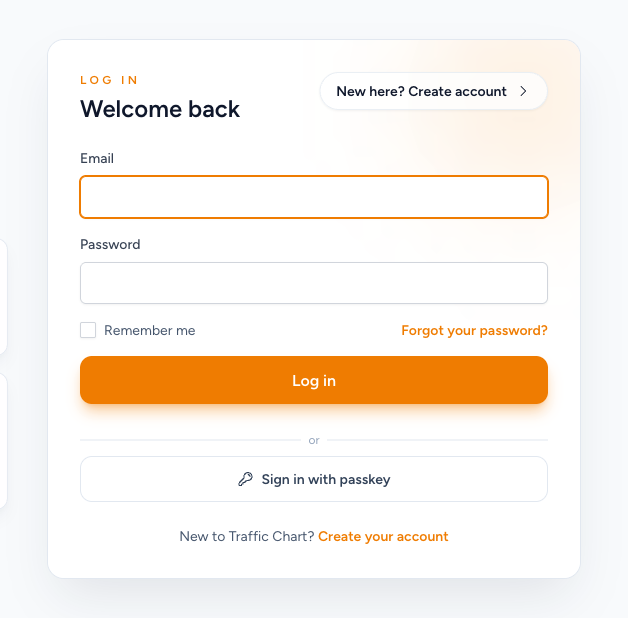
The login screen heading is Welcome back. The orange eyebrow is Log in. New here? Create account jumps to register.
The left-hand hero is Create traffic and event plans in minutes. It states that event plans are free and that your first traffic plan can be free.
- Open Log in.
- Enter Email and Password.
- Optionally tick Remember me.
- Click Log in.
- If two-factor authentication is on, the heading is Two-factor Confirmation. Enter the current authenticator code (not a screenshot of an old one). Use a recovery code switches to Recovery Code. Use an authentication code switches back. Then Log in.
- Sign in with passkey appears under or if your browser supports passkeys. Set passkeys up later under Settings. Fail: Could not sign in with passkey. Please try again or use your password.
Wrong password or unknown email: These credentials do not match our records. Too many tries: Too many login attempts. Please try again in 60 seconds. (the number is the wait the app prints).
Forgot your password? is on the same card. The reset page heading is Forgot your password? (eyebrow Reset password). Description: No problem. Enter your email address and we'll send you a password reset link. Submit Email Password Reset Link. Remember your password? Log in. Open the email, then Reset Password with Confirm Password. Reset and verification links expire — request a fresh one if it is stale.
At the bottom of the login card: New to Traffic Chart? Create your account.
If you arrived from an organization invitation, sign in with the invited email, then Accept invitation. Join an organization.
The first screens after a successful new signup (Creating your account..., Preparing your workspace..., Logging you in..., Check your inbox) are a separate article: First login and account onboarding.
Language
A language control sits on the login and register pages as well as in the signed-in app.
- Open Settings, or use Language in the account menu (your initials and first name).
- Set Language (English, Nederlands, Deutsch, Français).
- Save. Success: Saved.
If the language pack fails to load, the app may keep the previous language while still saving your preference. Refresh and try again. This help center is English for now.
Where to get help in the app
Keep this short. The full map of Help, How to?, and the Home footer is Help inside the app.
| Entry | Where | What you get |
|---|---|---|
| Help | Editor sidebar | Watch tutorial video, Browse the FAQ, Email support, Report bug |
| How-to | Home footer | The same four-minute video |
| FAQ | This help center | Quick answers |
| Status | Home footer | status.traffic-chart.com |
| customer@traffic-chart.com | A person |
When you write in, include your account email, plan link if you have one, browser, and what you expected to happen.
Common signup problems
| Problem | What to try |
|---|---|
| No verification email | Wait a few minutes, check spam, Send verification email again |
| An account already exists | Go to login or Reset password |
| This link has expired | Send a new verification email |
| Cannot log in after invite | Finish Create your password from email first |
| These credentials do not match our records. | Check the invited email, then Forgot your password? |
| Could not sign in with passkey. | Use Password, then set a new passkey in Settings |
| Invite to an organization | Sign in with the invited email, then Accept invitation. Join an organization |
Full checklist: Email verification and login problems.
Next: Find your way around.