
This page is the payment dialog on a traffic plan, every branch of that dialog, and every outcome on Payment status.
Use it when you need unlimited signs on Demo traffic plan (or any other unpaid traffic plan) and the app is asking you to Spend credit or to pay. Skip it for event plans — they are not billed. Skip it if a tool is labelled Pro feature; that is not this paywall — Feature not available for my account.
Prices always appear in the dialog and in Stripe. They can depend on country and currency. This article never lists an amount. If a sentence below refers to “the price shown”, look at the number the app printed, not at an old quote or this help page.
Rules of the road: Billing, free use, and credits. Organization subscriptions: Organization billing.
When this dialog appears
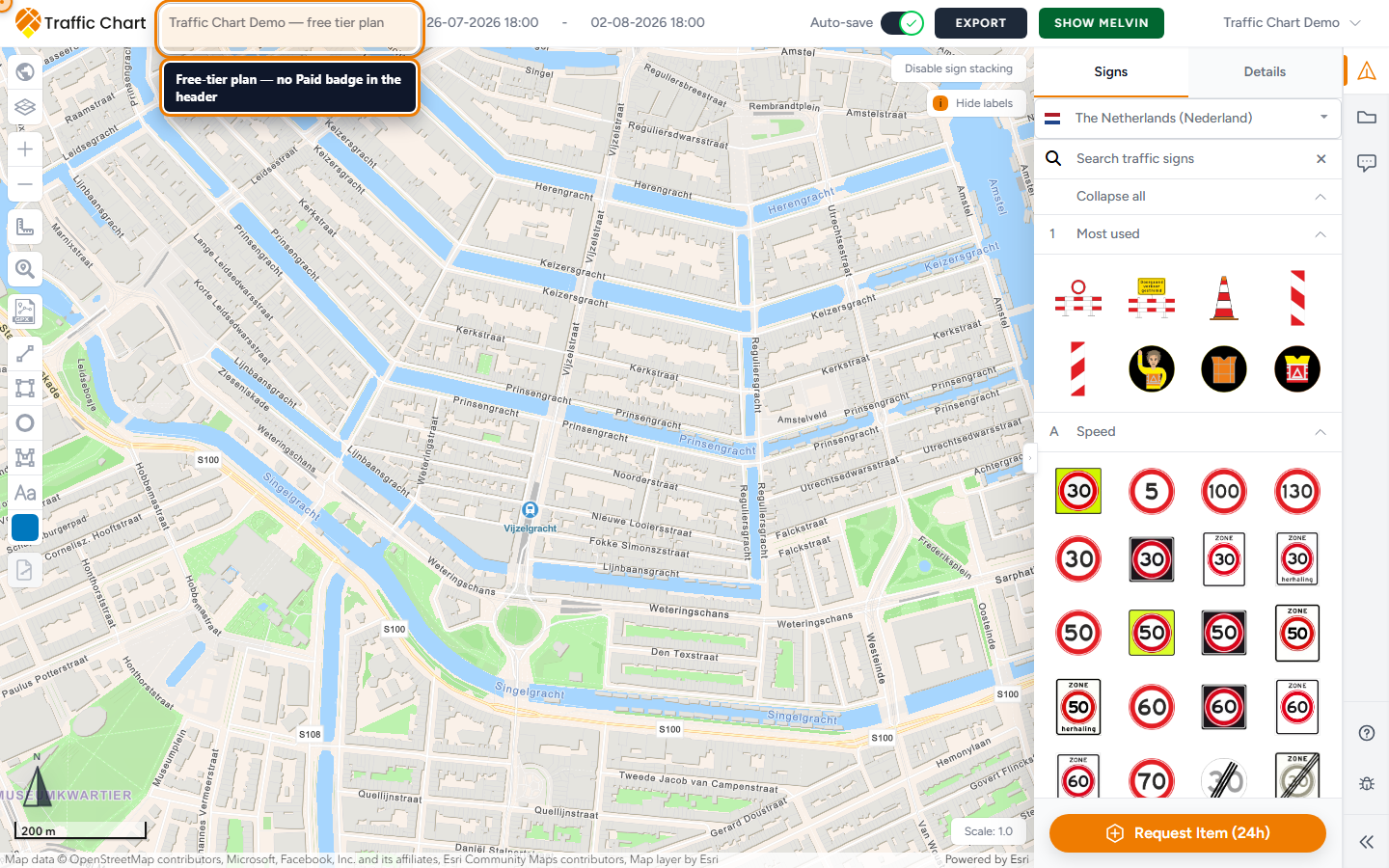
Creating a traffic plan is free. Start planning does not charge you.
The dialog appears when you place a sign past the free allowance on an unpaid plan, outside a participating municipality. Each plate in a stack counts. Bulk signs can consume the allowance in one line.
Outside participating areas, unpaid personal plans currently allow 5 counting signs. After that, the map will not keep the next pin until you unlock the plan.
Typical titles:
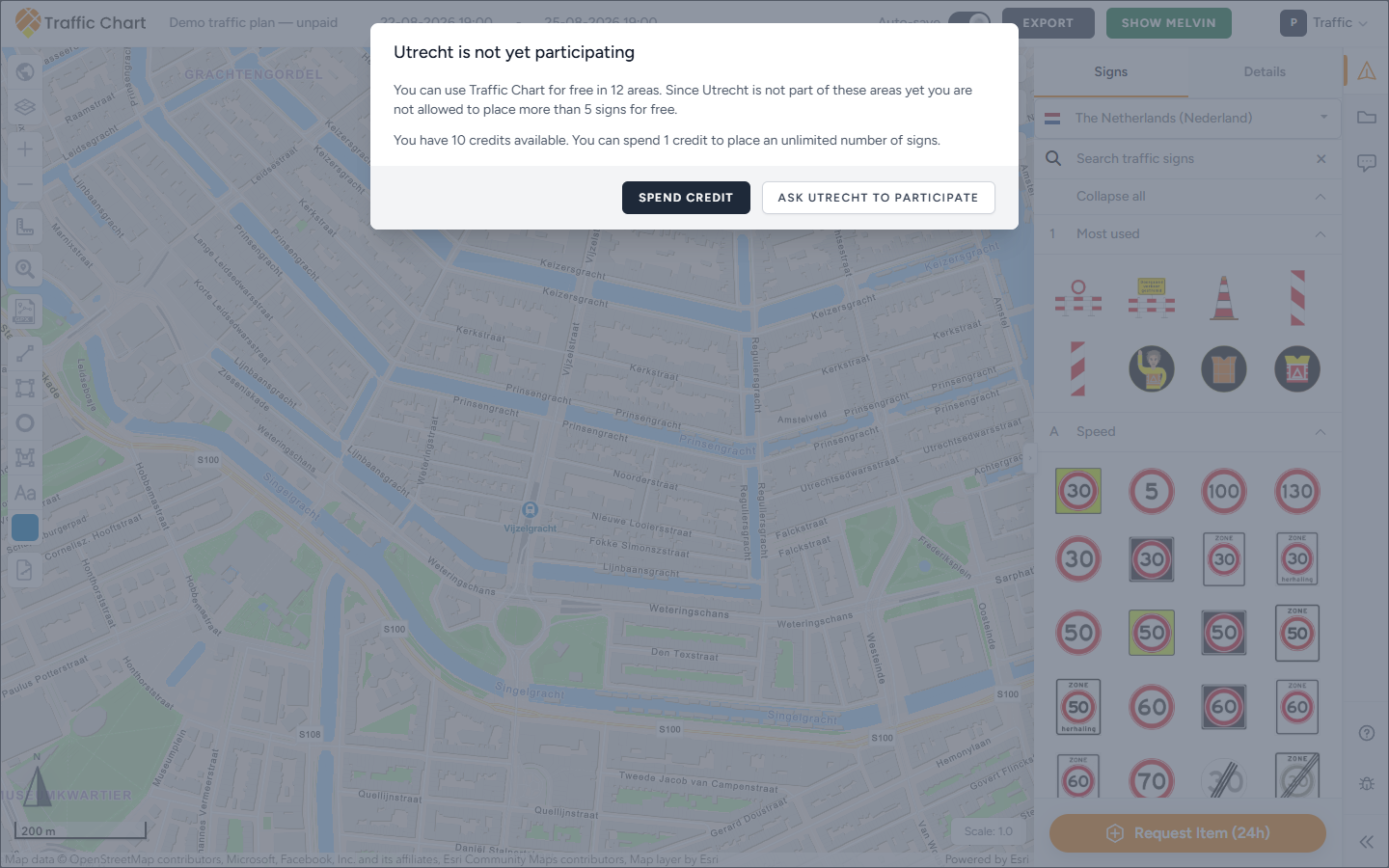
- Utrecht is not yet participating — personal (or non–credit-pool) flow. The name is the municipality under the pin, not a generic area name.
- Spend 1 credit to create new plan? — organization credit-pool flow (the workspace spends from a shared balance).
- Sign limit reached — a different, shorter modal (You have placed the maximum number of signs.). That is not checkout.
Unlocking Demo traffic plan unlocks that plan. Other unpaid plans keep their own limits. Duplicating a paid plan starts a new unpaid plan.
You must be able to edit the plan. In Acme Events, only the assigned editor can spend or check out on that plan. Owners who are not the editor use Assign editor first, or open a plan assigned to themselves. I can’t open or edit a plan.
Work in one browser tab. Never start a second payment while the first is still on Confirming your payment.
Read the first screen before you click
The dialog opens on the start step. The footer then offers one primary action that matches your situation, plus a way out.
Personal workspace way out: Ask Utrecht to participate (the municipality under the pin). That opens a draft email to the municipality. Traffic Chart cannot force Utrecht to join.
Organization workspace way out: Cancel. Organization billing is a different product. Do not email the municipality from this dialog.
If you have credits, opening the dialog also saves the plan so the credit can attach to Demo traffic plan. If you go on to Checkout, the plan is saved again.
Walk the branch that matches the body text. Do not invent a Pay now button when the app is offering Spend credit.
Branch: you have a credit (personal)
Title: Utrecht is not yet participating.
Body includes:
- You can use Traffic Chart for free in the number of participating areas shown. Since Utrecht is not part of these areas yet you are not allowed to place more than 5 signs for free.
- You have 1 credit available. You can spend 1 credit to place an unlimited number of signs. (or 3 credits, matching the number on screen)
Primary button: Spend credit.
Click it once. Success toast: Credit spent. The plan is saved and unlocked. Place the sign again if it did not stay.
Failure toast: Could not spend credit. Do not immediately buy a second credit. Refresh, confirm Settings → Credits still shows a balance, retry once.
If the server says the balance is stale, the dialog reloads your account and workspace and returns you to this start step. Read the new number. Then Spend credit or, if the balance is now zero, continue with checkout.
Branch: no personal credit — pay with a card
Title still Utrecht is not yet participating.
Same free-limit paragraph, then:
Do you want to finish your traffic plan? For the price shown you can place an unlimited number of signs.
You must fill billing location before checkout:
- First select your billing country to proceed to the checkout:
- Select a country — required. The list is a full country list.
- After a country is chosen: Billing postal / ZIP code.
- If the country is set but the postal field is empty: Enter your postal / ZIP code to continue to checkout. The field highlights. Checkout stays disabled until both are filled.
Changing country clears the postal field. Fill it again.
If Stripe cannot tax that location: Check your billing country and postal code and try again. Fix the pair. Do not guess a neighbour’s postcode.
Logged in, no credits, location complete: the primary button is Checkout. That opens the in-app Stripe form (next section). It is not the organization hosted Checkout page.
Branch: guest — Log in & Pay or Register & Pay
You can draw a little without an account. Past the free cap, you still see Utrecht is not yet participating and the country + postal fields.
You cannot Pay now as a guest. Complete country and Billing postal / ZIP code first. Then:
- Log in & Pay
- Register & Pay
Log in & Pay changes the dialog title to Log in. Body: Log in to proceed to checkout and remove limitations. Footer: Don't have an account? Register, Forgot your password? (opens reset in a new tab), and Log in & Pay again to submit.
Register & Pay changes the title to Register. Body: Register to proceed to checkout and remove limitations. Footer: Already have an account? Log in, and Register & Pay to submit.
After a successful login or register, the dialog moves to Checkout by itself. The plan is saved. Complete Stripe there.
Use the account that should own Demo traffic plan. Paying on a colleague’s login puts the credit on that colleague’s personal balance.
Checkout step (in-app Stripe)
Dialog title: Checkout.
Body: For the price shown you can place an unlimited number of signs.
Stripe then loads two blocks: an email field (pre-filled with your account email when you are logged in) and the payment method tabs. Wait until both appear. A spinner shows while Stripe is preparing.
When it is ready, Pay now becomes available. It stays disabled while the plan is saving, while Stripe is still loading, or if country + postal are missing.
Click Pay now once. Stripe confirms the payment using the country and Billing postal / ZIP code you already entered.
If preparation fails, you return to the start step with Payment could not be initialized. Please try again. or a more specific billing-location / organization message. Fix that. Do not open a second tab to pay “just in case”.
For some countries Stripe may offer extra methods (for example iDEAL when the currency and billing country allow it). Pick what Stripe lists. Do not look for a method this article names if it is not on your form.
Pay now leaves Traffic Chart for Stripe’s confirmation, then returns you to Payment status. Stay in that tab.
Branch: organization credit pool — Spend credit
Title: Spend 1 credit to create new plan?
Body: By clicking 'spend credit' we will automatically deduct one credit from your account, and create a new traffic plan for you. You have 3 credits left. The number is the workspace pool, not Settings → Credits on your person. One credit reads 1 credit; more than one reads 3 credits (your number).
If you can edit the plan and the pool has at least one credit: Spend credit. Toast Credit spent. The plan is unlocked on Acme Events.
Native organization billing often does not show the old Paid badge. Try placing the sign. Unlimited placement on that plan is the test, not the badge.
If spend fails: Could not spend credit, or a specific organization message below. Reload the plan. Check Billing if you are an owner.
Buying more credits for a native organization is not this dialog. Owners use Billing → Choose a package → Continue to checkout. Members cannot purchase. See Organization billing.
If the pool is empty, Spend credit is not offered. Checkout is also not offered in that credit-pool dialog. Cancel, then ask an owner to add credits, or open Billing yourself if you see that button.
Branch: billing is not configured
Organization workspace, no credit to spend, billing missing:
Billing is not configured for this organization. Ask an organization administrator or Traffic Chart support to configure it.
There is no Pay now here. Cancel. Ask an Owner or Administrator. If they also cannot see Billing, email customer@traffic-chart.com. Do not pay from your Personal workspace hoping it will unlock the Acme Events plan — it will not.
Branch: you are not allowed to purchase
Organization workspace, no credit to spend, billing exists, but you are not allowed to start a card payment:
Only an organization owner, administrator, or billing account holder can purchase credits. Ask them to add credits to this workspace.
Member is not enough. Being an Owner is not enough if you are not the assigned editor on Demo traffic plan — checkout still requires edit access. Assign editor, or spend from a plan assigned to you.
The billing account holder is the person (or organization billing account) that actually owns the Stripe customer for this workspace on older setups. If you are not that person, you cannot complete this dialog even if you can draw.
Branch: billing account changed mid-way
The organization billing account changed. No credit was spent. Reload the plan and try again.
Nothing left your balance. Close the dialog, reload Demo traffic plan, open it again, read the new start branch. Do not retry Pay now on a stale tab.
The same text can appear as a toast after Spend credit if the account moved during the request.
Payment status — every outcome
After Pay now, the page title is Payment status. Read the heading, then the one button. Outcome-by-outcome, including Confirming your payment, Payment successful, Payment received, confirmation pending, Payment failed, and Payment needs attention: Payment status after checkout.
Confirming your payment
Your payment succeeded. We are now adding the credit and unlocking your traffic plan.
A spinner. Keep the tab open. Do not click Back. Do not start a second checkout. This is the normal first screen while unlock applies.
Payment successful
Your payment was confirmed and your traffic plan is ready.
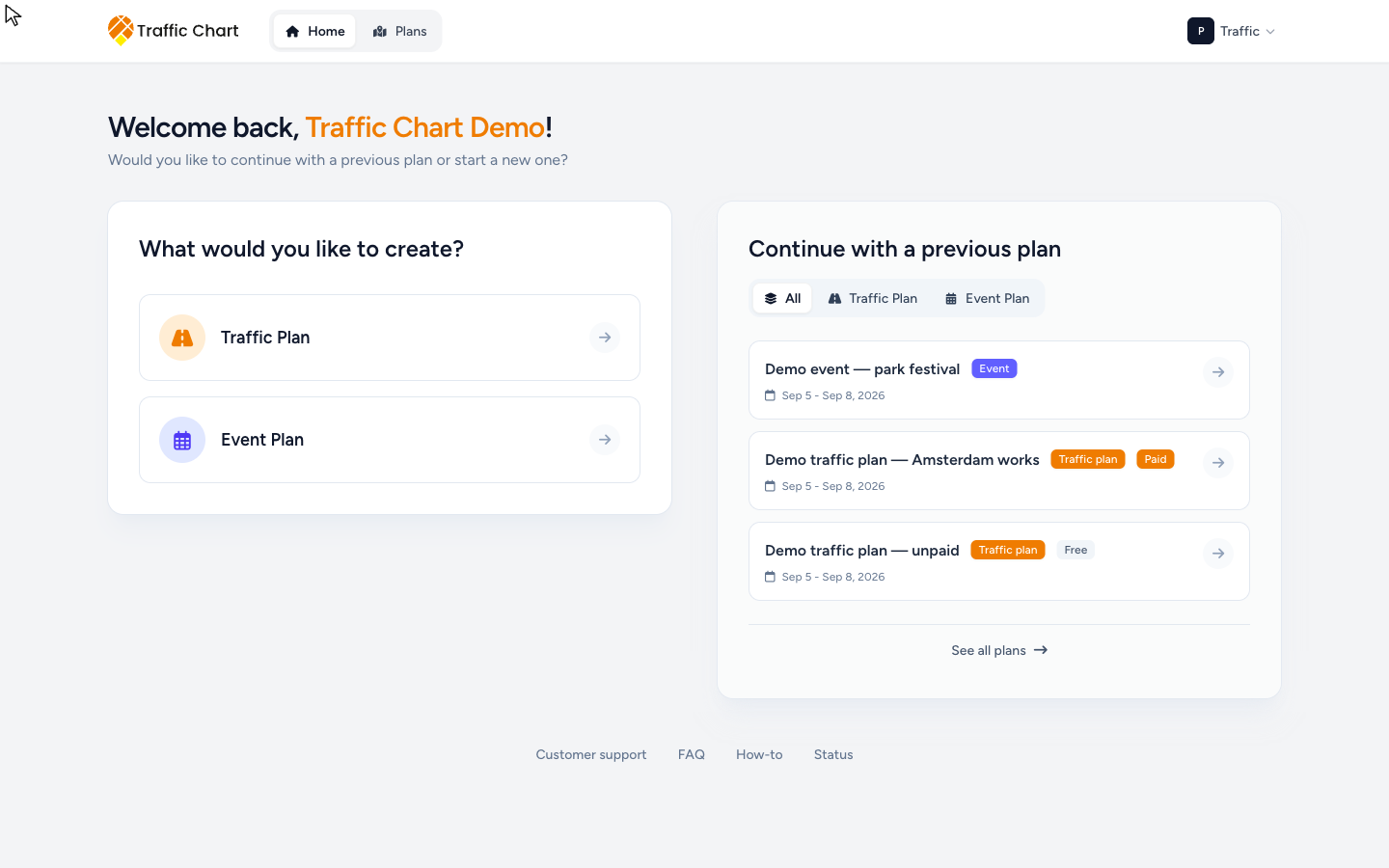
Button: Open traffic plan. That returns you to Demo traffic plan. Place signs past the free cap. On personal/legacy flows you should also see a Paid badge on that plan in Plans / Home. Native organization funding may skip the badge; placement is still unlocked.
Payment received, confirmation pending
Your payment is safe. Confirmation may take a moment; you do not need to pay again.
Button: Check again. Wait, then click it. Do not pay a second time. Bank transfers and some methods confirm later than a card.
Payment failed
The payment was not completed and no credit was used. Return to your traffic plan to try again.
Button is either Return and try again (back to the plan) or Open dashboard (back to Plans), depending on how the attempt ended. No credit was taken. You may retry from the plan.
If Stripe returned you without a payment reference, you also land here. Open the plan and start checkout once more — that is a new attempt, not a double charge, because the first one did not complete.
Payment needs attention — plan gone
This traffic plan is no longer available. Any purchased credit remains on your account.
Button: Open dashboard. Check Settings → Credits (personal) or organization Billing (workspace pool). The credit should still be there even if Demo traffic plan was deleted or you lost access. Contact support if the credit is missing. Do not buy another credit “to replace” it until you have checked.
Payment needs attention — credit not applied
The payment was confirmed, but the credit could not be applied automatically. Please contact support before paying again.
Button: Email support. Write customer@traffic-chart.com before a second payment. Include account email, plan link or UUID, time (with timezone), and the Stripe receipt or last four digits.
Payment needs attention — could not complete automatically
We could not complete this payment automatically. Please contact support before trying to pay again.
Same rule: Email support, do not retry checkout.
Full recovery checklist: Payment succeeded but plan not unlocked.
What paying does not do
Unlimited signs on Demo traffic plan is the only thing this dialog sells.
It does not turn on:
- Bulk signs
- Displace sign stack
- XL export maps
- Materials Excel
- PDF preview
Those still say Pro feature (or a similar gate) when your account cannot use them.
It does not unlock every plan on the account. It does not move a Personal payment onto Acme Events. It does not replace municipal review or a legal permit.
Participating municipalities (why you might not pay)
If the pin is inside a participating municipality, eligible personal accounts can place unlimited signs there without this dialog.
When it is not participating, the title uses that municipality: Utrecht is not yet participating. Ask Utrecht to participate drafts a message. Traffic Chart cannot make Utrecht buy a licence.
Organization workspaces do not use that ask-to-participate button. They use Cancel, then the organization credit pool or Billing.
Worked example (Utrecht, Demo traffic plan)
You are drawing Demo traffic plan for a detour in Utrecht on Personal. The first five counting signs stayed. The sixth does not.
- Dialog title Utrecht is not yet participating.
- Body: You can use Traffic Chart for free in the number of participating areas shown. Since Utrecht is not part of these areas yet you are not allowed to place more than 5 signs for free.
- You have no credits, so: Do you want to finish your traffic plan? For the price shown you can place an unlimited number of signs.
- First select your billing country to proceed to the checkout: → Select a country → Netherlands. Then Billing postal / ZIP code. If you skip it: Enter your postal / ZIP code to continue to checkout.
- Checkout. Title Checkout. Same price sentence. Stripe email + payment tabs load. Pay now.
- Payment status → Confirming your payment → Payment successful → Open traffic plan.
- The sixth sign stays. Plans shows Paid on Demo traffic plan. Other unpaid plans are still limited.
Same plan on Acme Events, with three credits in the pool: title Spend 1 credit to create new plan?, body By clicking 'spend credit' we will automatically deduct one credit from your account, and create a new traffic plan for you. You have 3 credits left., button Spend credit, toast Credit spent. Footer is Cancel, not Ask Utrecht to participate. The Paid badge may not appear. Place the sixth sign anyway.
Guest on Personal: after country + postal, Log in & Pay or Register & Pay, then the same Checkout / Pay now.
What good looks like
You placed the extra sign. It stayed. Save / Auto-save finished. On a personal plan you may see Paid. On Acme Events you can keep drawing even if the badge is missing.
If you spent a credit, Settings → Credits (personal) dropped by one, or Available credits on organization Billing dropped by one.
Practical tips
- Prefer the same browser you already use for Traffic Chart.
- Complete Select a country and Billing postal / ZIP code before hunting for Pay now.
- Spend credit is cheaper in time than checkout when you already have a balance. Use it.
- After Payment successful, use Open traffic plan in that tab. Do not hunt for a second copy of the plan on Home from another workspace.
- If Home still lists the plan as Free, switch workspace, open Plans, and hard-refresh. Native org funding may never show Paid.
If something blocks you
| What you see | What to do |
|---|---|
| Dialog will not appear | You are under the free cap, in a participating municipality, or the plan is already funded |
| Click does nothing / Plan is read-only | Log in; you are not the assigned editor; or review locked the plan |
| Spend credit toast Could not spend credit | Refresh balance; do not double-pay |
| Billing is not configured… | Owner / support, not a personal card |
| Only an organization owner… | Ask them; or Assign editor if you are the owner but not the editor |
| The organization billing account changed… | Reload the plan |
| Confirming your payment for a long time | Wait; Payment succeeded but plan not unlocked |
| Sign still limited after Payment successful | Hard-refresh; confirm workspace; contact support before paying again |
Related: Billing, free use, and credits, Payment status after checkout, Organization billing, I can’t place more signs.