

Traffic Chart is free to try. Event plans are not billed. Traffic plans start on a free tier; when you need more capacity you unlock that plan with a credit or a card payment — or you draw inside a participating municipality.
Prices always appear in the app at checkout. They can depend on country and currency. This page does not list amounts.
The payment dialog (every branch, Payment status, guests): Pay or spend a credit. The organization Billing page (packages, GmbH vs B.V., portal): Organization billing.
What is free
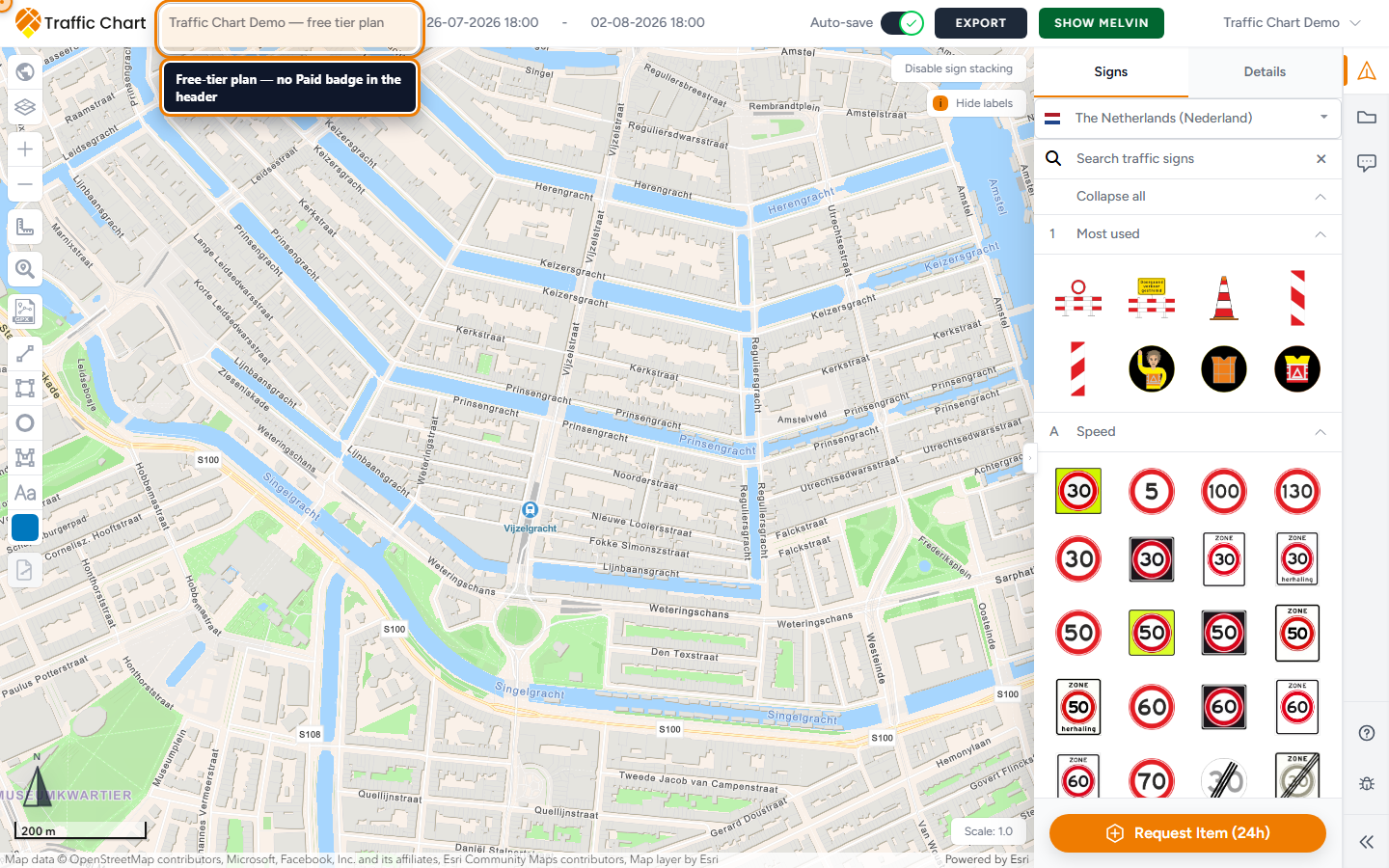
Creating a traffic plan is free. Payment is asked when you place signs past the free allowance, not when you click Start planning.
Event plans do not use credits. They can still be turned off for a workspace. The Event plans tab then reads Not enabled for Personal. (or Not enabled for Acme Events.). Workspace unavailable.
A public share link is view-only. Viewers are not asked to pay.
Participating municipalities
Some municipalities license Traffic Chart so organisers can draw freely there.
- Placement looks up the municipality under the pin.
- If the area is participating, eligible personal accounts can place unlimited signs there without paying for that placement.
- If not, the free sign limit applies until the plan is unlocked.
When the area is not participating, the paywall title uses the municipality under the pin, for example Utrecht is not yet participating. You may see Ask Utrecht to participate (a draft message to that municipality). Traffic Chart cannot force Utrecht to join.
On organization workspaces that prompt is Cancel instead — org billing is separate. Acme Events does not unlock signs by emailing Utrecht from this dialog.
Free sign limit (the 5-sign rule)
Outside participating areas, unpaid traffic plans allow a limited number of signs that count toward the cap. That number is currently 5.
Count every plate. A stack of three plates is three toward the five, not one pin. Bulk signs can use the whole allowance in one line.
The sixth counting sign is when the payment dialog appears. Until then, keep drawing.
Organization credit-pool workspaces often have no personal-style free allowance: you Spend credit (or you already have Unlimited sign placement on a subscription) before extra signs stay on the plan.
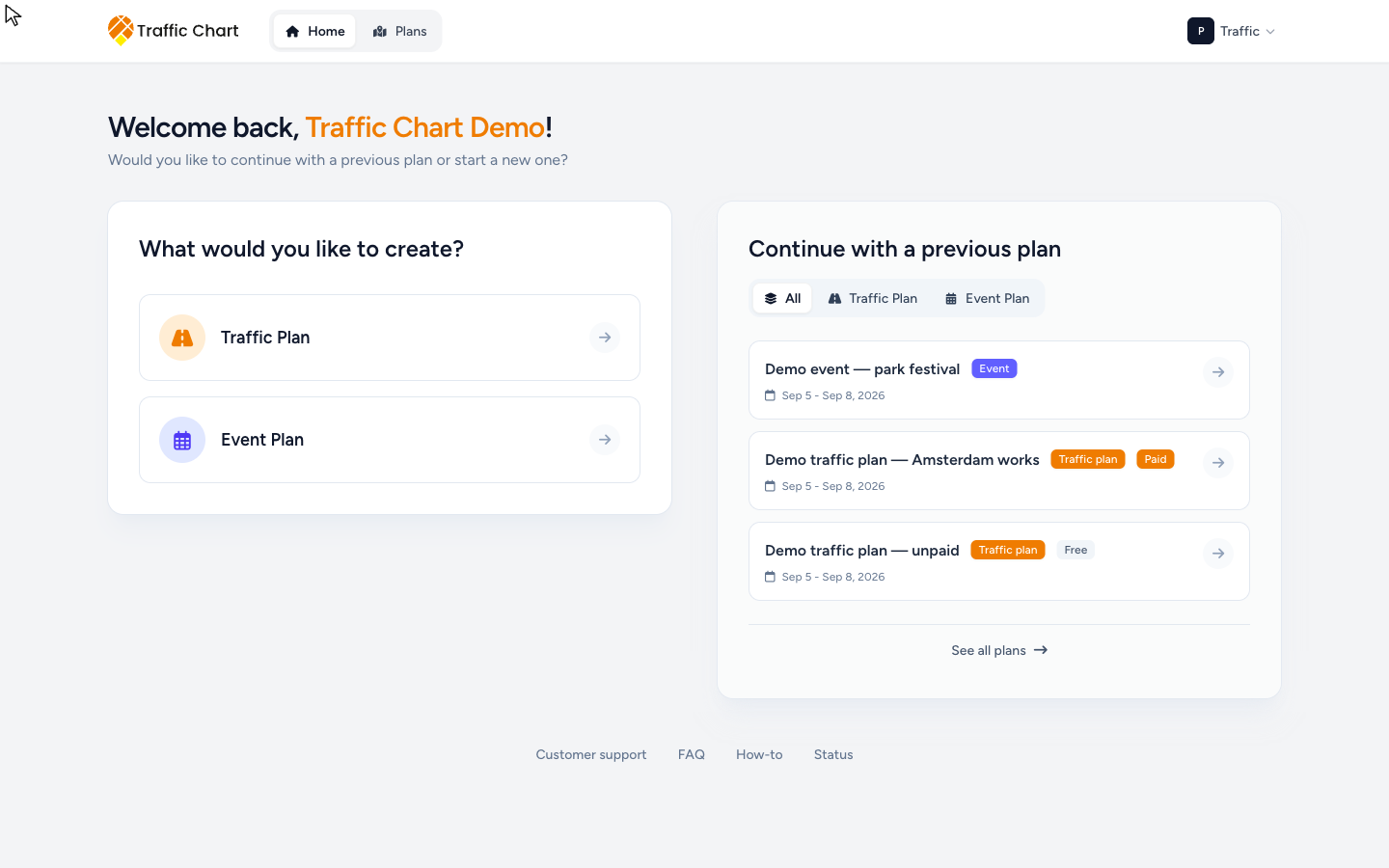
Duplicating a paid plan starts a new unpaid plan. Demo traffic plan with a Paid badge, duplicated, is a new plan that must be unlocked again.
Unlocking a traffic plan (Paid vs organization funding)
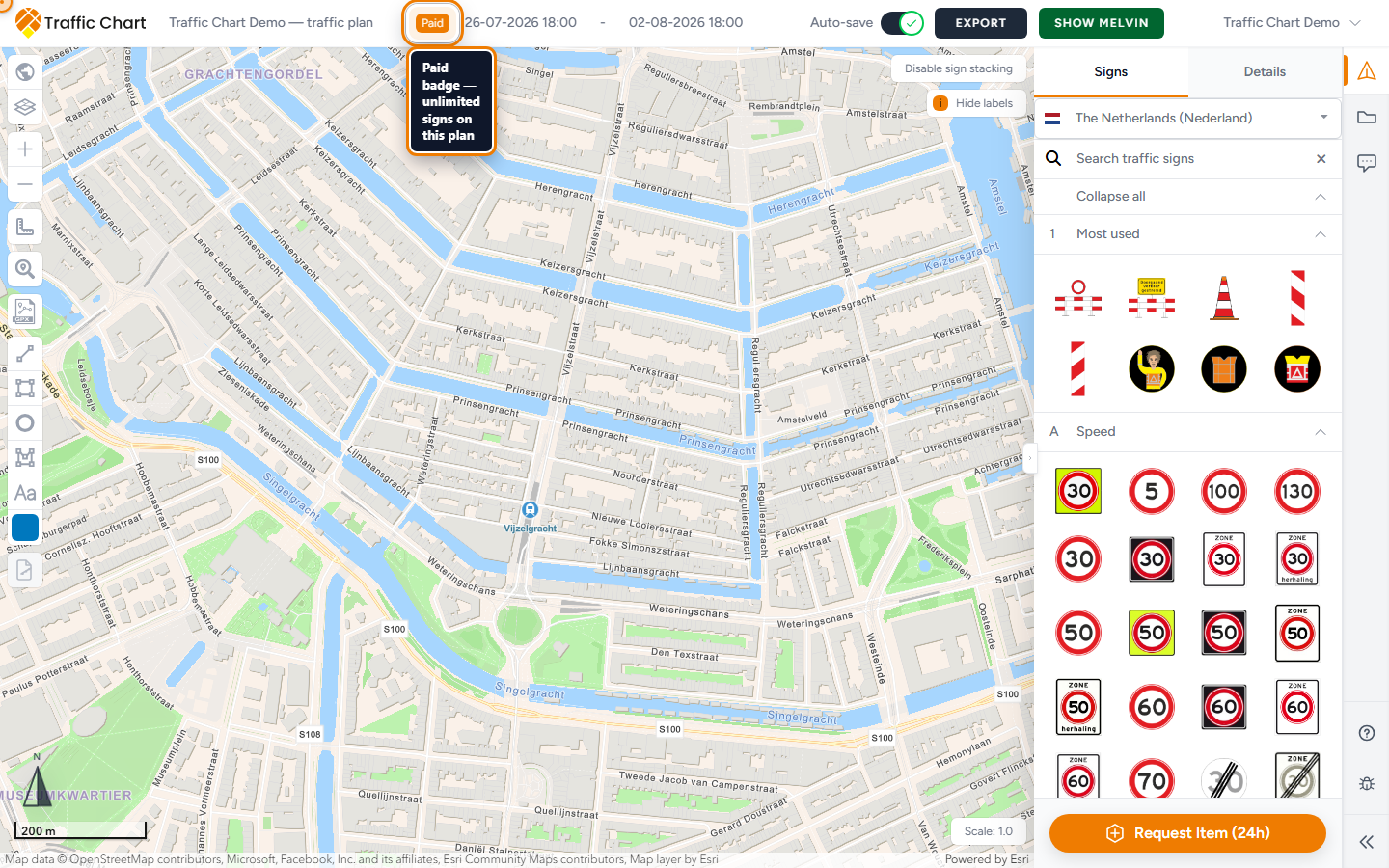
Paying or spending a credit sets this traffic plan to unlimited signs. Other unpaid plans keep their own limits. A credit unlocks one traffic plan, not every plan on the account.
Personal / legacy: the Paid badge
In the personal and older flows you will see a Paid badge on that plan on Home and Plans. That badge means Demo traffic plan has unlimited signs. It is not a Pro licence. It is not organization membership.
Native organization funding: often no Paid badge
On Acme Events, native organization billing does not always show the old Paid badge. The plan can still be funded from the organization account. The test is whether the next sign stays on the map, not whether the pill appeared.
Do not start a second payment because the badge is missing.
Personal workspace
When placement is blocked you see the payment dialog. Full walkthrough: Pay or spend a credit.
In short:
- If you have credits — Spend credit. The plan is saved and unlocked. Toast Credit spent.
- If you have none — Select a country, then Billing postal / ZIP code, then Checkout / Pay now (or Log in & Pay / Register & Pay if you were a guest).
- Complete Stripe. Payment status confirms the credit and unlocks the plan.
Personal credits also appear under Settings → Credits, except for some organisation-role accounts that hide that block on purpose.
Organization workspace
Credits shown in the dialog are the workspace pool, not your personal Settings → Credits.
- If the pool has credits and you can edit the plan: Spend 1 credit to create new plan? / Spend credit.
- If billing is not set up: Billing is not configured for this organization. Ask an organization administrator or Traffic Chart support to configure it.
- If you cannot purchase: Only an organization owner, administrator, or billing account holder can purchase credits. Ask them to add credits to this workspace.
Owners and admins who are not the assigned editor cannot start checkout on a colleague’s Demo traffic plan. Reassign the editor first, or buy from a plan you can edit.
Buying a package for Acme Events is not this map dialog. When the organization shows Billing, owners use Choose a package and Continue to checkout (hosted Stripe). Members never see that page. Organization billing.
If you do not see Billing, credits may still be handled the older way by Traffic Chart for your team. There is nothing to “turn on” from Settings.
After you pay
| Screen | Meaning | What to do |
|---|---|---|
| Confirming your payment | Payment succeeded; unlock is applying | Wait; keep the tab open |
| Payment successful | Plan ready | Open traffic plan |
| Payment received, confirmation pending | Safe; confirmation is slow | Wait; do not pay again; Check again |
| Payment failed | No credit used | Return to the plan and retry |
| Plan unavailable | Plan missing; credit may remain | Check Credits / org Billing; contact support |
| Could not apply automatically | Payment OK, unlock failed | Contact support before paying again |
See Payment status after checkout, Payment succeeded but plan not unlocked, and the outcome-by-outcome table in Pay or spend a credit.
Paying does not unlock every tool
Unlimited signs on one plan is not the same as organization/PRO tools:
- Bulk signs
- Displace sign stack
- XL export maps
- Materials Excel
- PDF preview
Those show Pro feature (or similar) when your account cannot use them. Feature not available for my account.
Practical tips
- Prefer one browser tab for checkout.
- Never start a second payment while the first is still processing.
- Switch workspace before you pay. A Personal payment does not fund Acme Events traffic plans.
- For sign limits while drawing, see I can’t place more signs.