
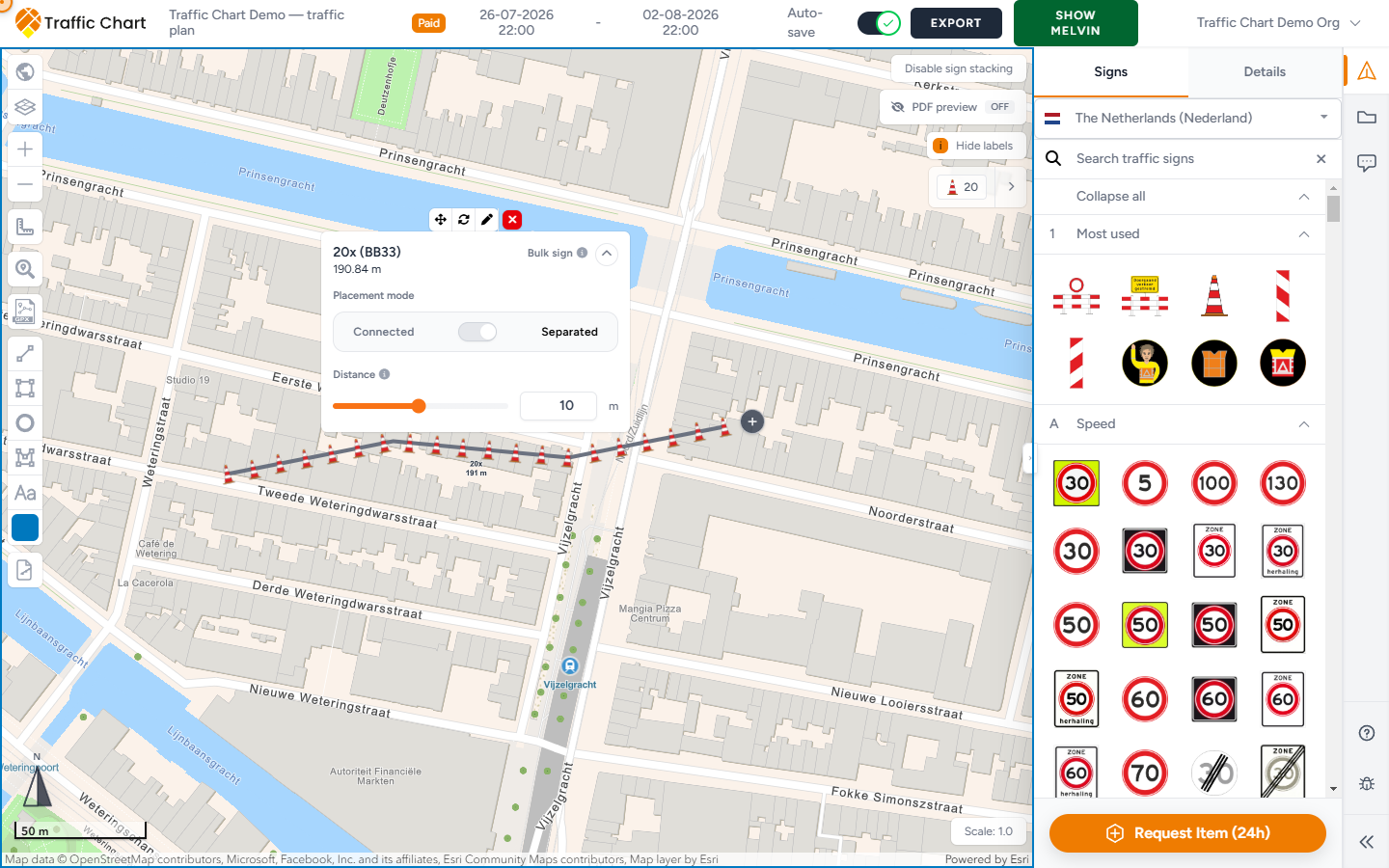
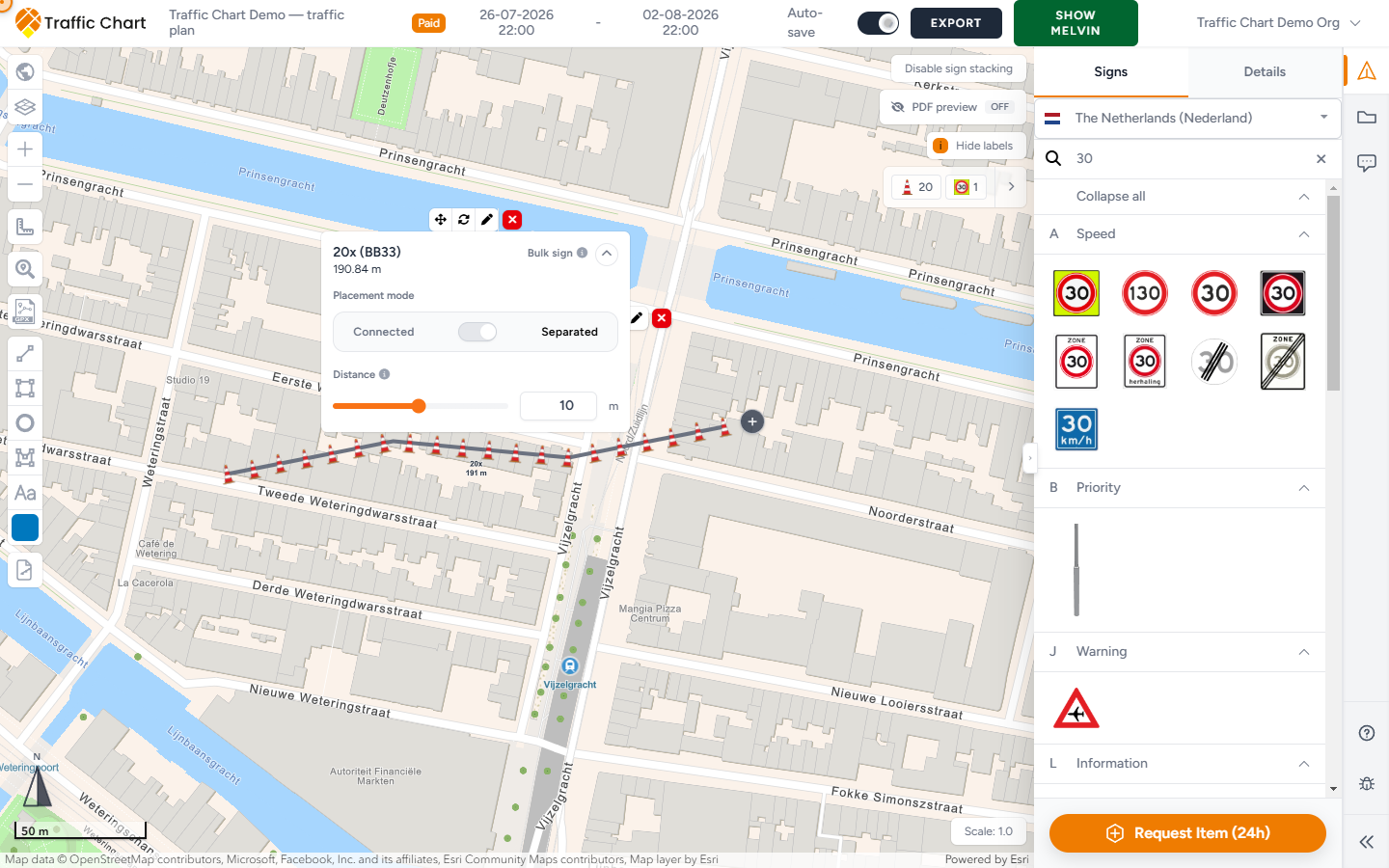
Some placement tools sit behind an organization or Pro account. Paying to unlock unlimited signs on one plan (Paid) does not always turn these on. Everyday one-by-one placement is in Working with signs.
Use this for a long row of the same sign, or when stacks overlap at a junction. Skip it if you only place a handful of plates.
If a control is blocked, believe the tooltip. Then see Feature not available for my account.
Bulk signs (organization)
Bulk signs repeats one sign along a drawn line — cones, barriers, or repeating temporary plates along a corridor.
The tool sits in the left map stack, under the sketch tools. Personal accounts still see it, but it stays disabled: Pro feature and You need an organization account to use bulk sign placement. Switch to an organization workspace such as Acme Events if that is where the tool is enabled.
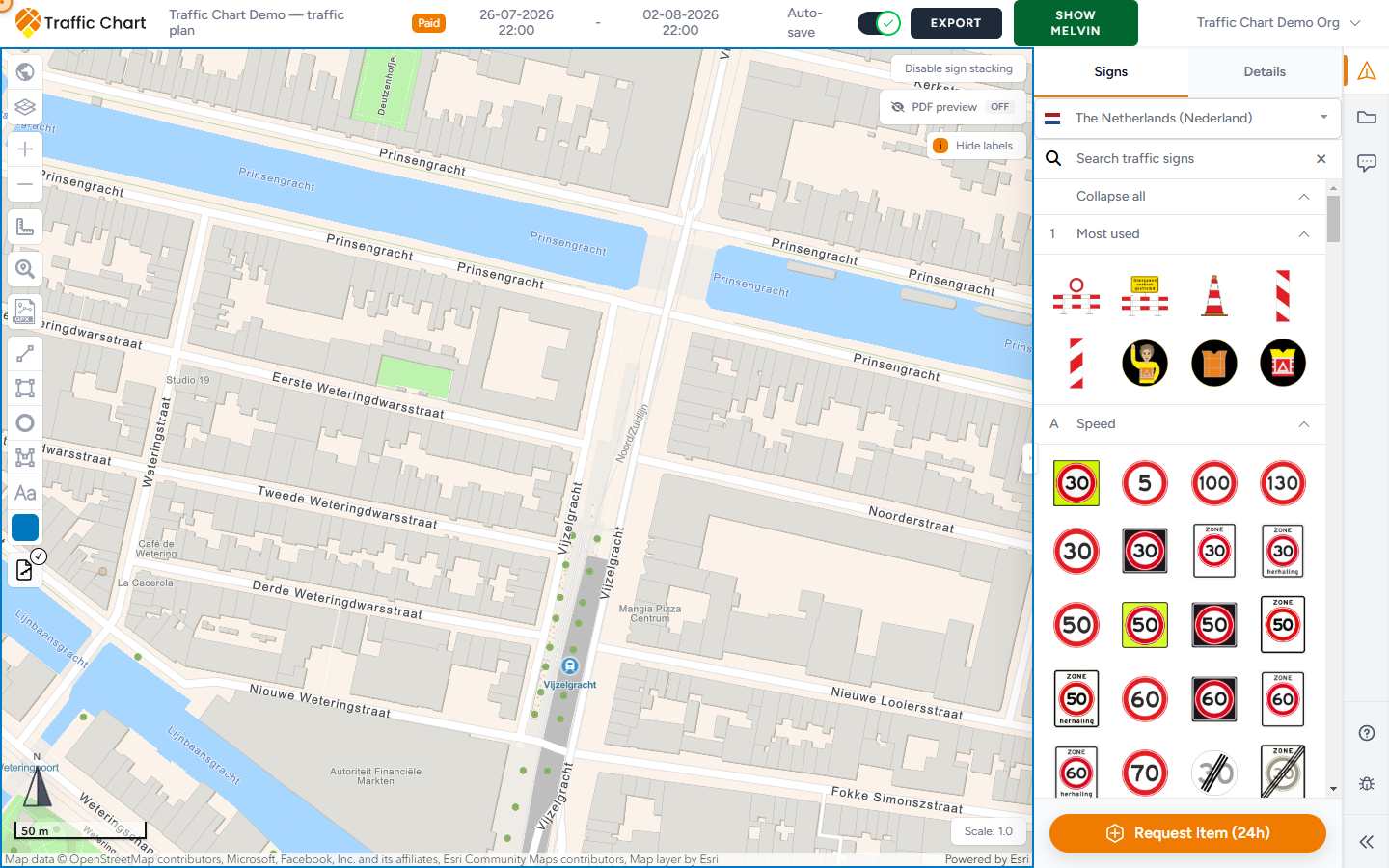
Place a bulk line
- Click Bulk signs.
- Draw along the roadway (click points; double-click to finish).
- The picker title is Select sign for bulk line.
- Search catalog is the search heading. The field placeholder is Search by code or description. Type a code such as C01. Clear empties the field.
- Recommended signs appear first (count such as 12 signs). If nothing in that group matches: No recommended signs match your search. If the organization has not starred any: Admins have not recommended any signs yet.
- Expand Other signs for the full catalogue. Hint when collapsed: Expand to access the full catalog. After a search: Showing search results from the full catalog. If every plate is already in Recommended signs: All available signs are already recommended.
- If nothing at all matches: No signs match "C01". Try a different code or description.
- Footer: 21 signs shown (the count the picker prints) and Click a sign to assign it to the bulk line.
- Click a sign. The picker closes.
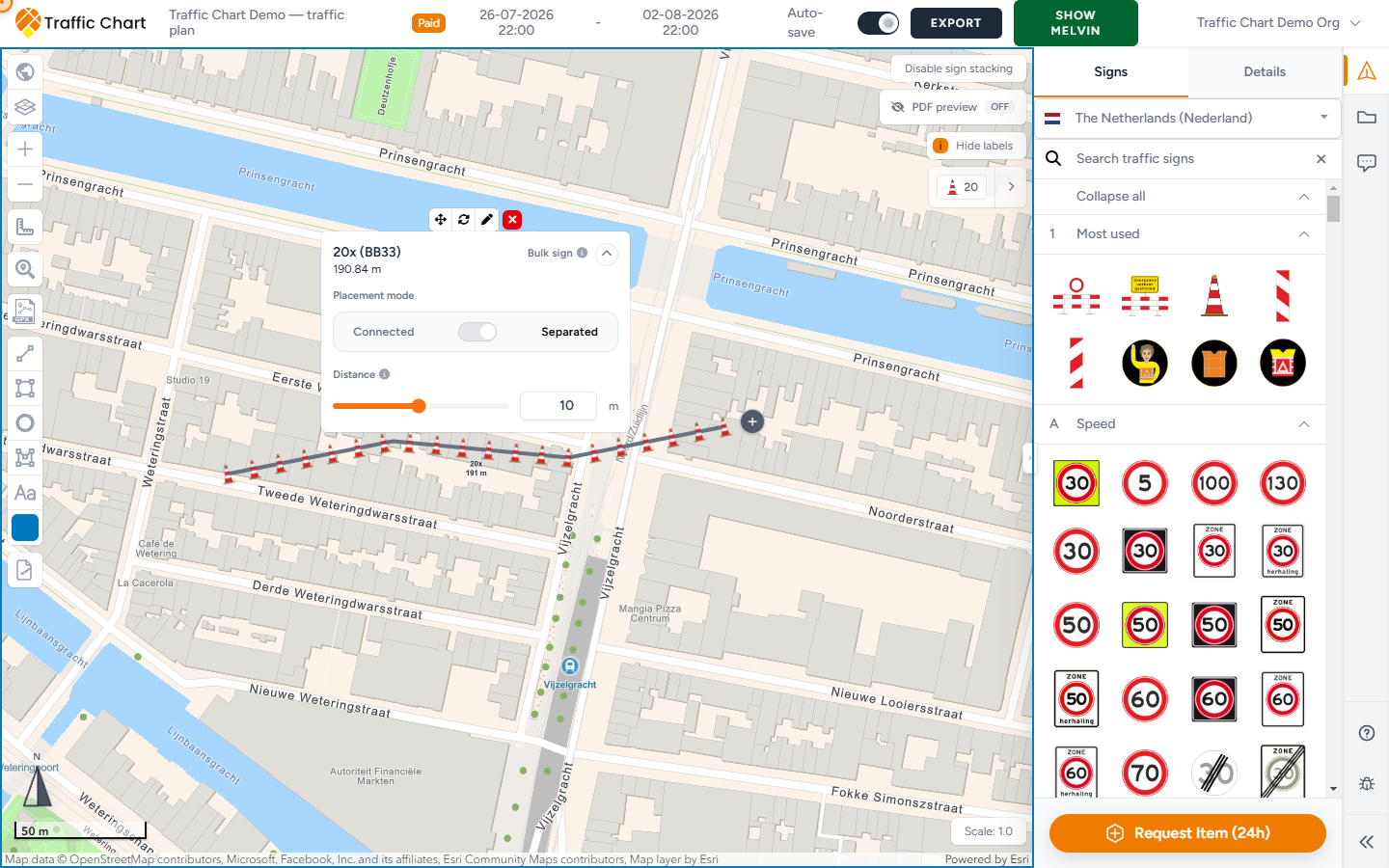
A cyan line and a Bulk sign panel appear. The info title is Bulk sign placement. Description: Adjust how this bulk line distributes the selected sign along the roadway.
Connected vs Separated
Set Placement mode. The toggle tooltip is Toggle between Connected and Separated placement.
| Mode | What it does | Extra control |
|---|---|---|
| Connected | Plates sit flush | Length |
| Separated | Plates sit with a gap | Distance |
Connected help: Connected mode places each sign directly against the next one, ideal for continuous rows. Connected mode keeps each sign flush by using this length. Length info: We use this length to keep each sign connected to the next one. Increase it for larger signs.
Separated help: Separated mode distributes signs along the full line, leaving the selected distance between each sign. Separated mode keeps this many meters between each sign. Distance info: We repeat the selected sign every X meters along the line. Lower distance means more signs.
Read the quantity on the panel (for example a count × line length) so you can see how dense the row is. Connected suits continuous rows (cones, barriers). Separated suits readable gaps between plates.
Expand details / Collapse details (aria Expand bulk sign details / Collapse bulk sign details) hides the mode sliders when you need map space.
Edit or remove
Select the bulk line. The toolbar:
| Control | Purpose |
|---|---|
| Move | Reposition the whole line |
| Rotate | Turn the line |
| Edit sign | Opens Select sign for bulk line again so you can pick a different plate |
| Duplicate (optional) | Copy the line when that control is shown |
| Remove bulk sign | Delete the line |
Quantities feed the Materials list. Excel can list Bulk placement, quantity: 21 (the count the export prints). Check export after a large bulk line.
Bulk counts toward the free sign limit
Free sign limits still apply on unpaid plans outside participating areas. Each plate the line generates counts. Bulk signs can exhaust the allowance (currently 5 counting signs) in one stroke. If the next placement is blocked, follow Sign limit reached or Utrecht is not yet participating — I can’t place more signs.
A Paid badge on Demo traffic plan lifts the sign cap on that plan. It does not turn Bulk signs on for Personal.
Find the line later under Layers & Objects → Bulk Placement (for example Bulk line (21 signs)). Lock object / Unlock object and Zoom to object work the same as for sketches.
Displace sign stack (Pro)
At busy junctions, stacks overlap. Displace sign stack keeps the real coordinate in place and draws the plates offset, joined by a leader line and an origin marker.
The product names this family Move sign stacks. Tooltip: Move sign stacks away from their exact coordinate. The control on the selected sign, next to Move sign, is Displace sign stack.
- Click the stack.
- Press Displace sign stack and drag the drawing aside.
- Confirm the origin marker stays on the carriageway and a leader line connects it to the plates.
- Save.
- Check PDF so the paper view matches what you intend.
Without Pro access, the button stays inactive. Tooltip heading Pro feature. Body: You need a PRO account to displace traffic signs. Paying for unlimited signs on one plan does not turn it on.
Displacement is drawing clarity. Crews still need the real-world position (origin marker / Coordinates in Details). Do not treat the offset plates as the install point.
If PDF preview is On and the preview map is unlocked, you may need Lock preview map before you can select a stack (Lock the preview map to select this object.).
What good looks like
A bulk line follows the kerb, with Connected or Separated matching how the crew will set out. The materials count looks believable. Displaced stacks are readable and still point at the true location. You did not use bulk on Personal and expect it to draw.
If something blocks you
| Situation | What to try |
|---|---|
| Bulk signs disabled | Organization workspace / organization account. Tooltip: Pro feature / You need an organization account to use bulk sign placement. |
| Displace sign stack disabled | Pro access. Tooltip: Pro feature / You need a PRO account to displace traffic signs. |
| No signs match "C01". Try a different code or description. | Different code, or expand Other signs |
| Sign limit during bulk | I can’t place more signs |
| Paid but still no bulk or displace | Unlimited signs ≠ these tools — Feature not available for my account |
| Lock the preview map to select this object. | Lock preview map, then select the stack |