
This page is the invitation email, the Join Acme Events landing page, and the owner flow that sends the invite.
Use it when someone asked you to join a team workspace, or when you are an Owner or Administrator sending Invite member. Skip it if you only need to change a role or assign an editor — that is Organizations and members. Symptom-only unblock after View invitation: I cannot accept an organization invitation.
You cannot create an organization yourself. There is no Create organization button. Traffic Chart creates the organization. You join it by invitation.
What an organization is
You always have a Personal workspace. That library is My traffic plans. It is private to you.
An organization is a separate team workspace. For Acme Events, the library title is Acme Events traffic plans. Everyone with access can open the plans. Only the assigned editor for a plan can change it.
Joining does not merge the two libraries. Demo traffic plan that you drew in Personal stays in Personal until you Move or Copy it. After you accept, you still have to Switch workspace before you see Acme Events.
When you need this
- You received Invitation to join Acme Events.
- An owner said you should already be on the team, but Switch workspace still only lists Personal.
- You are the owner sending access to a colleague.
You do not need this to share a read-only link. A public link is not membership.
What the email looks like
The subject is Invitation to join Acme Events (the organization name).
The body says:
- You have been invited to join Acme Events as Member. (or Administrator)
- This invitation expires on the date and time shown.
- A button: View invitation
- If you were not expecting this invitation, you can ignore this email.
Open View invitation on the same device and browser you will use for Traffic Chart. The link is unique. Do not forward it as a way to add extra people — each invite is one email address.
Invites expire after 7 days unless an owner clicks Resend. A resent invite is a new link with a new expiry. The old link stops working.
If you were not expecting the mail, ignore it. You do not have to decline.
The invitation landing page
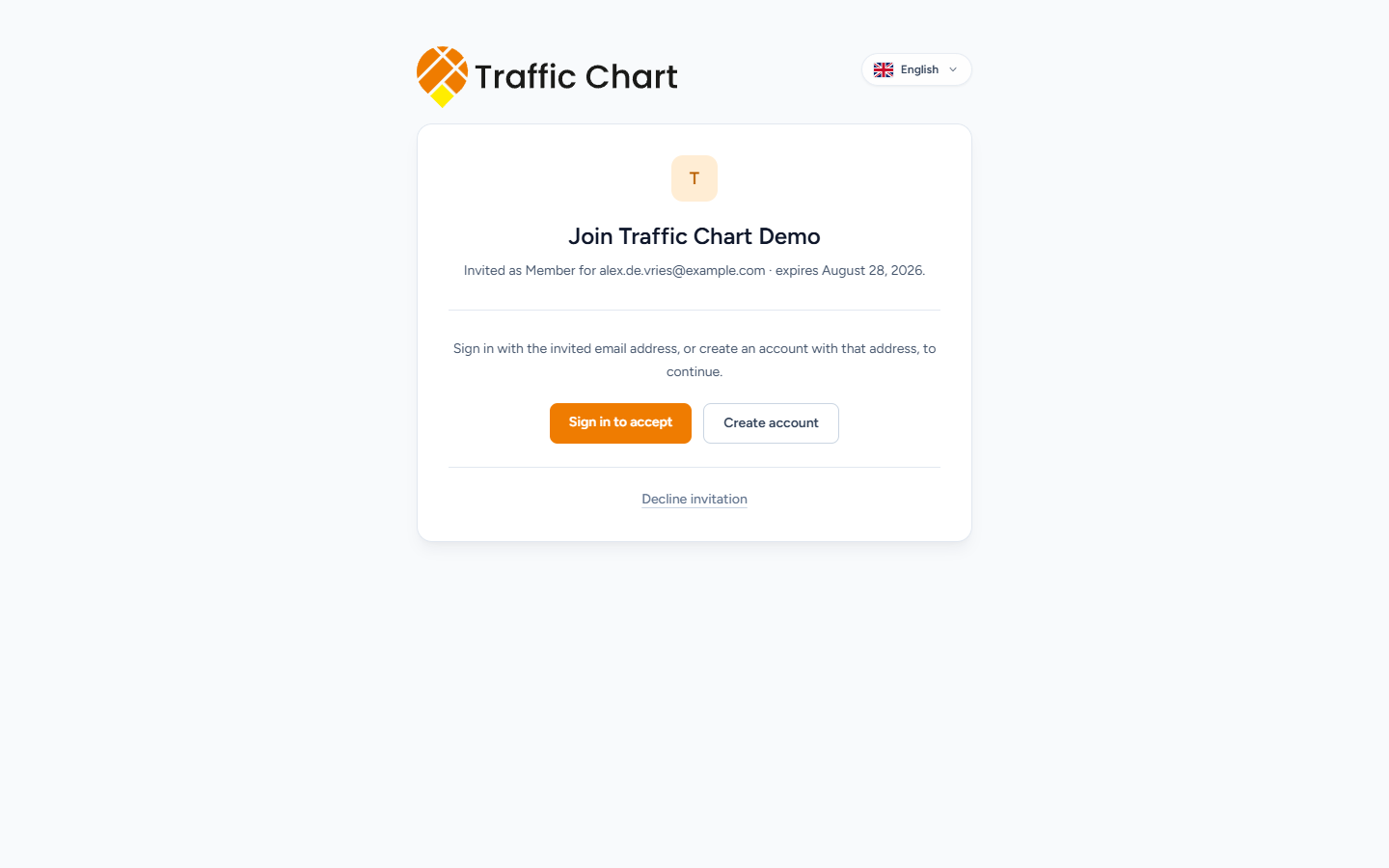
View invitation opens a page whose browser title is Organization invitation. The heading is Join Acme Events.
The invitation is always tied to one inbox. Treat that as This invitation was sent to that address, not to whoever happens to be logged in. The summary line on the page looks like Invited as Member for alex@acme-events.test · expires 28 August 2026. That is the lock: role, email, expiry.
The page has a language control in the corner. Use it if the rest of the app is already in another language.
What you can do next depends on four facts: whether the invite is still Pending, whether Acme Events is active, whether you are signed in, and whether you are signed in as the invited email with a verified address.
Read the branch that matches the screen. Do not skip to Accept invitation if that button is not there yet.
You are not signed in
The page explains: Sign in with the invited email address, or create an account with that address, to continue.
Two buttons:
- Sign in to accept — opens Log in. The invited email is filled in. Use Password, optionally Remember me. If you use a passkey on this account, Sign in with passkey may also appear.
- Create account — opens Create account with the invited email filled in. Enter Full name, Password, Confirm password, accept the terms, and submit.
Use the invited email. A second personal inbox will look signed in, then block you on Use the invited account.
Forgot the password? On Log in, use Forgot your password? Finish the reset, then open View invitation again.
After login or register, Traffic Chart brings you back to Join Acme Events. If the new account is not verified yet, you land on the verification branch next.
You are signed in as the wrong account
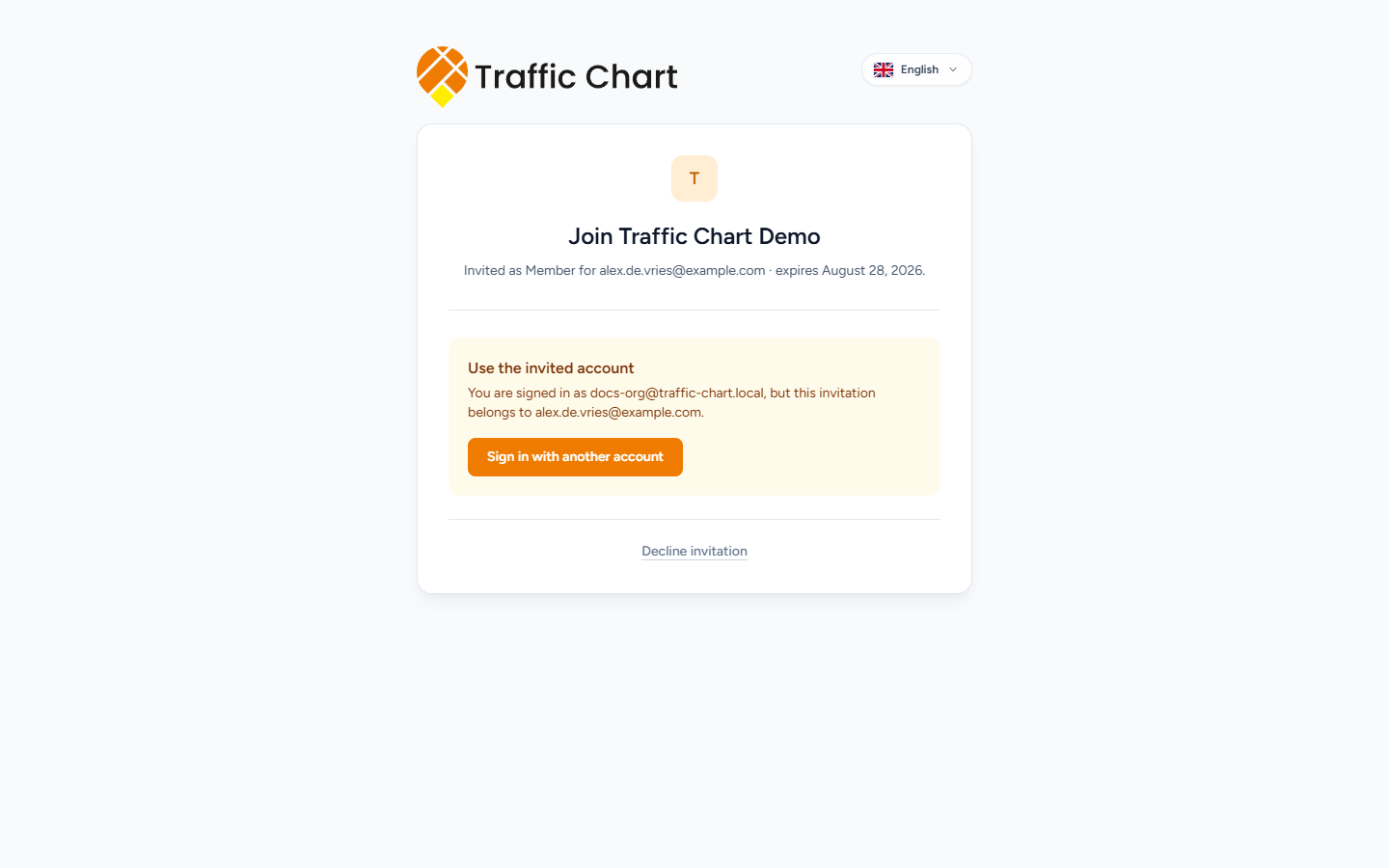
The heading is Use the invited account. The help text names both addresses, for example You are signed in as roy@example.com, but this invitation belongs to alex@acme-events.test.
Click Sign in with another account. That signs you out and returns you to this invitation. Then Sign in to accept or Create account with alex@acme-events.test.
Do not ask the owner to change the invite to “whatever account I have open”. They can Revoke and send a new Invite member to a different email if that is really what you need.
Your email is not verified
The heading is Verify your email address. The help text is Your account email must be verified before you can accept this invitation.
Click Go to email verification. That is the Verify your email address screen: We sent you an email. Open your inbox and click the verification link to continue. If nothing arrived, Send verification email again. You can Change email address or Sign out from that page if the address is wrong.
Verification mail subject is also Verify your email address. The button in that mail is Verify email address.
After the address is verified, return to View invitation. Accept invitation appears only when the session is the invited, verified account.
Expired verification links say This link has expired. Request a new one, then come back to the invitation. Details: Email verification and login problems.
Accept the invitation
When the invite is Pending, Acme Events is active, and you are the invited verified user, the primary button is Accept invitation. While the request runs it reads Accepting...
Click it once. Wait.
If it succeeds, you are taken to Plans. A status message confirms the invitation was accepted.
Accepting does not switch the workspace. The last workspace you used is still selected, which is often Personal. You will still see My traffic plans and none of Acme Events’ work.
Do this immediately:
- Click your initials and first name.
- Under Switch workspace, choose Acme Events.
- Plans retitles to Acme Events traffic plans.
If Acme Events is greyed out, read the reason on the row: This workspace is not currently available., Your membership is suspended, Organization suspended, Workspace not enabled yet, or Organization unavailable. Public share links can still open. The private workspace cannot until that reason is fixed. Workspace unavailable.
New plans you start from Home go to the workspace you last opened. If you skip the switch, Demo traffic plan is created in Personal and your colleagues will not see it.
Decline the invitation
Decline invitation sits under the accept action whenever the invite is still Pending. Guests can decline. You do not have to sign in first.
The first click does not decline yet. The page asks Decline this invitation? The organization can send you another invitation later.
- Cancel — back to the invitation, still pending.
- Decline invitation (the red confirm) — completes the decline.
After a decline, the page shows Invitation declined and You will not be added to this organization.
A declined invite cannot be accepted later. Ask an owner to send a new one if you changed your mind. They use Invite member again. A declined invite is no longer a pending row they can Resend.
When the invitation cannot be used
If the invite is no longer pending (and it is not the declined-success screen), you see an amber panel.
The heading is This invitation is expired, This invitation is revoked, or This invitation is accepted — the status is written in lowercase after This invitation is.
The help text is always Ask an organization owner or administrator to send a new invitation if you still need access.
Typical causes:
- More than 7 days passed, and nobody clicked Resend.
- An owner clicked Revoke.
- You (or someone on that email) already accepted. In that case Switch workspace is the fix, not a new invite.
- You already declined. The dedicated declined screen appears first; a later visit can look unavailable.
If Acme Events itself is not active, you get a different panel: Organization unavailable, with This organization is not currently active, so the invitation cannot be accepted. Sign-in will not help. The owner must ask Traffic Chart to reactivate the organization.
Other blocks you may see as an error under Accept invitation:
- The organization is not currently active.
- This invitation has already been accepted.
- This invitation has been revoked.
- This invitation has been declined.
- This invitation has expired.
- This invitation was sent to a different email address.
- Your email address must be verified before accepting an invitation.
- This account is already a member of the organization.
- This account already has an inactive membership. Ask an owner to reactivate it.
“Already a member” means Switch workspace. “Inactive membership” means an owner must Restore access on Members; a second invite will not override a suspended row.
Short table of the same blocks: I cannot accept an organization invitation.
After you are in: what you can do
Your Role is the one on the invite. Ownership is never granted through Invite member. An existing Owner can later Change role to Owner.
| Role you joined as | What you can do on Acme Events |
|---|---|
| Member | Open all organization plans. Create a plan (you become its assigned editor). Edit only plans assigned to you. Spend an existing organization credit on a plan you can edit, when billing allows. No Invite member, no Activity, no Billing. |
| Administrator | Member powers, plus invite Members, suspend or remove Members, Assign editor, and Billing when that page is shown. Cannot invite other administrators or make someone Owner. |
| Owner | Invite Members and Administrators; change any role including Owner; suspend or remove people; Billing when shown. The last active owner is Protected. |
Team day-to-day (roles, Assign editor, Move vs Copy): Organizations and members. Move and assign in full: Move, copy, and assign editor. Who joined, who moved a plan: Organization activity.
Owners and administrators: send an invitation
Open Members & access for Acme Events:
- Click your initials and first name.
- Click the sliders next to Switch workspace (Organization settings), or open Settings → Organizations.
- If you belong to several organizations, click Members & access on Acme Events. If you belong to only one, you may land on that page directly.
- The page title is Manage Acme Events.
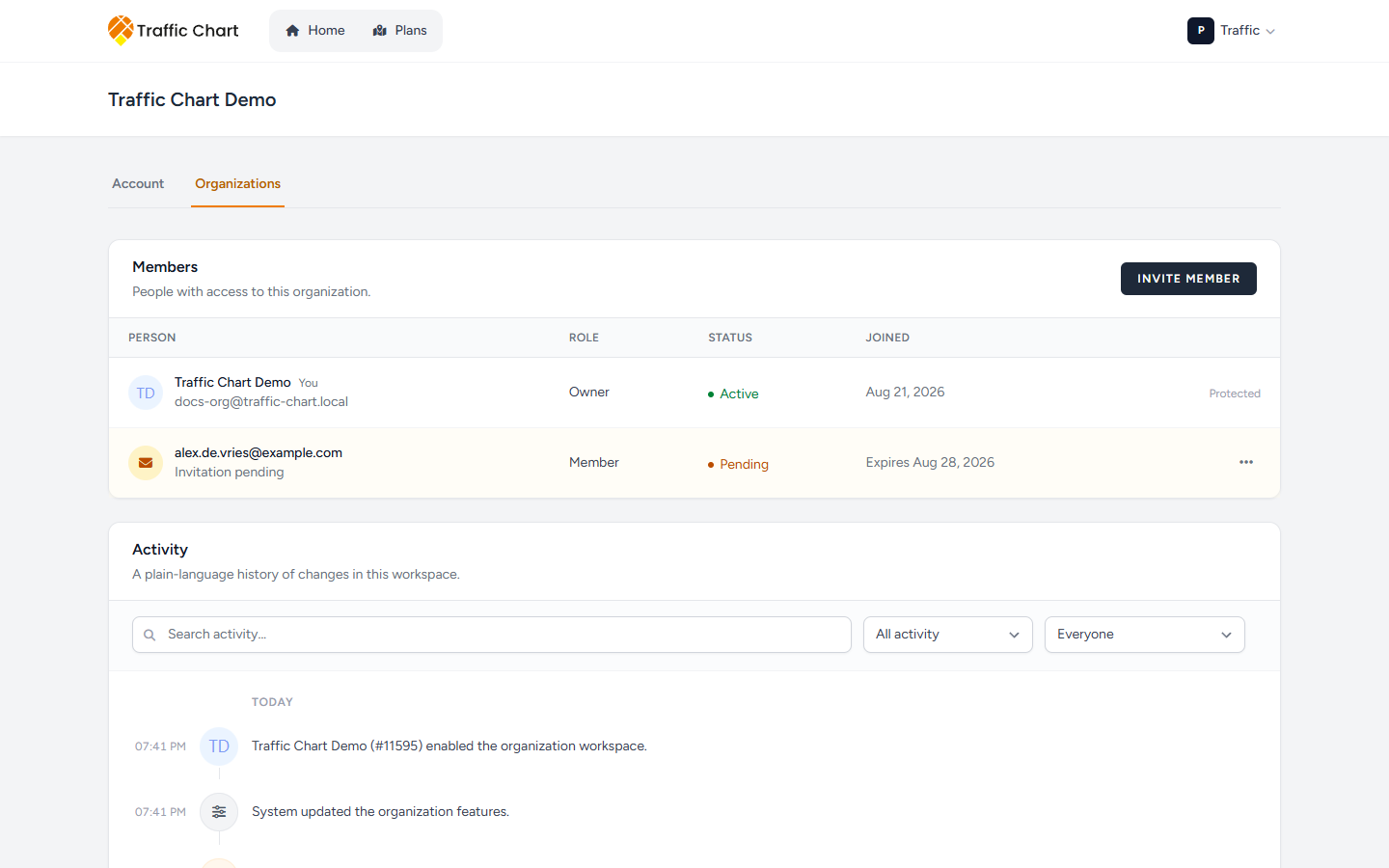
On Members, click Invite member. The dialog title is Invite members. Description: Invite someone by email and choose the role they will receive after accepting.
Fill in:
- Email address — the address they will have to sign in with.
- Role — Member, or Administrator if you are an Owner. Administrators do not see Administrator as an option.
Then Send invitation. While it sends, the button reads Sending... Success is the toast Invitation sent. Cancel closes the dialog without sending.
If that email is already on Members, the form errors with This user is already a member of the organization.
You cannot choose Owner here. Ownership must be granted after they join. After they accept as Member or Administrator, use Change role. Help on that dialog: Only owners can assign organization ownership or administrator access.
If Acme Events is inactive, invitations cannot be sent.
Pending invites: Resend and Revoke
Pending people appear in the Members table on an amber row. The name line is the email. Under it: Invitation pending. Role is what they will receive. Status is Pending. The date column shows Expires the date, for example Expires 28 Aug 2026.
Open the row menu:
- Resend — sends a fresh Invitation to join Acme Events with a new View invitation link and a new 7-day expiry. The old link dies. Toast: Invitation resent.
- Revoke — opens Revoke invitation. Confirm: Revoke the invitation for alex@acme-events.test? That invitation link will stop working. Cancel or Revoke. Toast: Invitation revoked.
Resend is the right fix for “they say the mail never arrived” and for “it expired”. Revoke is the right fix for the wrong email or a person who should not join.
If send or resend fails, the app can toast The invitation could not be sent. or The invitation could not be resent. Check the address, wait, retry. If it keeps failing, email customer@traffic-chart.com.
If there is nothing pending to list in a dedicated invitations view, the empty copy is There are no invitations to show.
Worked example (Acme Events)
Sam is an Owner on Acme Events. Alex is a contractor who still only has Personal.
- Sam opens Manage Acme Events → Invite member.
- Email address
alex@acme-events.test, Role Member, Send invitation. - Alex’s inbox shows Invitation to join Acme Events. Alex clicks View invitation.
- Heading Join Acme Events. Summary Invited as Member for alex@acme-events.test · expires 28 August 2026.
- Alex is logged into a Gmail they use for festivals. The page says Use the invited account. Alex clicks Sign in with another account, then Sign in to accept with
alex@acme-events.test. - The account is new: Verify your email address → Go to email verification → Verify email address in the mail.
- Back on the invitation, Accept invitation.
- Plans still shows My traffic plans. Alex opens Switch workspace → Acme Events. The library becomes Acme Events traffic plans.
- Alex clicks Create plan, names it Demo traffic plan, and becomes the assigned editor. Sam can open it read-only until Sam uses Assign editor.
If Alex had clicked Decline invitation, confirmed Decline this invitation? The organization can send you another invitation later., Sam would need a new Invite member. Resend would not be on a declined row.
What good looks like
You opened View invitation, signed in (or created an account) as the invited email, verified that email, clicked Accept invitation, then Switch workspace to Acme Events. Plans shows Acme Events traffic plans. Your row on Members is Active, with You next to your name.
For owners: Invite member → Email address + Role → Send invitation → the colleague’s inbox shows Invitation to join Acme Events → they accept → Activity records that they joined.
If something blocks you
| What you see | What to do |
|---|---|
| No mail | Spam; ask an owner to Resend; confirm they used the email you actually read |
| Use the invited account | Sign in with another account, then the invited email |
| Verify your email address | Go to email verification, then return to View invitation |
| This invitation is expired | Owner Invite member or Resend |
| This invitation is revoked | Owner sends a new invite |
| Invitation declined | Owner sends a new invite |
| Organization unavailable | Organization is not active; contact the owner / support |
| Accepted, but no team plans | Switch workspace — you are still on Personal |
| Greyed-out Acme Events | Read Your membership is suspended (ask Restore access), Workspace not enabled yet, or Organization suspended |
| Already a member | Switch workspace; do not collect a second invite |
More on missing plans: My plan does not appear in the list. Login and verification: Email verification and login problems. Invite symptoms: I cannot accept an organization invitation.
Related: Organizations and members, Organization activity, Move, copy, and assign editor, Workspace unavailable, Manage your account, Set up your account and find help.