
This page is the product in one sitting: what Traffic Chart is, which plan to open, where your work lives, and what “free” actually means.
What it is
Traffic Chart is a browser app. You draw on a real map, share a live link, and export a PDF when someone needs a file. There is nothing to install.
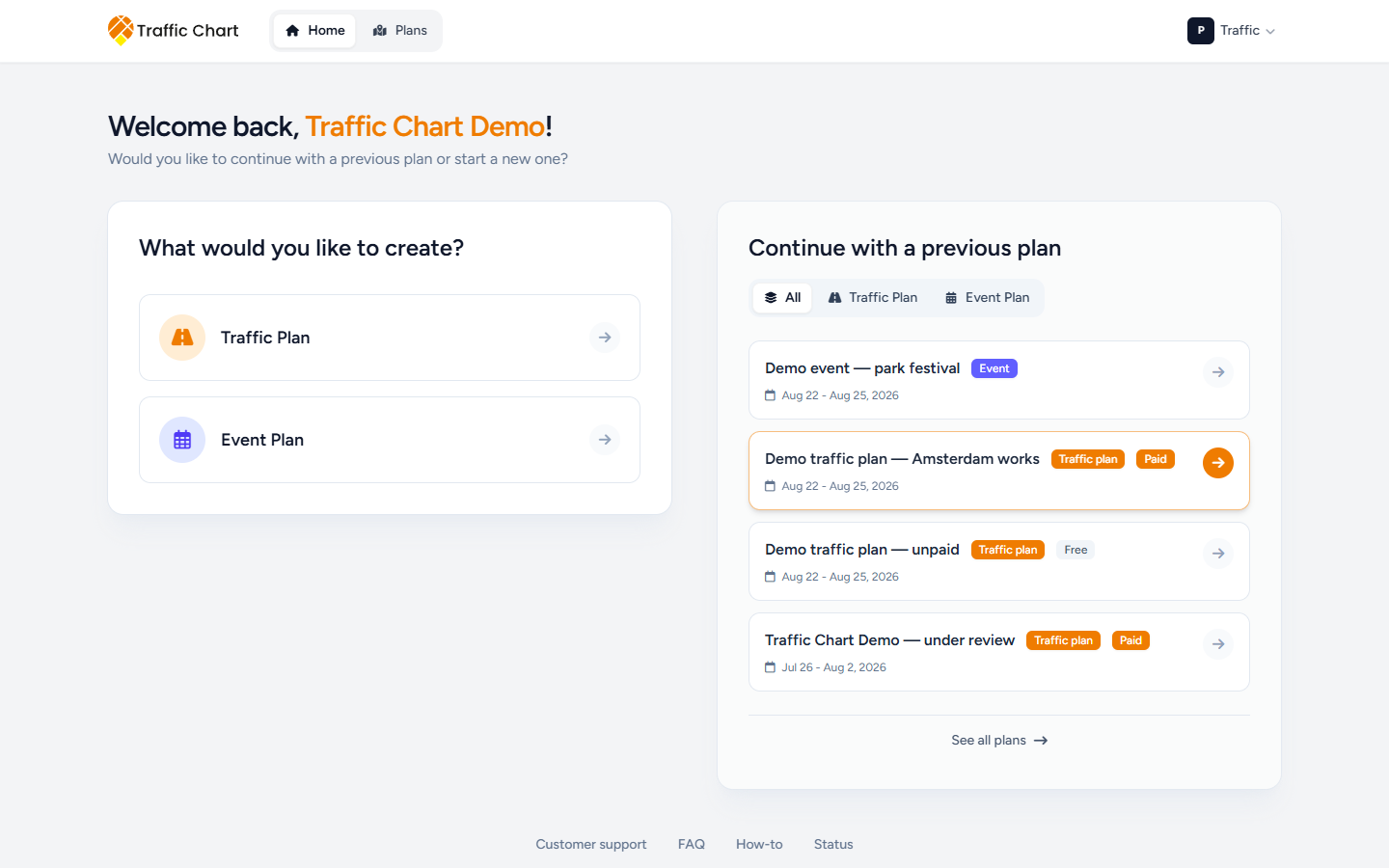
You will spend most of your time in three places:
- Home — start a new plan, or continue a recent one.
- Plans — the full library for the workspace you are in.
- The editor — full-screen map, tools, and sidebar.
Those three are easy to mix up. Find your way around is the picture of the top bar. The first time you sign in, First login and onboarding covers Log in, Create your account, and the welcome screens (Creating your account..., Preparing your workspace...).
Who it is for
Most people here are creating plans:
- Event organisers — site layouts, and often the roads that lead there
- Contractors and infra teams — temporary traffic measures
- Municipalities — drafting plans, and sometimes reviewing submissions
If you only review plans for a municipality, skip to Review for organisers or Review for reviewers. The rest of getting started is written for people who draw.
Two kinds of plans
On Home the heading is What would you like to create?
Traffic Plan — public roads: closures, detours, temporary signs, materials lists, post orders for traffic controllers. The sign catalogue follows the Country you set when you create the plan. Wrong country means the wrong signs; you generally start a new plan rather than “switching” a catalogue.
Event Plan — the site itself: stages, tents, fencing, zones, walking routes, labels. Event plans do not use the traffic-sign catalogue and do not spend traffic-sign credits.
A festival in a park with road closures on the approach is a classic pair: event plan for the field, traffic plan for the public road. Share or submit both according to what your municipality asks for.
Where your work lives
You always have a Personal workspace. That list is private to you. The library title is My traffic plans / My event plans.
If your company or municipality uses Traffic Chart as a team, you may also belong to an organization. That is a separate workspace. Plans there are shared with everyone who has access. The library title is the organization name plus the plan type, for example Acme Events traffic plans.
Switch with Switch workspace in the account menu (your initials and first name). Personal uses a P badge. Organizations use orange initials.
If a workspace row is greyed out, read the reason on that row: This workspace is not currently available., Your membership is suspended, Organization suspended, Workspace not enabled yet, or Organization unavailable. Public share links can still open; the private workspace cannot until that reason is fixed. Workspace unavailable.
Creating a Traffic Plan or Event Plan from Home puts the new plan in whichever workspace you last opened. Check Switch workspace before you start if you meant Personal, or meant the team.
On Plans, folders keep the library readable (New folder, Search plans or folders). Folders and the library.
You cannot create an organization yourself. An owner invites you. After you accept, you still have to Switch workspace — accepting does not move you automatically. See Join an organization.
In an organization, seeing a plan is not the same as editing it. Only the assigned editor can change that plan. Organizations and members.
Free use, in one minute
Event plans — no traffic-sign credits. Your workspace still needs Event plans turned on. If the Event plans tab says Not enabled for Personal. (or Not enabled for Acme Events.), you cannot create one there. Ask an administrator or email customer@traffic-chart.com.
Traffic plans — creating the plan is free. Payment is asked when you place signs past the free allowance, not when you click Start planning.
- Outside participating (licensed) municipalities you may place a limited number of signs that count (currently 5). Each plate in a stack counts.
- Inside a participating municipality, eligible personal accounts can place unlimited signs without paying for that placement.
- You can also spend a credit or pay by card to unlock unlimited signs on that traffic plan. Other unpaid plans keep their own limits.
Prices are shown in the app at checkout. They can depend on country and currency. Do not rely on old website copy.
Paying for unlimited signs on one plan does not automatically unlock Bulk signs, XL maps, materials Excel, Displace sign stack, or PDF preview. Those are account permissions. Billing, free use, and credits and Feature not available for my account.
How people usually work
- Create an account and verify email.
- Check you are in the right workspace (Personal or your organization).
- Start a traffic or event plan with a clear name (and dates / country as asked).
- Find the location on the map and draw.
- Wait for Save or Auto-save: saved.
- Share a Sharable link (recommended for municipalities), or export a PDF if a file is required.
- If your municipality uses in-app review, they typically start that session. You do not send the first one yourself.
Browser and device
Traffic Chart is map-heavy and builds PDFs in the browser.
- Prefer a current desktop Chrome, Edge, or Firefox.
- A laptop or desktop is more comfortable than a phone for drawing and export.
- Allow downloads if you export PDFs.
- A stable network helps map tiles and export finish cleanly.
Older browsers and low-memory machines fail export more often. If a PDF fails, stay on the page and see Export fails or is blank. If the map never appears, see Map will not load or stays blank.
Support
Email customer@traffic-chart.com. Inside a plan, Help in the sidebar has the same address, Browse the FAQ, and Watch tutorial video. How to? is a short product video (not shown in read-only share view). Home footer: Customer support, FAQ, How-to, Status.
Help inside the app and Contact support.