
Every traffic plan has a public address. Anyone with that URL can open the map read-only. They do not need an account. The link is the same Sharable link you copy from Export, and the same Copy link on Plans.
Use this when a municipality, contractor, or colleague should see the current drawing without placing signs. Skip it if you were asked for a frozen PDF — that is Export and print traffic plans. Skip it if you need a municipal review session with comments and a lock; that is a different workflow.
The public URL is the plan’s UUID, not a secret token layered on top. Treat it like a document you would email.
This is the live document most municipalities prefer. Export files is the slower path, marked Only recommended when a municipality or 3rd party explicitly asks for this. Use both only when someone asked for a file and a link.
What the URL looks like
After the plan exists, the address is:
https://traffic-chart.com/traffic-plans/ plus the plan id.
The id is a UUID, for example:
https://traffic-chart.com/traffic-plans/3f8c2a91-4b10-4c7e-9d2a-1f6e8b0c4d55
That whole string is the share link. There is no extra password screen. There is no “viewer role” to assign on the link itself.
Until the plan is saved the first time, Sharable link can show Save your plan to generate link... and Copy stays disabled. Create the plan, wait for Auto-save: saved (or click Save), then copy. A brand-new Demo traffic plan has no UUID to share until that first save.
The link stays current after you save. When you change signs on Demo traffic plan, the next person who opens the URL sees the saved drawing. They do not see unsaved local edits. Wait for Auto-save: saved, or click Save.
Duplicate creates a new plan with a new UUID. Paid does not carry over. Move into an organization keeps the same public link. Copy into an organization creates a second plan with a new link. Create, organise, and share traffic plans.
Copy the link
From Plans
- Open Plans for the right workspace (Switch workspace if Personal and Acme Events both exist).
- Find the row, for example Demo traffic plan.
- Open the ⋮ menu.
- Click Copy link.
From the editor
- Click Export.
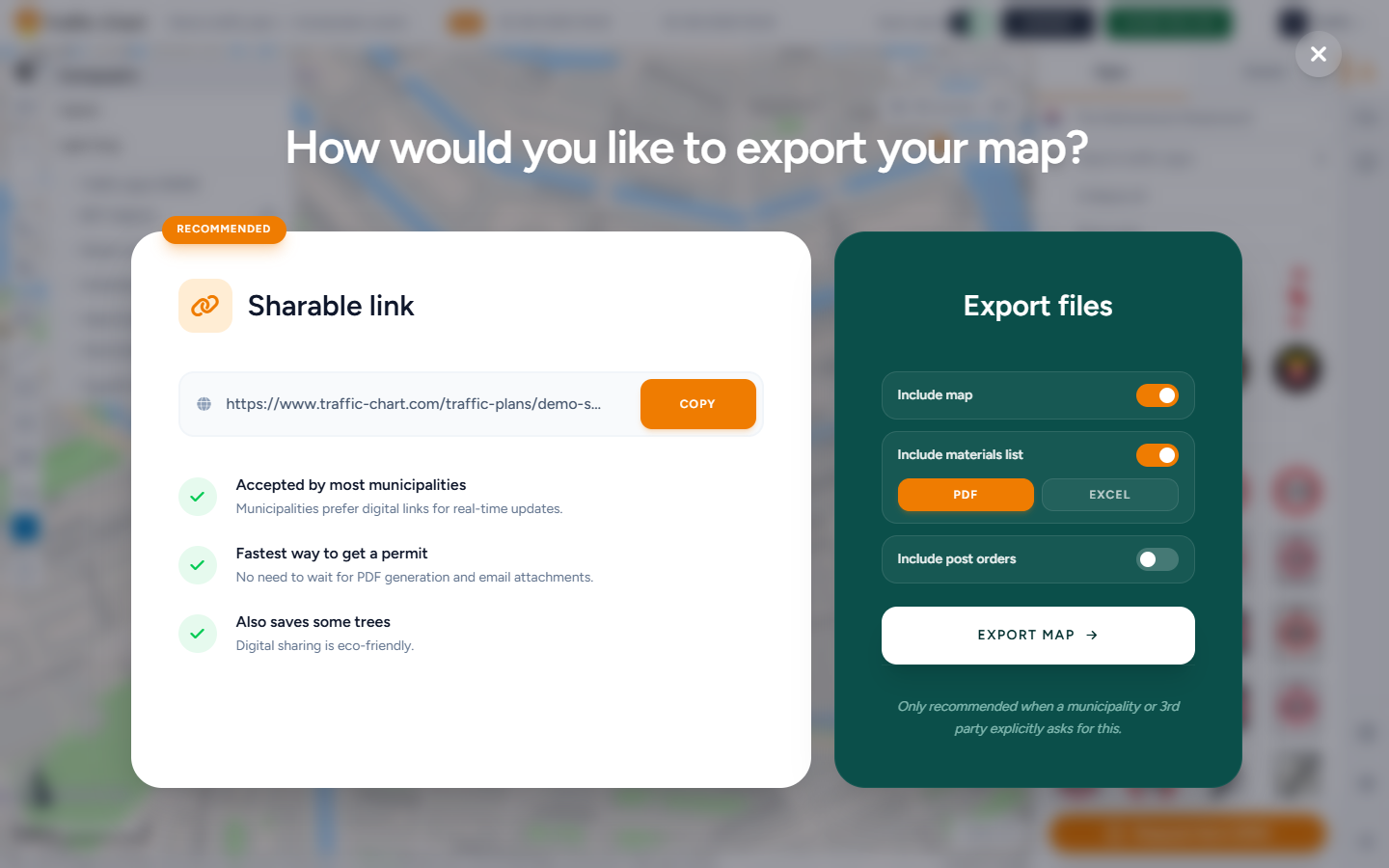
- The title is How would you like to export your map?
- The left column is Sharable link, marked RECOMMENDED.
- Click Copy. Success on the button reads Success! A toast reads Link copied to clipboard.
Benefits on that panel:
- Accepted by most municipalities — Municipalities prefer digital links for real-time updates.
- Fastest way to get a permit — No need to wait for PDF generation and email attachments.
- Also saves some trees — Digital sharing is eco-friendly.
Export files is the other column, with Only recommended when a municipality or 3rd party explicitly asks for this.
During review, an organiser can also use Copy shareable link. Copied: Link copied to clipboard. Failure: Could not copy the link.
What a public viewer can do
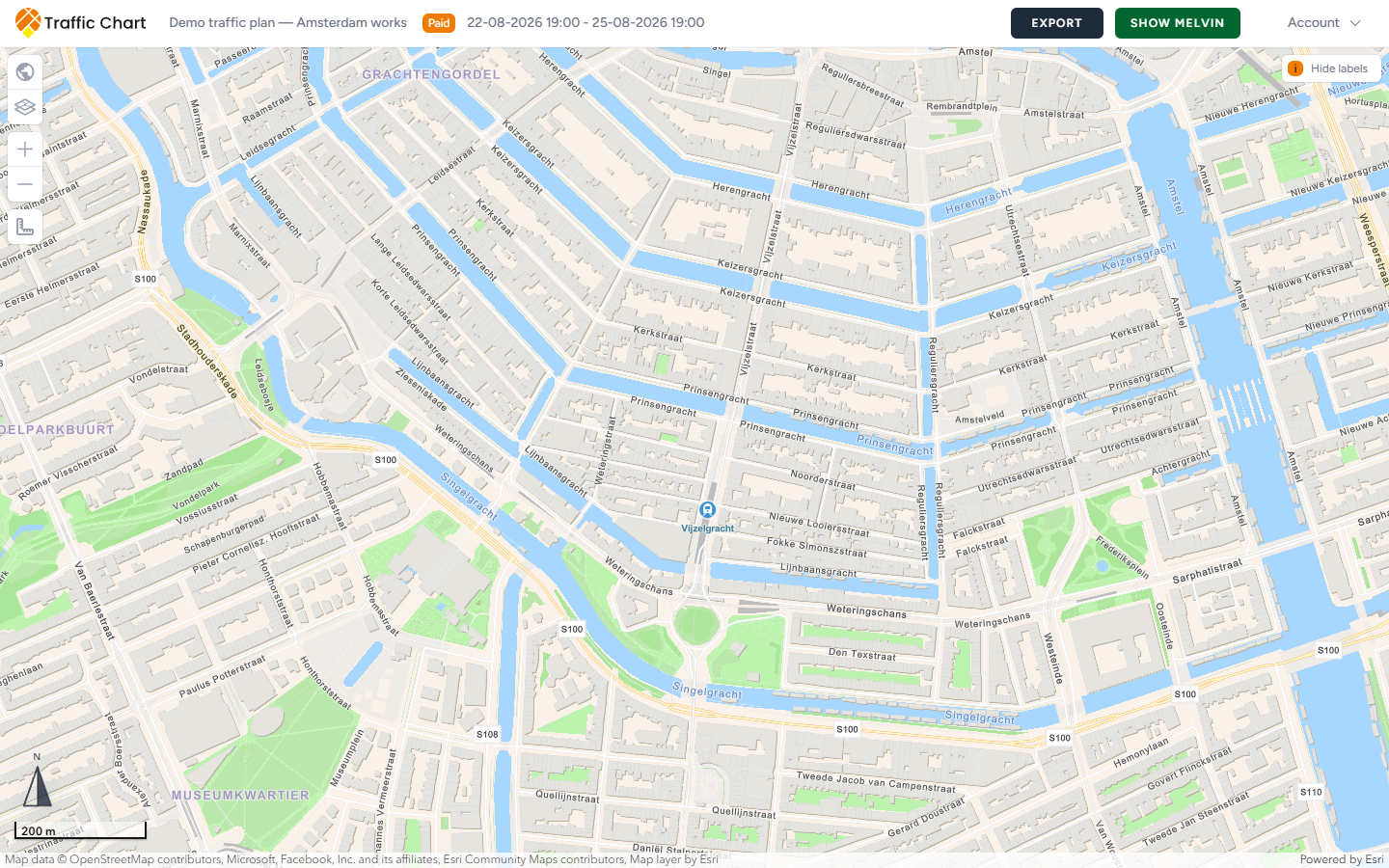
The header says Plan is read-only.
They can:
- Pan the map (drag the background).
- Zoom with Zoom in / Zoom out, the wheel, or a trackpad.
- Open Select map and look at basemaps and data layers that the plan already uses.
- Open Layers & Objects to find stacks.
- Read placed signs, sketches, combination boards, and (if present) post locations.
They cannot:
- Place, move, rotate, duplicate, or delete signs.
- Draw sketches, import GPX, or measure as an editor.
- Change Start date, End date, or the title.
- Use Save or Auto-save.
- Open PDF preview.
- Draw or resize export maps (empty export copy: No export maps have been added to this plan.).
- Type Orders on Post orders.
- Open the combination-sign editor or its icon catalogue.
Traffic Objects stays disabled. Tooltip: Plan is read-only. The other lock tooltips are Plan is approved and locked, Plan is under review, and Plan is locked when review is the reason instead of a public link.
If they expected to draw, they opened the share URL. They should log in as the owner, Switch workspace, and Open the plan from Plans. I can’t open or edit a plan.
Logging in on the same UUID does not magically grant the pen. The page is still the public traffic-plan route. Editors work from Plans → Open in the right workspace. If an Acme Events member who is not assigned editor logs in and opens the UUID, they remain read-only.
Viewers can Zoom in / Zoom out. Search address is hidden in read-only (it sits with the sketch tools). They pan to the works themselves. Send a short note with the link: “Demo traffic plan — zoom to Neude, Utrecht.”
No How to?
The How to? control is hidden for read-only visitors. The tutorial video does not auto-open. Watch tutorial video from Help also does nothing for a guest, because the same How to? dialog is suppressed.
That is intentional. A public URL is a drawing, not an onboarding screen.
Logged-in editors still have Help (Email support, Browse the FAQ, Watch tutorial video) and Report bug.
How to? is a separate control from Help. Guests do not see How to?. They may still see the Help rail, but Watch tutorial video will not open the tutorial while the plan is read-only. Do not tell a municipality contact to “click How to?” on your link. Point them at this help center instead.
Combination boards: snapshot, not the editor
A Combination sign on a shared plan shows the finished board: header, text, icons, Geel or Wit, 120 x 80 or 130 x 90. That is the snapshot stored when the editor clicked Save in Combination sign.
Public reads do not include the editor catalogue: available icons, Size options, Colour preset swatches, or template rules. There is no Edit sign path that can rebuild the board.
If the assigned editor later changes the board and saves the plan, the next viewer refresh shows the new snapshot. Combination signs.
The same rule applies to ordinary plates, sketches, and post locations. The public payload is the saved plan. It is enough to render the map. It is not enough to rebuild a combination board in the editor. That catalogue (icons, sizes, colour presets) is editor-only.
Ask a colleague to try the link in a private window before you send it to Utrecht. Confirm they can pan, zoom, and read the boards, and that they cannot place a sign.
Organization members who are not the assigned editor
A public UUID is one read-only path. An organization workspace is another.
In Acme Events, everyone with access can Open Demo traffic plan. Only the assigned editor can change, duplicate, or delete it. Other members get the same Plan is read-only editor, even while logged in.
Owners and Administrators use Assign editor on the plan menu. Dialog title example: Assign an editor to “Demo traffic plan — Amsterdam works”. Choose Assigned editor, then Save assignment.
If the assigned editor’s membership is suspended, nobody can edit until someone reassigns the plan.
A suspended member cannot open the private workspace (Your membership is suspended). They can still open a public share URL read-only.
Team rules: Organizations and members.
Read-only is not always a share link
| Cause | Typical copy | What to do |
|---|---|---|
| Public URL, not the editor account | Plan is read-only | Log in, open from Plans |
| Organization member, not assigned editor | Plan is read-only | Owner/Admin Assign editor |
| Municipality review in progress | Plan is locked while under review / Plan is under review | Wait, or follow review comments |
| Approved plan | This plan is locked because it has been approved plus Plan approved | Do not expect further edits |
| Folder/plan lock | Plan is locked | Check review and workspace |
Do not duplicate a plan that is in review unless the municipality asks. Duplicates can lose review history. Review for organisers.
In-app Approved is not a legal permit. The municipality’s procedure still applies.
Privacy: treat the URL like an emailed document
Traffic Chart intends the UUID to be shareable. It is not an authorization vault. Anyone who has the full URL can view the map, including placed signs and combination-board snapshots.
Do:
- Send it to the municipality inbox, the contractor, or the Acme Events steward who needs it.
- Prefer the link over a stale PDF when the drawing is still changing.
- Recheck Auto-save: saved before you tell people it is ready.
Do not:
- Post the URL on public social media, an open Slack channel, or a public website.
- Put it in a document that will be forwarded more widely than the works require.
- Assume deleting a chat message revokes access. The UUID still works until you change how you share.
If a link spread too widely, email customer@traffic-chart.com with the plan URL and what happened. Support can advise on the account. There is no self-serve “rotate UUID” button in the editor.
A PDF is a snapshot in someone’s downloads folder. A share link is live. Choose on purpose.
Event plans have their own Copy link. This page is traffic plans only. An event-plan URL does not unlock a traffic plan, and the other way around.
If you Move Demo traffic plan from Personal into Acme Events, the UUID stays the same. People who already had the link keep seeing the same drawing, now owned by the organization. If you Copy, they still see the Personal original unless you send the new link.
A share link is not a municipal Start review session. Reviewers who must comment on the map need the review workflow, not only the UUID. Review for organisers.
What good looks like
You copied Sharable link after Auto-save: saved. The municipality opens the UUID, pans to the Utrecht works, zooms in, and reads the signs. They do not see How to?. They cannot open Edit sign on a combination board. Acme Events colleagues who are not the assigned editor can look, and only you (the assigned editor) can change the drawing. You did not paste the URL on a public page.
If something blocks you
| Situation | Where to go |
|---|---|
| Viewer expected to edit | I can’t open or edit a plan |
| Plan missing from Plans | My plan does not appear in the list |
| Need PDF/Excel instead | Export and print traffic plans |
| Wrong person has the pen | Organizations and members |
| Review lock | Review for organisers |