
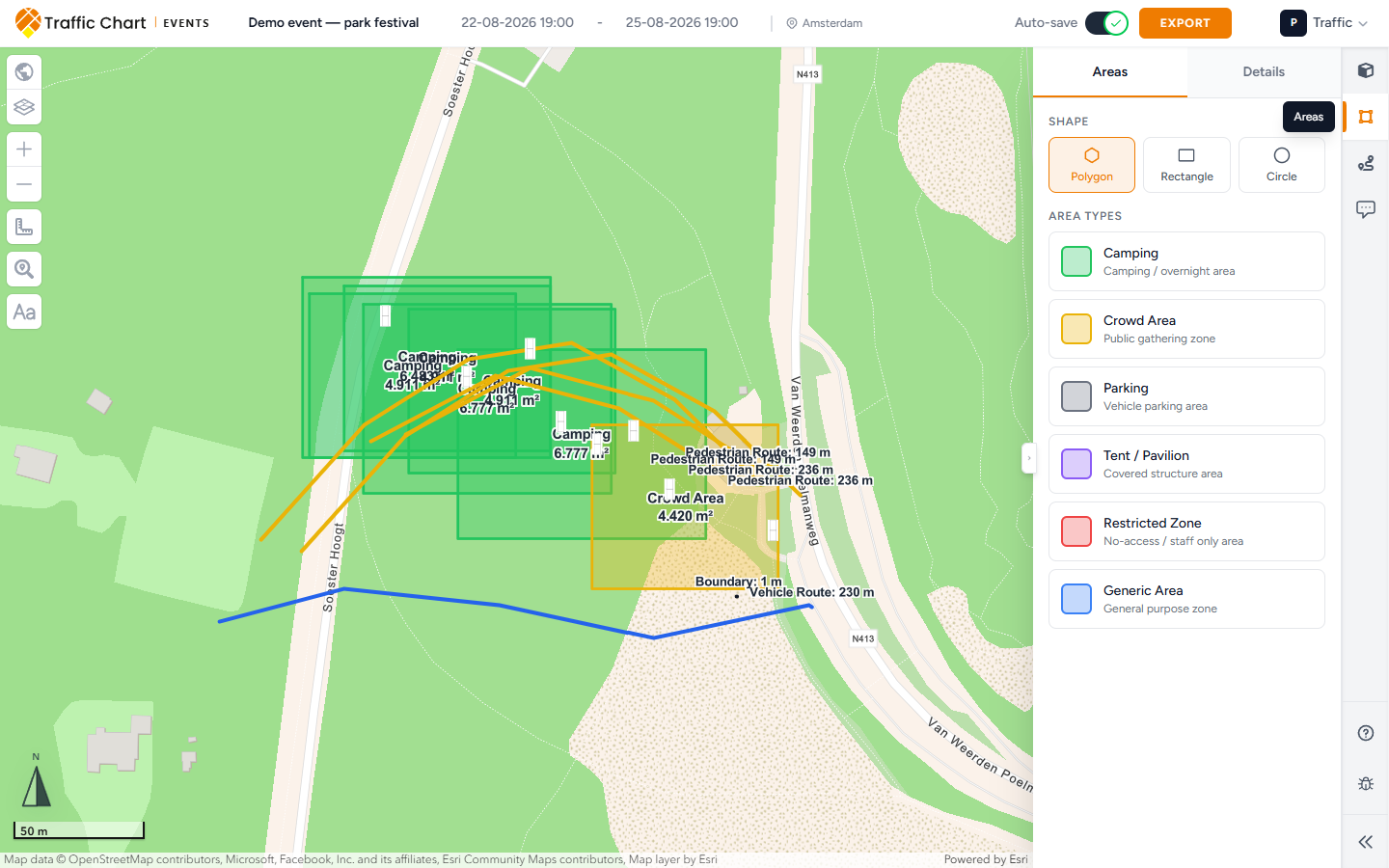
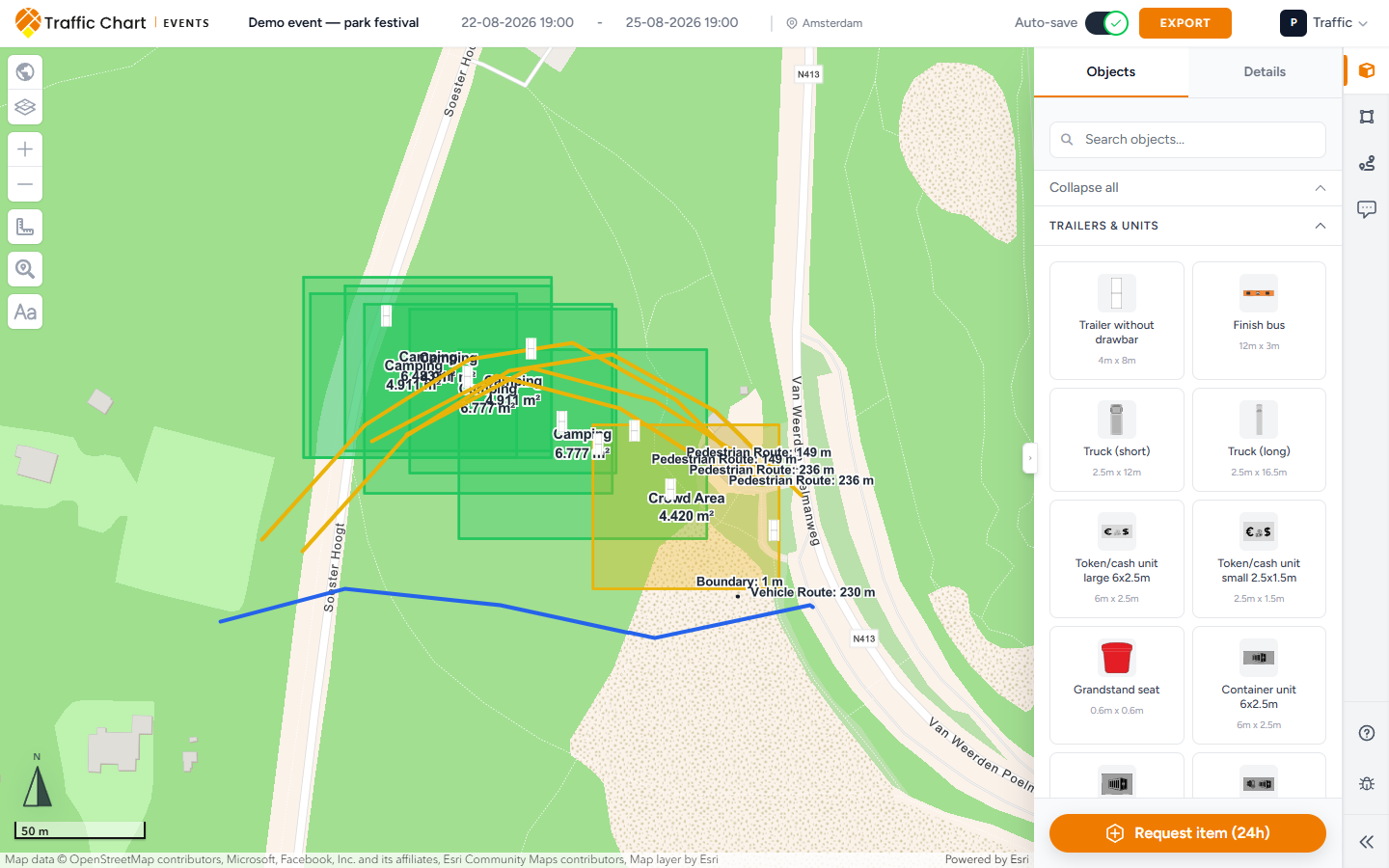
motion — Areas draw zone → Lines draw route
Use this page to start an event plan, open it later, and understand the editor. Drawing objects, zones, routes, and labels is a separate lesson: Event objects, areas, and routes.
An event plan is a site layout. It is not the official road-sign catalogue.
When you need this
Use an Event Plan for the venue itself: tents, fencing, visitor flows, emergency exits, camping, parking.
Use a Traffic Plan when you need the traffic-sign catalogue, detours, materials lists, or post orders. Many events need both: event plan for the field, traffic plan for the approach roads.
You do not need this page if you only place road signs. Start with Your first plans instead.
Access and cost
Event plans are not billed in credits. Your workspace still has to allow them.
On Plans, the tabs are Traffic plans and Event plans.
If Event plans are off for this workspace, Event plans is greyed out. The line under the tabs is the access message. In your personal workspace it reads Not enabled for Personal. In an organization it uses that workspace name, for example Not enabled for Acme Events.
That is a workspace gate, not a billing limit. Workspace unavailable.
You cannot create an event plan here until an administrator enables it. Email customer@traffic-chart.com if the wrong workspace is blocked.
If you never see the Event plans tab at all, this account does not include event plans.
A new plan is created in the workspace you are in now. Check Switch workspace first. Personal is your own library. An organization workspace is the shared one.
Create an event plan
From Home:
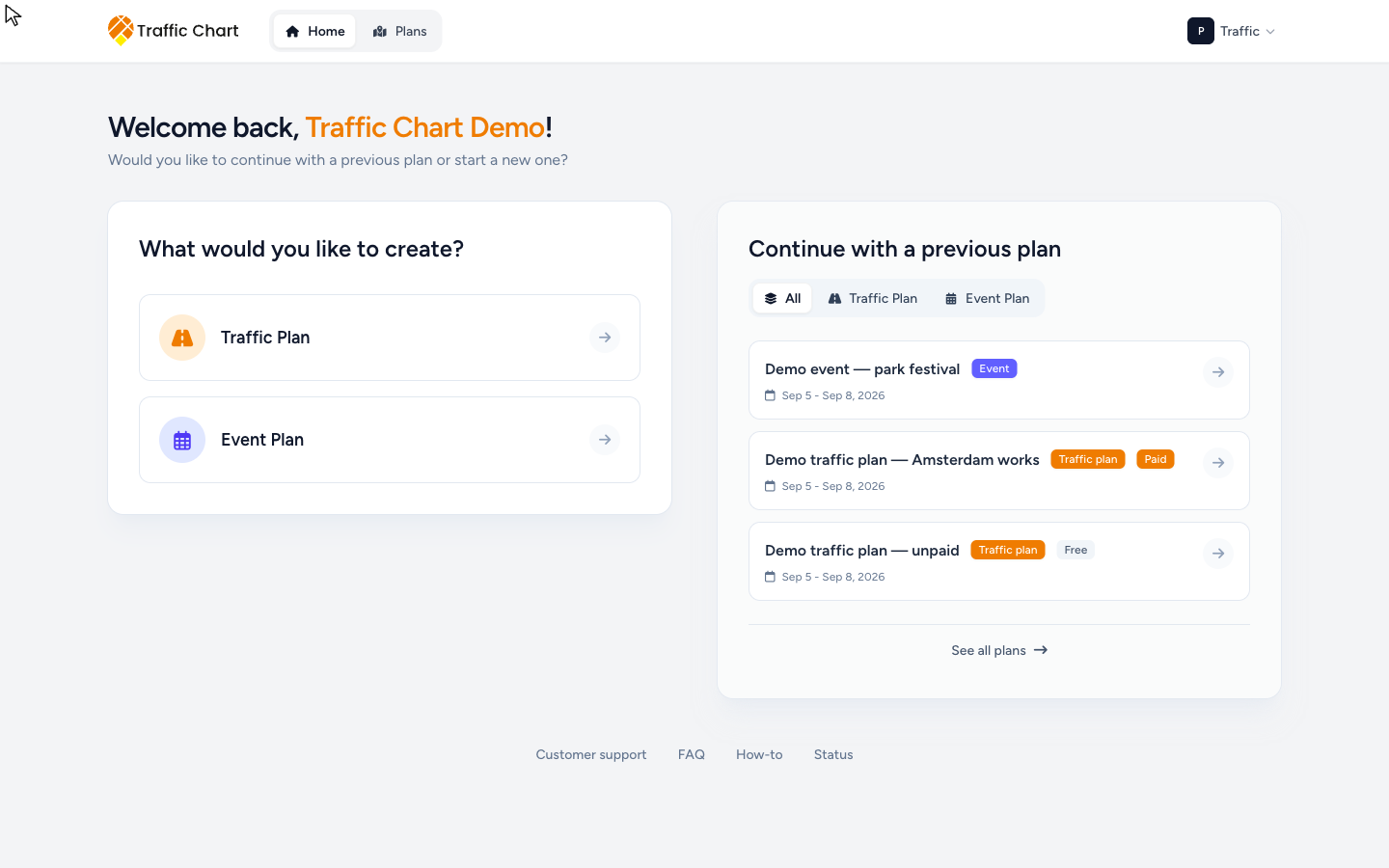
- Under What would you like to create?, choose Event Plan (Organize venues and event layouts.).
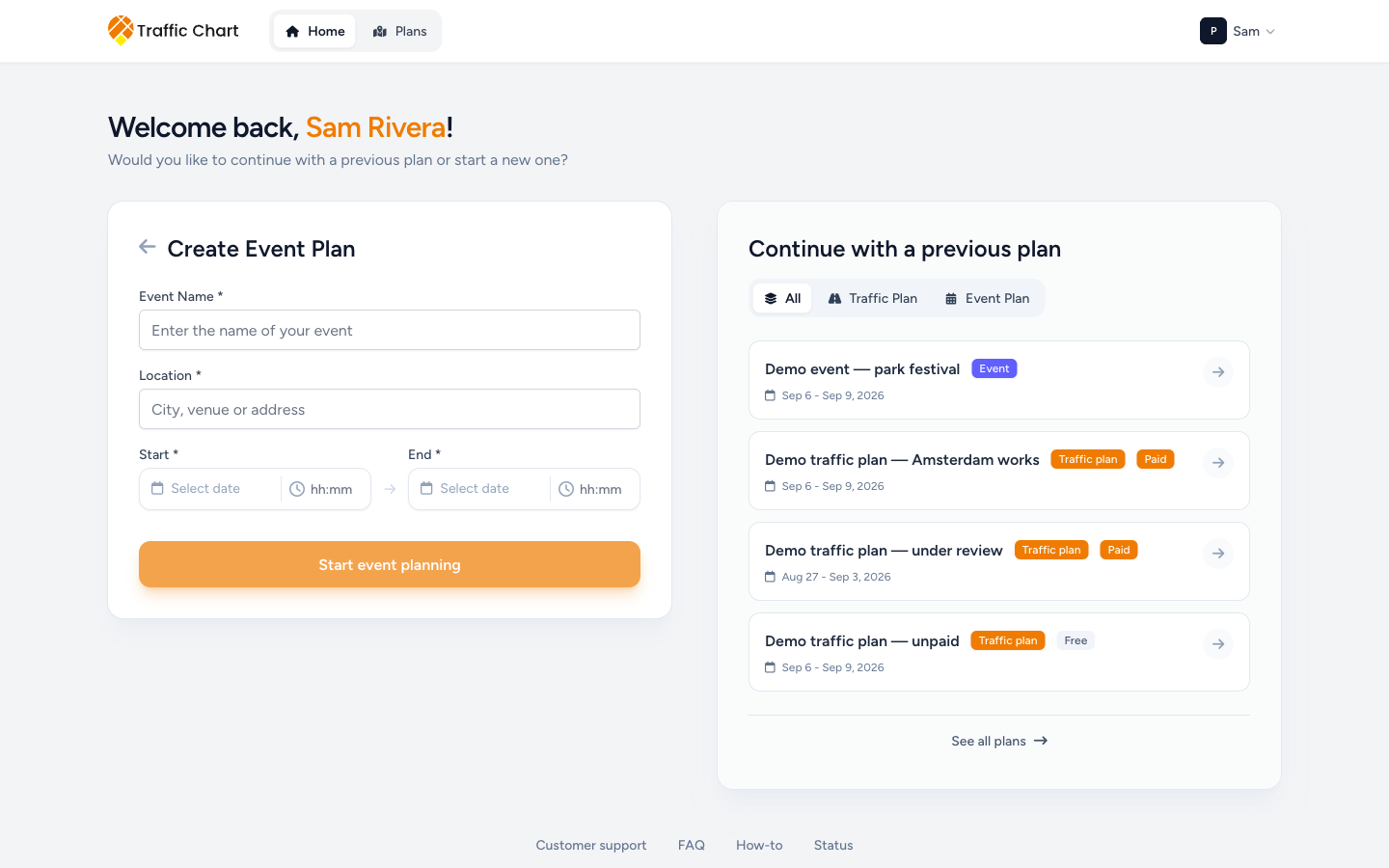
- The form title is Create Event Plan.
- Enter Event Name (placeholder Enter the name of your event).
- Enter Location (placeholder City, venue or address).
- Set Start date and End date (date and time). The end must be after the start. If it is not, the app says End date must be after the start date.
- Click Start event planning.
From the library:
- Open Plans.
- Open Event plans.
- Click New Event Plan.
- Fill the same form.
The editor opens full-screen. Wait until the map is ready. Do not place objects during the loading screen.
Find a plan later
Plans → Event plans is the library.
Personal title: My event plans. Subtitle: Create and manage your event layout plans. Organization title is the organization name plus event plans, for example Acme Events event plans. Organization subtitle: Event plans shared with everyone who has access to this workspace.
Search with Search. Placeholder: Search event plans or folders. Empty search: No event plans or folders match your search. Empty folder: No event plans or folders here yet. First-time empty copy: No event plans yet. Create your first one!
Table columns: Name, Updated, Event Date, Actions.
Open a row with Open. The plan menu (Actions for that plan) also has Copy link, Move to folder, Duplicate, and Delete. Deleting asks Are you sure you want to delete this event plan? That is permanent.
Use New folder to group work. Personal libraries use Folders. Organization libraries use Shared folders. Folder actions include Rename, Move folder, and delete (the folder must be empty). Go up one level returns to the parent. Full library: Folders and the library.
A plan that is under municipal review cannot move from Personal into an organization. The move dialog title is Under review — move unavailable. Copy is still allowed. See Review for organisers.
The event editor
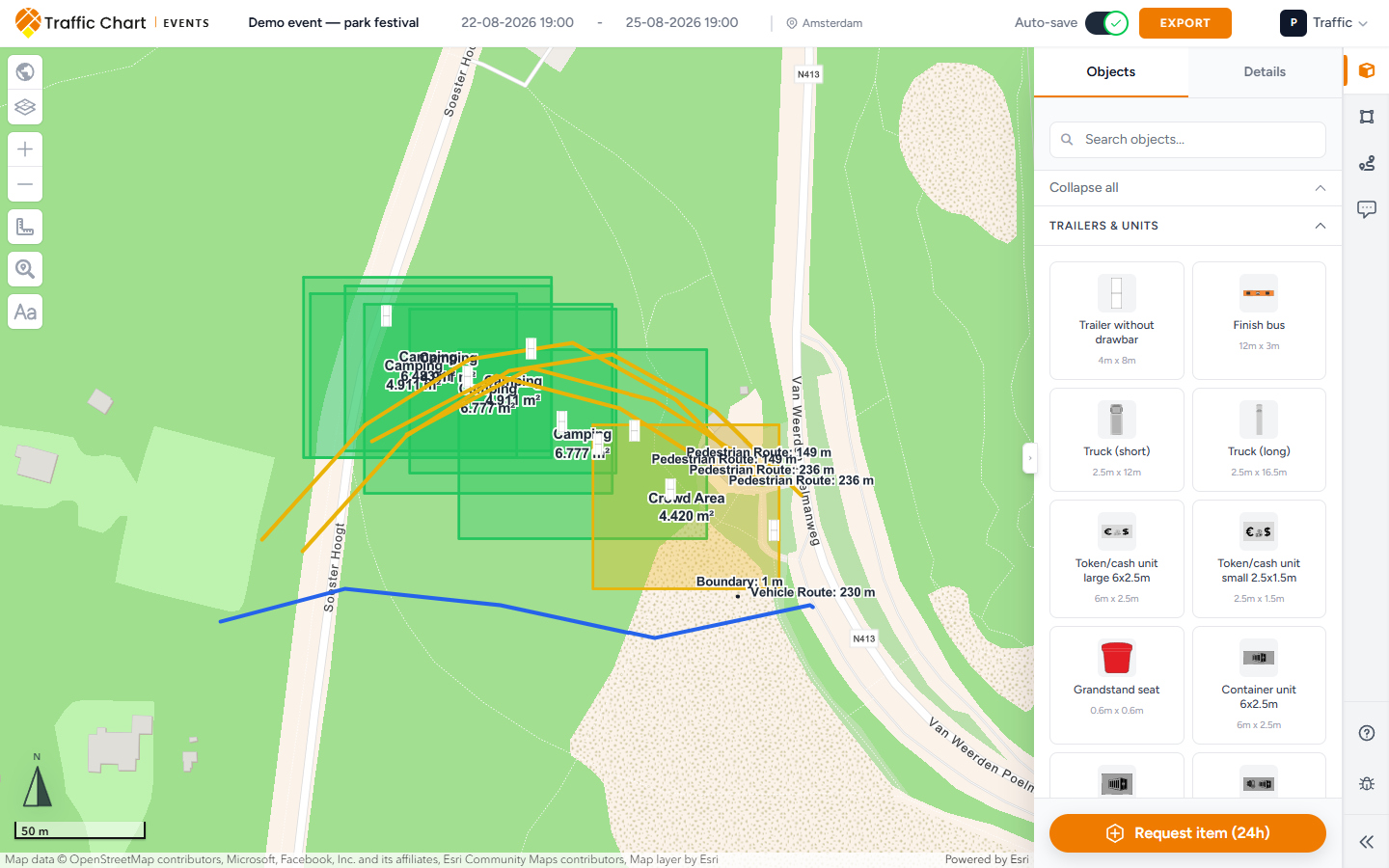
Header: event name, Start date, End date, Location, then Auto-save or Save, then Export.
Save reads Saving... while it works. Success toast: Event plan saved. Failure: Failed to save event plan. If Auto-save is on, wait until it shows Auto-save: saved before you close the tab. Other Auto-save states: Auto-save is disabled, Auto-save: saving, Auto-save: unsaved changes.
Export is a header button. It is not a sidebar module. Full PDF path: Export an event plan.
Four modules — and what is not a module
The right-hand strip has four modules:
- Objects
- Areas
- Lines & Routes
- Comments
There is no Texts tab. Labels go on the map with Add text (the Aa control on the left). Layers can still list Texts after you place them. That list is not a drawing module.
Comments is municipal Review status. It is not a sticky-note pad. You do not start the first review yourself. Until the municipality starts a session, Comments may show Ready to submit? and tell you to use the municipality procedure, with Copy shareable link and Export plan. Comments and review status.
Each drawing module also has a Details tab. Select something on the map, then open Details. How to place objects, zones, routes, and text: Event objects, areas, and routes.
At the bottom of Objects only: Request item (24h). Use it when the catalogue is missing a type. Request a missing item.
The strip also has Help, Report bug, and Collapse.
Select map on the left is the event basemap and overlays (NDW Signs, Fire hydrants (BGT), TopoRD (Netherlands only)). Layers lists Event Objects, Event Areas, Lines & Routes, and Texts. Empty: No items in this layer. Lock entire layer / Unlock entire layer stops accidental edits. Event map layers.
Locks
If the plan is under review, drawing modules are disabled. The tooltip is This event plan is locked and cannot be edited. Header save can read Plan is locked while under review.
If the plan is approved, the header can say This plan is locked because it has been approved. In-app Approved is not a legal permit by itself.
What good looks like
- You created the plan in the intended workspace (Personal or Acme Events).
- Event Name, Location, and dates match the real event.
- You waited for the map before placing anything.
- Site kit is on Objects. Zones are on Areas. Paths are on Lines & Routes. Labels are Add text.
- At least one event object sits on the real site if a municipality will review in the app.
- Save or Auto-save: saved has finished.
If something blocks you
| Situation | Where to go |
|---|---|
| Event plans says Not enabled for Personal. (or Not enabled for Acme Events.) | Workspace unavailable. Ask an administrator, or email customer@traffic-chart.com. Event plans are not billed in credits. |
| Cannot find Texts next to Objects | Expected. Use Add text on the map. |
| Comments looks like review, not notes | Expected. See Review for organisers. |
| Plan will not edit | I can’t open or edit a plan |
| Plan missing from the list | My plan does not appear in the list |
| Need a PDF | Export an event plan |