
This page unblocks Accept invitation when the Organization invitation page will not let you join.
Use it after View invitation from email (title Join Acme Events, using the organization name). If you already accepted and still cannot see team plans, skip to Switch workspace below. Owners sending the invite start at the bottom.
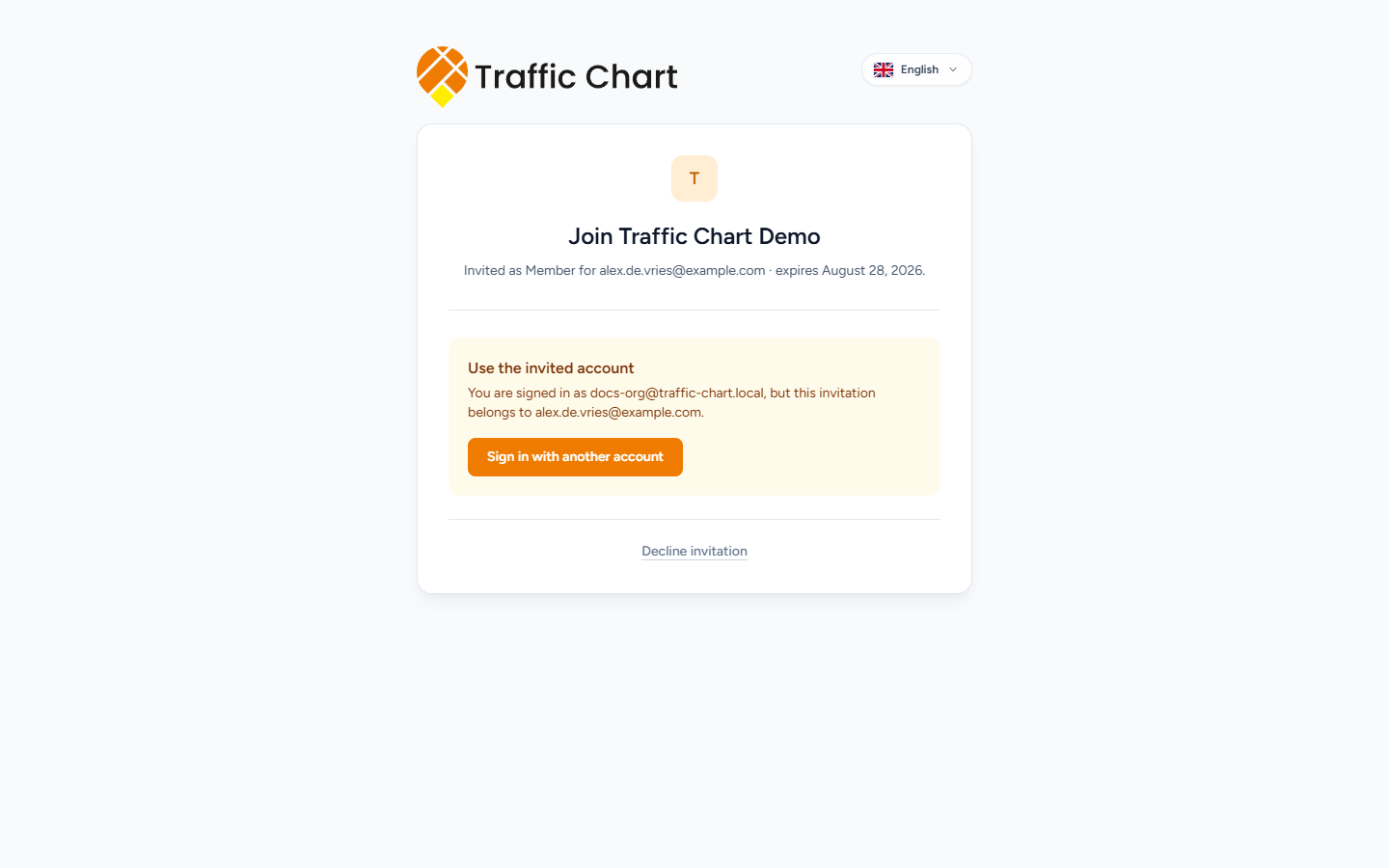
Use the invited account
The page summary looks like Invited as Member for alex@acme-events.com · expires 28 August 2026. Description: This invitation was sent to alex@acme-events.com.
Sign in or Create account with that address. Guests see Sign in with the invited email address, or create an account with that address, to continue. Buttons: Sign in to accept and Create account. Open View invitation from the original mail, not a forward to a different inbox.
If you are on the wrong login, the heading is Use the invited account: You are signed in as sam@example.com, but this invitation belongs to alex@acme-events.com. Click Sign in with another account, then use the invited mailbox.
When the accounts match: You are accepting this invitation as alex@acme-events.com. Then Accept invitation (busy: Accepting...) or Decline invitation.
Verify email first
Verify your email address means the invited mailbox is not confirmed yet. Your account email must be verified before you can accept this invitation. Click Go to email verification, finish the link, then return.
Expired verification: Email verification and login problems.
Expired, declined, already used
When the invite is no longer pending, the heading is This invitation is Expired (or Revoked, Declined, or Accepted — the status the page prints). Help text: Ask an organization owner or administrator to send a new invitation if you still need access.
Invites expire after about 7 days. An Owner or Administrator uses Resend on Members & access. Revoke kills the old link on purpose. Confirm: Revoke the invitation for alex@acme-events.com? That invitation link will stop working.
Invitation declined / You will not be added to this organization. Decline is confirmed with Decline this invitation? The organization can send you another invitation later. Ask them to Invite member again if you still need to join. That old link will not work.
Organization unavailable
Organization unavailable: This organization is not currently active, so the invitation cannot be accepted. Traffic Chart or an owner has to reactivate the organization. You cannot fix this from the invite page.
Grey rows later in Switch workspace can say Organization suspended, Workspace not enabled yet, Organization unavailable, or This workspace is not currently available. Same idea: the workspace is not open yet. Workspace unavailable or not enabled.
Then Switch workspace
Accept invitation does not move you into that organization. You may land on Plans for Personal (or whichever workspace you were already in).
- Click your initials and first name.
- Under Switch workspace, choose Acme Events (the organization name).
- Open Plans. The title becomes Acme Events traffic plans.
Seeing a plan is not editing it. Only the assigned editor can change an organization plan. Organizations and members. Missing list: My plan does not appear in the list.
Owners: the invite never arrived
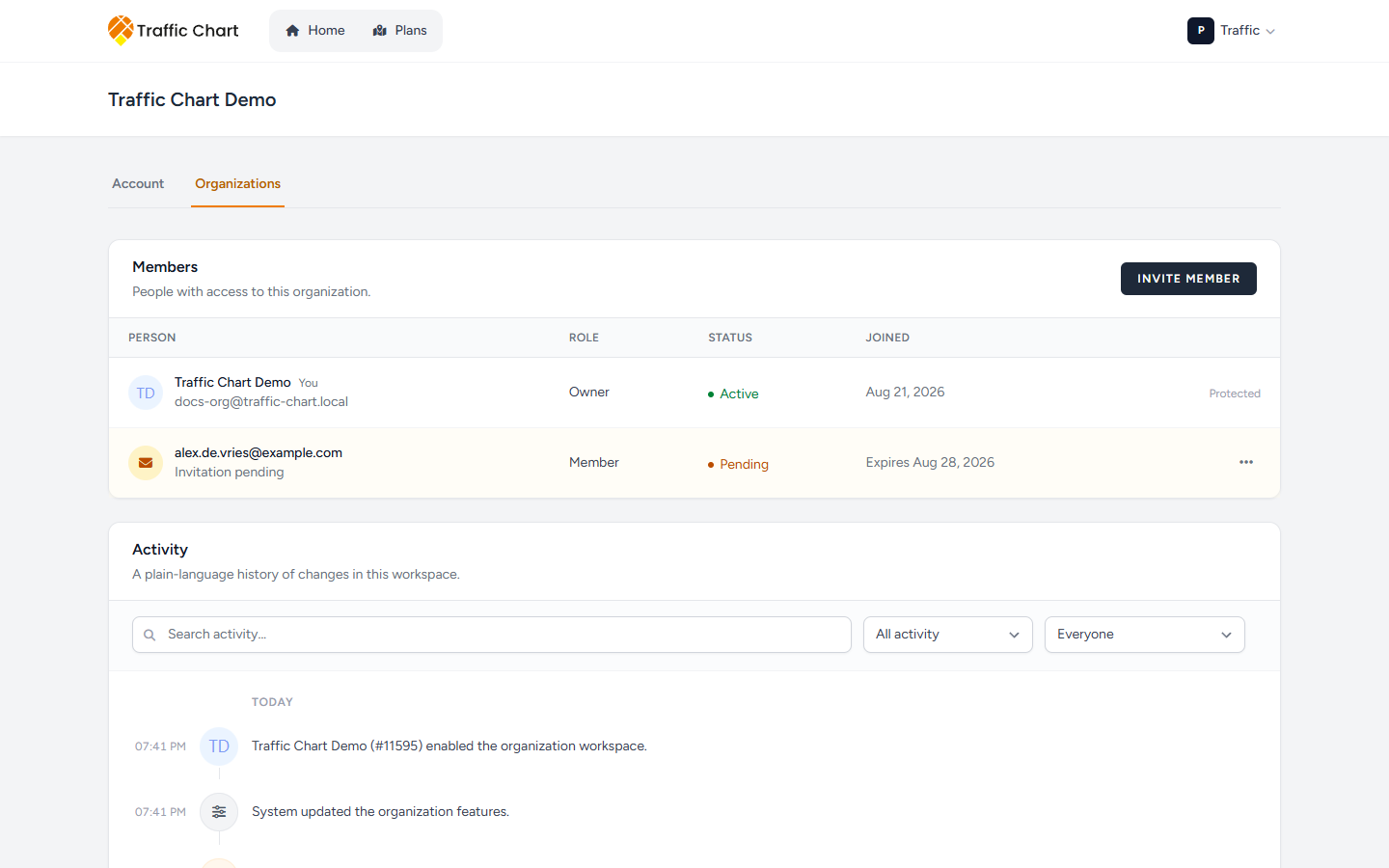
On Members & access, Invite member. Fields: Email address, Role. Send invitation (busy: Sending...). Success: Invitation sent. Fail: The invitation could not be sent. Check the address, wait, retry once. Empty invitations: There are no invitations to show.
Pending rows show Expires, Resend, Revoke. Statuses: Pending, Accepted, Declined, Revoked, Expired.
What good looks like
Accept invitation succeeds. Switch workspace lists the organization. Plans shows the team library.
If it still fails
Email customer@traffic-chart.com from the invited address. Include the organization name and a screenshot of the invitation page. Contact support. Walkthrough: Join an organization.