
You are always a person with a Personal workspace. An organization is a separate team workspace. Traffic Chart creates the organization; you join it by invitation. There is no Create organization button in the app.
Invitation email, Join Acme Events, accept/decline, and Invite member: Join an organization. This page is what happens after you are in: roles, Protected, Activity, Assign editor, Move vs Copy.
Personal vs organization
| Personal | Organization | |
|---|---|---|
| Library title | My traffic plans | Acme Events traffic plans (organization name plus traffic plans) |
| Who sees the plans | You | Everyone with access to that workspace |
| Who can edit | You (the owner of those personal plans) | Only the assigned editor for that plan |
| Credits | Your personal credits (when shown on Settings) | The organization’s pool |
| Event plans | Depends on your account | Depends on that workspace (the tab can say Not enabled for Acme Events.) |
Plans belong to a workspace, not “whoever clicked create”. Attribution still records who created and updated them.
Switch workspace
- Click your initials and first name.
- Under Switch workspace, choose Personal or Acme Events.
- That opens Plans for that workspace.
The last workspace you opened is remembered. New plans from Home go there. If Demo traffic plan “vanished”, you are probably still on Personal.
The sliders next to Switch workspace are Organization settings.
If a row is greyed out you will see why: This workspace is not currently available., Your membership is suspended, Organization suspended, Workspace not enabled yet, or Organization unavailable. Public share links can still open; the private workspace cannot. Workspace unavailable.
Settings: Account vs Organizations
Settings → Account is your login, language, and security.
Settings → Organizations (or Organization settings):
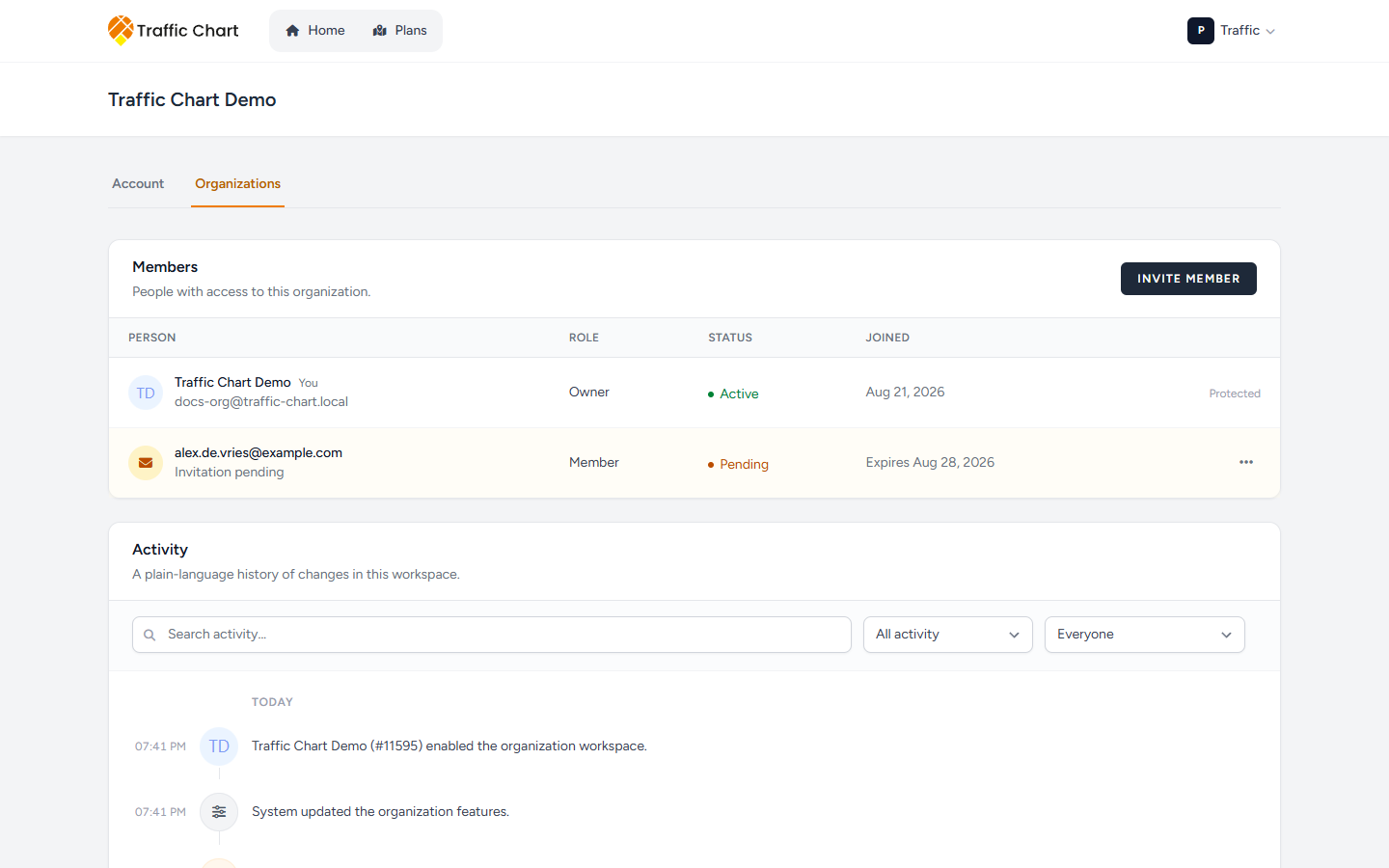
- One organization: you land on that org’s members page (Manage Acme Events).
- Several: a list titled Organizations — Open workspace and, if you are Owner or Administrator, Members & access.
- None: No organizations yet / Organizations you join will appear here. The Organizations tab can look disabled: You are not a member of an organization.
How you get an organization
An Owner or Administrator sends Invite member. You receive Invitation to join Acme Events. Open View invitation, sign in or Create account as the invited email, verify, then Accept invitation. Then Switch workspace. Full landing-page branches: Join an organization.
Roles
There is no Manager role. Ownership is granted after join, never via the invite form.
| Role | Typical powers |
|---|---|
| Owner | Invite Members and Administrators; Change role (including making someone Owner); suspend or remove people; Billing when it is shown; Assign editor. The last active owner is Protected. |
| Administrator | Invite Members only; suspend or remove Members only; Assign editor; Billing when it is shown. Cannot invite other admins or transfer ownership. |
| Member | See all organization plans; create plans (you become the assigned editor); edit only plans assigned to you; spend existing org credits on those plans if billing allows. No invites, no Activity, no Billing. |
Members table
Manage Acme Events opens on Members — People with access to this organization.
Columns: Person, Role, Status, Joined. Pending invites sit in the same table on amber rows (Invitation pending, Pending, Expires 28 Aug 2026).
Your own row is marked You. The row menu is Manage that person’s name. Actions you are allowed to use:
- Change role — dialog Change Alex’s role. Pick Owner, Administrator, or Member. Help: Only owners can assign organization ownership or administrator access. Save. Toast Role updated.
- Suspend access — Suspend member access: Suspend access for Alex? They will immediately lose organization access until restored. Then Suspend access. Toast Member access suspended. Their Switch workspace row reads Your membership is suspended.
- Restore access — on a suspended row. Toast Member access restored.
- Remove — Remove member: Remove Alex from this organization? They will immediately lose organization access. Toast Member removed. Plans stay with Acme Events.
- Leave organization — Leave Acme Events? You will immediately lose access, but its plans remain owned by the organization. Toast You left the organization.
Invite member is documented in Join an organization: Email address, Role, Send invitation, then Resend / Revoke on the pending row.
Protected last owner
An organization must keep at least one active Owner.
On that person’s row, instead of a menu, you see Protected. Hover/title: The last active owner cannot be changed or removed.
That person cannot:
- Leave organization
- Change role away from Owner
- Suspend access themselves
- Remove themselves
Promote a second owner first (Change role → Owner → Save). Then the first owner can leave or step down. Until then, Protected is not a bug.
Suspending the last owner is also blocked. Restore or add another owner before you restructure the team.
Activity
Activity sits under Members on Manage Acme Events. Owners and administrators see it. Members do not.
Title: Activity. Description: A plain-language history of changes in this workspace.
Empty: No activity yet / Invitations, member changes, plans and folders will appear here.
When there is history, rows group under Today, Yesterday, or a calendar day. Each line is a sentence, for example:
- Alex invited a new member as Member.
- Alex accepted the invitation and joined the workspace.
- Alex assigned Sam to “Demo traffic plan”.
- Alex transferred “Demo traffic plan” into the workspace.
- Alex transferred the folder “Utrecht festival” into the workspace (3 plans).
Actors can also read Traffic Chart administrator, Former user, or System.
Filters (they apply as you type):
- Search — placeholder Search activity…
- Type: All activity, People & access, Plans, Folders, Organization
- Performed by: Everyone, plus people, Traffic Chart administrator, System, Former user
- Clear filters if nothing matches (No activity matches these filters.)
At the bottom: Showing 25 of 80 activities (your numbers), Load older activity, and Load per batch 10 / 25 / 50.
Use Activity when someone asks “who moved Demo traffic plan?” or “who invited Alex?”. It is not a billing invoice. Filters, empty states, and every sentence type: Organization activity.
Who can edit a plan (Assign editor)
In Acme Events, everyone with access can open the plan. Only the assigned editor can change, duplicate, or delete it. Other members get a read-only editor. The library can show Editor: Sam.
Creating a plan in the organization makes you the assigned editor.
Owners and administrators use the plan menu → Assign editor.
Dialog title: Assign an editor to “Demo traffic plan”. Body: Choose the one active member who can edit this plan. Owners and administrators can change the assignment later.
Field: Assigned editor, starting with Choose an editor. Only Active members are selectable. If the current editor is suspended, that option is listed disabled as Sam (membership inactive).
Save assignment (while it runs: Saving…). Toast Editor assignment updated. Cancel leaves it unchanged.
If the editor is suspended, the plan stays, but nobody can edit until someone reassigns it. Leaving the organization does not delete organization plans.
Checkout and Spend credit also require edit access. An owner who is not the editor cannot pay on a colleague’s plan. Reassign, then pay.
Failure toast: The editor assignment could not be updated.
Move, copy, and assign in full: Move, copy, and assign editor.
Move vs Copy (personal plan into Acme Events)
From Personal Plans, open the plan menu → Move to organization.
Dialog title: Move “Demo traffic plan” to an organization.
If you belong to more than one organization, first Destination organization — Choose an organization. Until you pick one: First choose which organization this should go to. A single organization is pre-selected.
Then How should it go?
Move (Recommended)
Leaves your Personal workspace. Same public link. The organization becomes the owner.
Button: Move plan (while it runs: Moving…). Toast Plan moved to Acme Events.
Use this when Acme Events should own the live URL that stakeholders already have.
Copy
Keep the plan in Personal. The organization gets a separate plan with a new public link.
Button: Copy plan (Copying…). Toast Plan copied to Acme Events.
Use this when you want a team version and a private original. The two plans will drift.
Under review — move unavailable
If municipality review is active on that plan, Move is disabled. The notice is Under review — move unavailable: Plans with an active municipality review stay in Personal. You can still copy this plan into an organization if you need a separate version.
You cannot Move until review finishes. Copy is still allowed.
You cannot move an organization plan back to Personal, or from Acme Events to another organization.
Errors: The plan could not be moved to that organization. / The plan could not be copied to that organization.
Folders: Move to organization
On a Personal folder, Move to organization is move-only (no copy mode).
Title: Move folder “Utrecht festival”. Body: Move this folder and its plans into an organization workspace. Folder structure is recreated there.
A summary counts Will move, Subfolders, Stay personal.
Plans under review stay in Personal: Plans under review stay personal. Copy those individually if you need organization versions.
- Empty folder: This folder has no plans. The folder structure will still be moved to the organization. You can still Move folder.
- Every plan under review: Every plan in this folder is under review, so nothing can be moved. Copy individual plans if you need organization versions. Move folder stays disabled.
Toasts: Moved 4 plans to Acme Events, Folder moved to Acme Events, or Moved 4 plans to Acme Events. 2 stayed in Personal (under review).
Credits and billing
Members spend credits that are already on the organization. Buying packages or starting checkout is for an Owner, Administrator, or the billing account holder — and only on a plan they can edit.
The Billing page on the organization is for owners and admins when that organization actually shows Billing. If you do not see Billing, credits may still be handled the older way by Traffic Chart for your team. Do not assume a package catalogue exists.
Details: Billing, free use, and credits, Pay or spend a credit, Organization billing.
If a plan or workspace is missing
- Switch workspace.
- Open Plans (not only Home — Home is recent items for the current workspace).
- In an organization, confirm you are the assigned editor if you expected to edit.
- Event plans have their own tab.
More: My plan does not appear in the list, I can’t open or edit a plan, and Workspace unavailable.