
This page restores edit access when a plan opens read-only, will not save, or will not open the way you expect.
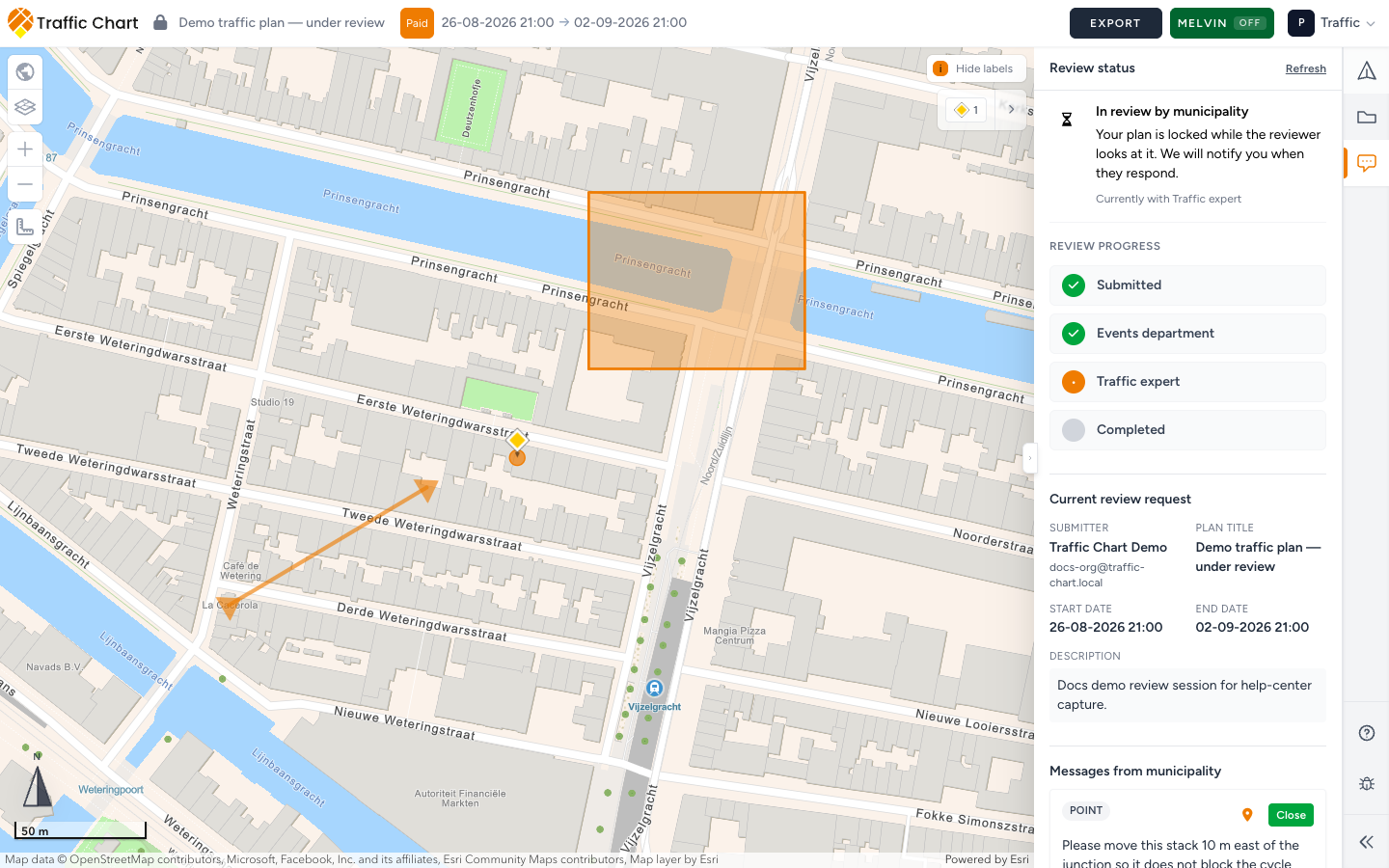
Use it when you can see the map but cannot place signs, or the header says locked. If the plan is missing from Home or Plans, start with My plan does not appear in the list. If the lock is a municipality review, the longer story is My plan is locked for review.
Share link vs your editor
Anyone with the public URL can view the plan read-only. The header says Plan is read-only. You cannot place signs or save. How to? is hidden on that view.
Log in as the account that owns the work, Switch workspace to the right workspace, then open the plan from Plans with Open. Do not keep working in the share tab and expect Save to appear.
Copy link toast: Plan copied to clipboard! or Link copied to clipboard. That URL is always view-only.
Organization: seeing is not editing
In an organization, members can Open every plan they have access to. Only the assigned editor can change, duplicate, or delete it. The library row can read Editor: Sam Rivera. Everyone else gets a read-only editor.
Disabled tools show one of: Plan is read-only, Plan is under review, Plan is locked, Plan is approved and locked.
Owners and administrators use Assign editor on the plan menu. Dialog title: Assign an editor to “Demo traffic plan”. Field: Assigned editor. List: Choose an editor. Save assignment. Success: Editor assignment updated. A suspended member may show membership inactive. Fail: The editor assignment could not be updated.
If the editor’s membership is suspended, the plan stays, but nobody can edit until someone reassigns it.
If Switch workspace shows Your membership is suspended, you cannot open the private workspace. A public share link can still open read-only.
Walkthrough: Move, copy, and assign an editor.
Review locks
When a municipality has an active review, the plan locks. Typical copy:
- Header Save: Plan is locked while under review
- Banner: This plan is locked because it has been approved plus Plan approved
- Comments: In review by municipality
- Event plans: This event plan is locked and cannot be edited.
- Approved body: This plan has been approved. Further edits are disabled.
You cannot start the first municipal review yourself. The app says Initial review requests are currently started by the municipality. Submit your plan through the municipality procedure first. After Changes requested or Review closed, you may resubmit when the UI allows.
Move to organization during review: Under review — move unavailable. Copy can still be allowed.
Do not duplicate the plan unless the municipality asks. Duplicates can lose review history. Review for organisers.
Save failed
Watch Auto-save. Hover for Auto-save: saving, Auto-save: unsaved changes, or Auto-save: saved. Manual Save is disabled when auto-save is enabled.
Fail toasts: Could not save traffic plan. Event: Failed to save event plan. A lock during save can read Your latest changes could not be saved. Reloading the latest version... (after the lock sentence). Do not keep clicking Save. Wait for the reload, then read the lock.
Could not update auto-save preference means the toggle did not stick. Refresh and try Auto-save again.
Map never loads
Use a current desktop Chrome, Edge, or Firefox. Wait until Opening Map Environment... is gone and tiles are visible. Disable heavy blockers and retry. Map will not load or stays blank.
Event plans may say Map is not ready yet if you click too early. Wait, then place again.
Older imported plans
Some drawings from before 01-10-24 toast that placed items may have shifted, and that signs with text need the road type reselected. Move sign anything that is no longer on the carriageway. Open Details, pick the road type again (Please select a road type if it is empty), then Save. That is a one-time adjustment, not a permanent lock.
What good looks like
You are logged in, in the correct workspace, and (for an organization plan) you are the assigned editor. The header is not locked. Save or Auto-save works after a change. Traffic Objects is clickable.
If it still fails
Email customer@traffic-chart.com with the plan link, whether you used a share URL, and your role. Contact support. Team roles: Organizations and members.