
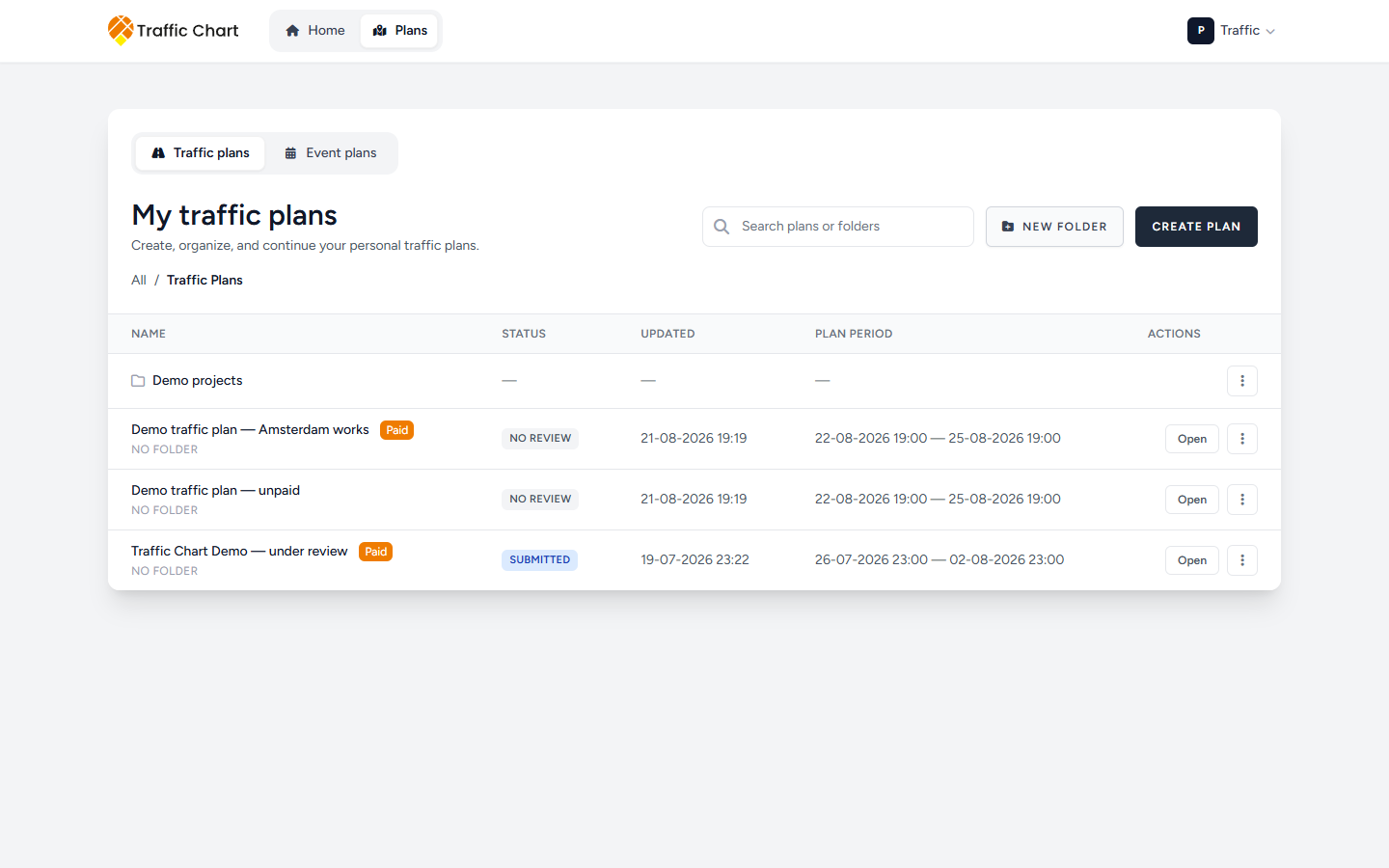
Plans is the filing cabinet for the workspace you are in. This page names every library control: search, folders, the table, the ⋮ menu, and the Event plans tab.
Use it when you cannot find Demo traffic plan, need a folder such as Utrecht 2026, or the list looks empty. Skip it if you already have the map open — drawing is the editor, not this list. Creating a brand-new plan from a blank form is Create, organise, and share traffic plans.
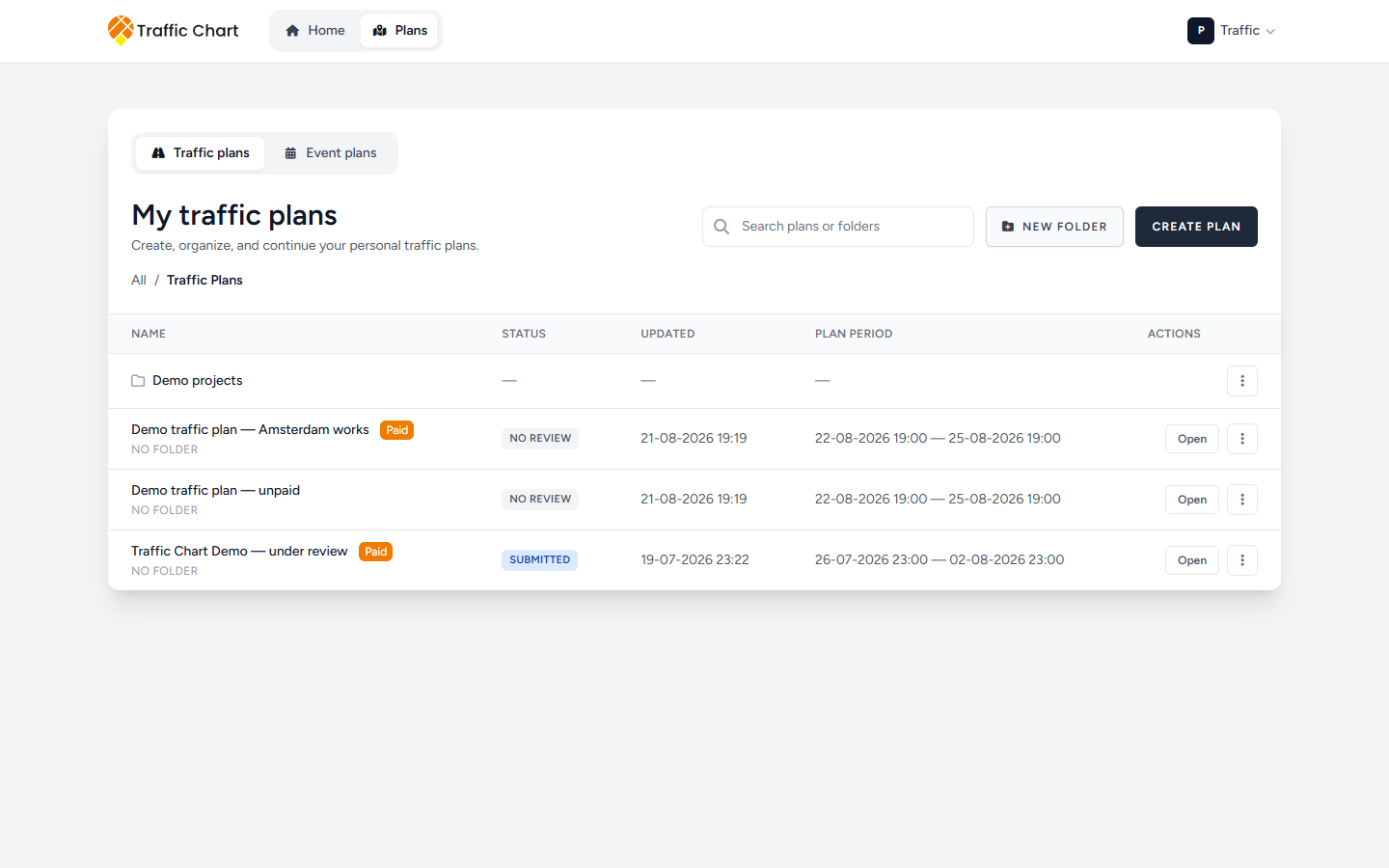
Open the right cabinet
- Click your initials and first name.
- Under Switch workspace, pick Personal or Acme Events.
- Open Plans in the top bar.
Home only shows recent work for the current workspace. The full list is Plans.
A missing row is usually the wrong workspace or the wrong tab. My plan does not appear in the list.
Traffic plans library
Personal title: My traffic plans. Subtitle: Create, organize, and continue your personal traffic plans.
Organization title: the organization name plus traffic plans, for example Acme Events traffic plans. Subtitle: Plans and folders shared with everyone who has access to this workspace.
Search, New folder, Create plan
Top right:
- Search (screen-reader label). Placeholder Search plans or folders. Type part of a plan or folder name. Search still finds work inside folders. The × clears the box.
- New folder — only if you can manage folders in this workspace.
- Create plan — only if you can create traffic plans here. It opens the same create form as Traffic Plan on Home.
If Create plan or New folder is missing, you do not have that permission in this workspace. An organization member who is not allowed to file work will still see plans they can Open.
Breadcrumb
The row under the title starts with All.
Then the root of the cabinet:
- Personal: Traffic Plans
- Organization: Organization plans
Click a folder name in the table to go in. Nested names appear after the root, separated by /. The last crumb is the folder you are in.
Inside a folder, the first table row is Go up one level.
All flattens the library so you see every plan, including those in folders. Plans then show the folder name under the title, or No folder.
The table
Columns: Name, Status, Updated, Plan period, Actions.
Folder rows show the folder name and dashes in the other columns. Click the row to open it.
Plan rows:
| You see | What it means |
|---|---|
| Title, for example Demo traffic plan | Click the row or Open to edit (if you may) |
| Paid | Unlimited signs on this plan. It does not unlock every plan you own |
| Editor: Sam Rivera | Organization only. The assigned editor for that plan |
| No folder | The plan is not in a folder (when All or search is on) |
| No review | No municipal review on this plan |
| Submitted, Changes requested, Approved, Rejected | Review state. In-app Approved is not a legal permit |
| No scheduled dates yet | No Start date / End date |
| Starts plus a date, or Ends plus a date | Only one side of the period is set |
| Start — end | Both dates are set |
Empty library, empty folder, or a search that matches nothing: No items found.
If the list cannot load: Could not load traffic plans. Folders failing separately: Could not load folders. Refresh, confirm Switch workspace, try again.
Plan menu (traffic)
Each plan has Open and a ⋮ menu.
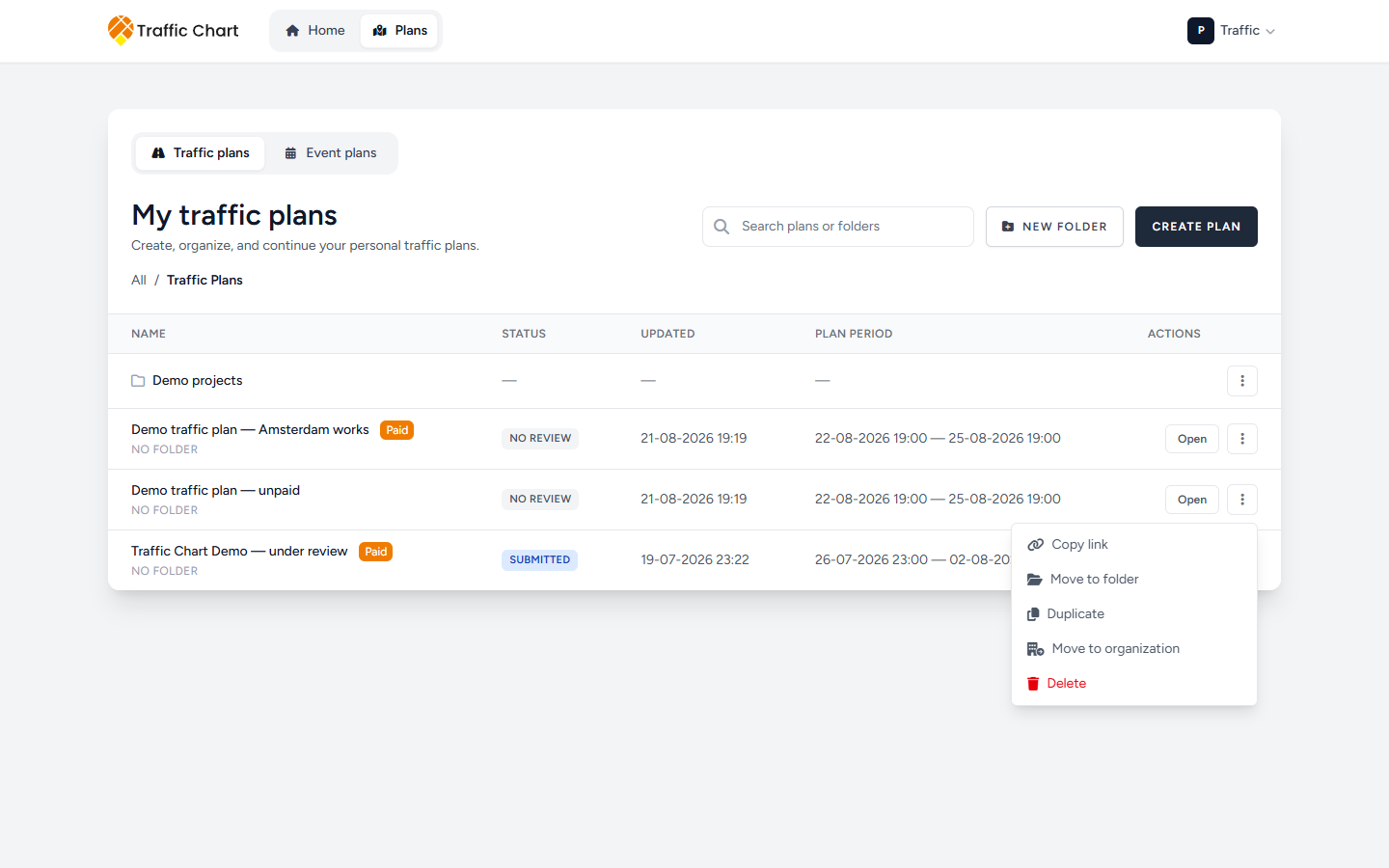
Items you may see:
- Copy link — public read-only URL. Toast Plan copied to clipboard! How the link behaves: Share a plan and read-only view.
- Move to folder — submenu Destination. Pick a folder, or No folder to leave it at the root. Success toast Traffic plan updated. Failure Unable to move traffic plan.
- Duplicate — a new plan named Copy of plus the original, for example Copy of Demo traffic plan. Toast Traffic plan duplicated. Paid does not carry over. Failures: Failed to duplicate plan. or Unable to duplicate traffic plan.
- Delete — confirm Are you sure you want to delete this plan? Success Plan deleted successfully! Failure Failed to delete plan. Deletes are permanent.
- Move to organization — Personal only, and only if you belong to at least one organization. Short version below; full dialogs: Move, copy, and assign an editor.
- Assign editor — organization Owner or Administrator. Short version below; same article for the dialog.
Rename is not on the plan menu. Rename a plan from the editor pencil Edit project title.
Who sees which item depends on the plan. In an organization, only the assigned editor can usually Duplicate or Delete. Other members still Open the plan read-only.
Move to organization (Personal only)
On a personal plan ⋮ menu, Move to organization opens Move “Demo traffic plan” to an organization.
You choose Destination organization, then How should it go? — Move (Recommended) or Copy.
Use this when the team must own the drawing. Do not use it to share a read-only link; that is Copy link.
You cannot send an organization plan back to Personal, or from Acme Events to another organization, from this menu.
Assign editor (organization owners and admins)
On an organization plan, Assign editor opens Assign an editor to “Demo traffic plan”.
Everyone with workspace access can Open the plan. Only that assigned editor can change it. The library shows Editor: Sam Rivera. Other members get Plan is read-only in the editor.
If you need the dialog fields, locked review, or folder moves into a team: Move, copy, and assign an editor.
Traffic folders
- Open the folder you want as parent, or stay at the root (Traffic Plans / Organization plans).
- Click New folder.
- The browser asks for Folder name. Example: Utrecht 2026.
- Toast Folder created.
The new folder is created where you are. There is no Location picker on traffic folders. To file it deeper, create it after you have opened the parent.
Folder ⋮ menu:
- Rename — prompt Rename folder, with the current name filled in. Toast Folder renamed. Failure Unable to update folder. Please try again.
- Move to organization — Personal only. Moves the folder structure into a team workspace. Details in Move, copy, and assign an editor.
- Delete — confirm Delete this folder? Make sure it is empty first. Toast Folder deleted. If it still has plans or folders: Cannot delete folder while it still contains items.
New folder failing: Unable to create folder. Please try again.
Event plans library
On Plans, when Event plans exist for this account, tabs switch between Traffic plans and Event plans.
If Event plans are off for this workspace, Event plans is greyed out. The line under the tabs is Not enabled for Personal. or Not enabled for Acme Events. (the workspace name). You cannot list or create event plans here until that workspace allows them. More: Event plans handbook.
If you never see the Event plans tab at all, this account does not include event plans.
Personal title: My event plans. Subtitle: Create and manage your event layout plans.
Organization title: Acme Events event plans. Subtitle: Event plans shared with everyone who has access to this workspace.
Top right:
- Search. Placeholder Search event plans or folders.
- New folder
- New Event Plan
Breadcrumb: All, then Folders (Personal) or Shared folders (organization). Search adds Search results. Inside a folder: Go up one level.
Table columns: Name, Updated, Event Date, Actions. There is no traffic-style Status or Plan period column. Event date empty shows an em dash.
Loading: Loading event plans…
Empty folder or empty root: No event plans or folders here yet. First-time empty copy you may also see: No event plans yet. Create your first one!
Search with no hits: No event plans or folders match your search.
Library failure: The event plan library could not be loaded.
Organization rows can show Editor: Sam Rivera the same way as traffic.
Event plan menu
Open, then ⋮ (Actions for that plan name):
- Copy link — toast Link copied. Failure The link could not be copied.
- Move to folder — dialog Move event plan. Choose a folder for "Utrecht festival". Field Location. No folder or a folder name. Move / Cancel. Toast Event plan moved. Failure The event plan could not be moved.
- Duplicate — toast Event plan duplicated. Title prefix Copy of, for example Copy of Utrecht festival. Failure Failed to duplicate event plan.
- Delete — Are you sure you want to delete this event plan? Toast Event plan deleted. Failure Failed to delete event plan.
- Move to organization / Assign editor — same rules as traffic, when those items appear.
Event folders
New folder opens a dialog, not a browser prompt.
| Dialog | Fields | Submit |
|---|---|---|
| Create folder | Folder name, Location (root Folders / Shared folders, or a parent) | Save |
| Rename folder | Folder name | Save |
| Move folder | Choose a new location for "Utrecht 2026". then Location | Move |
| Delete folder | Delete "Utrecht 2026"? A folder must be empty before it can be deleted. | Delete |
Every dialog has Cancel.
Toasts: Folder created, Folder renamed, Folder moved, Folder deleted.
Failures: The folder could not be saved. The folder could not be deleted. Move its contents first.
Move to organization on a Personal event folder uses the same team-move dialog as traffic folders.
Worked example
Sam Rivera draws Demo traffic plan in Personal while scouting Amsterdam.
- Plans shows My traffic plans.
- New folder → Utrecht 2026.
- Plan ⋮ → Move to folder → Destination Utrecht 2026.
- Search Demo still finds it from All.
- After joining Acme Events, Sam still sees an empty Acme Events traffic plans until the plan is moved or copied — Move, copy, and assign an editor.
Alex de Vries, a Member on Acme Events, can Open Sam’s organization plan. Unless Alex is Editor: Alex de Vries, the map is read-only.
What good looks like
The title matches the workspace you meant (My traffic plans or Acme Events traffic plans). You are on Traffic plans or Event plans, not the greyed-out tab. Search or the folder path shows Demo traffic plan. Paid is only on plans you unlocked. In a team, Editor: names the person who may draw.
If something blocks you
| Situation | Where to go |
|---|---|
| Empty Plans, but you remember the work | My plan does not appear in the list |
| Not enabled for Personal. / Not enabled for Acme Events. | Event plans handbook |
| Map opens but you cannot draw | I can’t open or edit a plan |
| Need the team to own the plan | Move, copy, and assign an editor |
| Need a live URL, not a file | Share a plan and read-only view |