
The top bar changed. Home, Plans, and your account menu do different jobs. This page is the picture of that chrome: every tab, the logo, Settings, the footer, and why you can see Demo traffic plan without being able to edit it.
Use it when you feel lost after login. Skip it if you already have the map open and only need signs — that is the editor, not Home.
The four places you will live
| Place | What it is | How you get there |
|---|---|---|
| Home | Start a new plan, or continue a recent one | Top bar Home, or the Traffic Chart logo from the plans list |
| Plans | The full library for the workspace you are in | Top bar Plans |
| Editor | The map where you draw | Open a plan, or finish Start planning |
| Reviews | Municipal review inbox (some accounts only) | Top bar Reviews — not your drawing library |
The old “dashboard” is Plans. It is not Home.
Home
After login, Home greets you with Welcome back, your name (for example Welcome back, Sam Rivera). The subtitle is Would you like to continue with a previous plan or start a new one?
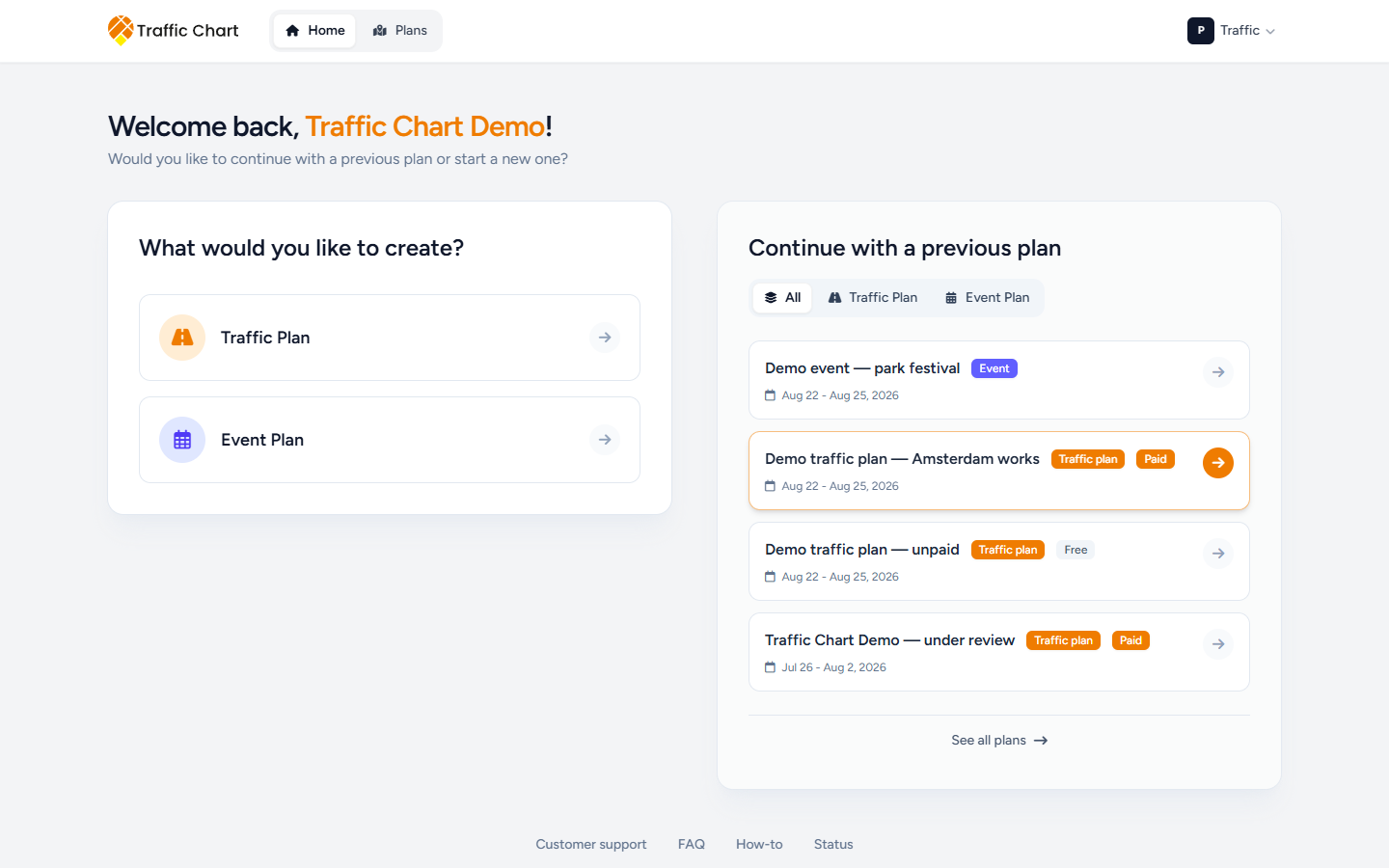
Left: What would you like to create? — Traffic Plan (Design road and traffic layouts.) or Event Plan (Organize venues and event layouts.).
Right: Continue with a previous plan. Filter chips include All. Row badges include Traffic plan, Event, Paid, or Free. Continue opens that plan. Empty state: No recent plans found. See all plans opens the library for the workspace you are in now.
Footer links: Customer support, FAQ, How-to, Status. How-to is the four-minute product video. Status is status.traffic-chart.com. FAQ is this help center. Customer support is the public contact page (you can also mail customer@traffic-chart.com).
Home only shows recent work from the current workspace. If Demo traffic plan “vanished”, you are probably still on Personal while it lives in Acme Events — or the other way around. My plan does not appear in the list.
The first-run path that lands you here (Creating your account..., Check your inbox) is First login and account onboarding.
Plans
Plans is the library. The title tells you which workspace you are in:
- My traffic plans — Personal
- Acme Events traffic plans — team workspace (organization name plus traffic plans)
Event library titles follow the same pattern: My event plans or Acme Events event plans.
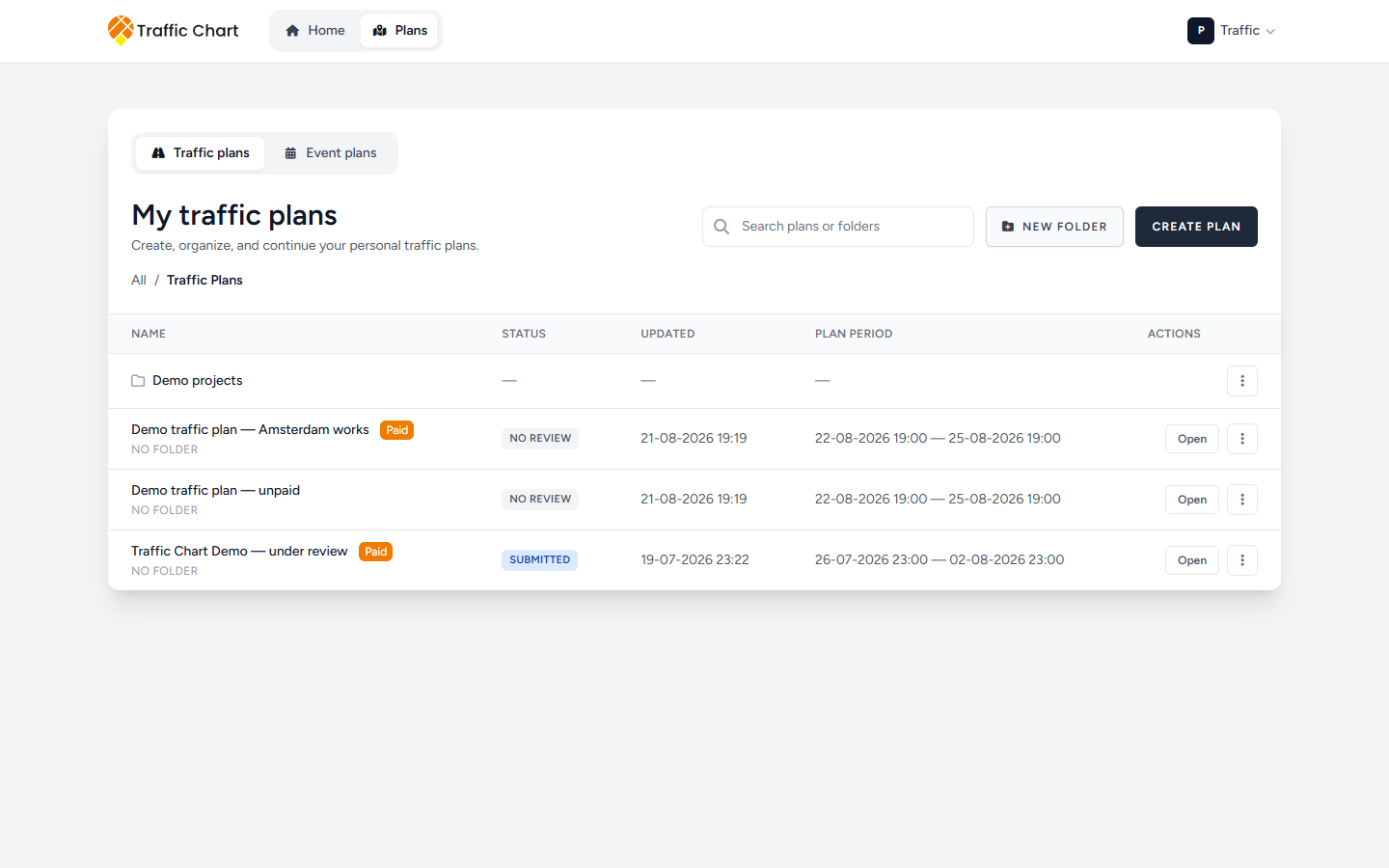
If Event plans are on for this workspace, tabs switch between Traffic plans and Event plans. If they are not, the event tab is greyed out and the line under the tabs reads Not enabled for Personal. (or Not enabled for Acme Events.). You cannot create or list event plans there until an administrator enables them. Workspace unavailable or not enabled.
From here you search (Search plans or folders), open folders, Create plan / New Event Plan, duplicate, share, or (in an organization) Assign editor. Empty list: No items found. Folders, search, and the ⋮ menu are in Folders, search, and the plans library.
In an organization row you may see Editor: Sam Rivera. That is the assigned editor — the only person who can change that plan. Everyone else can still Open it.
Home vs Plans vs editor vs Reviews
Home is the start screen. It is not a complete list of every plan you ever made.
Plans is the complete library for this workspace. Use it when you need a folder, a search, or an older plan that is not in Continue with a previous plan.
The editor is full-screen. There is no Home / Plans tab while you draw. Leave it with the Traffic Chart logo (that opens Plans for this plan’s workspace) or with the browser back control.
Reviews is only for Events department and traffic-expert accounts. It opens Review dashboard (Track your tasks and municipal dossiers.). It is not where organisers draw. If you do not see Reviews, you do not have a reviewer role — that is expected.
Account menu
Click your initials and first name (top right).
- Switch workspace — Personal (badge P) and each organization you can open (orange initials). Grey rows can say Your membership is suspended, Organization suspended, Workspace not enabled yet, Organization unavailable, This workspace is not currently available., or Suspended. Workspace unavailable or not enabled.
- Organization settings (sliders) — members and access for the organization you can administer
- Settings — your profile, password, security
- Language — English, Nederlands, Deutsch, Français
- Log out
The last workspace you opened is remembered. Plans and new plans from Home use that workspace. Accept invitation does not switch workspace — open Switch workspace afterwards.
Open the account menu and Switch workspace from Personal to Traffic Chart Demo.
Settings
Settings has two tabs:
- Account — profile, language, password, passkeys, 2FA, sessions. Manage your account.
- Organizations — the organisations you belong to. If you are not in any, the tab is visible but disabled: You are not a member of an organization.
From Organizations you Open workspace or open Members & access. Empty: No organizations yet.
Logo behaviour (easy to miss)
- From the editor, the logo takes you back to Plans for that plan’s workspace — not to Home.
- From Plans, the logo takes you to Home.
If you clicked the logo expecting the map, you are on Plans. Open the plan again.
Assigned editor vs seeing a plan
Seeing a plan is not editing it.
On Plans, anyone with access can Open Demo traffic plan. In Acme Events, only the assigned editor (the row may read Editor: Sam Rivera) can change, duplicate, or delete it. Everyone else gets Plan is read-only in the editor. Sketch tools, Save, and Traffic Objects stay disabled. Tooltip: Plan is read-only.
Owners and administrators use Assign editor on the plan menu. If Sam’s membership is Suspended, nobody can edit until someone reassigns the pen.
A share link is always read-only, even for the person who created the plan, until they open it from Plans while logged in.
Footer
The same four labels appear on Home and on Continue your traffic plan (the dates screen for older plans that still need Country, Plan name, or dates):
| Label | Where it goes |
|---|---|
| Customer support | Public contact page |
| FAQ | Frequently asked questions |
| How-to | Tutorial video |
| Status | Incidents and uptime |
If you feel lost
| You expected | Try this |
|---|---|
| A list of every plan you ever made | Open Switch workspace and check Personal and each organization. Then Plans. |
| The map editor | You are on Home. Open a plan, or create one with Start planning. |
| Company members | Settings → Organizations, or Organization settings next to Switch workspace. |
| Review tasks | Reviews in the top bar — only if you have a reviewer role. |
| Event plans | If the tab says Not enabled for Personal., that workspace cannot create them. |
| A grey workspace | Read Workspace not enabled yet or Organization unavailable — Workspace unavailable or not enabled. |
Next: Your first plans.