
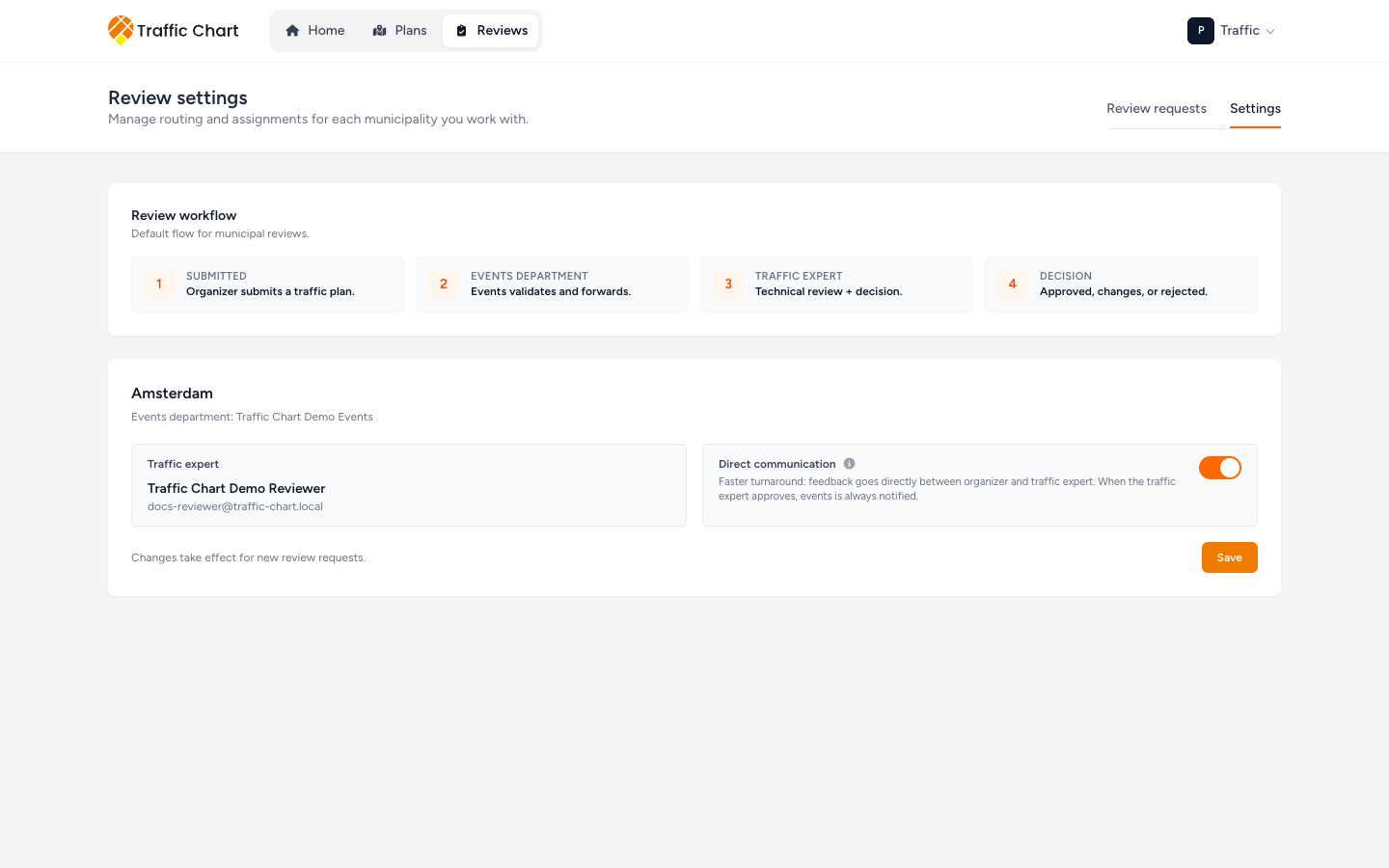
Review settings shows who reviews for each municipality you work with, and whether traffic-expert feedback goes straight to the organiser.
When you need this
Use it if you are Events department or a traffic expert, and your account is linked to one or more municipalities.
You do not pick a new Events person or traffic expert on this page. Those names are already linked. The assigned Events department person can turn Direct communication on or off, then Save. A traffic expert can open the page and read the names, but Save stays disabled for them.
If you only draw plans, you do not need this. See Review for organisers.
Open the page
- Click Reviews in the top bar.
- Open Settings next to Review requests.
The heading is Review settings. The subtitle is Manage routing and assignments for each municipality you work with.
If you are not linked to any area, you see No municipalities assigned and Once you are assigned to a municipality, its settings will appear here. Email customer@traffic-chart.com to be linked. Do not invent a municipality in the app.
Default workflow
The Review workflow strip is a picture of the default municipal path. Description: Default flow for municipal reviews.
- Submitted — Organizer submits a traffic plan. In practice you still Start review session; the organiser does not send the first request.
- Events department — Events validates and forwards.
- Traffic expert — Technical review + decision.
- Decision — Approved, changes, or rejected.
That picture is the traffic-plan path.
Event plans often stay with Events. On those plans Events sees Make a decision on this event plan. and can Approve, Request changes, or Reject without a traffic expert. The dossier then shows Traffic expert as Not applicable. Map Review tools still never appear for Events. See Review for reviewers.
Changes take effect for new review requests. A session that is already Submitted keeps the routing it started with.
What each municipality card shows
Each card is one municipality.
Events department: the person assigned to that step. This line is information, not a dropdown. If nobody is named, you see Unknown.
Traffic expert: name and email when someone is linked. If nobody is linked, the field shows Unassigned.
If nobody is linked, you see No traffic expert linked and Ask the traffic expert to create a Traffic Chart account and email customer@traffic-chart.com so we can link their account to this municipality. Until that is done, Events cannot Forward to traffic expert.
Direct communication — on
Direct communication is the switch you can change (when Save is enabled for you).
The hint when it is on: Faster turnaround: feedback goes directly between organizer and traffic expert. When the traffic expert approves, events is always notified.
The info text adds: Events is notified automatically once the plan is approved. Disable only if events should relay feedback.
Leave it on unless Events must see and relay every traffic-expert note.
When it is on:
- After the traffic expert sets Changes requested or Rejected, the organiser can open Send for review as soon as the plan unlocks.
- The organiser’s Comments card uses Update the plan based on the reviewer comments, then submit again.
- They do not wait for Forward feedback to submitter.
- Approve still notifies Events.
Direct communication — off
Turn the switch off, then Save, only if Events must read the traffic-expert note and pass it on.
When it is off:
- After the traffic expert decides, the organiser may see The traffic expert left feedback. The events department will forward it to you.
- My tasks and Municipality dossiers can show Forward feedback on that row.
- Events must click Forward feedback to submitter on the plan.
- Until that click, Send for review fails with Municipality feedback has not been forwarded to you yet.
- Approve still notifies Events.
This extra hop is easy to miss. Tell Events it is their job, or turn the switch back on for the next request. The current Submitted session keeps the setting it started with.
Save
- Set Direct communication.
- Click Save (or Saving...).
- Tell colleagues which path is live.
- On the next real plan, check My tasks.
If Save is disabled, you can view the municipality but not edit it. That is normal when you are the Traffic expert for the area, or when you are not the assigned Events person.
What good looks like
- Every municipality you review has a named Events department.
- A Traffic expert is linked wherever Events must forward traffic plans.
- The team agrees whether Direct communication is on.
- Event plans are not stuck waiting for a traffic expert who was never in the flow.
- Organisers are not stuck waiting for Forward feedback that nobody knows is their job.
If something blocks you
| Situation | What to try |
|---|---|
| No municipalities assigned | Ask Traffic Chart to link your account. |
| No traffic expert linked | They register, then email customer@traffic-chart.com. |
| Organiser cannot resend after traffic-expert comments | Turn Direct communication on for new requests, or Forward feedback to submitter on the current one. |
| Traffic expert cannot Start review session | Events is configured and has not forwarded yet. That is expected. |
| Events cannot mark the map on an event plan they decide | Expected. Review tools are traffic-expert only. Write the decision in Events department actions. |
How to run a session day to day: Review for reviewers. What the organiser sees: Review for organisers. Copies of reviewed plans: Review dossier and copies.