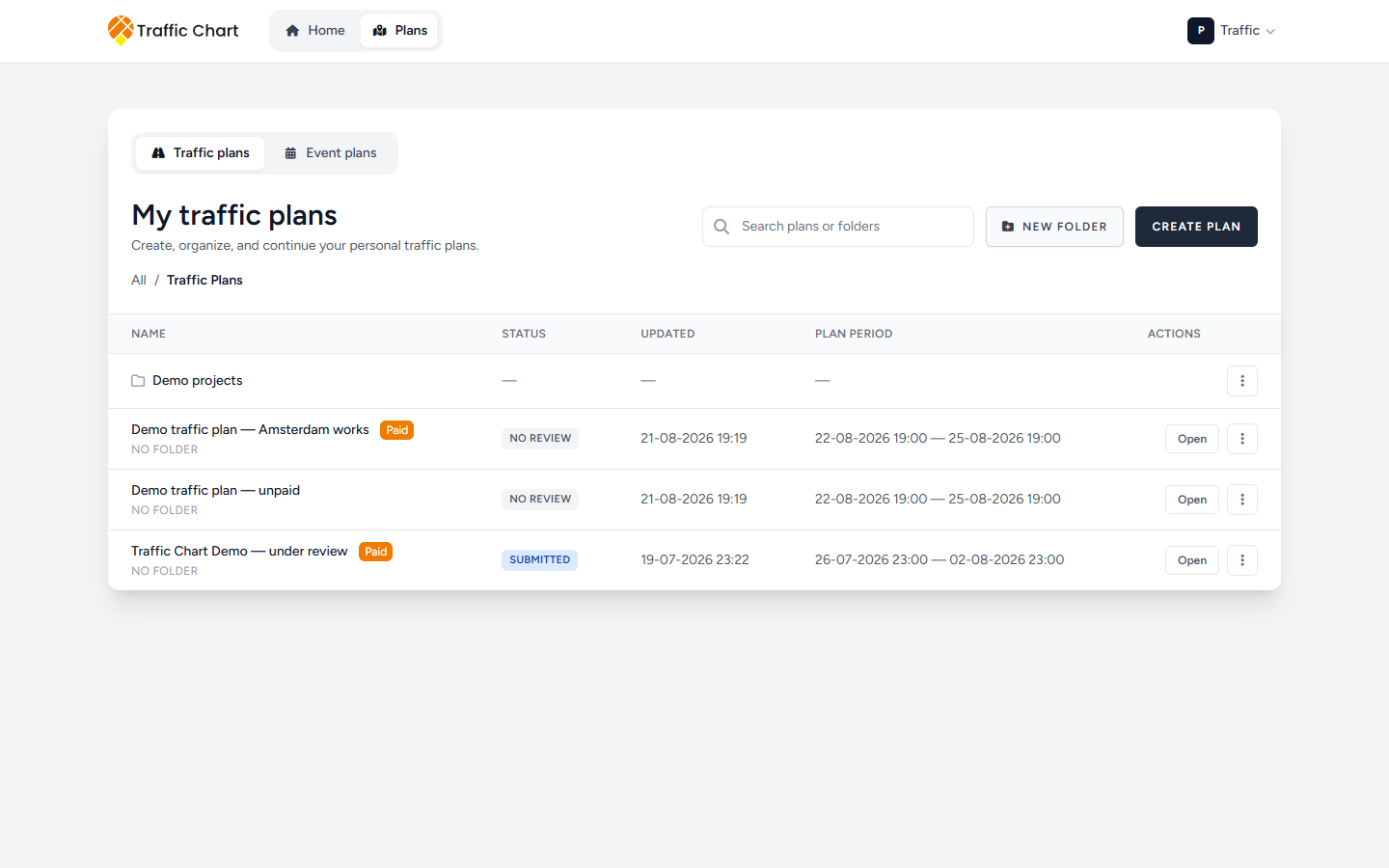
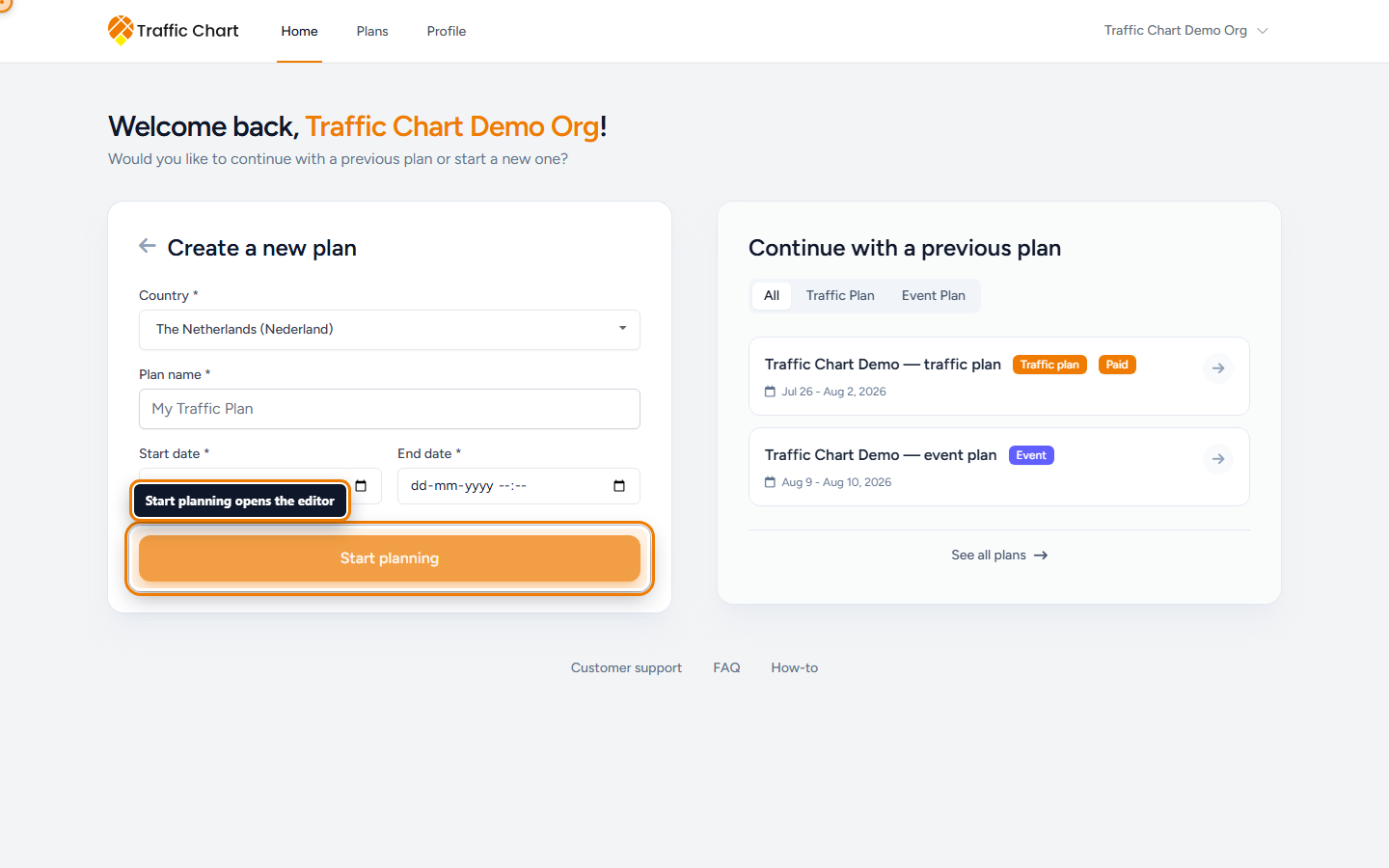
*motion — home → view all plans → library controls*
This page is the traffic plan as a document: create it in the right workspace, keep it findable, save it, and share a live link. Drawing and PDF files have their own articles.
Use this when you need a new plan, a folder, a share URL, or a team owner. Skip it if you already have the map open and only need signs, layers, or export.
## Home, Plans, and the editor
**Home** is `/` after login (**Welcome back,** your name). It is not the map. Choose **Traffic Plan** or **Event Plan**, or **Continue with a previous plan**. **See all plans** opens the library.
**Plans** is the library for the current workspace. The editor is the full-screen map after **Start planning** or **Open**. The logo from the editor returns to **Plans**, not **Home**.
**Event plans** have their own tab. A “missing” traffic plan is often the wrong tab or the wrong workspace — [My plan does not appear in the list](/hc/test/articles/plan-not-in-list).
## Personal or organization
You always have **Personal**. An **organization** is a separate team workspace. Check **Switch workspace** (account menu) before you create anything. New plans from **Home** go to the workspace you last opened.
| | **Personal** | Organization |
|---|--------------|----------------|
| Library title | **My traffic plans** | **Acme Events traffic plans** (organization name + **traffic plans**) |
| Who can open | You | Everyone with access to that workspace |
| Who can change the plan | You | Only the **assigned editor** |
Creating a plan in an organization makes you the assigned editor. Other members open it read-only until an Owner or Administrator uses **Assign editor**. Team rules: [Organizations and members](/hc/test/articles/organizations-and-members). If **Switch workspace** greys out a row, read **This workspace is not currently available.** (or **Workspace not enabled yet**, **Organization unavailable**). [Workspace unavailable](/hc/test/articles/workspace-unavailable).
## Create a traffic plan
1. Confirm **Switch workspace** shows **Personal** or the organization you meant.
2. On **Home**, choose **Traffic Plan**. From **Plans**, **Create plan** starts the same form.
3. Set **Country** (required — this loads the sign catalogue).
4. Enter **Plan name** (placeholder **My Traffic Plan**).
5. Set **Start date** and **End date**. Complete both the date and the time. Start must be before end.
6. Click **Start planning**.
The editor opens on the map. Rename later with the pencil next to the title (**Edit project title**). Dates stay in the header as **Start date** and **End date**.
**Country** loads the sign catalogue. Dates appear on exports, and **Show Melvin** stays disabled until they are filled (**Fill in a date to use this option**). Older plans may show **Continue your traffic plan** and ask you to finish **Country**, **Plan name**, and **Duration** first (**Continue planning**). Validation: **Select a country.**, **Enter a plan name.**, **Select a start date and time.**, **Start date must be before end date**, **Complete the start date with a time.** If create fails: **Failed to create project. Please try again.** / **Could not create project**. Success: **Project created!**
## Find and organise on Plans
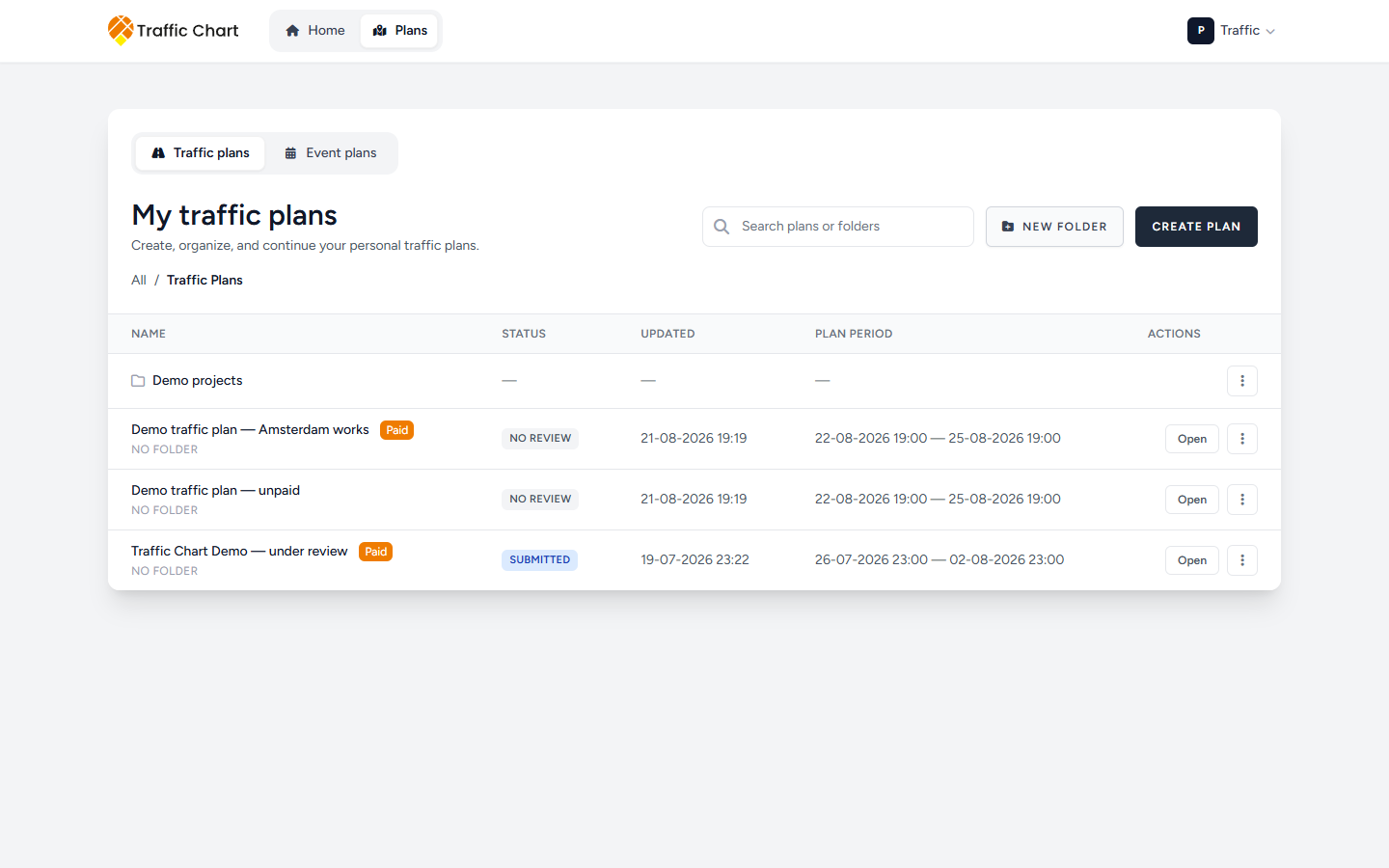
**Plans** lists **Name**, **Status**, **Updated**, **Plan period**, and **Actions**. Search with **Search plans or folders**. **Open** a plan, or click its name row. **Paid** on a row means *this* plan is unlocked for unlimited signs. In an organization, **Editor: Sam Rivera** (the assigned editor’s name) shows who can change that plan.
The ⋮ menu on a plan includes **Open**, **Copy link**, **Move to folder**, **Duplicate**, **Delete**, **Move to organization** (from **Personal**), and **Assign editor** (organization Owners and Administrators). **Rename** on the ⋮ menu is for **folders**, not plans. Rename a plan from the editor title.
Empty list: **No items found.** Folders, search, breadcrumbs, and every library action: [Folders and the library](/hc/test/articles/folders-and-the-library).
## Folders
**New folder** opens **Create folder**. Enter **Folder name**, pick **Location**, then **Save**. Toast: **Folder created**. On a plan, **Move to folder** and pick a **Destination** (or **No folder**). On a folder you can **Rename**, **Move folder**, or **Delete** — delete only works when the folder is empty (**Delete this folder? Make sure it is empty first.** / **Cannot delete folder while it still contains items.**). Personal libraries use **Folders**; organization libraries use **Shared folders**. **Go up one level** returns to the parent.
How the library works in full: [Folders and the library](/hc/test/articles/folders-and-the-library).
## Move or copy into an organization
From **Personal**, the plan menu **Move to organization** asks **How should it go?** **Move** (**Recommended**) leaves **Personal**; the public link stays the same. **Copy** keeps the plan in **Personal** and gives the organization a separate plan with a new public link. You cannot move a plan that is in municipality review (**Under review — move unavailable**); **Copy** is still allowed. You cannot move an organization plan back to **Personal**, or from one organization to another.
The dialog, folder-move summary, and every toast: [Move, copy, and assign editor](/hc/test/articles/move-copy-and-assign-editor).
## Assign an editor
On an organization plan, Owners and Administrators open **Assign editor**. Choose **Assigned editor** (**Choose an editor**), then **Save assignment**. Everyone with workspace access can **Open** the plan. Only that assigned editor can change, duplicate, or delete it. Other members get **Plan is read-only**. If the assigned editor is suspended, nobody can edit until someone reassigns the plan.
Full dialog and membership-inactive cases: [Move, copy, and assign editor](/hc/test/articles/move-copy-and-assign-editor).
## Save
In the editor: **Auto-save** and **Save**. The auto-save preference is stored on your account. Hover the switch for **Auto-save: saving**, **Auto-save: unsaved changes**, or **Auto-save: saved**. With auto-save on, **Save** is disabled (**auto-save is enabled**).
Save is blocked for **Plan is locked while under review**, **This plan is locked because it has been approved**, or **Plan is read-only**. Wait for saved before you send a link or start a PDF. Title, dates, and every save toast: [Auto-save, title, and dates](/hc/test/articles/auto-save-title-and-dates).
## Share a live link
Each traffic plan has a public address such as `https://traffic-chart.com/traffic-plans/` plus the plan’s id. Anyone with that URL can view the map **read-only**. They do not need an account.
1. On **Plans**, **Copy link**.
2. Or in the editor click **Export**, then copy **Sharable link** (**RECOMMENDED**).
3. Send it to a colleague, municipality, or contractor.
**Sharable link** stays up to date after you save. Many municipalities prefer that over a file. Use **Export files** only when someone asks for PDF or Excel — [Export and print traffic plans](/hc/test/articles/export-and-print).
Treat the URL like a document you would email. Do not post it on public social media. If a link spread too widely, email [customer@traffic-chart.com](mailto:customer@traffic-chart.com). Viewers can pan and zoom. They cannot place signs or save. What a public viewer sees: [Share a plan and read-only view](/hc/test/articles/share-link-and-read-only).
## What good looks like
You are in the intended workspace. The title and dates match the works. **Auto-save: saved** (or you pressed **Save**). The people who must see the drawing have the share link, not a stale attachment.
## If something blocks you
| Situation | Where to go |
|-----------|-------------|
| Plan not in **Home** or **Plans** | [My plan does not appear in the list](/hc/test/articles/plan-not-in-list) |
| Map will not let you edit | [I can’t open or edit a plan](/hc/test/articles/cannot-edit-plan) |
| Sign limit or **Paid** questions | [Billing, free use, and credits](/hc/test/articles/billing-free-use-and-credits) |
| Need the map chrome | [Tour of the traffic plan editor](/hc/test/articles/editor-tour) |
## Related articles
- [Find your way around](/hc/test/articles/find-your-way)
- [Folders and the library](/hc/test/articles/folders-and-the-library)
- [Move, copy, and assign editor](/hc/test/articles/move-copy-and-assign-editor)
- [Auto-save, title, and dates](/hc/test/articles/auto-save-title-and-dates)
- [Share a plan and read-only view](/hc/test/articles/share-link-and-read-only)
- [Workspace unavailable](/hc/test/articles/workspace-unavailable)
- [Organizations and members](/hc/test/articles/organizations-and-members)
- [Tour of the traffic plan editor](/hc/test/articles/editor-tour)
- [Export and print traffic plans](/hc/test/articles/export-and-print)